How to Get Help and Support with Atarim
Where to find an answer, when to ask a person, and what to include so the first reply is the useful one.

Most questions have an answer already written. The rest are worth asking a person — and how you ask makes a considerable difference to how quickly you get somewhere. Help sits one click away in the sidebar, with the messenger available on every page as a fallback.
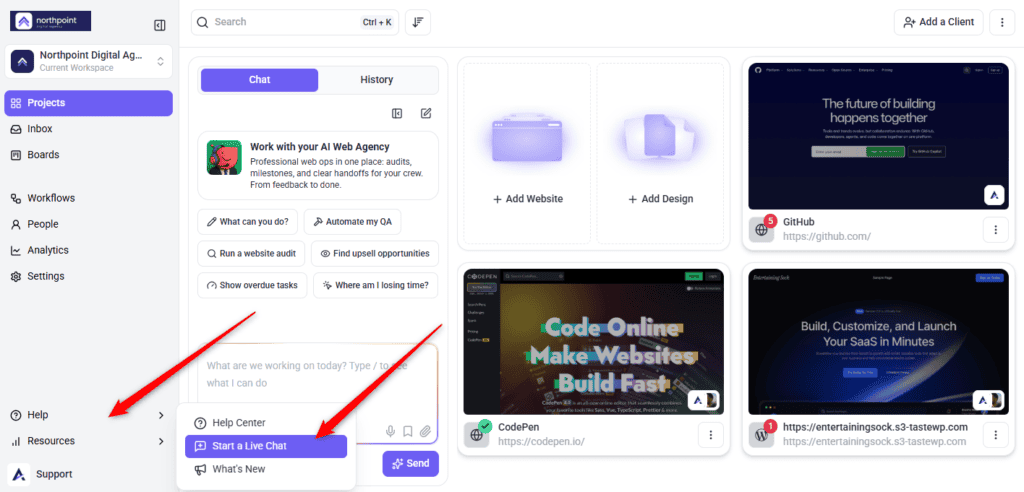
Help is always one click away in the sidebar.
Most questions have an answer already written. The rest are worth asking a person — and how you ask makes a considerable difference to how quickly you get somewhere.
Where to Get Help
| Channel | Where to find it | Best for |
|---|---|---|
| Help Center | The Help menu in the sidebar, or atarim.io/help | How something works, step-by-step setup, and known limitations. |
| Live chat | Start a Live Chat in the Help menu, or the messenger icon at the bottom right of any Atarim page | Something behaving unexpectedly, or a question the articles do not cover. |
| support@atarim.io | Anything needing attachments, or where you would like a written trail. | |
| Community | atarim.io/community | How other agencies handle a workflow, and general discussion. |
| Status page | Linked from the Help Center footer | Checking whether a problem is yours or ours. |
Using the Help Menu
- In the Atarim sidebar, select Help. A menu opens with the support options.
- Choose Help Center to browse or search the documentation, or Start a Live Chat to talk to someone. Live chat opens in the dashboard, so you do not lose your place.
Open a Support Ticket Through the Messenger
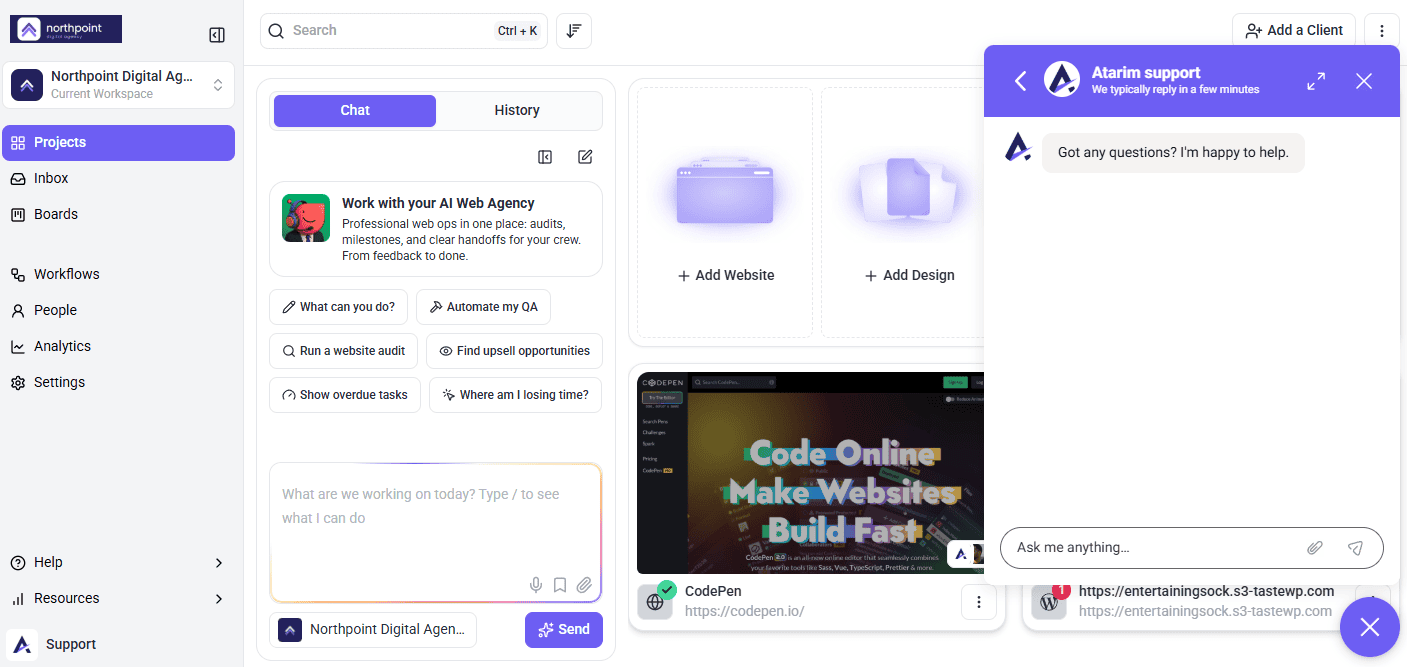
The messenger is available on Atarim pages independently of the sidebar, which makes it the more reliable route if the Help menu is not available to your role.
- Find the messenger icon at the bottom-right corner of the page.
- Select it and complete the form: Name, Email Address and a description of the issue.
- Submit. A support representative replies to the email address you gave.
Search the Help Center First
The Help Center covers setup, integrations, collaboration, billing and troubleshooting, and it is organised into collections so you can browse when you do not know the term to search for.
| If your question is about | Look in |
|---|---|
| Getting set up for the first time | Getting Started |
| Connecting another tool | Integrations |
| Working with clients | Client Collaboration |
| Tasks, projects and boards | Managing Projects, or Dashboard |
| Plans, invoices or account access | Account & Billing |
| Something not working | FAQs and Troubleshooting |
What to Include When You Contact Support
This is the part that decides whether the first reply solves your problem or asks you three questions. None of it takes long to gather.
| Include | Why it helps |
|---|---|
| What you were trying to do | The goal often suggests a different route that works today. |
| What happened instead | Including the exact wording of any error message. |
| The steps you took | So support can reproduce it rather than guess. |
| The project or website involved | Behaviour often depends on how that project is configured. |
| A screenshot or short recording | Frequently the single most useful thing you can send. |
| Your browser, and whether you have tried another | Rules out extensions and cached state quickly. |
Things Worth Checking Yourself First
A handful of issues have well-known causes, and checking them takes less time than waiting for a reply.
| Symptom | Worth checking |
|---|---|
| A website will not load in Atarim | Whether it loads in a private browser window, and whether a firewall or security rule is blocking Atarim. |
| You cannot sign in | Password reset, and whether two-factor is set up on the account. |
| A feature is locked or missing | Whether it is included on your plan, and whether your role has permission for it. |
| An integration stopped working | Whether keys were regenerated on either side, and whether the connection needs re-authorising. |
| Something looks stale | A hard refresh, and whether a different browser shows the same thing. |
FAQs
How do I reach a person quickly?
Use Start a Live Chat from the Help menu in the sidebar. It opens inside the dashboard, so you keep your place.
What is the support email address?
support@atarim.io. Use it when you need to attach files or want a written record.
The Help menu is not in my sidebar
It is permission-controlled, so your role may not have access. Email support directly, or ask an Administrator on your team.
How do I know if Atarim is down?
Check the status page linked from the Help Center footer before assuming the problem is at your end.
Can clients and guests contact support?
Anyone can email support, but questions about a specific project are usually better directed to the agency running it — they can see the configuration.
What should I send with a bug report?
What you were doing, what happened, the exact error wording, the project involved, and a screenshot or recording if you can.
How long does a response take?
Support aims to reply as quickly as possible. Clear details and screenshots speed it up considerably, since they remove a round of questions.
Can I schedule a call?
Support runs mainly through the messenger and email, but for anything needing deeper troubleshooting the team may suggest a call or a screen-sharing session.
I have not had a reply — what now?
Check your spam folder first. If there is nothing, write again referencing your original request so the thread stays together.
Do I need admin access to contact support?
No. Anyone can request support. Having the account email and a link to the affected project or task will speed things up.
Where can I talk to other Atarim users?
The community at atarim.io/community, which is the better place for “how does your agency handle this” questions.
Common issues
- The Help menu is not in your sidebar — it is permission-controlled. Use the messenger at the bottom right, email support, or ask an Administrator.
- A feature is missing rather than broken — check whether your plan includes it and whether your role permits it. Those two look identical from the outside.
- No reply yet — check your spam folder, then write again referencing the original request rather than starting a fresh one.
- Support asks you three questions instead of solving it — the first message was missing detail. Include what you were doing, what happened, the exact error wording and the project involved.
- You are not sure whether it is an outage — check the status page linked from the Help Center footer.
- Support cannot find your account — write in from the email address the account is registered under.
Conclusion
Search the Help Center first, since most questions are already answered there. When you do need a person, live chat from the Help menu is the quickest route, and email suits anything needing attachments.
Whichever you choose, the detail you include up front is what decides whether the first reply is the useful one. What you were doing, what happened, and a screenshot will usually get you there. Discover Troubleshooting Common Issues
Tips & best practices
- Search using the exact words on screen rather than your own description.
- Check the status page before reporting something that stopped suddenly.
- Send a short recording rather than writing a long description.
- Include the project or website name — behaviour often depends on its configuration.
- Never send passwords or API keys.
- Check plan and permissions before assuming a missing feature is a fault.
- Reply promptly to follow-up questions — most delays come from waiting on the reporter, not on support.
- Include a link to the affected project, task or collaboration link.