What to Do if You Can’t Access Atarim
Locked out? Work through these five checks and you’ll almost certainly be back in.
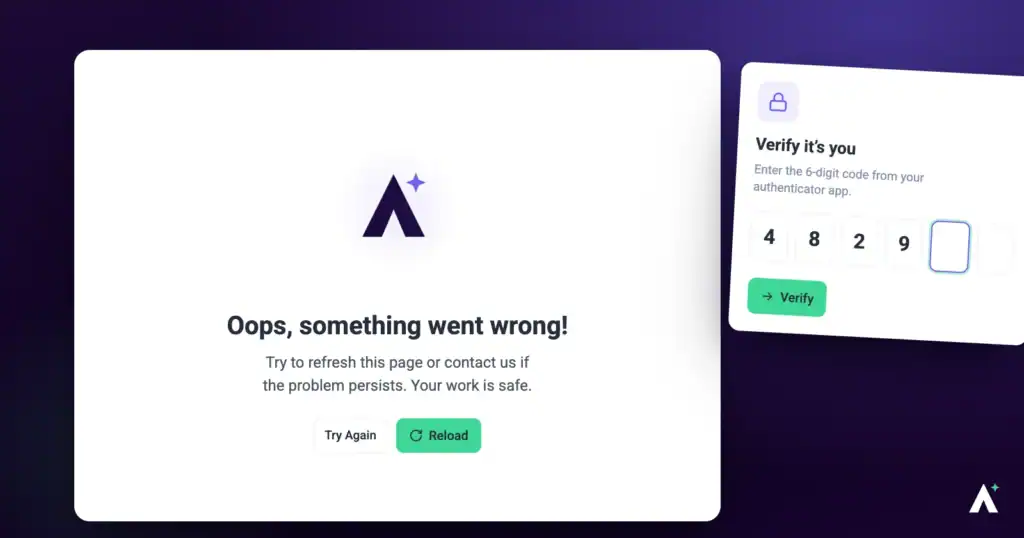
If you can’t sign in, the cause is usually one of five things — a mistyped password, an expired verification code, a browser holding stale state, a permission change, or something that needs support. Work down the list in order; they are arranged by how often each turns out to be the problem.
Most lockouts are a password or a verification code away from resolved.
If you can’t sign in, the cause is usually one of five things. Work down the list — they’re ordered by how often each turns out to be the problem.
| Check | Rules out |
|---|---|
| 1. Your login details | Typos, and a forgotten password. |
| 2. Two-factor authentication | A missing or expired verification code. |
| 3. Your browser | Cached state, extensions, and connection problems. |
| 4. Account permissions | Access changed or removed by an administrator. |
| 5. Support | Everything else. |
1. Check Your Login Details
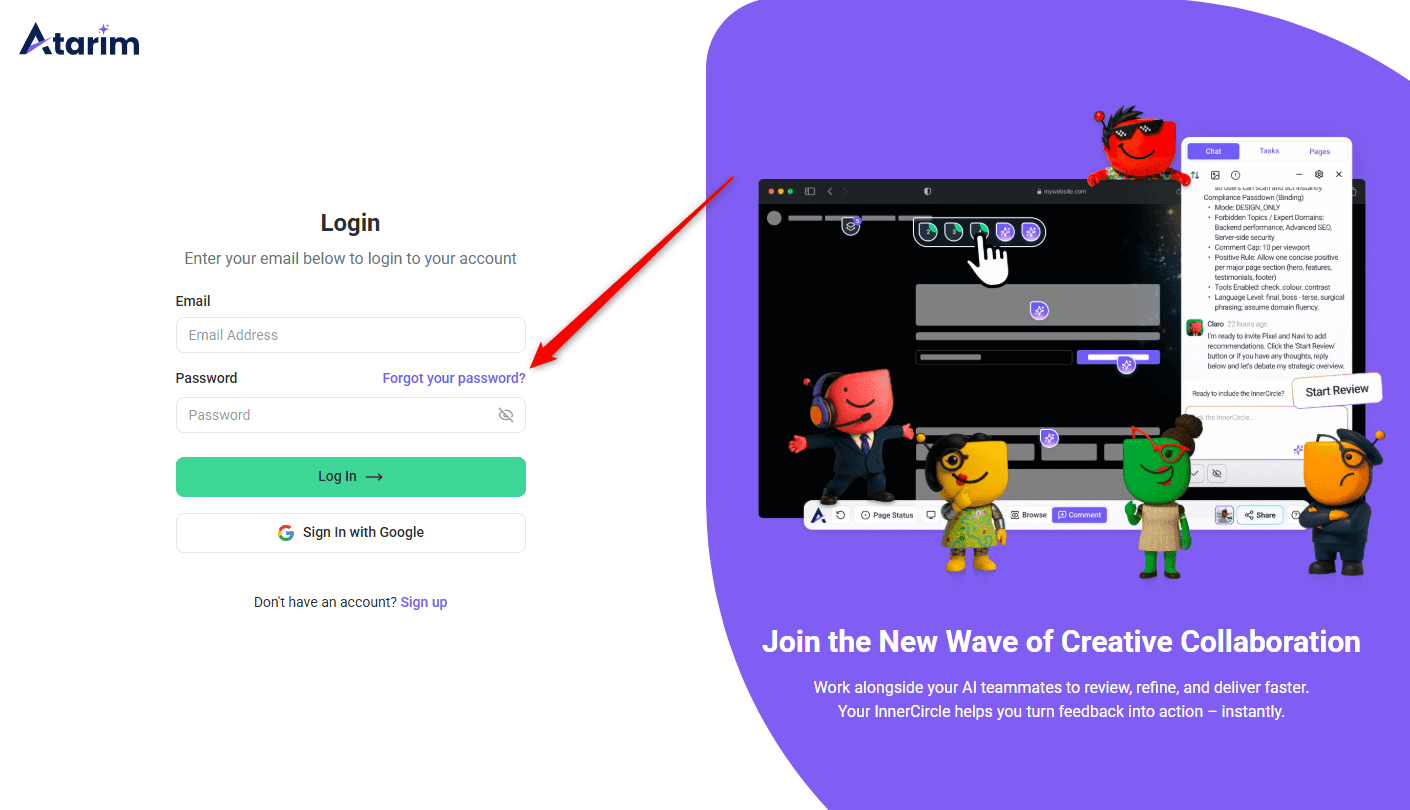
Most lockouts turn out to be the wrong address or a stray space rather than a forgotten password.
Instructions:
2. Check Two-Factor Authentication
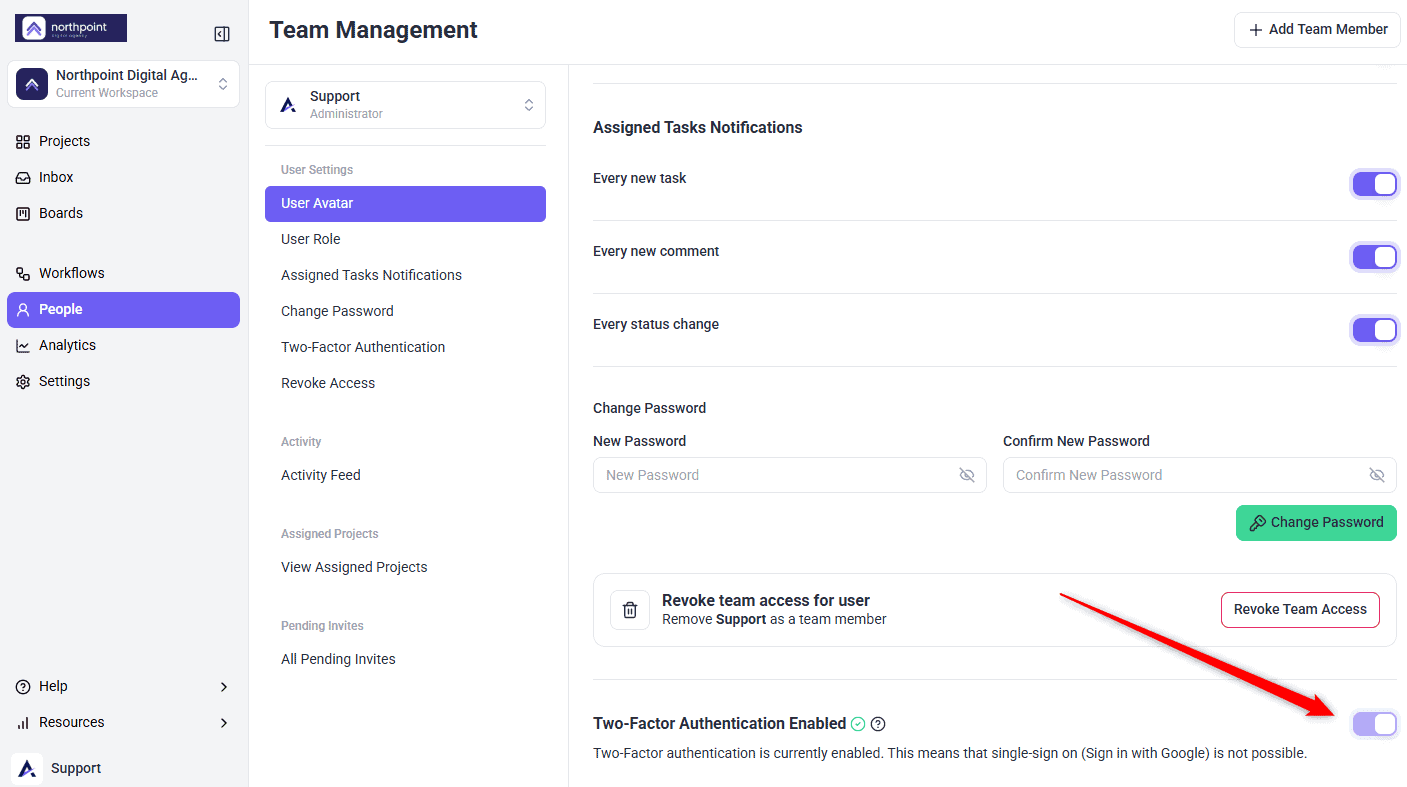
If 2FA is enabled on your account, you’ll need the verification code as well as your password.
Instructions:
3. Rule Out Your Browser
4. Check Your Account Permissions
If you’re part of a team workspace, your access depends on what an administrator has granted.
Instructions:
5. Contact Support
FAQs
What if I’ve forgotten my password?
Select Forgot Password on the login screen and follow the reset instructions sent to your registered email.
How do I get a new 2FA code?
Select Resend Code on the verification screen. A new code is sent by email.
Which browser should I use?
A current version of Chrome is recommended.
Can an administrator remove my access?
Yes. Workspace administrators can change permissions or remove access entirely. Contact yours if you think that’s happened.
What if I’ve lost access to my registered email?
Password resets and 2FA codes both go there, so contact support directly — the self-service routes won’t reach you.
How do I know it’s my browser rather than my account?
Open Atarim in a private window. If it works, the problem is cached state or an extension.
How do I contact support?
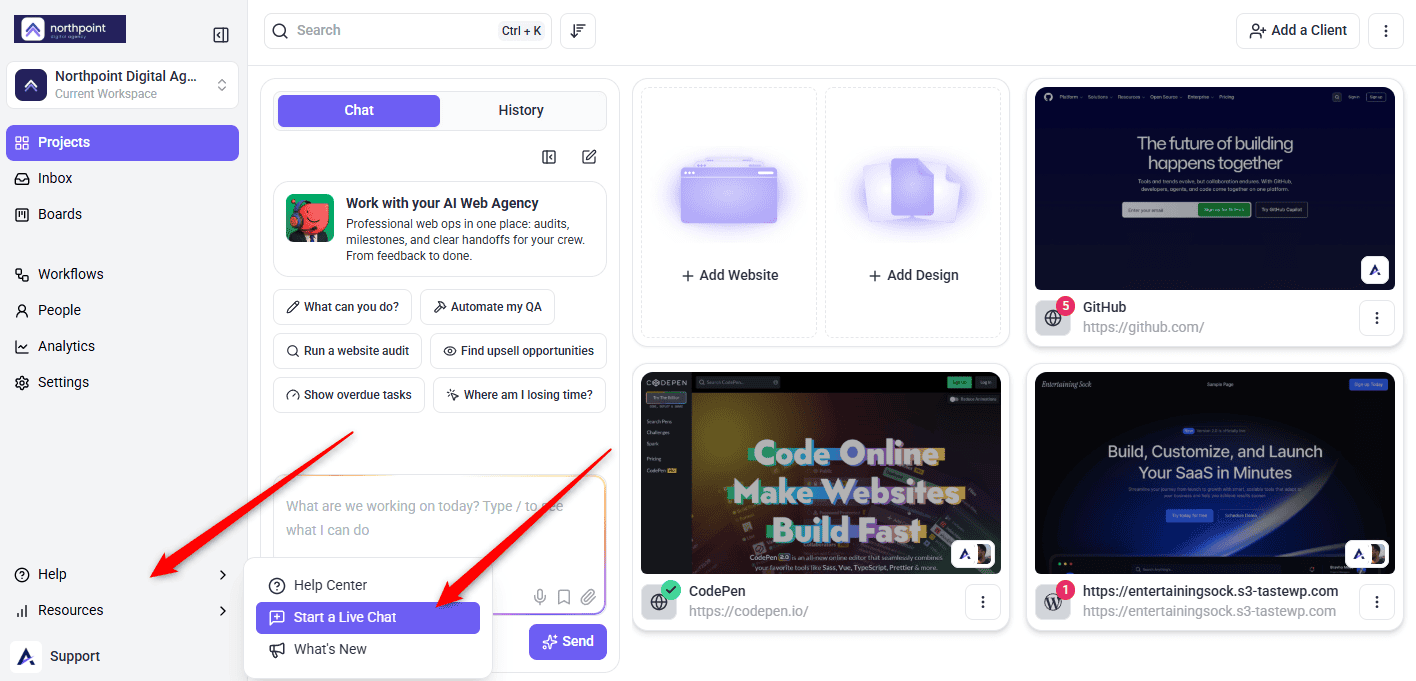
Through the messenger in the dashboard, or by emailing support@atarim.io with your account details.
Common issues
- Your password isn’t accepted — use Forgot Password rather than retrying. A reset is faster than guessing.
- The reset email hasn’t arrived — check spam, and confirm you’re using your registered address.
- Your 2FA code doesn’t work — select Resend Code for a fresh one.
- No 2FA email arrives — check spam, then resend. If nothing comes, contact support.
- The login page won’t load — try a private window, then clear your cache. Confirm you’re at app.atarim.io.
- You can sign in but a workspace is missing — permissions rather than access. Ask your administrator.
- It worked yesterday and not today — check with your administrator whether anything changed, then try a private window.
Conclusion
Access problems are usually straightforward — a mistyped password, an expired verification code, or a browser holding onto stale state. Working down the five checks resolves nearly all of them.
The one case that needs support rather than self-service is losing access to your registered email address, since both password resets and verification codes are sent there. Discover How To Get Help And Support
Tips & best practices
- Bookmark app.atarim.io so you’re always signing in at the right address.
- Use a password manager to avoid typos and forgotten passwords.
- Avoid public Wi-Fi when entering login details.
- Try a private window before clearing your cache.
- Resend a 2FA code rather than retyping one that didn’t work.
- Keep your registered email address current — it’s how you recover the account.