Atarim for Design Leads: Streamlining Design Collaboration
Run reviews on the design itself — versioned, commented in place, and closed out without a single “which round was this?” email.
Design review breaks in predictable places. Feedback arrives in four channels and none of them is the design. Version three gets comments meant for version two. A client says “approved” in a meeting and nobody can produce it later. Atarim attacks all four by putting the review on the artefact itself — versioned, attributed, and tracked to completion.
Feedback sits on the design, attached to the version it was given on.
Design review breaks in predictable places. Feedback arrives in four channels and none of them is the design. Version three gets comments meant for version two. A client says “approved” in a meeting and nobody can produce it later. Your designers ask you what the client meant, and you were not on the call.
Atarim attacks all four by putting the review on the artefact itself — versioned, attributed, and tracked to completion. This guide is about running that process as the person accountable for it, not just participating in it.
Getting Designs Into Atarim
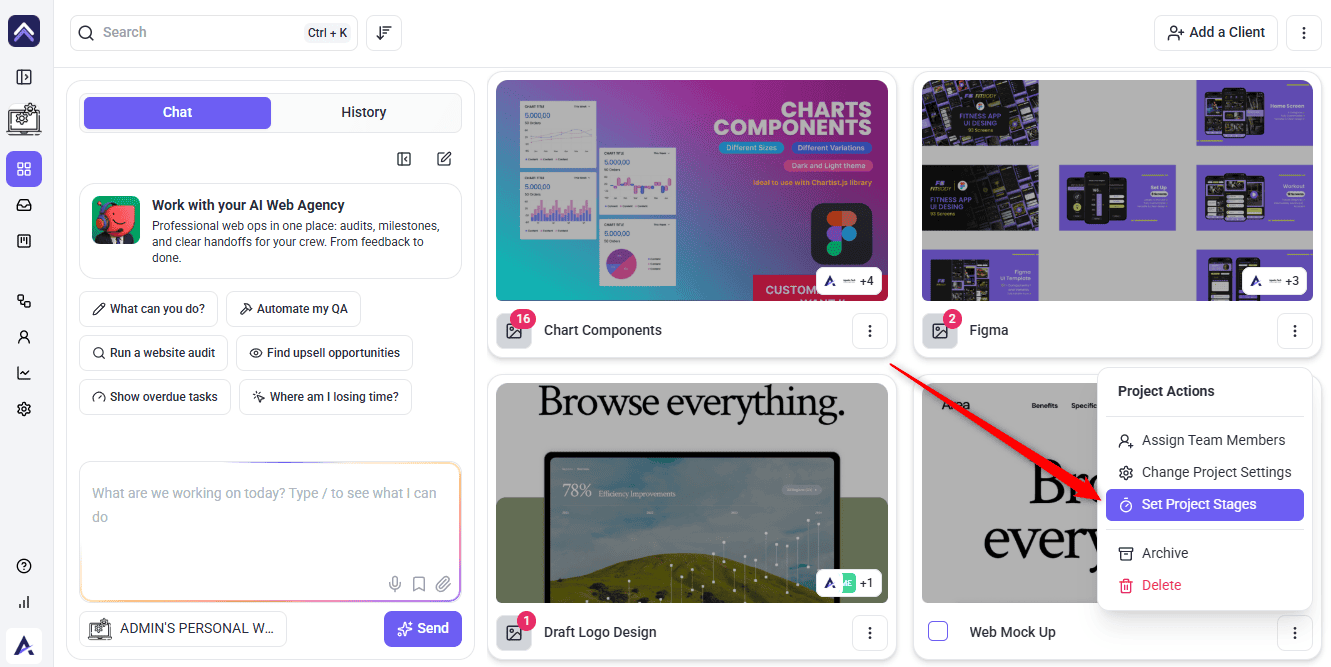
A design project holds the mockups, and there are three ways to fill it.
Instructions:
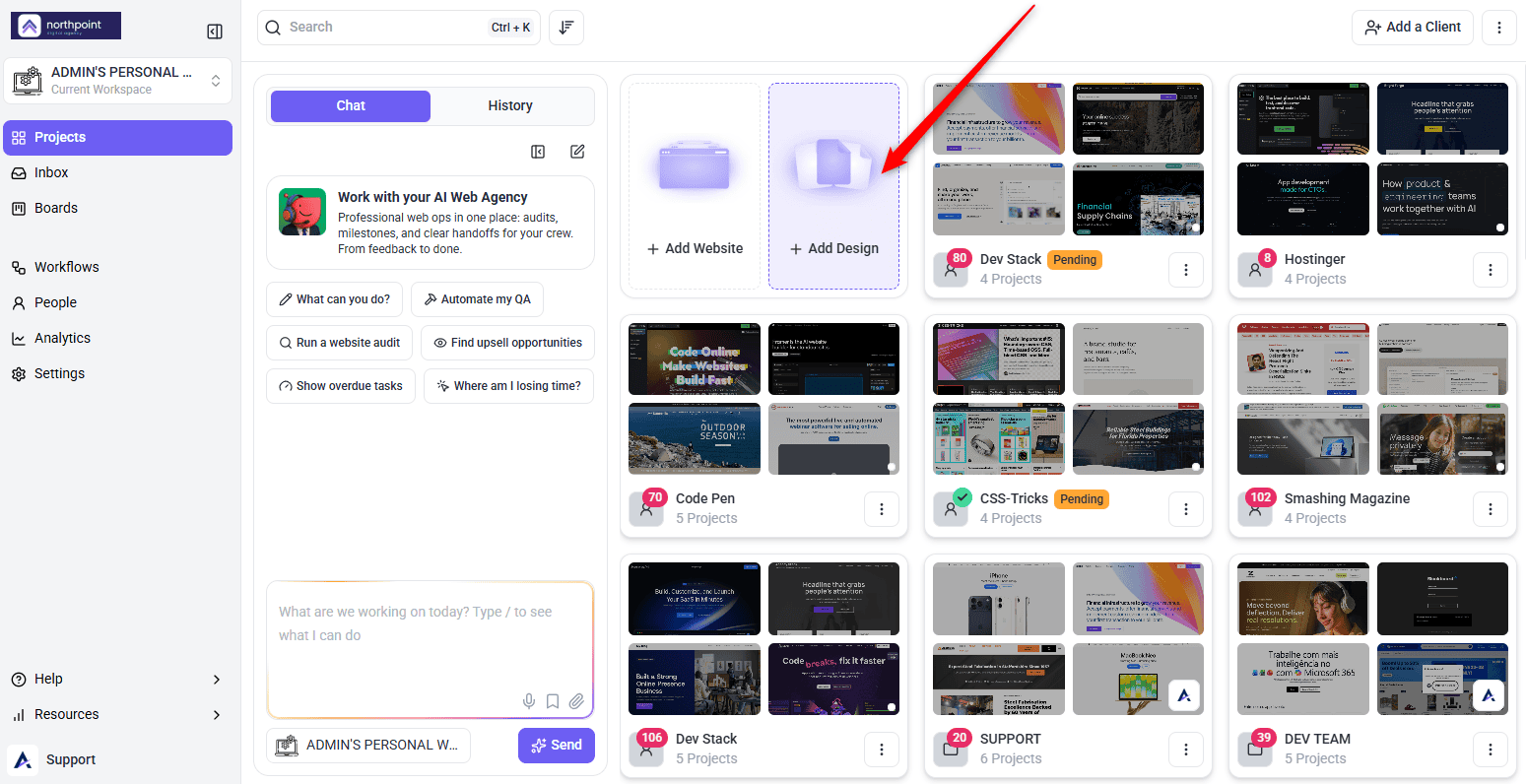
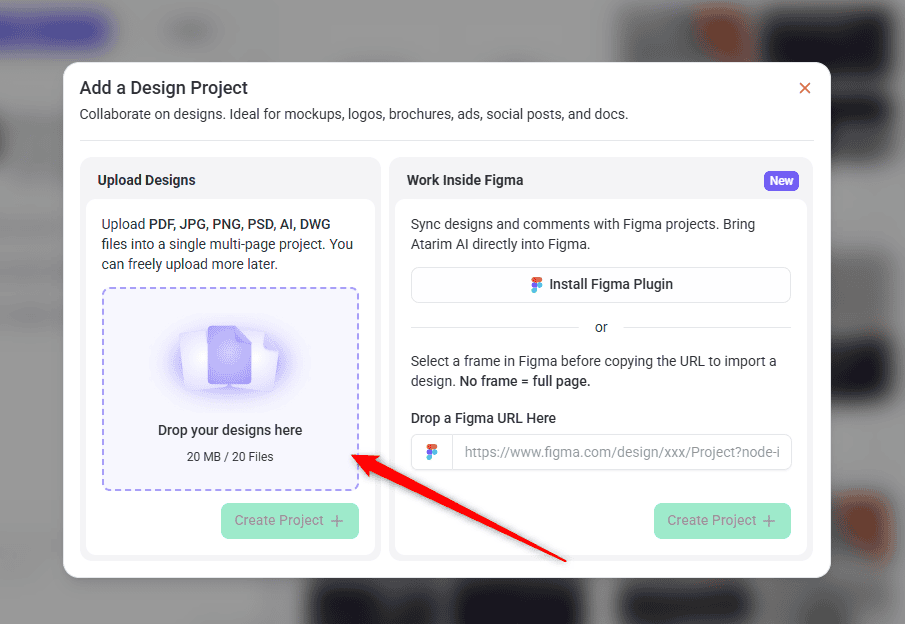
Uploading several related designs at once groups them into a collection, which is the right move for a set of page mockups or a brand guide rather than adding them one at a time.
Where the designs live matters as much as getting them in. Explore How To Set Up And Customize Projects
Working From Figma
The Atarim Figma plugin pushes designs out of Figma without leaving it. From inside Figma you connect to your account, choose the workspace and project, and then either add a new project, add a design to an existing one, or add a new version of a design already there.
Confirmations are explicit — Project created, Design added, or New version uploaded — and you can copy a link straight back to the design in Atarim to share with reviewers.
Managing Versions
Versions are what stop round three from inheriting round two’s comments. Each design carries its own version history, and feedback stays attached to the version it was left on.
Instructions:
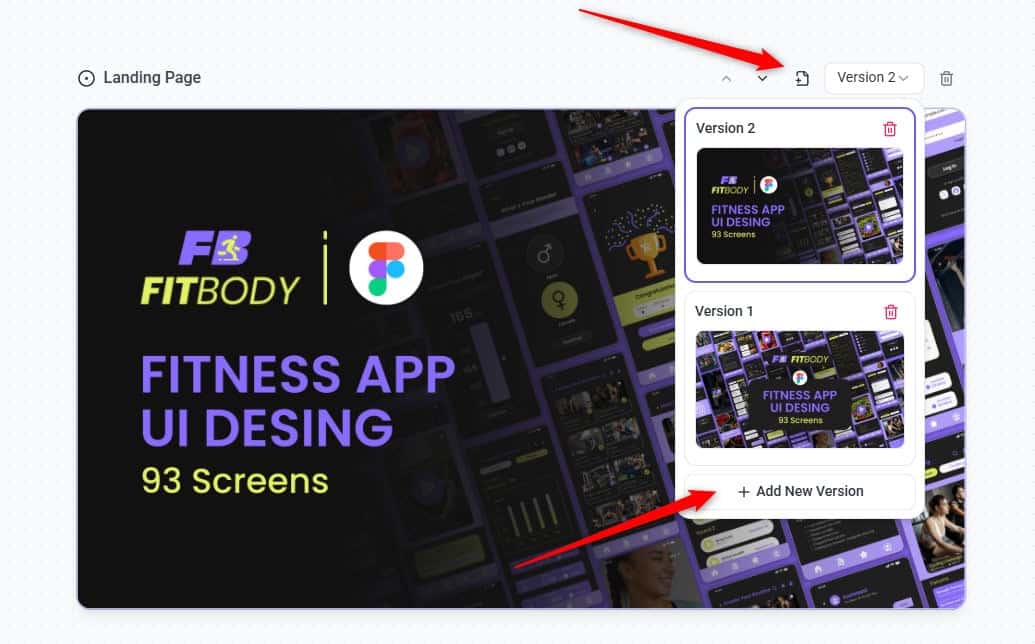
Two constraints are worth knowing before you plan a workflow around this. The last remaining version cannot be deleted — the control reports it directly. And version actions are permission-gated: someone without rights sees You do not have permission to create new versions rather than a silent failure.
What the Design Info Bar Controls
| Control | What it does |
|---|---|
| Rename | Retitles the design. Save title confirms the change. |
| Status | Sets where the design stands in the review cycle. |
| Create new version | Adds a revision under the same design. |
| Move up / Move down | Reorders the design within the project. |
| Delete design | Removes the design entirely. Cannot be undone. |
Designs can also be reordered by dragging them in the grid, which is faster than moving one position at a time when you are sequencing a deck for a client walkthrough.
Setting a Design’s Status
Status is how a design announces where it is in the cycle without anyone having to ask. The control sits in the bottom bar, labelled Design Status, with the tooltip “change status for the current design in view”.
Instructions:
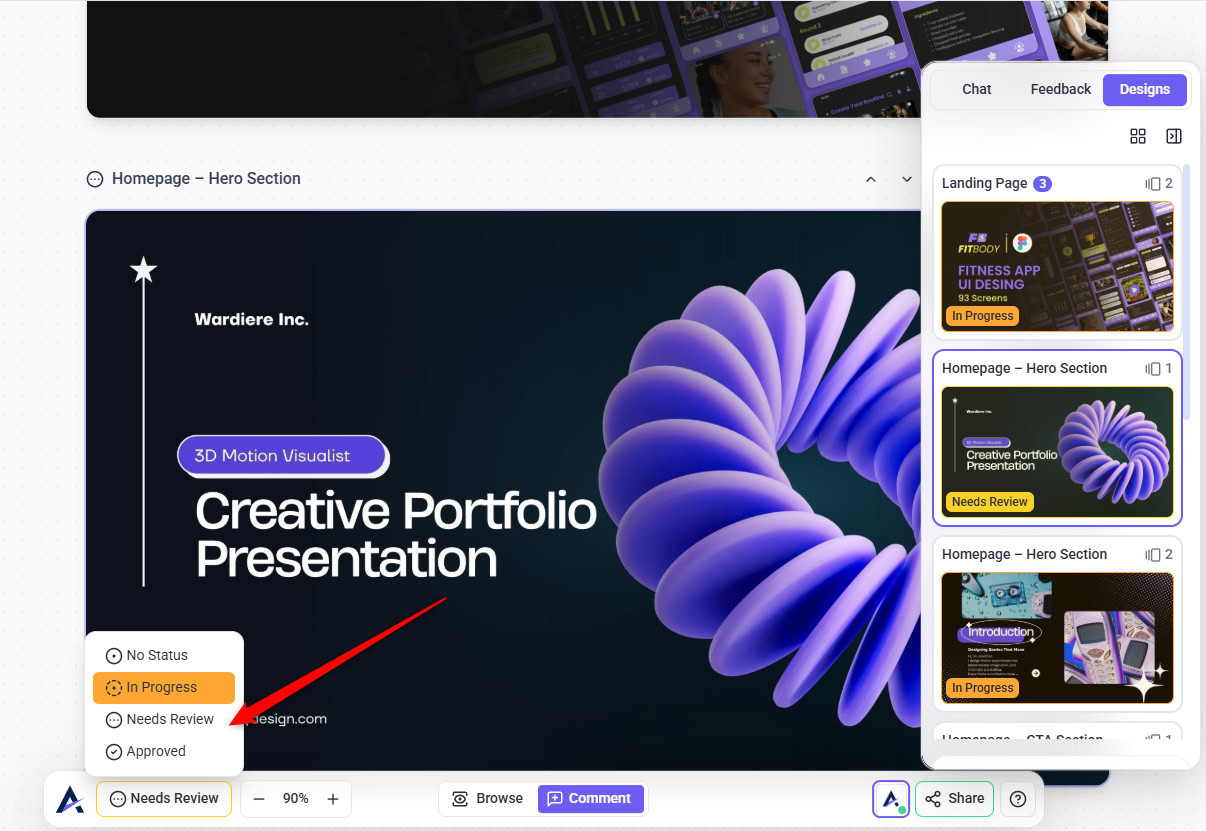
| Status | A sensible definition |
|---|---|
| No Status | Nothing claimed yet. The starting point for a freshly uploaded design. |
| In Progress | Actively being worked on, usually against feedback already received. |
| Needs Review | Ready for eyes. This is the status that asks someone to do something. |
| Approved | Signed off. Changes after this point are a new round, not a continuation. |
Getting Designs in Front of Reviewers
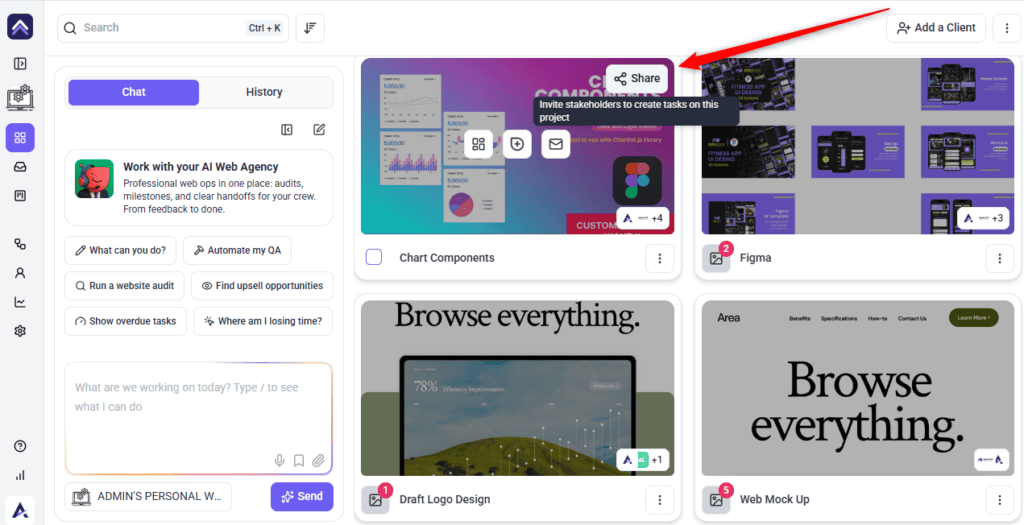
Uploading a design does not show it to anyone. Reviewers reach it through the Share control in the bottom bar, whose tooltip states the purpose plainly — invite others to collaborate and provide feedback.
Instructions:
Collecting Feedback on the Design
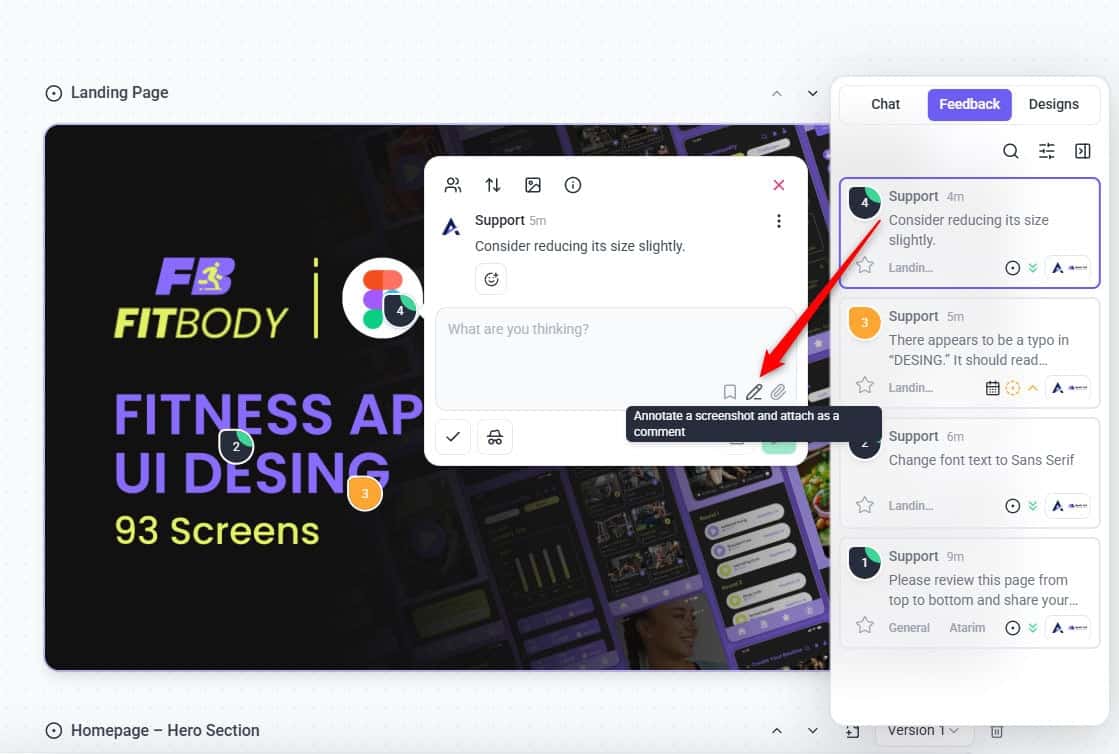
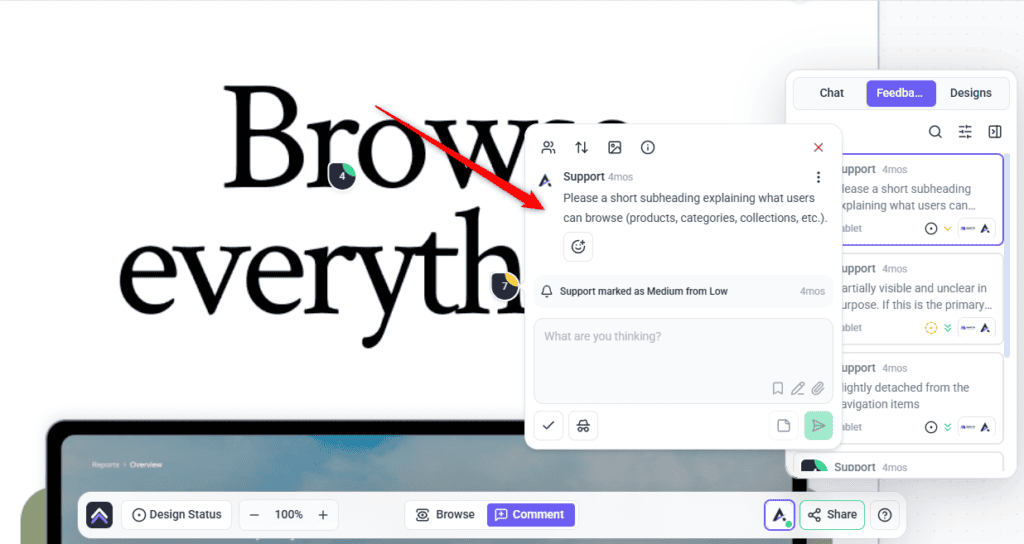
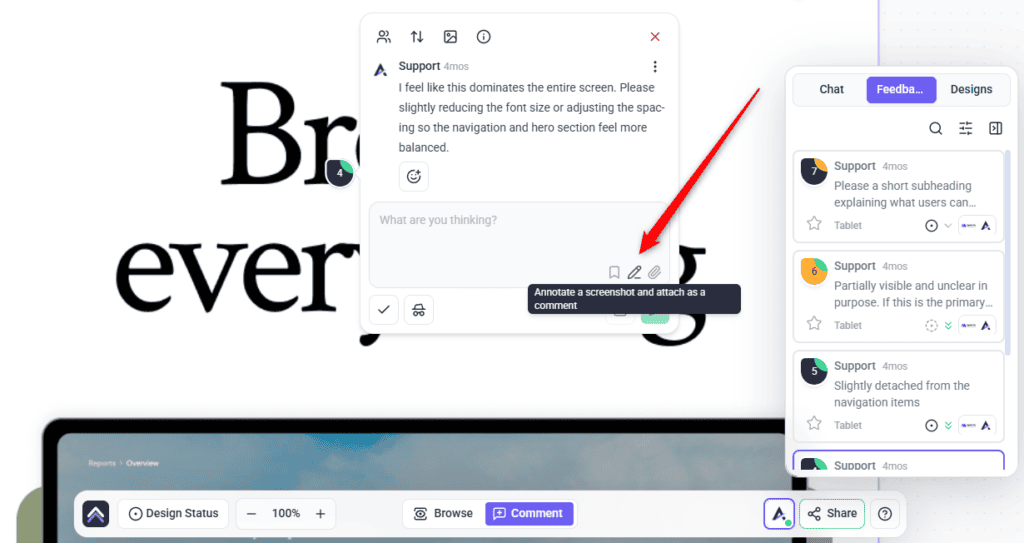
Reviewers click the part of the design they mean and type. Each comment becomes a task, pinned to that point, on that version. When a design has no feedback yet, the sidebar prompts reviewers directly: click any part of the design to leave your feedback.
As the lead, three things matter more than the mechanics:
Routing Feedback to the Right Designer
Collected feedback still has to reach someone. Each task can be assigned, and the interface tells you plainly who is on the hook — a task shows that a named person will be notified, and the tooltip describes the list as people who will get updates on this task.
Tasks also carry a priority, which is how you sequence a round of thirty comments into something a designer can work through in order rather than top to bottom.
Keeping Internal Notes Internal
Not every comment should reach the client. Tasks and comments can be marked internal, and the tooltip states the effect exactly: hide this task from guests and clients.
This is what lets you run a design critique and a client review on the same artefact. Your team debates approach, estimates, and what to push back on, in place, on the design — and the client sees only what concerns them.
Finding What Needs Your Attention
By round three, the task list is long. The design sidebar carries filters and sorting built for exactly this.
| Control | Use it to |
|---|---|
| This Design / All Designs | Narrow to the design in front of you, or see the whole project at once. |
| Assigned To Me | Cut to what is yours before a stand-up. |
| Show Complete Tasks | Bring closed work back into view when auditing a round. |
| Show Internal Tasks | Include or exclude the team-only conversation. |
| Sort by | Order by priority, status, date, or unread first. |
| Search | Find tasks and comments as you type. |
Using the InnerCircle on a Built Page
Once a design has been built, the InnerCircle can review the live page before your reviewers do. It is Atarim’s AI review team, described in the product as being there to elevate the quality of your work with actionable feedback, and each member reviews from one perspective.
| Agent | Reviews for |
|---|---|
| Pixel | Design — layout, spacing, visual execution. |
| Navi | User experience and accessibility. |
| Index | SEO and performance. |
| Lexi | Content and tone. |
| Glitch | Functionality and things that break. |
| Claro | Clarity — and gives a strategic overview before the others join the review cycle. |
You choose who takes part. At least one agent has to be switched on, and the review will tell you so if none is. Findings come back in the Review tab in the sidebar, grouped by the viewport they were spotted in. Select any finding to jump to it on the page.
Instructions:
Giving the AI Your Brand Context
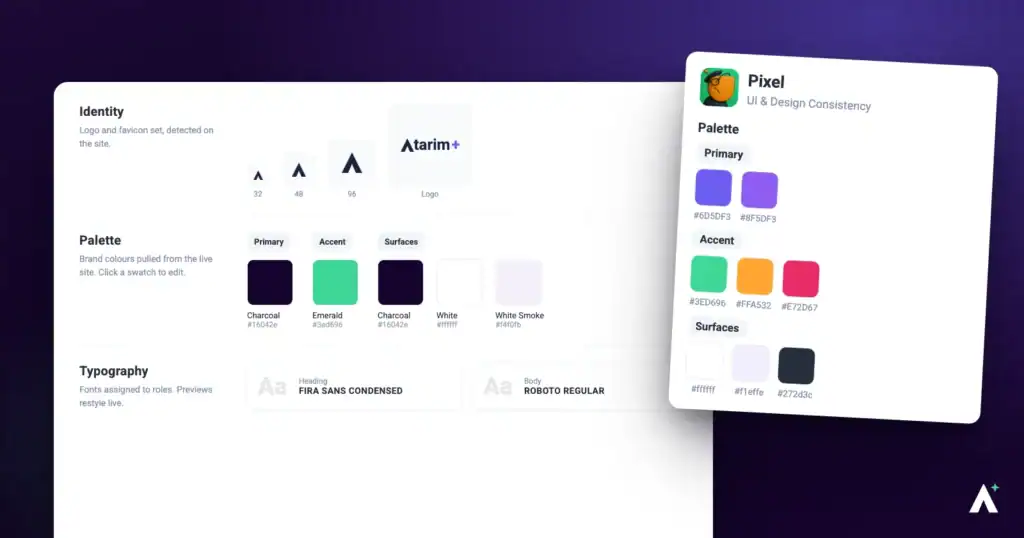
An AI review is only as specific as the context behind it. Brand assets are edited through the brand discovery panel — reachable from your workspace AI settings and from the project brief — and cover Primary Colors, Accent Colors, Typography, and Favicon & Logo, with fonts searchable against Google Fonts.
Assets can inherit from your workspace globals, and the interface says so where they do — global settings are currently enabled, with a note that customising them for a single project means switching global settings off first.
Benefits for a Design Lead
| Benefit | In practice |
|---|---|
| One channel for feedback | Comments live on the design instead of across email, chat, and meeting notes. |
| Version-anchored history | You can show which round a decision was made in, months later. |
| Feedback that routes itself | Each comment is an assignable task with a priority, not a line in a thread. |
| Critique without an audience | Internal tasks let the team debate on the artefact without the client reading it. |
| Sign-off that exists | Approved is a recorded state, not something remembered from a call. |
| A cheaper first pass on build | Once a design is built, the InnerCircle catches the obvious on the page before your reviewers spend attention on it. |
Example Use Cases
| Situation | What to do |
|---|---|
| First client review of a homepage | Upload from Figma, set the design to Needs Review, and share. Once it is built, run an InnerCircle pass on the page. |
| Round three on the same screen | Add a version rather than a new design, so round two’s feedback stays where it belongs. |
| Team disagrees on an approach | Debate it in internal tasks on the design itself, then take one recommendation to the client. |
| Thirty comments overnight | Assign and prioritise as you read, then sort by priority and hand the list to your designers. |
| Reviewing a junior’s work | Let Pixel and Glitch do the first pass so your review can be about judgement rather than spacing. |
| A client reopening a signed-off screen | Point at the Approved status and the version it applied to, and scope the change as a new round. |
Known Limitations
FAQs
Should a revision be a new version or a new design?
A new version, in almost every case. It keeps the feedback history attached to the design it belongs to.
Does feedback carry over when I add a version?
Comments stay attached to the version they were left on, which is what lets you see what round three actually changed.
Can I delete a version?
Yes, with the right permission, and it cannot be undone. The last remaining version cannot be deleted.
Can clients see our internal discussion?
No, where internal tasks are enabled on your plan. The control states that it hides the task from guests and clients.
Does marking every task complete approve the design?
No. Task status and design status are separate. Set the design to Approved deliberately.
Can I choose which AI agents take part in a review?
Yes. Turn on the ones you want and leave the rest off. At least one must be enabled.
Do I have to act on everything the AI finds?
No. Findings are listed in the Review tab for you to work through — act on the ones worth acting on and leave the rest.
Why does a brand new design already say In Progress?
Because no status has been set on it yet and the badge falls back to In Progress. Set the status you actually want.
How do reviewers get access to a design?
Through Share in the bottom bar. Uploading a design does not give anyone access on its own.
Why can I not set a design to Draft?
Draft can be displayed but is not one of the options in the status control. The choices are No Status, In Progress, Needs Review, and Approved.
How do I reorder designs in a project?
Drag them in the grid, or use the move up and move down controls in the info bar.
Can I rename a design after uploading it?
Yes, from the info bar. Save the title to confirm.
Why is AI feedback not specific to our brand?
Brand assets are probably empty or inherited from workspace globals. Set colours, typography, and logo for the project.
Common issues
- “You do not have permission to create new versions” — your role on this project does not carry version rights. Ask an administrator.
- The delete option on a version is unavailable — it is the last remaining version. Delete the design instead.
- A Figma import brought in the whole page — no frame was selected when the URL was copied. Select the frame and import again.
- Upload failed — check the batch against the 20 MB and 20 file limits, and that the file type is supported.
- Internal tasks are locked — the feature is not on your current plan. Do not assume a task is hidden from clients until this is enabled.
- The AI review will not start — at least one agent must be switched on, and reviews cannot be started from the Designs view.
- AI feedback is generic — brand assets and the project brief are empty or inherited. Fill them in for this project.
- A design you have not touched shows as In Progress — it has no status set. The badge falls back to In Progress.
- You cannot see the Design Status control — page approvals are not on your plan, or your role does not carry the status permissions.
- Reviewers say they cannot open the design — it has not been shared. Use Share in the bottom bar.
- Feedback landed on the wrong version — the reviewer was viewing an older version. Check the version selector before the next round opens.
Conclusion
The process that works is unglamorous and repeatable: import from Figma, critique in internal tasks, set the design to Needs Review, assign and prioritise as feedback arrives, add a version rather than overwriting, and set Approved deliberately when it is genuinely done. Do that consistently and the arguments about what was agreed simply stop happening.
Everything above depends on the right people being in the project in the first place. Explore Managing Team Members & Collaborators
Tips & best practices
- Add versions, never overwrite designs.
- Select the Figma frame before copying the URL.
- Define what each design status means for your team and write it down.
- Set a status on every design explicitly — No Status reads as In Progress in the sidebar.
- Share the design and set it to Needs Review in the same sitting.
- Run the InnerCircle on the built page before the client round — it reviews pages, not mockups.
- Fill in brand assets at project kickoff, not the first time you want an AI review.
- Assign and prioritise as feedback arrives rather than triaging the next morning.
- State when a review window closes, so late comments become the next round.
- Confirm internal tasks are enabled before relying on anything being hidden.