Troubleshooting Websites That Aren’t Loading
Having trouble viewing a website inside Atarim? Usually it’s caching — sometimes it’s the server.
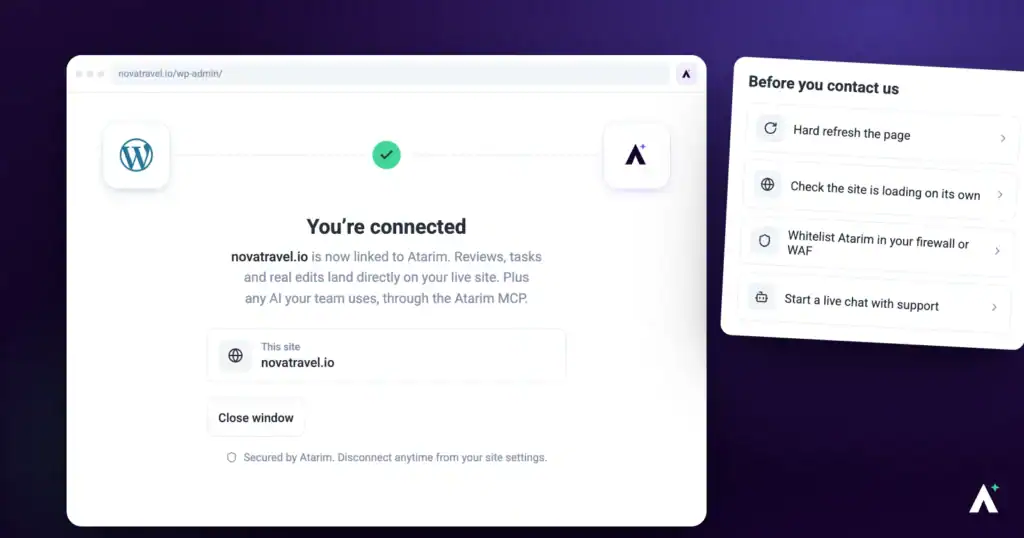
Atarim powers one-click visual collaboration by fetching a live website and rendering it inside the platform. In a few cases that process runs into trouble — usually caching, occasionally server-level restrictions that block CSS or JavaScript, which is why a page can appear unstyled or incomplete.
Missing styling usually means CSS or JavaScript was blocked when the page was fetched.
Atarim powers one-click visual collaboration by fetching a live website and rendering it inside the platform. In a few cases that process runs into trouble — usually caching, occasionally server-level restrictions that block CSS or JavaScript, which is why a page can appear unstyled or incomplete.
Work Out Which Problem You Have
| What you’re seeing | Likely cause | Where to go |
|---|---|---|
| The site loads, but not your latest changes | Caching, on your side or Atarim’s. | Clear caches, then refresh in Atarim. |
| The site loads unstyled or partially | CSS or JavaScript blocked by the server. | Check server restrictions, or use the browser extension. |
| The site doesn’t load at all | A firewall, WAF or security plugin blocking Atarim. | How to Whitelist Atarim |
| A maintenance or login page appears | The site isn’t publicly reachable. | Use the browser extension. |
Why You’re Not Seeing Your Latest Changes
This is caching, and it happens in two places: on your website or server, and on Atarim’s systems. Clearing one without the other often leaves you looking at the same stale page.
| Cache layer | How to clear it |
|---|---|
| Your CMS or server | Use your normal process — in WordPress, the built-in or host-provided cache clearing option. |
| A caching plugin | Separate from the above. WP Rocket and similar plugins each have their own clear action. |
| A CDN such as Cloudflare | Clear it separately — heavily cached sites often need this before changes appear anywhere. |
| Atarim | Use the Refresh icon in the collaboration view to force a reload from your server. |
Reloading a Website in Atarim
Refresh discards the copy Atarim is holding, which is the fix when the site is current but Atarim is not.
Instructions:
When the Site Is Blocked Rather Than Cached
If clearing caches changes nothing, the site may be refusing Atarim’s request rather than serving a stale copy. Security plugins, firewalls and WAF rules all block external and automated requests by default.
FAQs
Why don’t I see my recent changes inside Atarim?
Caching — on your website, your server, a CDN, or Atarim. Clear all of them, then use Refresh in the collaboration view.
How do I force Atarim to reload the site?
Select the Refresh icon in the visual collaboration screen. That fetches the page from your server again.
Can my site’s security settings block Atarim?
Yes. Some sites block external requests. Whitelist Atarim’s domains, or adjust the relevant security rules.
Why does the page look unstyled?
The server is blocking CSS or JavaScript when Atarim fetches the page, so it can’t render fully.
What if the site is behind a login?
Use the Atarim browser extension, which loads the page from your own browser session.
Can I whitelist Atarim’s IP addresses?
No — they’re dynamic and rotate. Use domain or header-based rules instead.
None of this worked
Contact support through the chat in your dashboard or at support@atarim.io, with the URL and a screenshot.
Common issues
- Recent changes aren’t showing — clear your CMS, plugin and CDN caches, then select Refresh in Atarim.
- The page loads without styling — CSS or JavaScript is being blocked at the server. Check security rules, or use the browser extension.
- You cleared caches and nothing changed — a layer was probably missed. A CDN in front of your host is the usual one.
- The site won’t load at all — whitelist Atarim’s domains on your firewall or WAF.
- A login or maintenance page appears — use the browser extension, or disable maintenance mode temporarily.
- It loads for you but not a colleague — have them try a different browser, and check no local security software is interfering.
- Nothing here helps — contact support with the URL and a screenshot of what you’re seeing.
Conclusion
Most loading problems are caching, and clearing the layers in order — CMS, plugin, CDN, then Refresh in Atarim — resolves them. If the page still won’t load or renders unstyled, it’s a server restriction rather than a stale copy, and the whitelisting guide covers that.
When you don’t control the firewall, the browser extension is the reliable fallback. Discover How To Whitelist Atarim
Tips & best practices
- Ease off aggressive caching during active review stages, so changes appear without a fight.
- Check your CDN isn’t serving outdated assets over a cleared origin cache.
- Keep plugins and themes current — outdated components cause rendering conflicts, particularly with JavaScript.
- Refresh in Atarim after every deploy you want reviewed.
- Clear caches outwards from your site, not inwards from Atarim.
- Reach for the browser extension on any site you don’t control.