Troubleshooting Common Issues with Atarim
The seven problems that come up most, and what actually fixes each one.
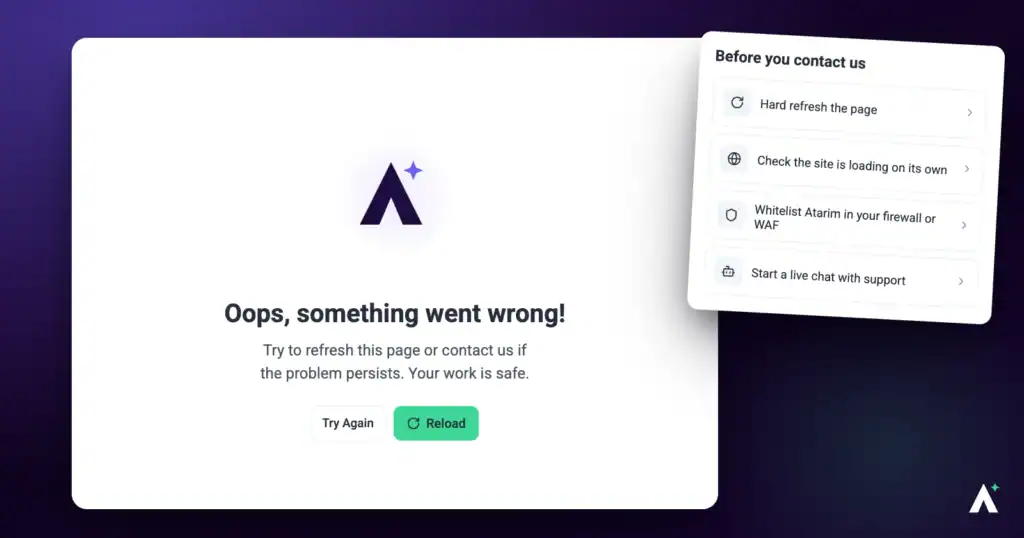
Atarim is built to keep collaboration moving, but occasionally something doesn’t behave as expected. This guide covers the issues that come up most often and what resolves each one — starting with the two fixes that between them account for most complaints.
Most issues resolve with a refresh, a cache clear, or a settings check.
Atarim is built to keep collaboration moving, but occasionally something doesn’t behave as expected. This guide covers the issues that come up most often and what resolves each one.
Try These First
| Quick check | Fixes |
|---|---|
| Refresh the page | Tasks not updating, stale board state. |
| Clear cache and cookies | Slow loading, changes not appearing, sign-in pages not loading. |
| Try another browser | Anything browser-specific, including extension conflicts. |
| Check your connection | Failed uploads, sign-in errors, general slowness. |
| Check your spam folder | Missing invitations and notification emails. |
1. Unable to Log In
Symptom: the page doesn’t load, or you see an error saying “Unable to connect.”
Likely causes: an unstable internet connection, or incorrect credentials.
Instructions:
2. Clients Not Receiving Invitations
Symptom: you’ve invited a client, but they say no email arrived.
Likely causes: the address was mistyped, or the email was filtered into spam.
Instructions:
3. Tasks Not Updating
Symptom: you’ve completed a task or made a change, but it doesn’t appear on the board or task list.
Likely causes: a sync delay, or browser caching.
4. Unable to Upload Files or Media
Symptom: an upload fails or freezes partway.
Likely causes: the file is too large, the format isn’t supported, or the connection dropped.
Instructions:
5. Email Notifications Not Arriving
Symptom: you aren’t receiving emails about updates or comments.
Likely causes: notifications are switched off, or the emails are being filtered.
Instructions:
6. Slow Performance or Loading Times
Symptom: pages load slowly or take too long to respond.
Likely causes: browser state, connection quality, or high server load.
7. Can’t Create a Task in Collaborate
This one isn’t a fault — it’s the most common misunderstanding in visual collaboration. Atarim has two modes, and feedback can only be added in one of them.
| Mode | What it’s for |
|---|---|
| Browse | Opening and moving between pages. Loads the page correctly inside Atarim and keeps the collaboration session active. |
| Comment | Leaving visual feedback, creating tasks, and pinning comments to specific elements. |
Comment mode is separate from Browse, and tasks can only be created while it is switched on.
Instructions:

When It’s Something Else
| If the problem is | See |
|---|---|
| A website will not load in Atarim at all | Troubleshooting Websites That Aren’t Loading |
| A firewall or WAF is blocking Atarim | How to Whitelist Atarim |
| You cannot access your account at all | What to Do if You Can’t Access Atarim |
| A feature is locked or missing | Check your plan, and whether your role has permission for it. |
FAQs
Why can’t I click to leave feedback?
Comment mode isn’t active. Select Browse to reach the page, then Comment before clicking.
My changes aren’t showing on the board
Refresh the page. If that doesn’t do it, clear your cache and reload.
A client says they never got the invitation
Check the address for typos, ask them to look in spam, then resend. Sharing the collaboration link directly is a reliable alternative.
Where do I turn notifications on?
Settings → Notifications, in the Communication group. Preferences are per person.
Why did no email go out for a task?
If the task is internal, no notification is sent. That’s intended behaviour.
Which browser should I use?
A current version of Chrome, Firefox or Edge. Some issues are browser-specific, so switching is a quick way to identify them.
Nothing here fixed it
Contact support with what you were doing, what happened, and a screenshot or recording.
Conclusion
Most issues here resolve with a refresh, a cache clear, or a settings check. The two worth remembering are that Comment mode must be active before you can leave feedback, and that internal tasks never send notifications — both look like faults and neither is.
If something persists after working through these, support can help — and a screenshot or short recording will get you a useful first reply. Discover How To Get Help And Support
Tips & best practices
- Clear your browser cache periodically to avoid sync and performance issues.
- Use a current version of Chrome, Firefox or Edge.
- Try another browser to identify browser-specific problems quickly.
- Explain Browse and Comment modes when onboarding clients.
- Check whether a task is internal before reporting a missing notification.
- Share the collaboration link directly if invitation emails keep going astray.