Setting Due Dates and Prioritizing Tasks in Atarim
Make deadlines visible and urgency obvious — so the next thing to work on is never a question.
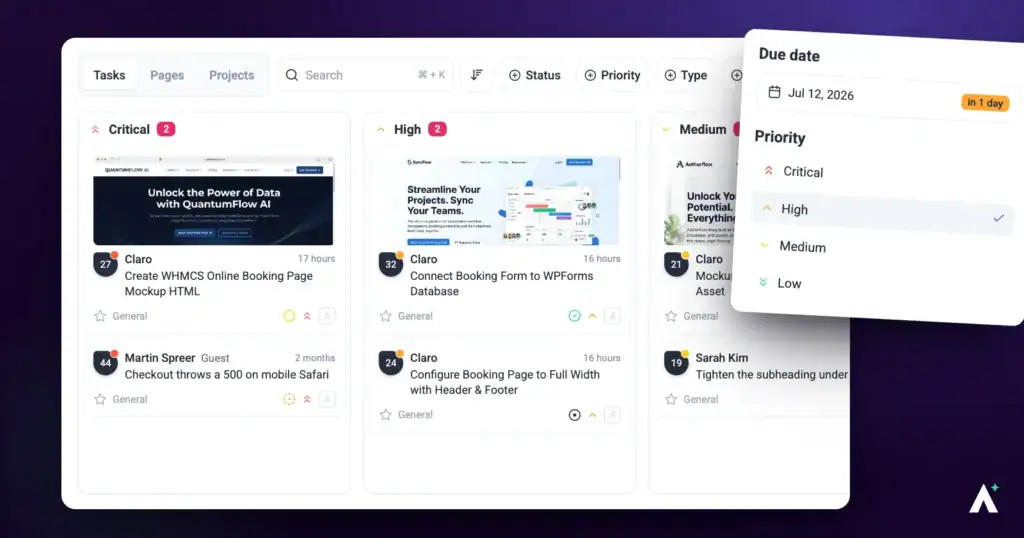
Priority and due dates answer different questions. Priority is how much something matters relative to everything else. A due date is when it has to be done. A task can be Critical with no deadline, or Low with a hard date next Tuesday.
Used together they mean nobody has to ask what to pick up next.
The Four Priority Levels
Four levels, deliberately few. The value is in everyone using them the same way, so it is worth agreeing what each one means for your team.
| Priority | Suggested meaning |
|---|---|
| Low | Worth doing, no deadline pressure. Picked up when there is room. |
| Medium | Normal work in the queue. The default for most things. |
| High | Needs attention this week. |
| Critical | Blocking something, or client-facing and broken. |
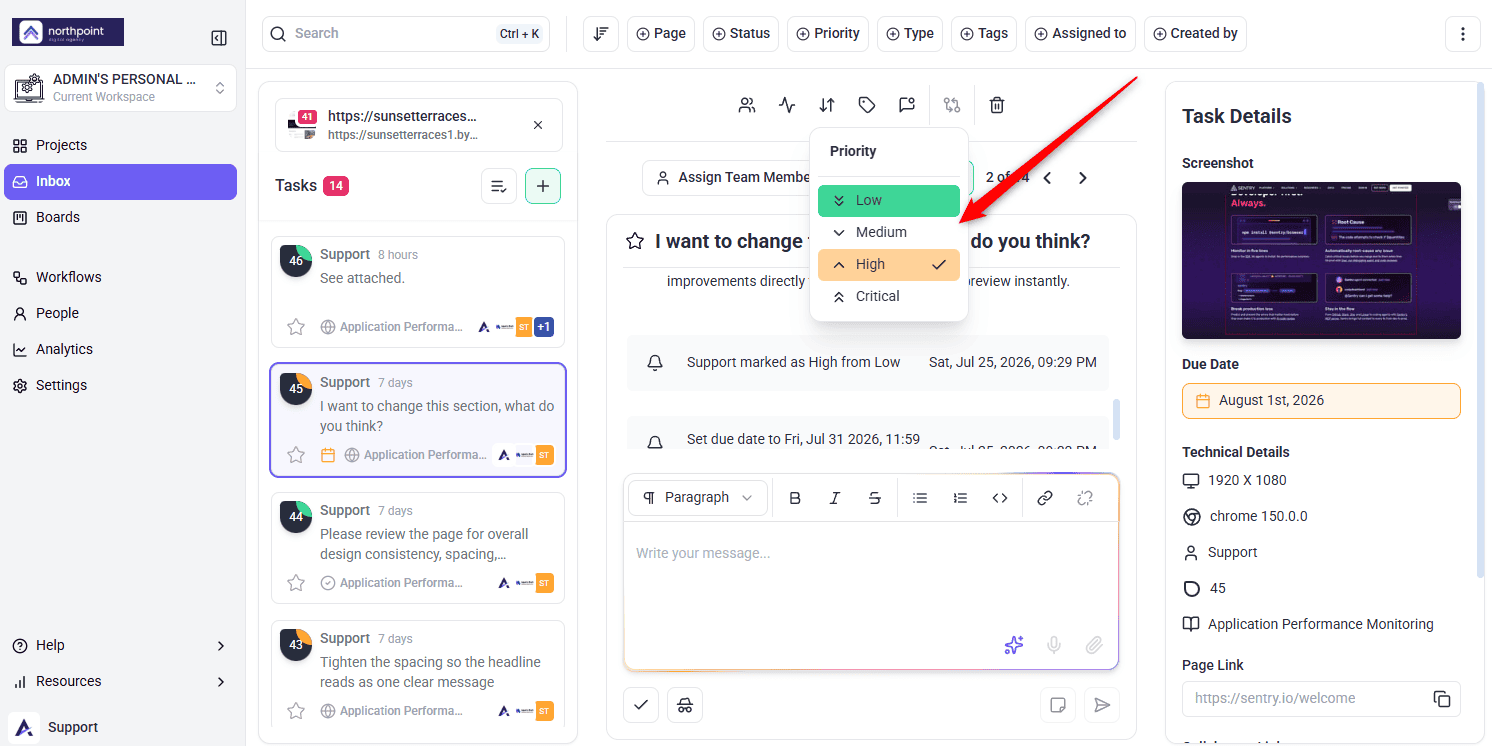
Priority saves the moment you set it and is visible to everyone, so it works as a shared signal rather than a personal marker.
Instructions:
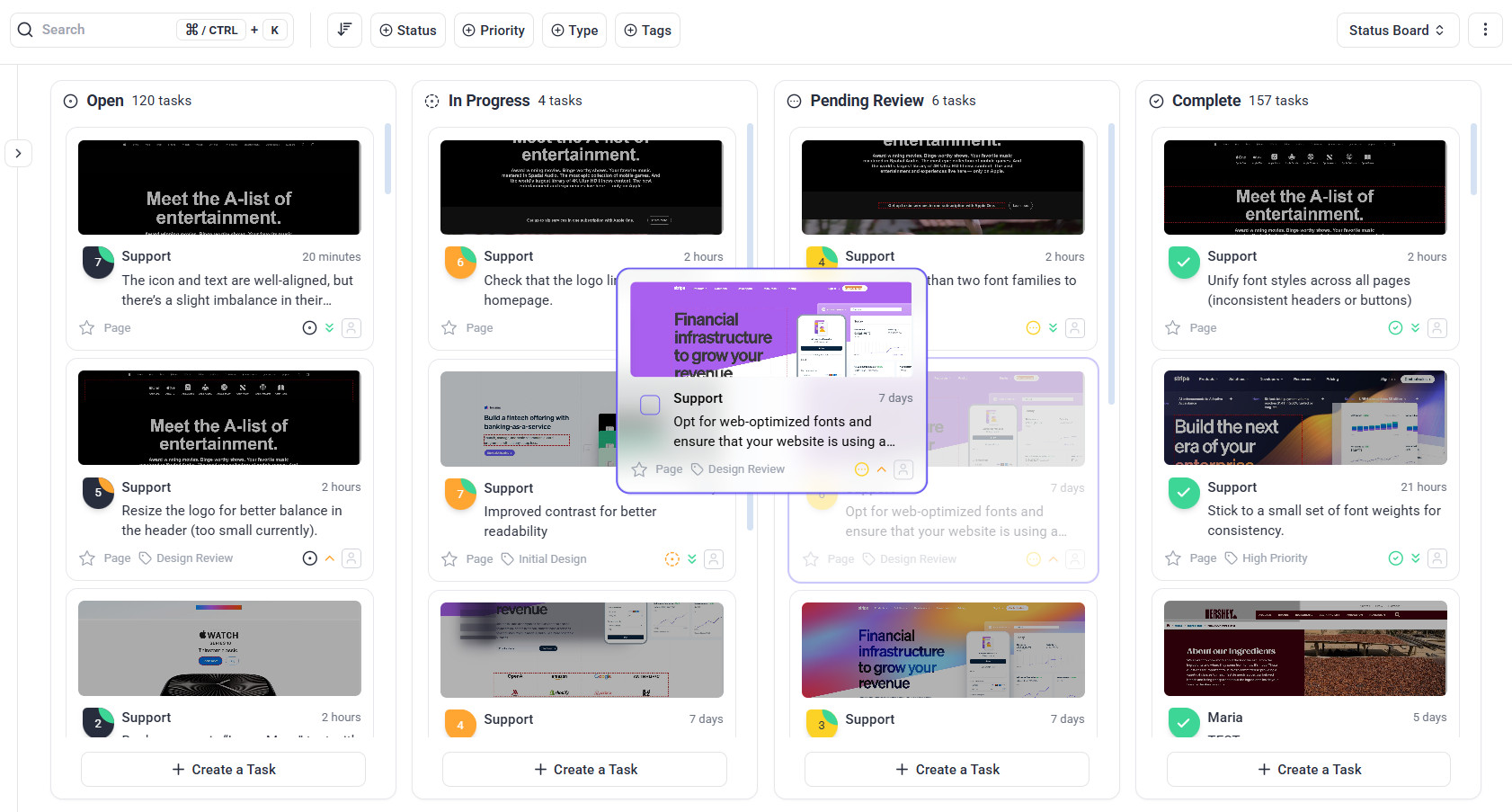
Prioritising a Batch by Dragging
Setting priority one task at a time is fine for a few. After a client review drops forty, the board is the faster route — because it can group by priority instead of status.
Instructions:
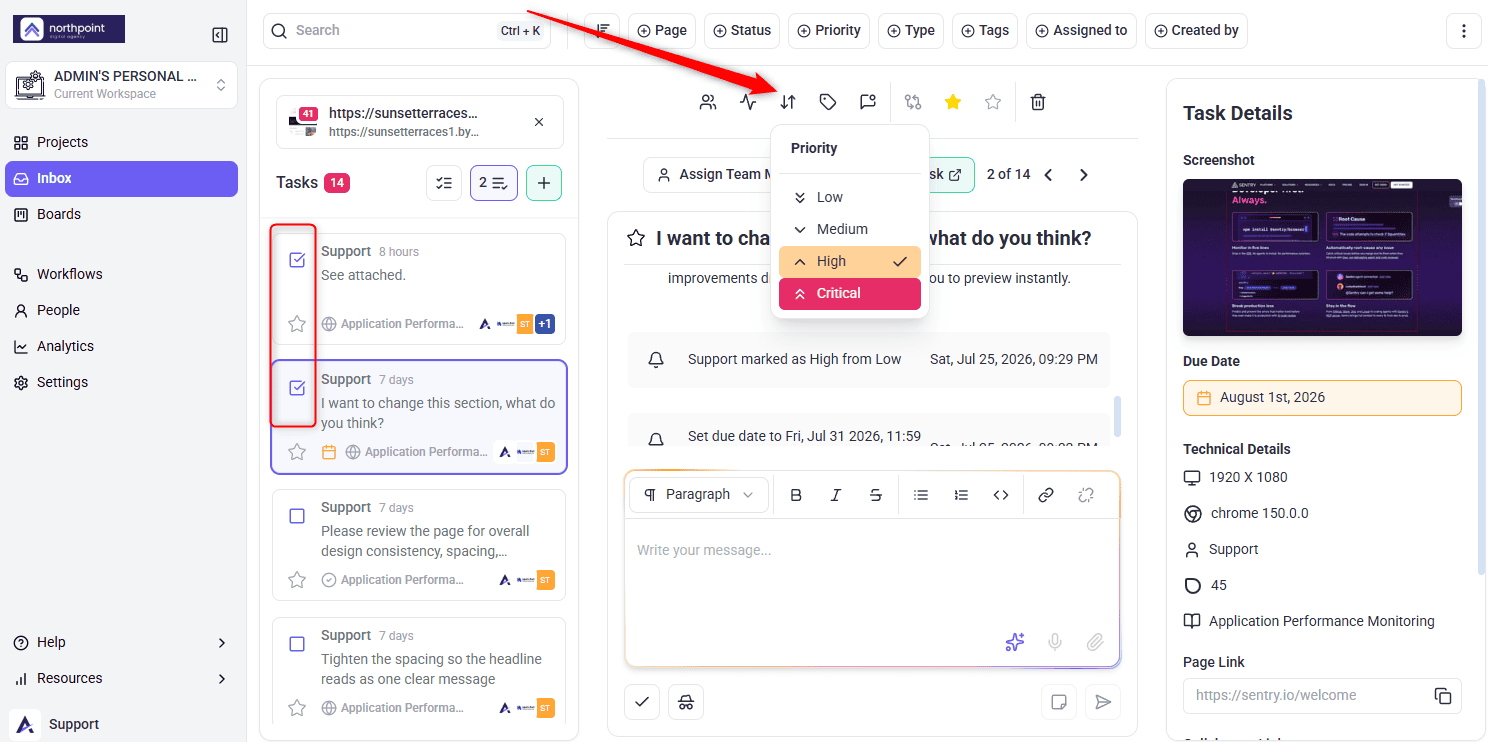
Setting Priority in Bulk
Where a whole batch shares the same urgency, select them and set it once.
Instructions:
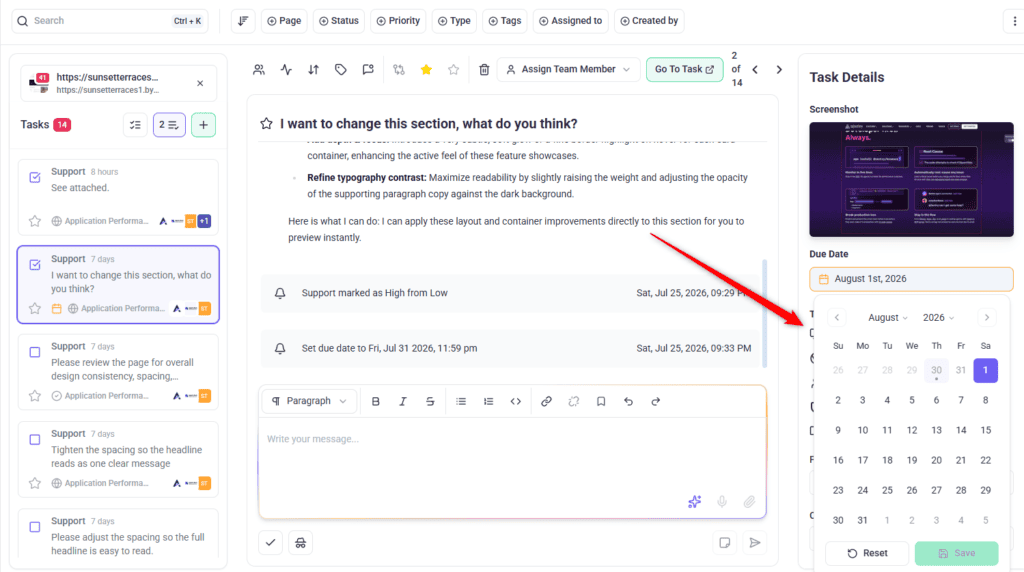
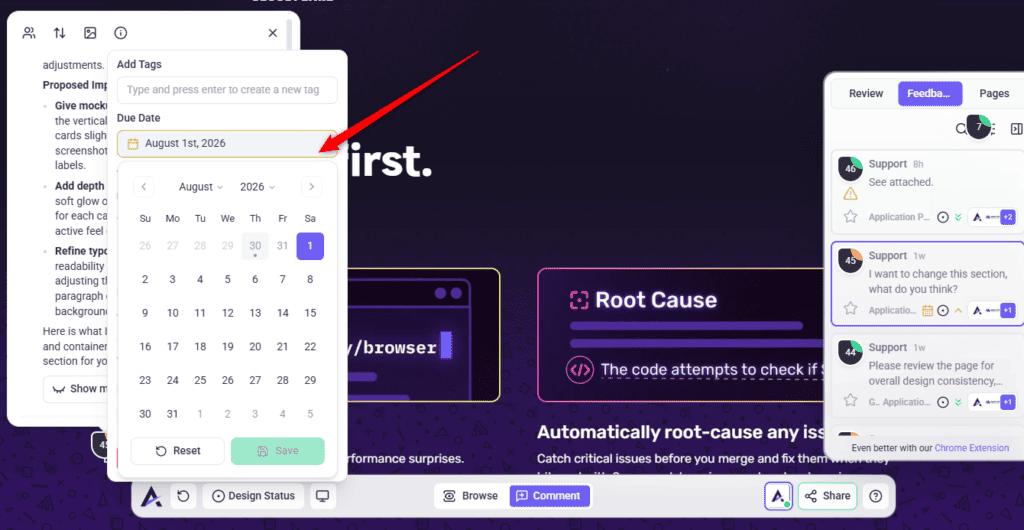
Setting a Due Date
A due date can be set from any view, and it saves as soon as you choose it.
Instructions:
What the Due Date Colours Mean
This is the part that makes due dates useful rather than decorative. The date indicator changes colour as the deadline approaches, so an overdue task is visible without opening anything.
| Colour | Means | The tooltip shows |
|---|---|---|
| No colour | More than 72 hours away, or no due date set. | — |
| Orange | Due within 72 hours. | How long is left. |
| Red | Overdue. | Exactly how late — Overdue by 3 days 4h, or Overdue by 6 hours for anything under a day. |
The same colours appear wherever task cards do, so a board and the Inbox both surface an approaching deadline at a glance. Learn More About Reading Task Cards On Boards
Sorting by Priority
Once priorities are set, sorting turns them into a working order.
| Sort option | Use it to |
|---|---|
| Priority: High To Low | Start the day with the most urgent work at the top. |
| Priority: Low To High | Clear quick, low-stakes items when you have a short window. |
| Newest Task First | See what has just come in. |
| Oldest Task First | Find what has been waiting longest. |
Sorting changes your own view of the list only, not anyone else's.
Instructions:
Automating Priority and Chasing Deadlines
Priority is the one field workflows handle well, because urgency often follows a rule. Atarim already emails the task’s assignee automatic due-date reminders — two days before, the day before, on the due date, one day overdue, and seven days overdue — and these are built in and cannot be turned off. Workflows are how you add custom or team-wide reminders on top of those.
| What you want | How to build it |
|---|---|
| Alert the team when something becomes Critical | Task priority changes trigger, a Task priority is set to condition for Critical, then a notification. |
| Set priority automatically on arrival | Task added trigger with a Change task priority step. |
| Chase work that has gone quiet | A status change, a Delay of a few days, then a comment or notification. |
| Escalate ageing work | A Delay followed by Change task priority to raise it. |
Project Deadlines Are Different
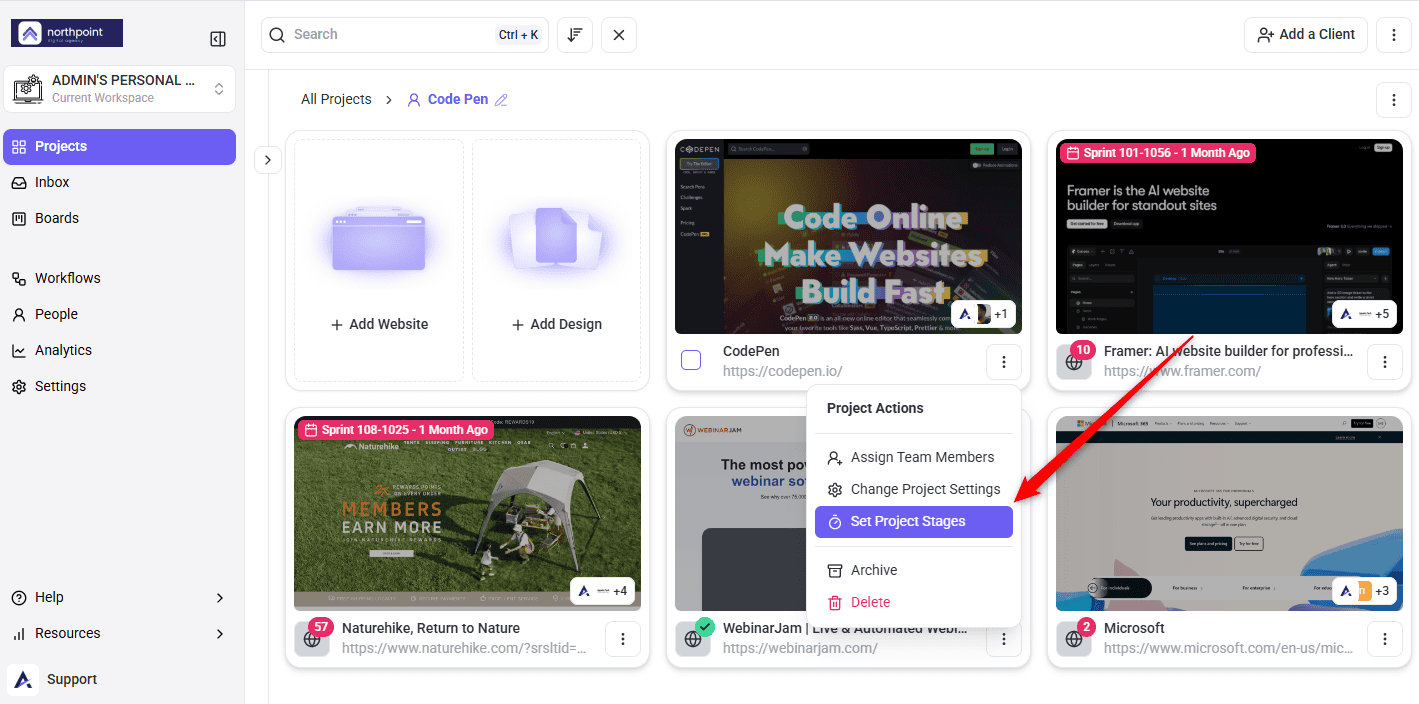
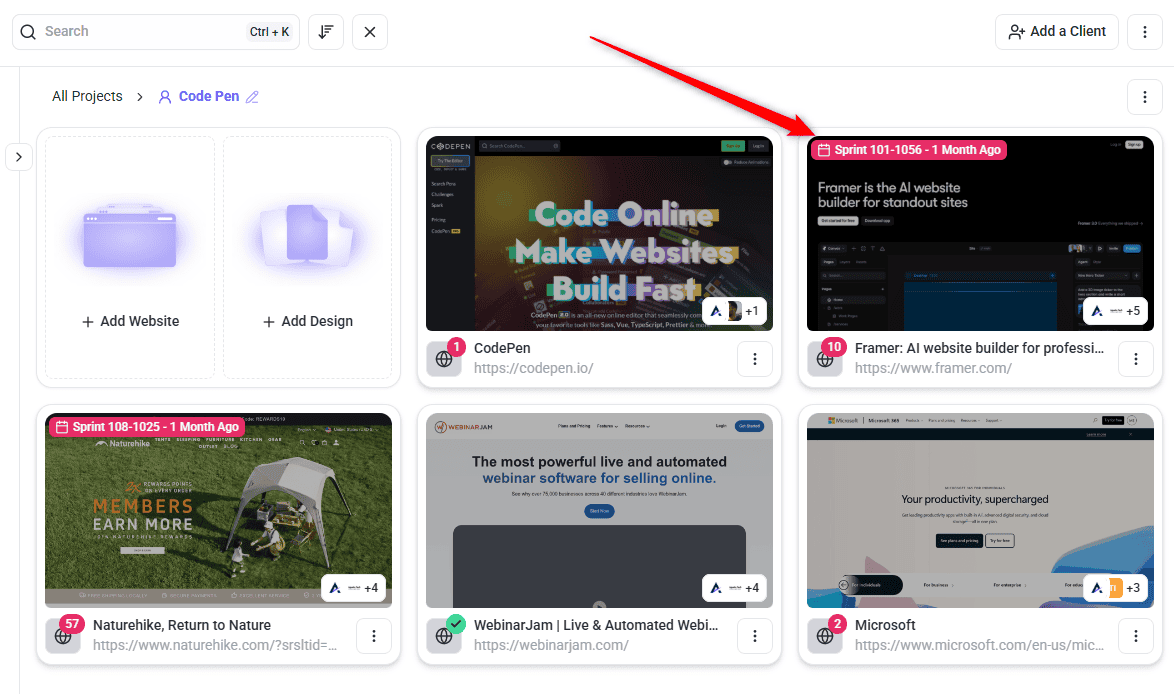
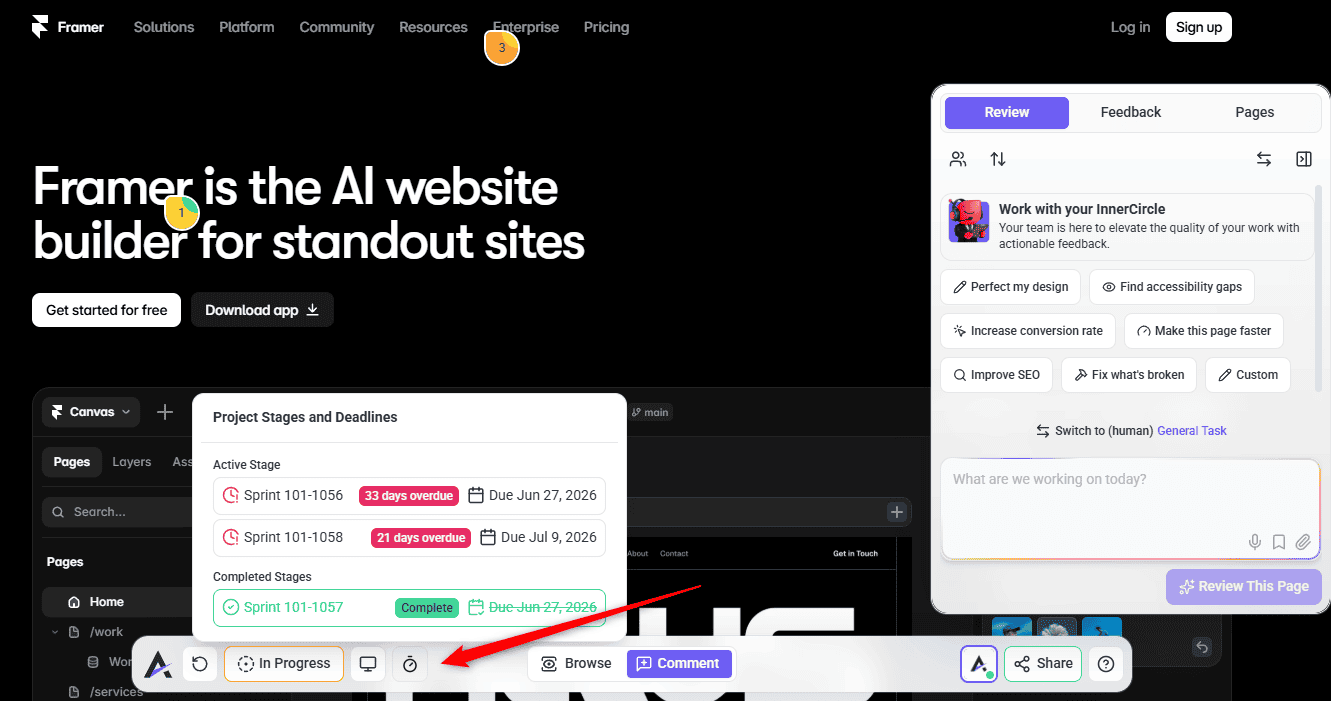
Task due dates are for individual pieces of work. Deadlines for a whole project are handled by project stages instead, which show clients where a project has reached. Explore Project Stages
Seeing Whether It Is Working
Priorities and dates are only useful if the pattern they create is a healthy one, and reporting is where that shows.
Instructions:
Benefits of Using Both Properly
| Benefit | In practice |
|---|---|
| The next task is obvious | Sorting by priority answers “what now” without a conversation. |
| Slipping work announces itself | Orange at 72 hours means you find out before the client does. |
| Triage takes minutes | Priority view turns a review round into a sorted board by dragging. |
| Urgency can trigger action | A workflow on priority change turns Critical into a notification. |
| Overcommitment becomes visible | Reporting shows whether dates are being met or quietly missed. |
Example Use Cases
| Situation | What to do |
|---|---|
| Forty tasks after a client review | Switch to priority view and drag them into columns. Triage and priority in one pass. |
| A launch next Friday | Put the date on the handful of tasks that must land, and leave the rest undated so the pressure is visible. |
| A whole client batch is urgent | Filter to their tag, select all visible, and set the priority in bulk. |
| Starting your own day | Assigned To Me with Priority: High To Low. |
| A short window between meetings | Sort Priority: Low To High and clear a few quick items. |
| Nobody notices when something turns Critical | Build a workflow on the priority change trigger to notify the team. |
Known Limitations
FAQs
What is the difference between priority and status?
Priority is how much something matters; status is how far along it is. They are independent, so a task can be Open and Critical.
Why has a task’s date turned orange?
It is due within 72 hours. Red means the date has passed.
Can I set due dates for several tasks at once?
No. Priority can be set in bulk, but dates are one task at a time.
Does Atarim remind me when a task is due?
Yes. Atarim automatically emails the task’s assignee due-date reminders — two days before, the day before, on the due date, one day overdue, and seven days overdue — and these are built in and cannot be turned off. Build a workflow with a Delay and a notification only if you want custom or team-wide reminders on top of those.
Can I sort my tasks by deadline?
No. The Inbox sorts by date created and by priority. Use the date colours to spot what is close.
What is the fastest way to prioritise a lot of tasks?
Switch Boards to priority view and drag the cards into columns — that sets the priority as you sort.
Can I add my own priority levels?
No. The four levels are fixed. Use tags for any further categorisation you need.
Common issues
- The priority control shows a lock — status and priority are not on your plan. The panel names the minimum plan required.
- A task’s date is orange or red — orange is due within 72 hours, red is overdue. Hover for the exact figure.
- You cannot sort by due date — not available. Sort by priority and use the colours to spot approaching deadlines.
- You cannot set dates in bulk — due dates are per task. Status, priority, assignees, tags, the internal flag and delete can all be set in bulk.
- Dragging changed priority instead of status — the board is in priority view. Switch back to status view.
- Everything on the board is Critical — a triage habit rather than a real emergency. Agree what Critical means and re-triage in priority view.
- Only the assignee is told when a deadline nears — the built-in reminder email goes to whoever the task is assigned to. Build a workflow if anyone else needs telling.
Conclusion
Keep priority meaningful by keeping Critical rare, and keep due dates meaningful by putting them only on work that genuinely has one. Then priority view handles triage, the colours handle warning you, and a workflow handles telling everyone — which leaves the actual judgement as the only part you have to do yourself.
How tasks move through to completion once prioritised is covered separately. Discover Tracking Task Progress and Completion.
Tips & best practices
- Agree what Critical means and keep it rare. A board that is a third Critical carries no information.
- Date only the work that genuinely has a deadline, so the dates that exist mean something.
- Act on orange, not red. Seventy-two hours is enough warning to fix it honestly.
- Triage in priority view after every review round — dragging sets the priority as you sort.
- Pair Assigned To Me with Priority: High To Low to start your day.
- Assign every dated task, since the built-in deadline reminder goes to the assignee. Build a workflow for Critical alerts and for chasing anyone else.