Email Notifications: Controlling What Your Workspace Sends
Six workspace switches, a 15-minute batching window, and a personal layer under People — what fires an email and who actually gets it.
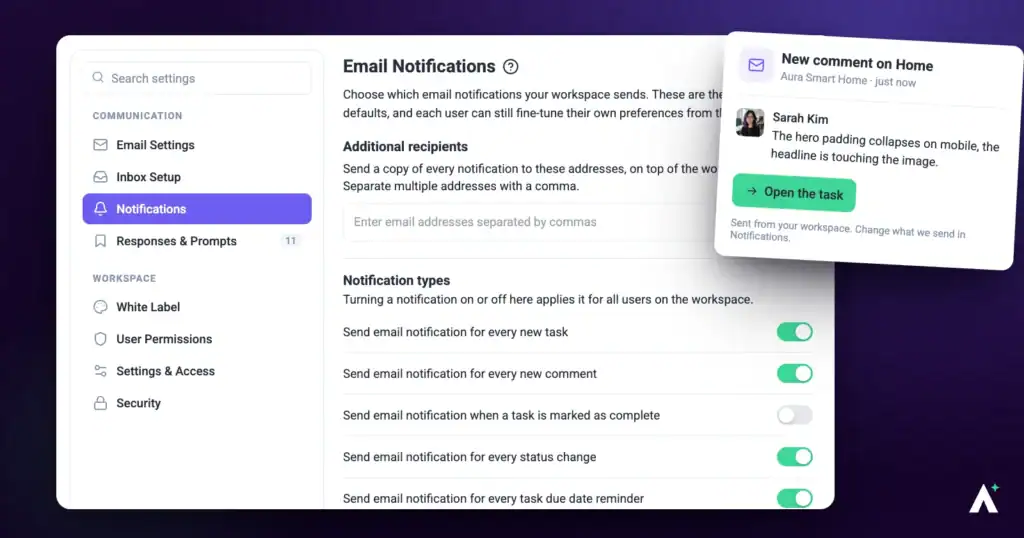
Email notifications are how people find out something happened without keeping Atarim open. Two things decide whether a message lands: whether the person is on the task, and what they have set for themselves. There's also a batching window in between, which is why notifications arrive in groups rather than one per click. This article covers all three, plus the activity that never generates email no matter what you set.
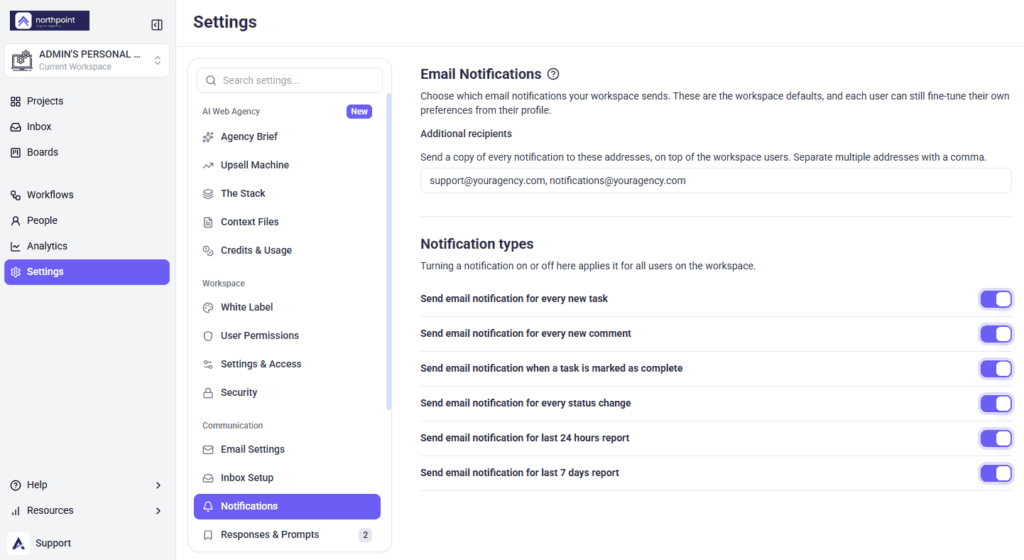
Where to Find It
These settings are per workspace, so a change here affects only the workspace you are currently in.
Instructions:
- From the main dashboard, select Settings.
- Under Communication, select Notifications.
The panel is headed Email Notifications and holds two sections: Additional recipients at the top, and Notification types below the divider.
What Triggers an Email
Four kinds of activity can generate a notification email:
- A new task is created
- A comment is added
- A task’s status changes
- A file is uploaded to a task
Due date reminders are sent separately and don’t follow these rules — see below. Approving a page, and creating or completing a project stage, also email the people on the project.
Other task activity passes silently. The three that catch people out most often:
- Changing a task’s priority sends nothing. Priority is not one of the activities that generates email, so raising something to urgent won’t alert anyone on its own. Change the status or leave a comment if you need people to know.
- Being mentioned in a comment sends nothing. Mention-based notifications don’t exist in Atarim. If you’re on a task and someone comments, you’ll be notified because of the comment, not because you were named in it.
- Being assigned to a task sends nothing. Assignment doesn’t email anyone. It puts them in scope for that task’s future activity.
How Notifications Are Grouped
Atarim doesn’t send an email the moment something happens. Instead it opens a 15-minute window:
- Activity happens on a project. A 15-minute timer starts.
- If more activity happens on that same project before the timer runs out, it’s added to the group and the timer restarts.
- Once 15 minutes pass with no further activity, one email goes out covering everything in the window.
So a burst of ten comments produces one email, not ten. It also means notifications are never instant — the fastest anything arrives is roughly 15 minutes after the last thing happened.
Grouping is per project, not per task or per person. Activity on different tasks within the same project shares one window and arrives in the same email. Activity on a different project is grouped separately.
The Six Notification Types
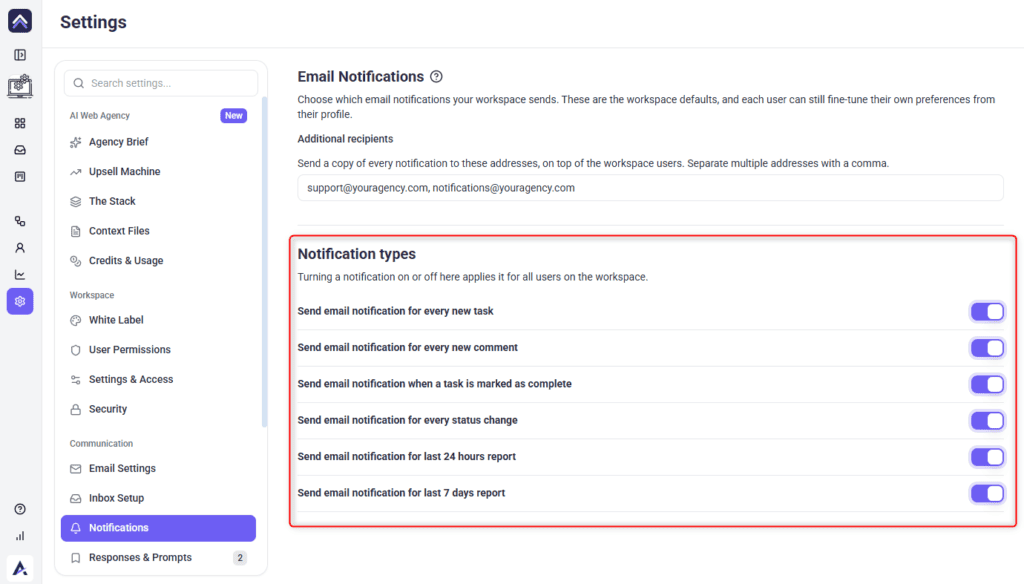
Under Notification types you’ll find six switches. All six are on by default for a new workspace.
| Switch | Sends when |
|---|---|
| Send email notification for every new task | A task is created |
| Send email notification for every new comment | A comment is added |
| Send email notification when a task is marked as complete | A task moves to complete |
| Send email notification for every status change | A task’s status changes |
| Send email notification for last 24 hours report | Report setting, separate from task activity email. |
| Send email notification for last 7 days report | Report setting, separate from task activity email. |
The page describes these as applying for all users on the workspace.
Turning Notifications On and Off
- Select the switch beside any notification type.
- The change is stored immediately — there is no Save button on this page.
Saving is deferred very briefly, so flipping several switches in a row is sent as one update rather than one request per switch. Leaving the panel, switching tabs, or clicking out of the recipients field flushes anything still pending.
In practice that means you can toggle what you need and navigate away without losing anything. But it also means there’s no confirmation step and no undo.
Additional Recipients
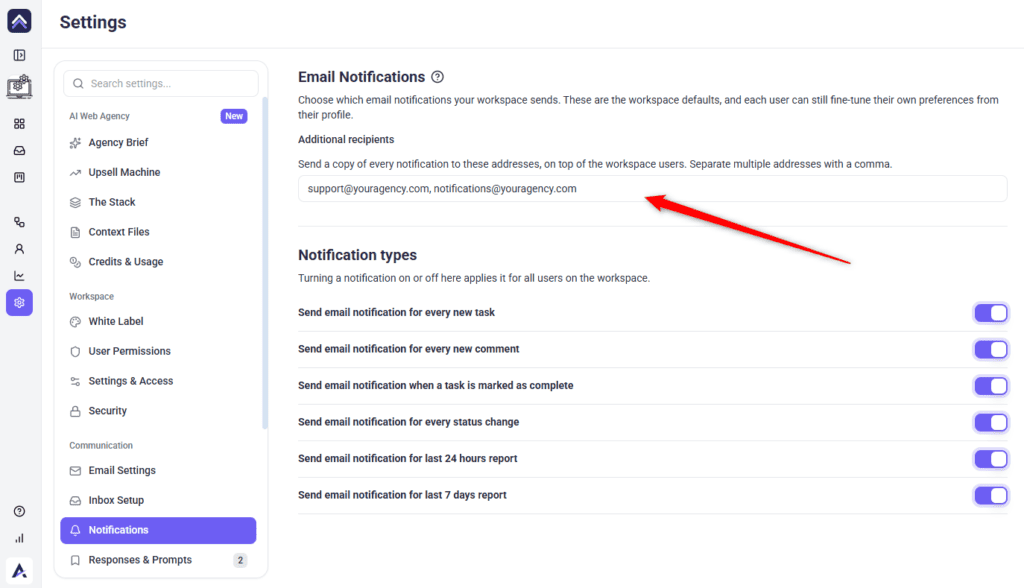
The Additional recipients field sends a copy of every notification to addresses that aren’t workspace users — a shared support inbox, a project manager, an archive address.
Instructions:
- Select the Additional recipients field.
- Enter one or more email addresses, separated by commas.
- Click outside the field. The change saves on its own.
These addresses receive a copy on top of your workspace users. Adding one doesn’t replace anyone or reduce what your team gets.
This field is plan-gated. If your plan doesn’t include it, the label carries an upgrade badge naming the minimum plan, and selecting the area opens an upgrade prompt rather than letting you type.
Who Actually Receives Them
Three conditions all have to be met before a given person gets an email.
1. They’re on the project
Only people with access to a project can be notified about activity in it.
2. They’re on the task
Notifications go to the people attached to that specific task. Being on the project isn’t enough — if you aren’t on the task, activity there won’t reach you. On WordPress projects, people who use Atarim through the WordPress plugin on that site are notified in the same way.
Assigning someone to a task doesn’t email them. What it does is put them in scope, so they start receiving the comment, status and task notifications for it.
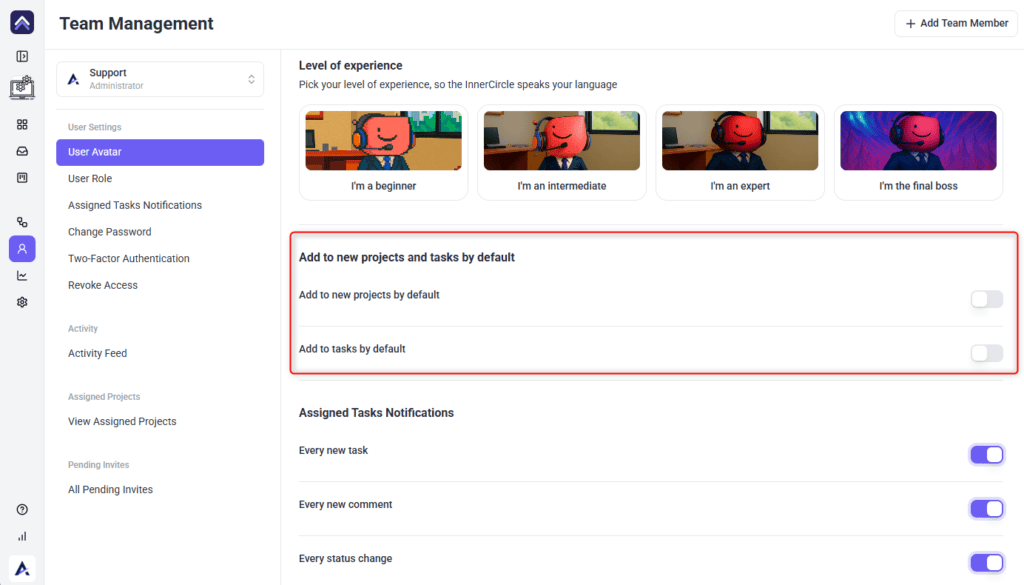
Administrators can control whether someone is added automatically. Open People, select the member, and under Add to new projects and tasks by default you’ll find two switches:
- Add to new projects by default — the member is added to every new project as it’s created.
- Add to tasks by default — the member is added to new tasks automatically.
Both are admin-only, and both are upstream of everything else here. Someone who isn’t being added to tasks won’t be notified about them no matter what the notification switches say.
3. Their own preferences allow it
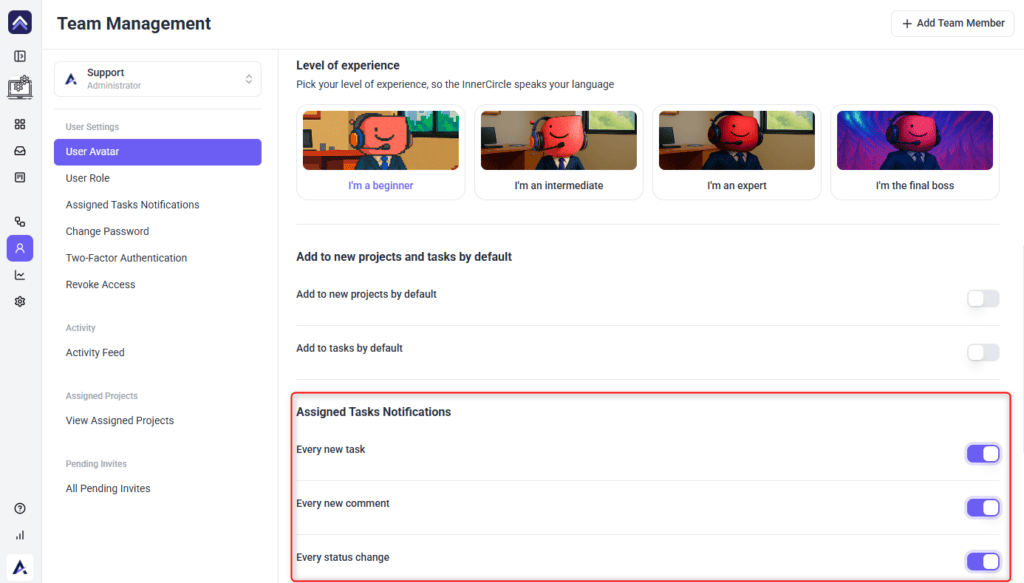
Further down the same screen, under Assigned Tasks Notifications, each person has three switches:
- Every new task
- Every new comment
- Every status change
Administrators can change these for any member. Everyone else can only change their own. People who create their account from an invitation start with all three switched on.
Due Date Reminders
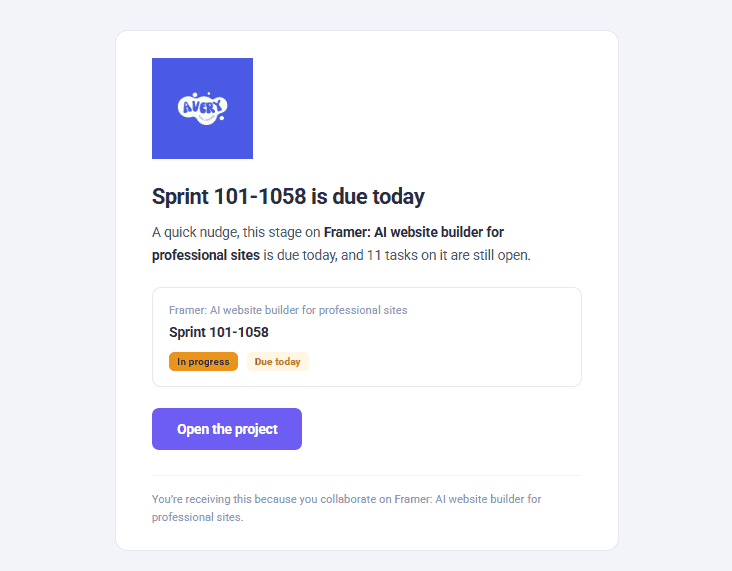
Due date reminders are a separate email from everything else on this page. They go to whoever the task is assigned to, and they aren’t controlled by the workspace switches or by anyone’s personal preferences.
A reminder is sent at five points around a task’s due date:
- Two days before it’s due
- One day before it’s due
- On the due date
- One day overdue
- Seven days overdue
Each person gets one email covering all their tasks at that point, grouped by due date, with the task title, the project, its current status, and who set the due date.
Two conditions have to be met. The task must have someone assigned — an unassigned task with a due date reminds nobody. And the task must not be complete; completing it stops the reminders.
What Never Sends an Email
Some activity produces no email regardless of your settings:
- Internal tasks. Anything marked internal is excluded entirely — by design, since internal tasks are for your team rather than the client.
- Priority changes. Not a notifiable activity.
- Mentions in comments. Not supported.
- Being assigned to a task. Assignment itself sends nothing.
- Design uploads. Adding a design is excluded from notification email, unlike a file attached to a task.
- People with no notification preferences set. Someone with no preferences recorded receives nothing rather than everything.
FAQs
Why do notifications take 15 minutes to arrive?
Activity is grouped so a burst of changes produces one email instead of many. The window restarts each time something new happens on that project, so the timer has to go quiet for a full 15 minutes before anything sends.
Does changing a task’s priority notify anyone?
No. Priority isn’t a notifiable activity. Change the status or add a comment if people need to know.
Does mentioning someone in a comment notify them?
No. Mention-based notifications aren’t supported. They’ll be notified about the comment only if they’re on the task and their preferences allow it.
Does assigning someone to a task email them?
No. Assignment puts them in scope for that task’s activity, and for its due date reminders if one is set, but sends nothing by itself.
Can I turn off due date reminders?
No. They have no toggle and aren’t covered by the workspace or personal notification settings. Completing the task, clearing the due date, or unassigning it are the only ways to stop them.
Is there a Save button on the workspace settings page?
No. Every change saves on its own, including the additional recipients field, which saves when you click out of it.
Where do I change one person’s notifications?
Under People. Each member has three switches — Every new task, Every new comment, and Every status change. Administrators can change these for anyone.
Do additional recipients count as workspace users?
No. They receive copies but have no account, no access, and don’t consume a seat.
Why don’t attachments have their own switch?
A file uploaded to a task is treated as comment activity, so it follows the new comment setting. Design uploads are excluded from notification email altogether.
Will turning everything off stop all email from Atarim?
No. This covers task and comment activity. Account email such as verification codes and invitations is separate.
Common issues
- Notifications feel delayed — expected. Activity is batched, and the window has to go quiet for 15 minutes before anything sends.
- Changing a priority notified nobody — priority isn’t a notifiable activity. Change the status or add a comment instead.
- Someone was mentioned in a comment and heard nothing — mention-based notifications aren’t supported. They’re notified about the comment only if they’re on the task.
- Assigning a task sent no email — assignment puts someone in scope for future activity but sends nothing by itself.
- One person gets nothing while everyone else does — check their profile under People. A member with no preference record receives silence, not the defaults.
- Due date reminders can’t be switched off — they have no toggle. Complete the task, clear the due date, or reassign it.
- The Notifications menu opens a wizard — Inbox Setup isn’t finished. Use Back to Email Settings, or complete the wizard first.
- Additional recipients is locked — the field is plan-gated. The label names the minimum plan required.
- Email is being sent but nobody sees it — check spam before changing settings, particularly if your domain isn’t verified.
Conclusion
Two things decide whether an email lands: whether the person is on the task, and what they’ve set for themselves. Both have to line up, which is why “nobody got the notification” usually has a specific cause rather than a general one.
Start at the person’s profile under People, and check they are on the task. Explore Managing Team Members & Collaborators
Tips & best practices
- Switch on only the events people will act on — the rest becomes noise.
- Point additional recipients at a shared inbox rather than an individual.