Managing Your Account Settings in Atarim
Configure your workspace once — brand, AI context, permissions, email, and integrations — so every project and client that follows inherits it automatically.
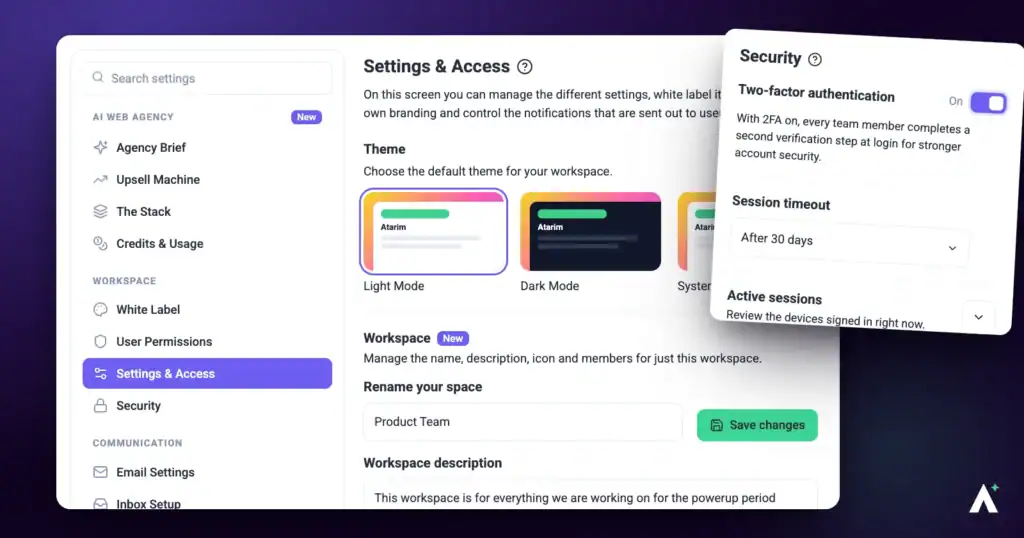
Account settings are where you configure everything that applies across your whole workspace — how the AI understands your agency, what your clients see, who on your team can do what, which emails go out, and which outside tools Atarim connects to. These are global settings that flow through to every project attached to your dashboard, rather than something you configure project by project.
That makes Settings the highest-leverage half hour in Atarim. Most of it is a one-time job, and most of it only applies to what happens after you save it — which is why doing it before your first client invite saves re-doing work later.
In this guide, you'll learn what each of the five sections controls, the exact click path to every setting, and how to tell whether a change actually saved.
What Can You Configure?
Settings is organised into five sections in the left sidebar:
Step-by-Step Guide
Step 1: Opening Your Account Settings
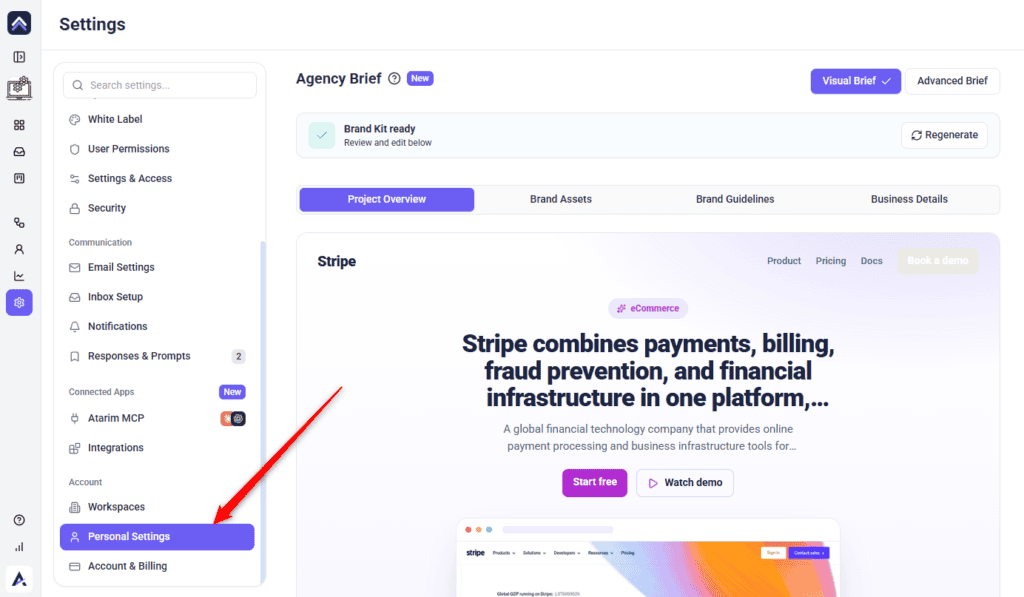
Everything in this guide is reached the same way. Settings opens on Agency Brief by default, with the settings menu on the left and the selected screen on the right.
Instructions:
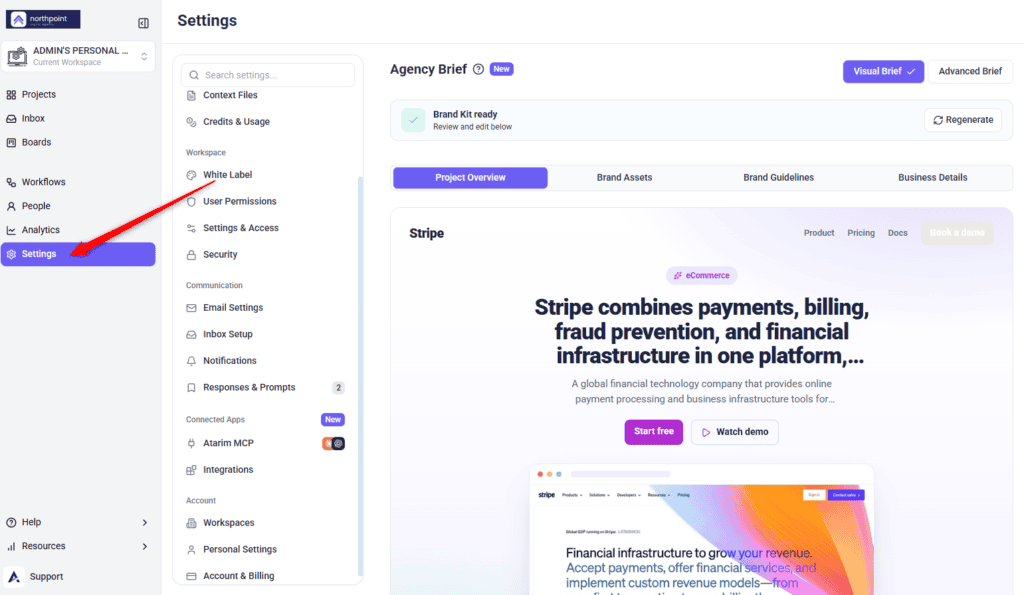
The Settings Panel and Its Five Sections
Step 2: Setting Up Your AI Web Agency
This section is what your AI reads before it does anything — your brand, your services, your preferred tooling, and your supporting documents. Discover Agency Brief: Building Your Brand Kit
Agency Brief
Your brand snapshot: what your business is, who it speaks to, how it sounds, and what it looks like. Atarim introduces it on screen as “Set up your project brief — start with your website URL and I’ll draft a project brief you can review and edit below.”
Instructions:
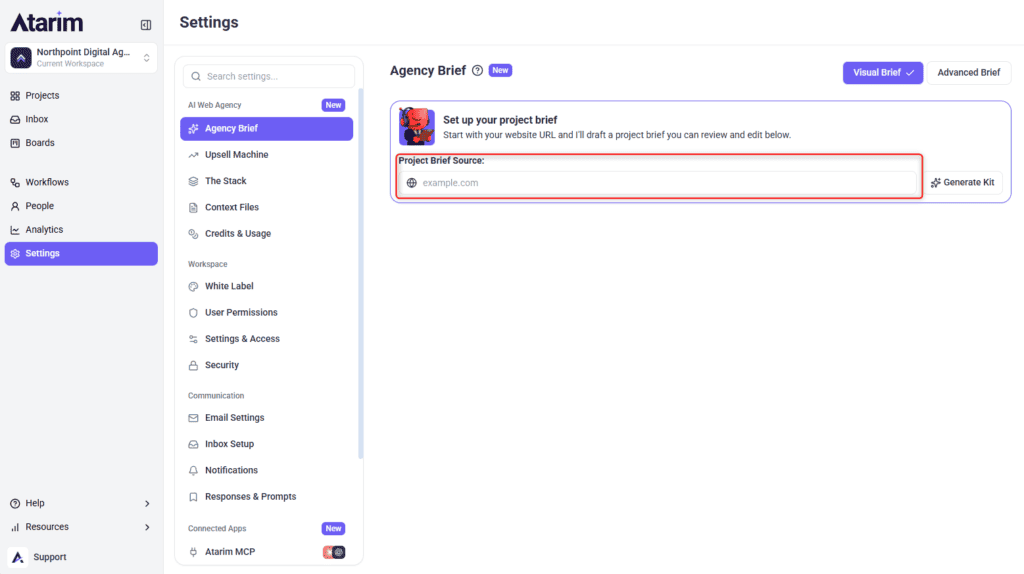
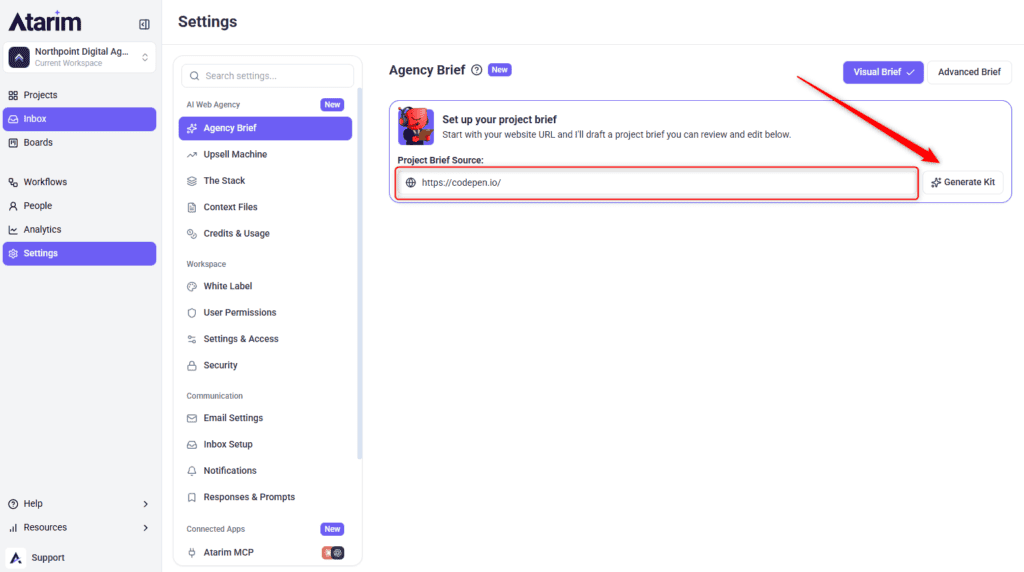
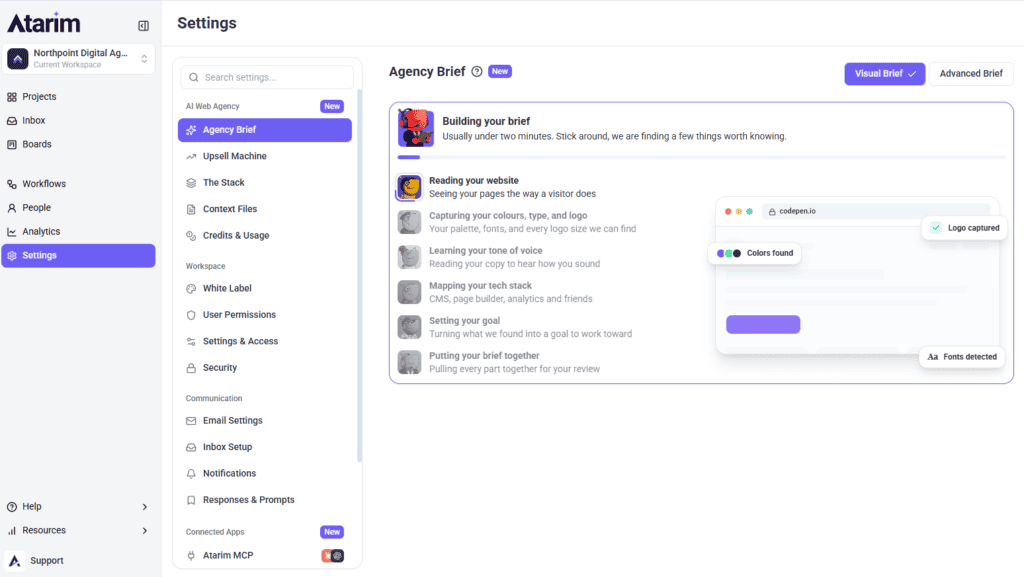
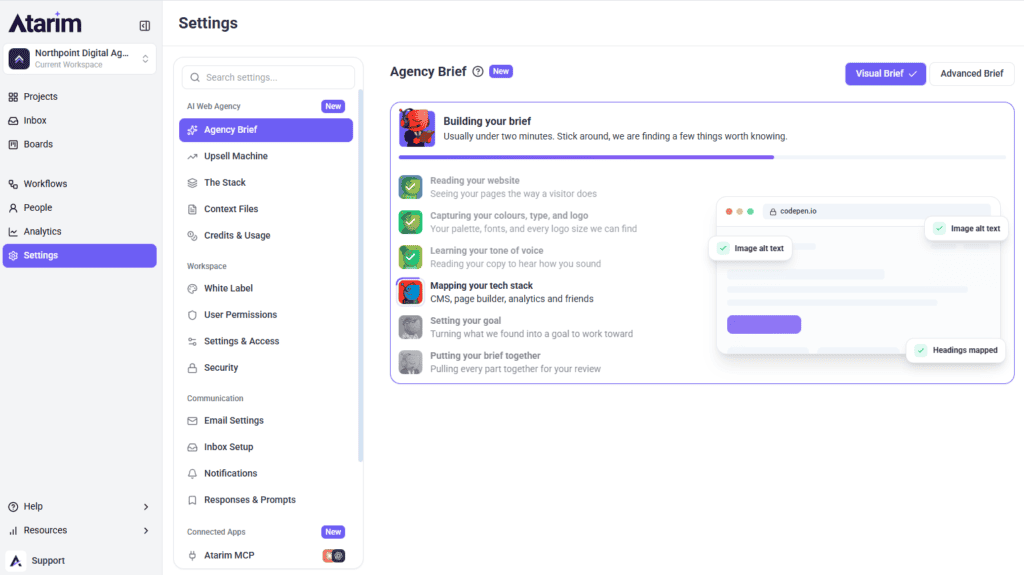
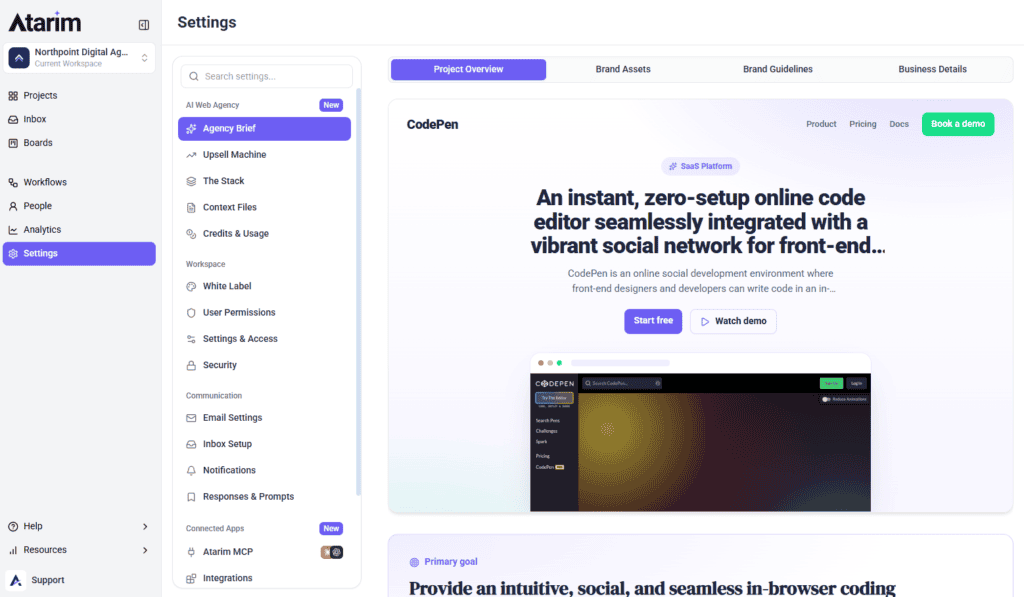
Generate a Brief Straight From Your Website
Upsell Machine
“Describe your agency’s services and areas of expertise. The AI uses this to identify opportunities for your team and to know when to bring you in rather than act autonomously.” Two fields, no other configuration screen. Inside The Upsell Machine: Turning Client Requests Into Billable Work
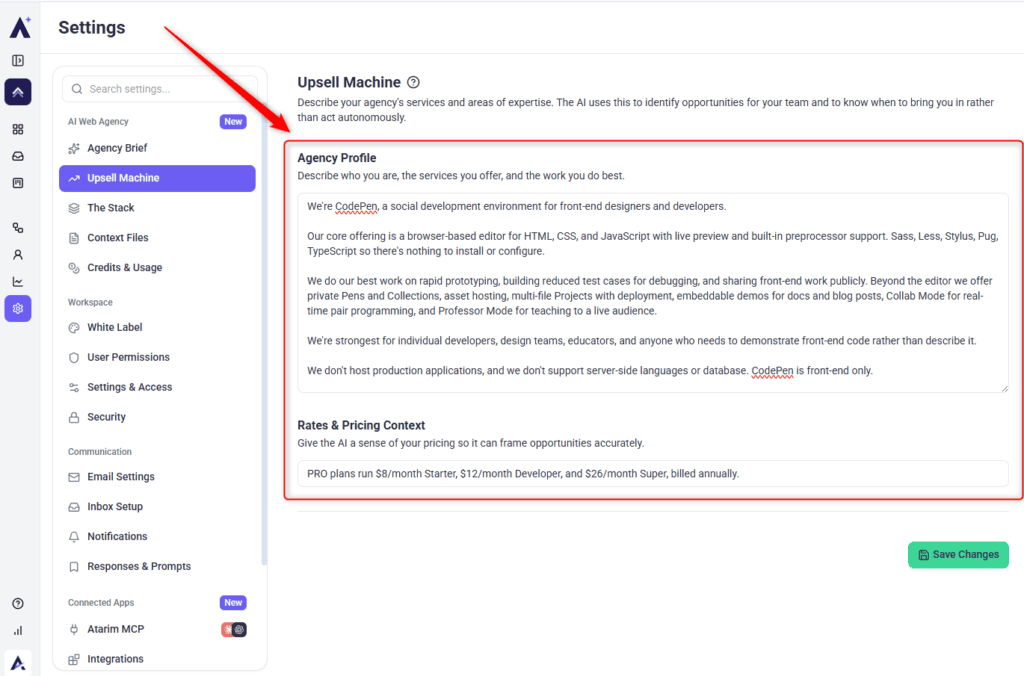
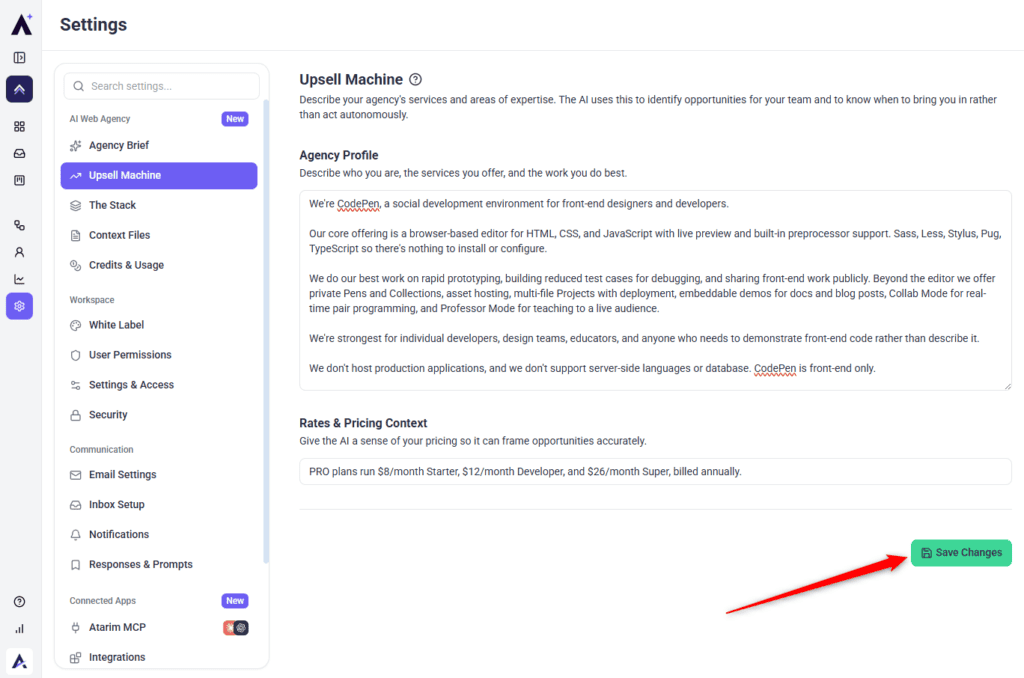
Agency Profile and Rates Drive Opportunity Matching
The Stack
“The plugin that fulfils each functional category on this workspace. This is reference data for Atarim workflows and AI, configuring it never installs anything.” Fourteen categories, each with an Atarim default. Get Started With The Stack: Mapping Your Preferred Plugin to Each Functional Category
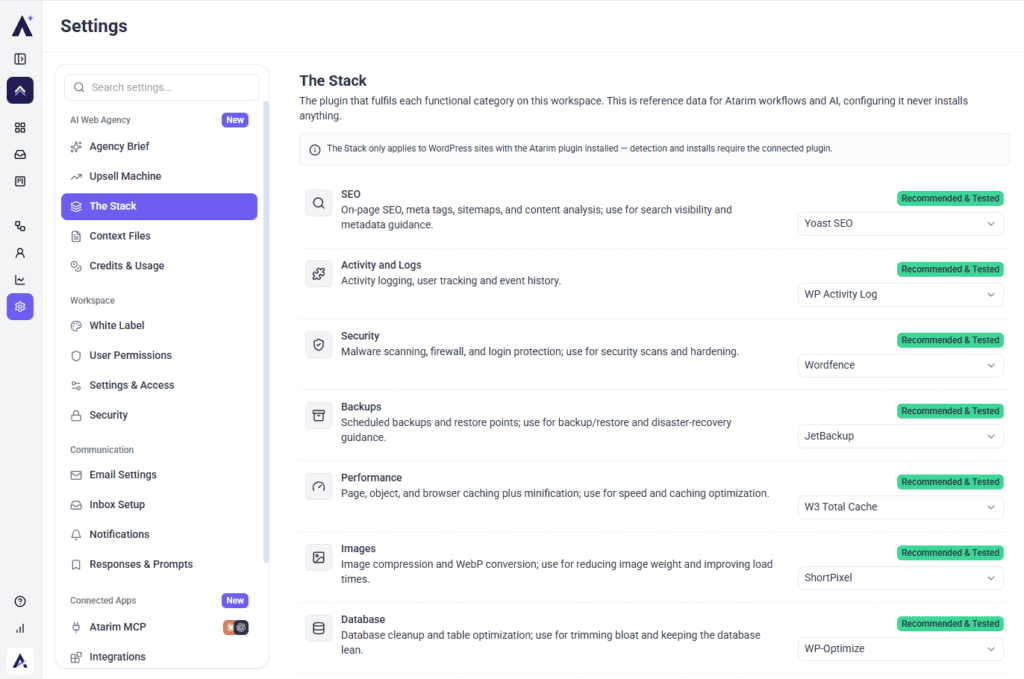
| Category | What it covers | Atarim default |
|---|---|---|
| SEO | On-page SEO, meta tags, sitemaps, content analysis | Yoast SEO |
| Security | Malware scanning, firewall, login protection | Wordfence |
| Backups | Scheduled backups and restore points | JetBackup |
| Performance | Page, object and browser caching plus minification | W3 Total Cache |
| Images | Image compression and WebP conversion | ShortPixel |
| Database | Database cleanup and table optimisation | WP-Optimize |
| Analytics | Google Analytics integration and reporting | MonsterInsights |
| Forms | Contact and lead-capture forms | WPForms |
| Email marketing automation and CRM | FluentCRM | |
| Uptime | Uptime monitoring and site stats | Jetpack |
| Heatmaps | Session recordings and heatmaps | Microsoft Clarity |
| eCommerce | Store, products, cart and checkout | WooCommerce |
| Redirects | 301/302 redirects and 404 tracking | Redirection |
| Page Builder | Detection only — no default is set | Gutenberg assumed |
Each category shows a badge telling you where its value came from: Installed on site, Workspace default, Agency default, Recommended & Tested, Custom, or Not configured. To change one, select the plugin name to open the picker, then choose a recommended plugin, search the WordPress directory, or pick from plugins detected on the site.
Fourteen Categories With Their Resolved Plugin
Context Files
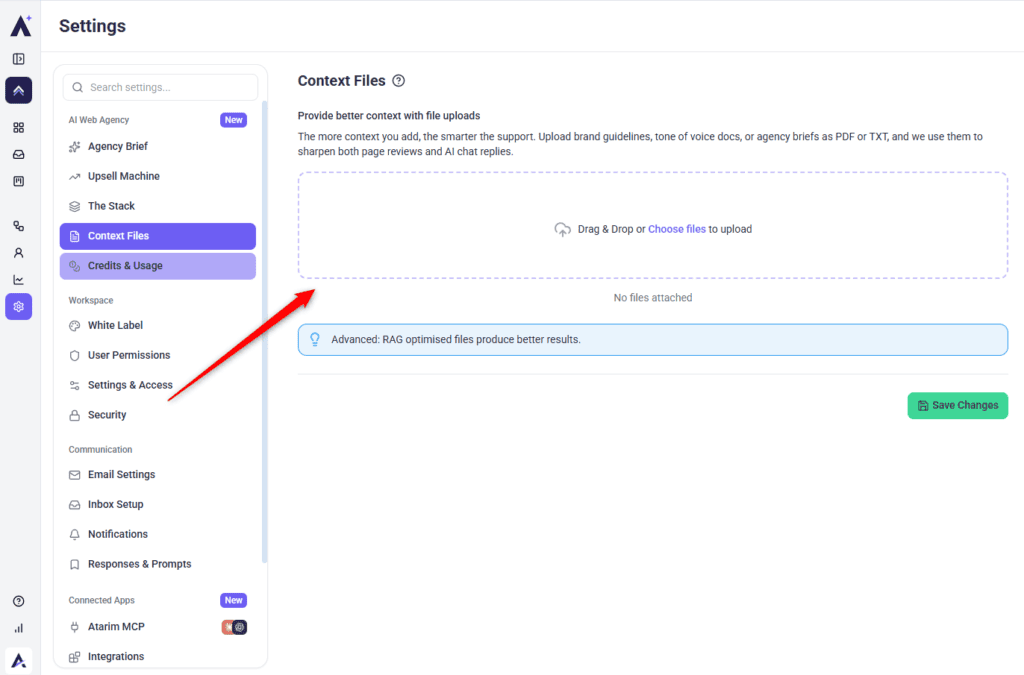
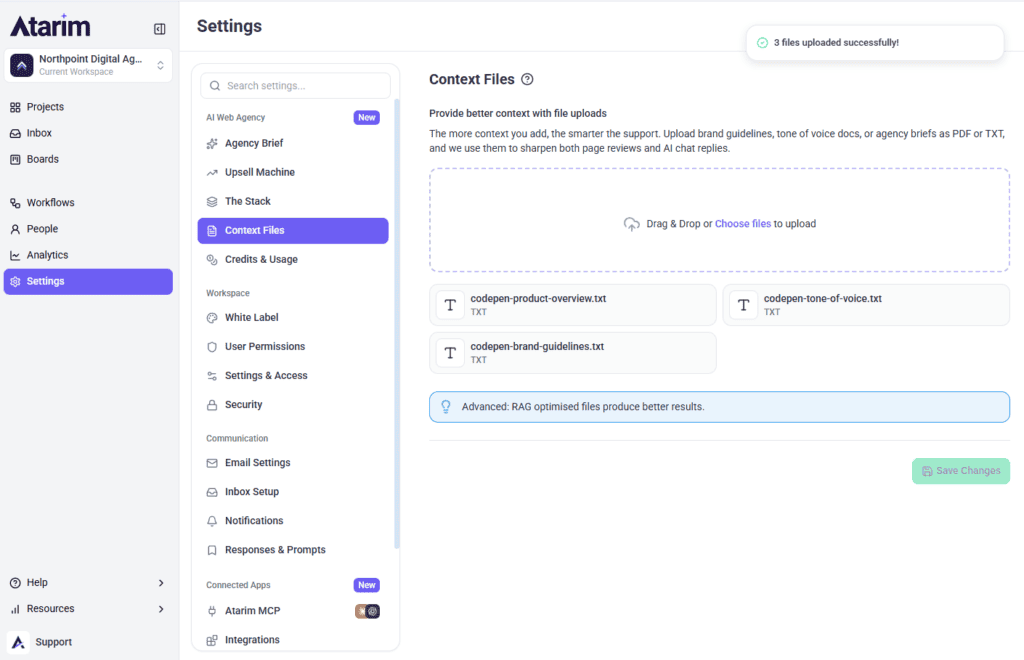
“The more context you add, the smarter the support. Upload brand guidelines, tone of voice docs, or agency briefs as PDF or TXT, and we use them to sharpen both page reviews and AI chat replies.”
Instructions:
Memory
Your experts keep notes on how you work, and write to them as they go, so you do not have to repeat yourself. Memory is where you read those notes and correct them.
There are two. The workspace memory is your agency: how you write, what you recommend, how you price. The project memory is one client: their preferences, their constraints, the things that only apply to them. Workspace chat reads the workspace memory. A task on a project reads that project’s memory.
Instructions:
- Under AI Web Agency, select Memory.
- Select a memory to open it. The workspace memory is at the top, and each project has its own below.
- To change the wording yourself, select Edit, make the change and save.
- To ask for a change in plain language instead, write it under Notes for your experts — for example “stop suggesting Elementor Pro”.
- A note is not applied the moment you write it. The sweep waits until your notes have been quiet for about fifteen minutes, so you can keep refining. Apply now skips the wait.
Credits & Usage
Overview
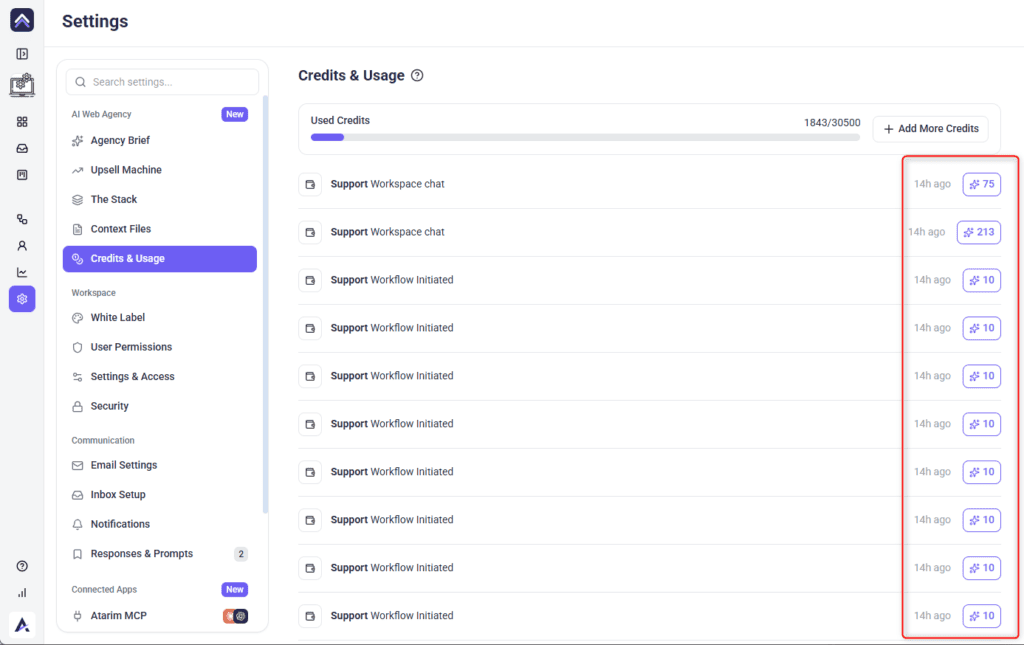
Credits are what every AI action actually costs. This screen shows your Used Credits bar and a running log of individual consumption events. Explore Credits & Usage: Tracking What Your AI Team Spends
Credit Balance and Usage
Credits are a single shared pool, so the usage log is the only place that shows which feature actually spent them.
Instructions:
Step 3: Configuring Your Workspace
White Label
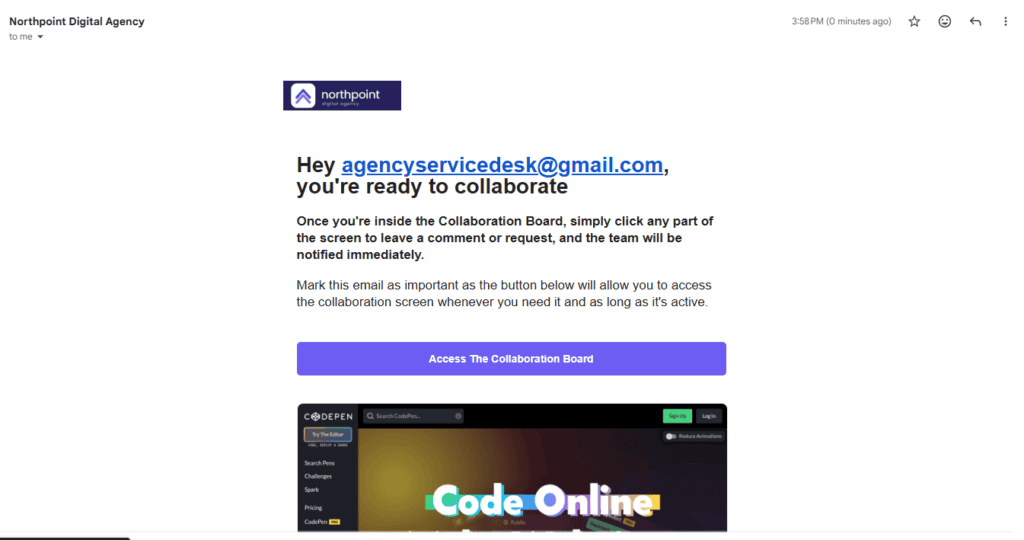
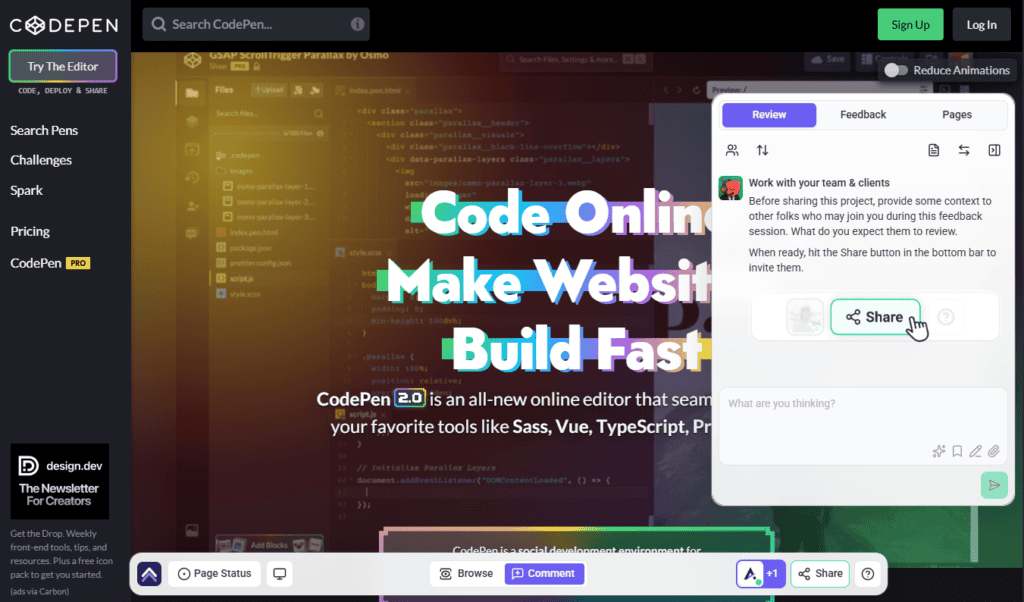
“Rebrand the Atarim client interface by changing the main color, logo, and icon.” The Atarim logo is replaced across the project frontend — bottom bar, sidebar, notification emails, and every other element carrying it.
Instructions:
#6D5DF3.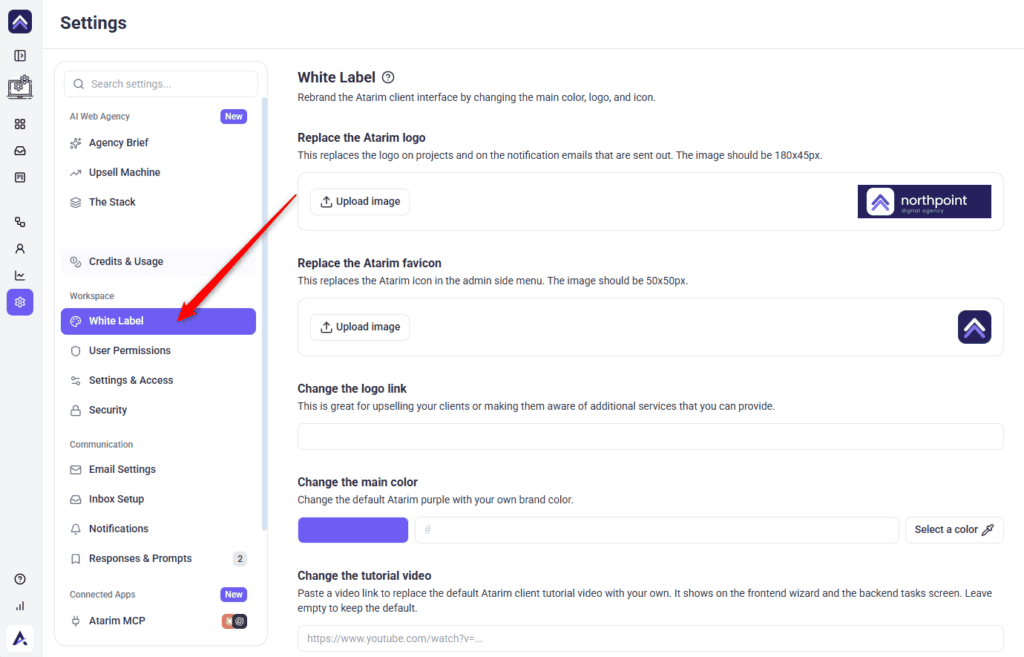
Rebrand the Client Interface With Your Own Assets
Links from YouTube, Vimeo, Loom, Wistia, Dailymotion, Streamable, Vidyard, Awesome Screenshot and Google Drive convert to an embeddable player automatically. Reset White Label Settings, near the bottom, reverts everything to Atarim’s defaults in one action.
User Permissions
“Enable or disable features for each Atarim user type to override the defaults and shape your workflow.” A grid of capabilities down the left and five roles across the top: Owner, Administrator, Team Member, Website Owner, Collaborator. This grid is the workspace default, and a single project can override it from its own Project Settings → User Permissions screen — which is a different screen from this one, despite the shared name. Understanding User Roles and Permissions in Atarim
Enable or disable features for each Atarim user type to override the defaults and shape your workflow.
Instructions:
| Capability | What it allows | Default |
|---|---|---|
| Assign Users On Tasks | Assign teammates so the right person gets notified | All roles |
| Change Status and Priority | Keep boards and workloads accurate | All roles |
| View Auto Screenshot on tasks | See the screenshot captured at task creation | All roles |
| View More Info on Tasks | Browser, screen size, page URL, creator | All roles |
| Delete tasks | Remove tasks and their comments for everyone | All roles |
| Create Annotated Screenshot | Draw and comment directly on screenshots | All roles |
| AI Chat | Use the AI assistant inside task conversations | All roles |
| Trigger Clarity Test | Score how clear a task is and suggest fixes | All roles |
| Show Me | The in-task AI walkthrough action | All roles |
| Do It | The in-task AI execution action | Off for Collaborator |
| Color Coded Stickers | Colour-coded task stickers on the page | All roles |
| Display Number on Completed Tasks | Show the task number on completed items | All roles |
| Keyboard Shortcuts | Faster navigation while collaborating | All roles |
| AI Mode by Default in Tasks | Open new tasks with AI mode already on | Off for Collaborator |
Capability Grid Across the Five Roles
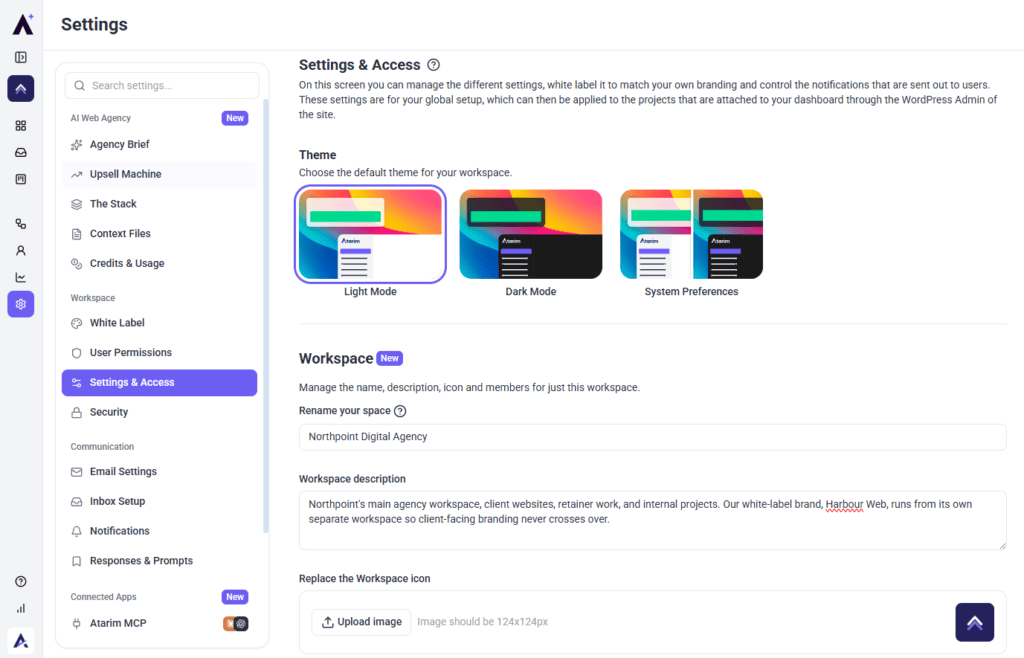
Settings & Access
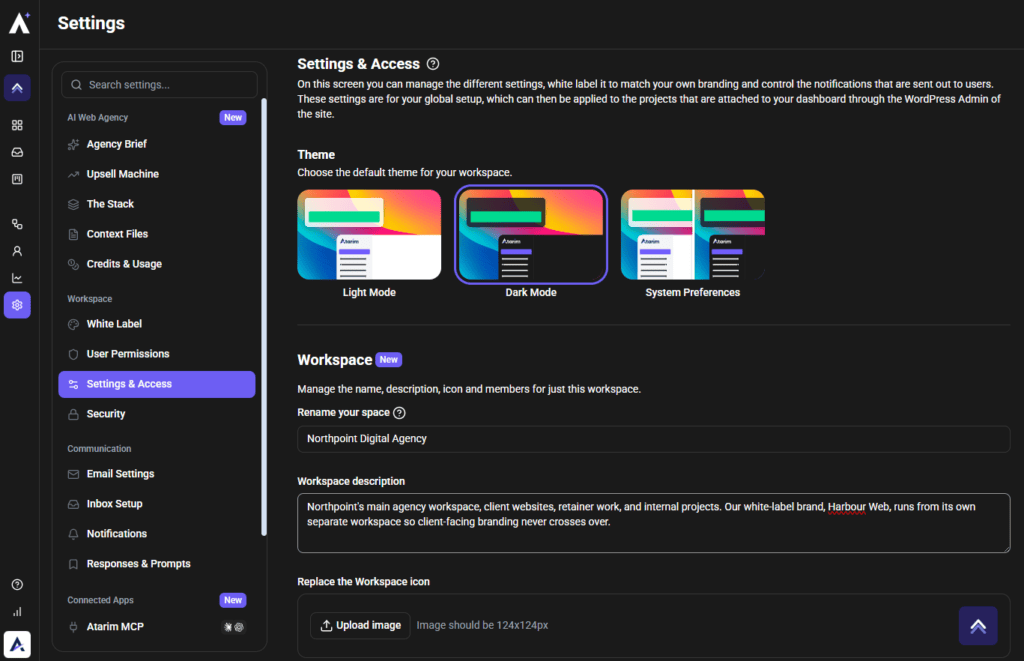
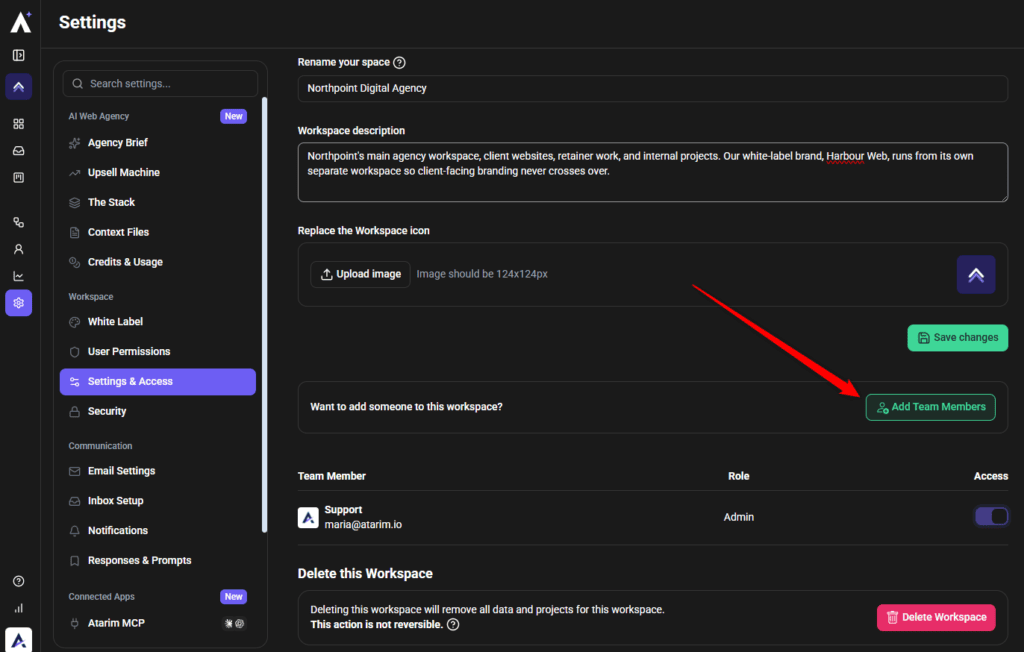
Holds two things: your theme preference — Light Mode, Dark Mode, or System Preferences, applied instantly — and the identity and membership of the workspace you’re in. Rename your space, write a description, replace the 124×124px icon, then select Save changes. Add Team Members invites someone new, and the table below lists each member with their role and an access toggle.
Instructions:
Security
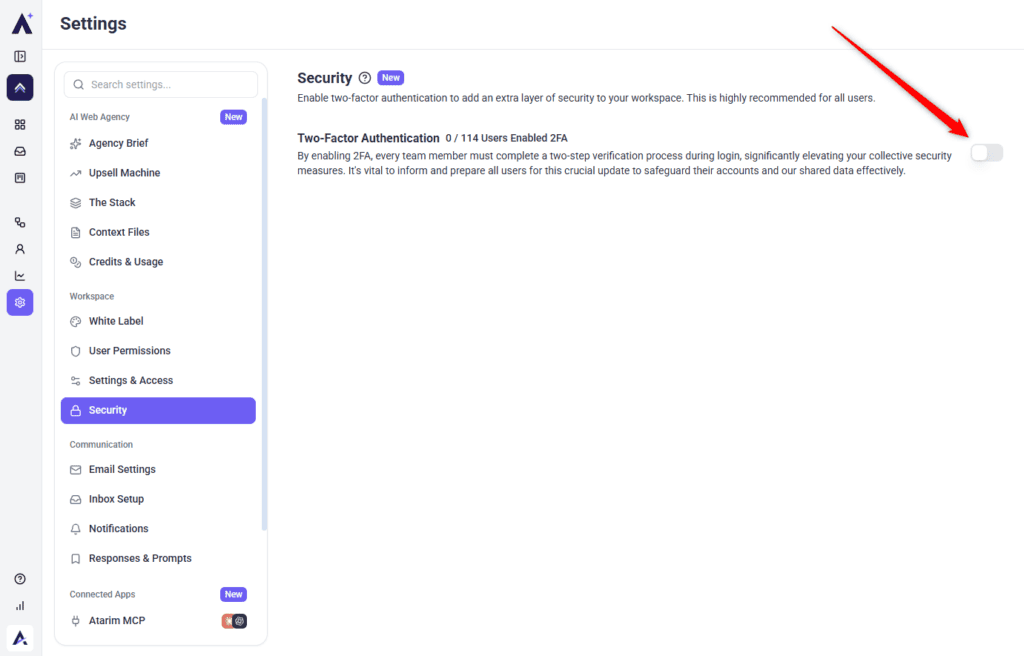
Control how your team authenticates and how long sessions stay active. These policies apply to everyone in your workspace. See How to Enable Two-Factor Authentication
Instructions:
Step 4: Setting Up Communication
Until Inbox Setup is complete, selecting Email Settings, Inbox Setup, or Notifications all open the four-step wizard instead of the normal pages. A Back to Email Settings button beneath it skips out. This is expected, not an error.
Email Settings
“Choose the sender name and email address that will be associated with your Atarim account, this will allow you to white label the email features and notifications, and leverage the built in Email Support Desk.”
Instructions:
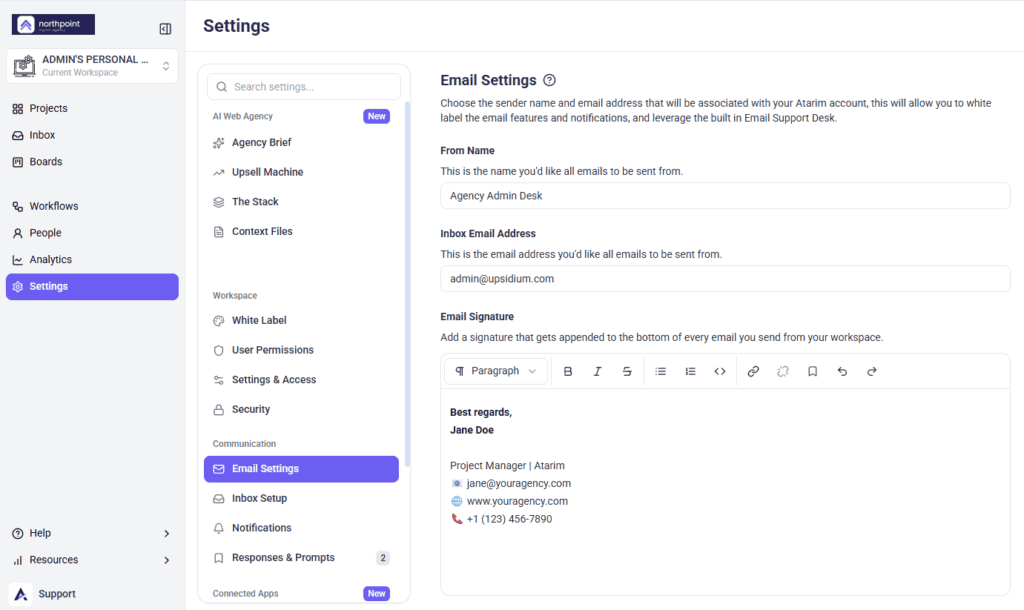
Sender Name, Address and Signature
Email Signature requires a higher plan than the rest of this page. If yours doesn’t include it, the editor is read-only and the label carries an upgrade badge; the other two fields stay editable.
Inbox Setup
“Follow the steps below to set up your inbox address, verify your domain, and configure your email signature and notifications so we can send emails on your behalf.” Move between the four steps with Prev and Next. Get Help Adding DNS Records to Verify Your Domain
Instructions:
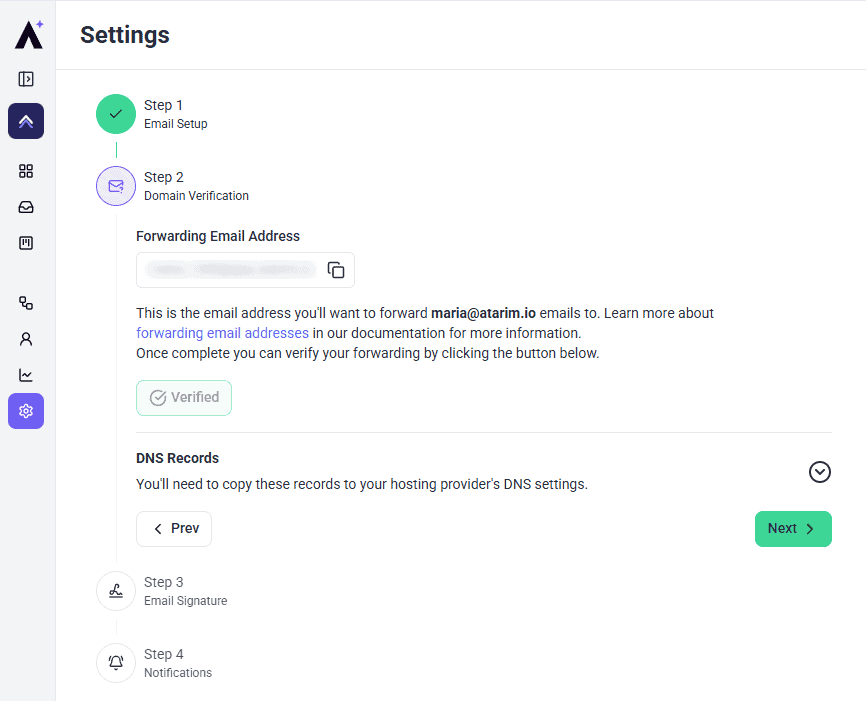
Forwarding Address and DNS Records
Notifications
Choose which email notifications your workspace sends. These are the workspace defaults, and each user can still fine-tune their own preferences from their profile. Email Notifications: Controlling What Your Workspace Sends
Instructions:
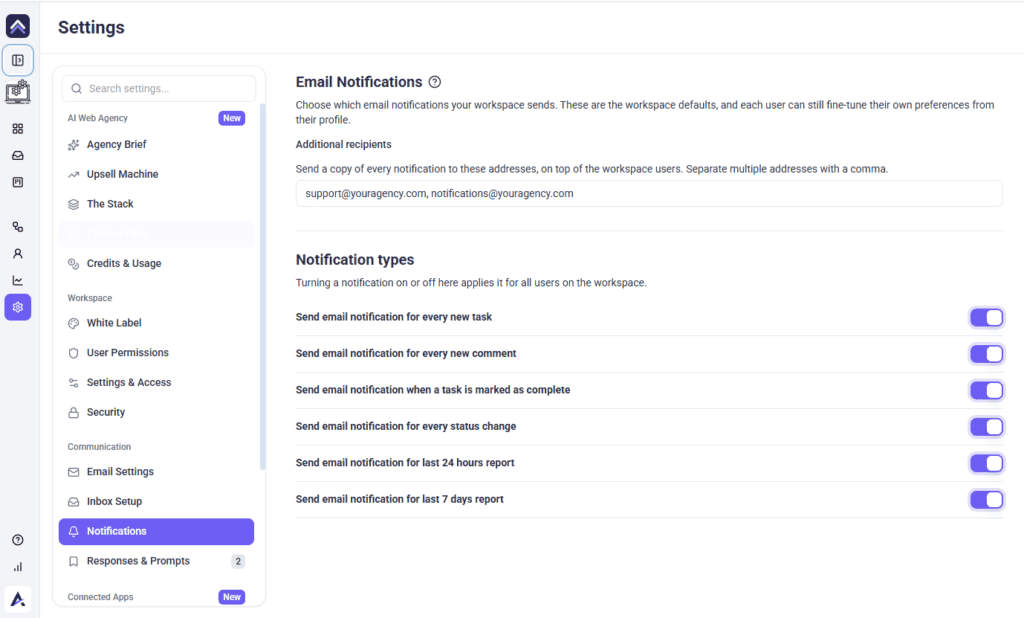
Additional recipients sends a copy of every notification to the addresses you list, separated by commas, on top of the workspace users. This requires a higher plan.
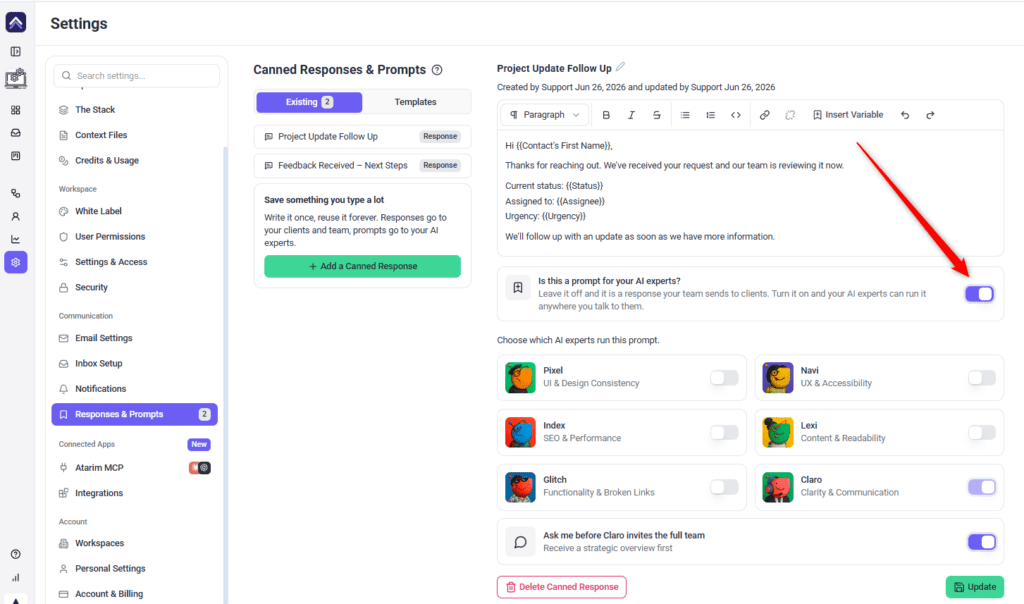
Responses & Prompts
One saved-text library serving two different jobs: write it once, reuse it forever. Responses go to your clients and team; prompts go to your AI experts. Reply Faster With Canned Responses
Instructions:
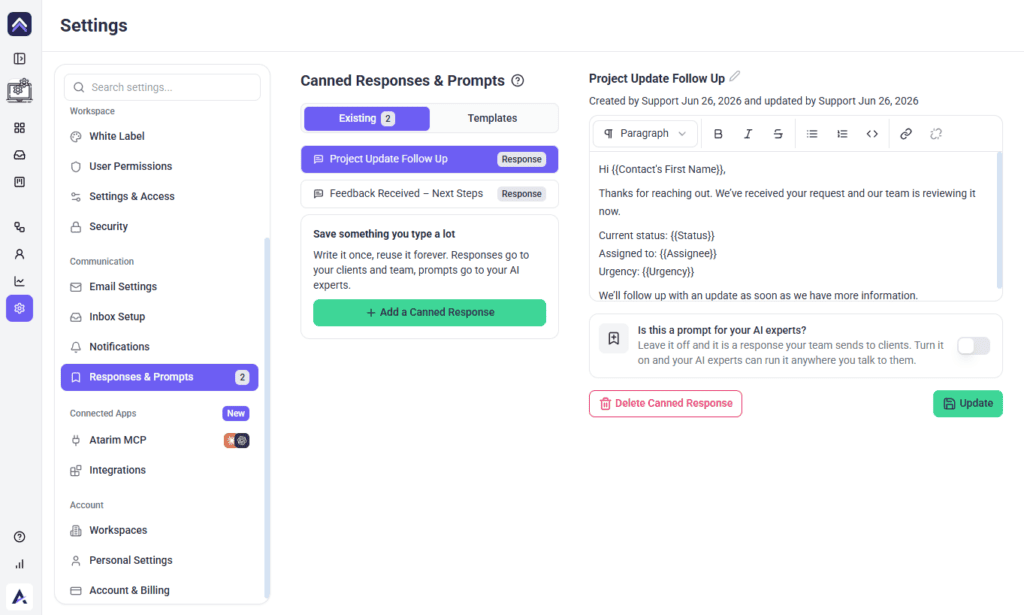
Step 5: Connecting Your Apps
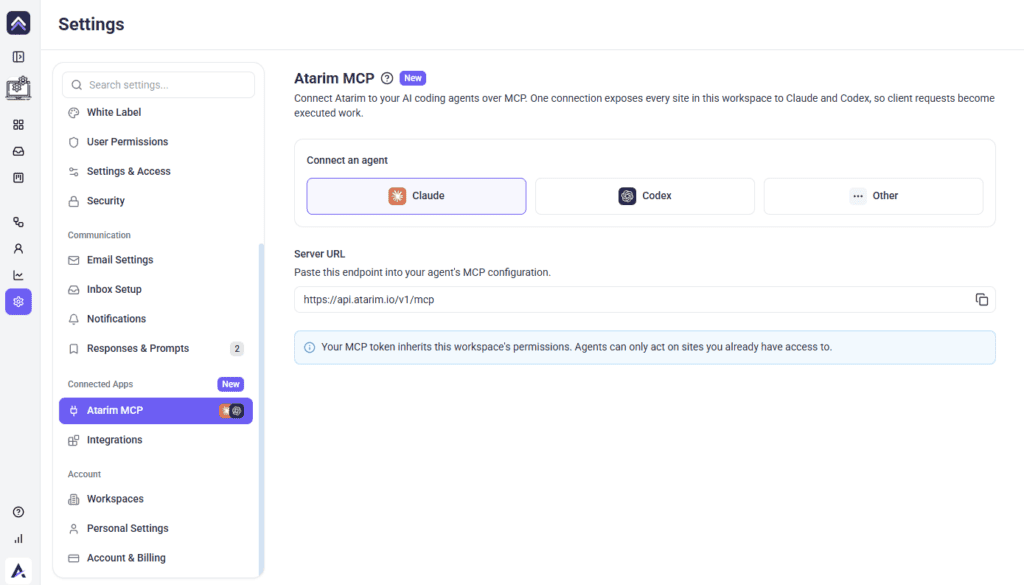
Atarim MCP
“Connect Atarim to your AI coding agents over MCP. One connection exposes every site in this workspace to Claude and Codex, so client requests become executed work.” Learn More About Atarim MCP: Connecting Claude, Codex, and Other Coding Agents
Instructions:
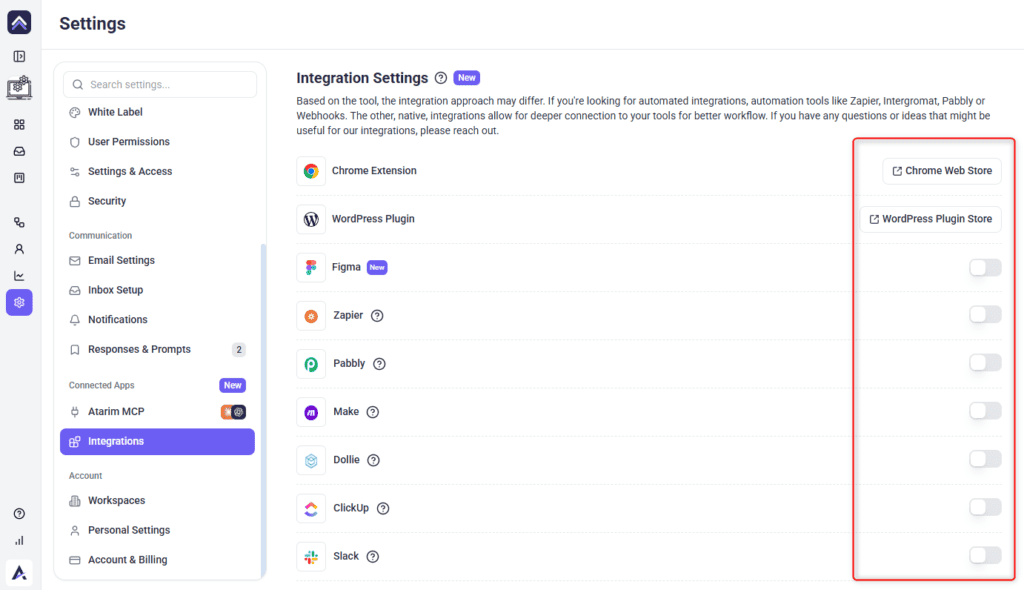
Integrations
“Based on the tool, the integration approach may differ. If you’re looking for automated integrations, automation tools like Zapier, Integromat, Pabbly or Webhooks. The other, native, integrations allow for deeper connection to your tools for better workflow.”
Available in this order: Chrome Extension, WordPress Plugin, Figma, InstaWP, Zapier, Pabbly, Make, Dollie, ClickUp, Slack, Asana, Jira, Teamwork.com, MainWP, Rocket, Basecamp, Trello, and Monday. For Zapier, Pabbly, Make and Dollie, toggle on then copy the API Key into that tool’s connection screen. For the rest, toggle on and follow that tool’s authorisation prompts. See All Integrations
Instructions:
Step 6: Managing Your Account
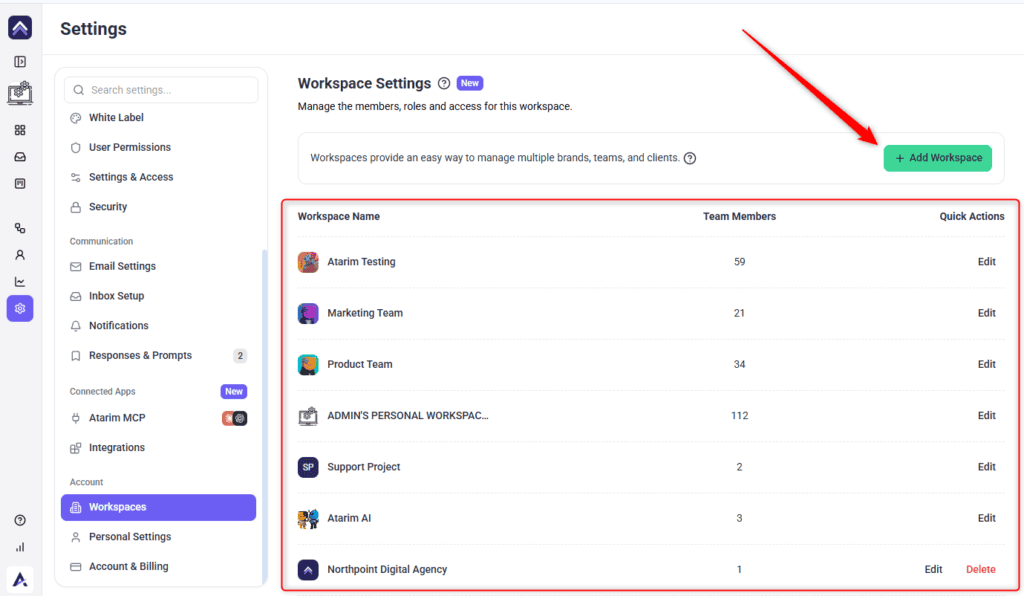
Workspaces
“Workspaces provide an easy way to manage multiple brands, teams, and clients.” The table lists each workspace by Workspace Name, its Team Members count, and Quick Actions. Use Add Workspace to create a new one, or the edit action on a row to change an existing one. Deletion happens on that workspace’s Settings & Access page. See How to Add and Manage Workspaces
Workspaces provide an easy way to manage multiple brands, teams, and clients.
Instructions:
Personal Settings
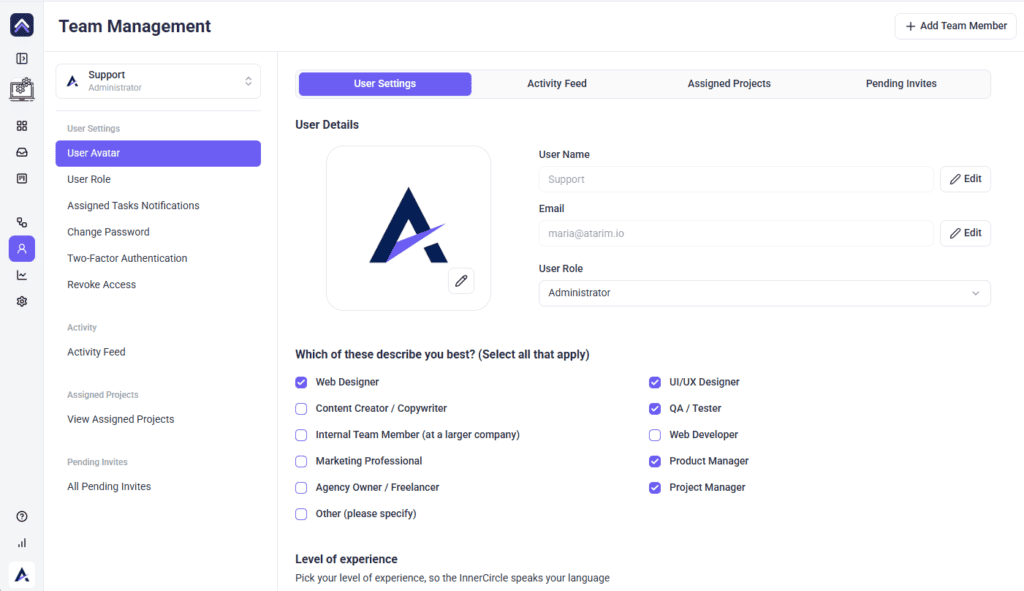
Selecting this takes you out of Settings and into your own user record under People. Four tabs: User Settings, Activity Feed, Assigned Projects, and Pending Invites. User Settings holds your avatar, role, assigned-task notifications, password, two-factor authentication, revoke access, and your level of experience — which scales how the AI explains things to you.
Account & Billing
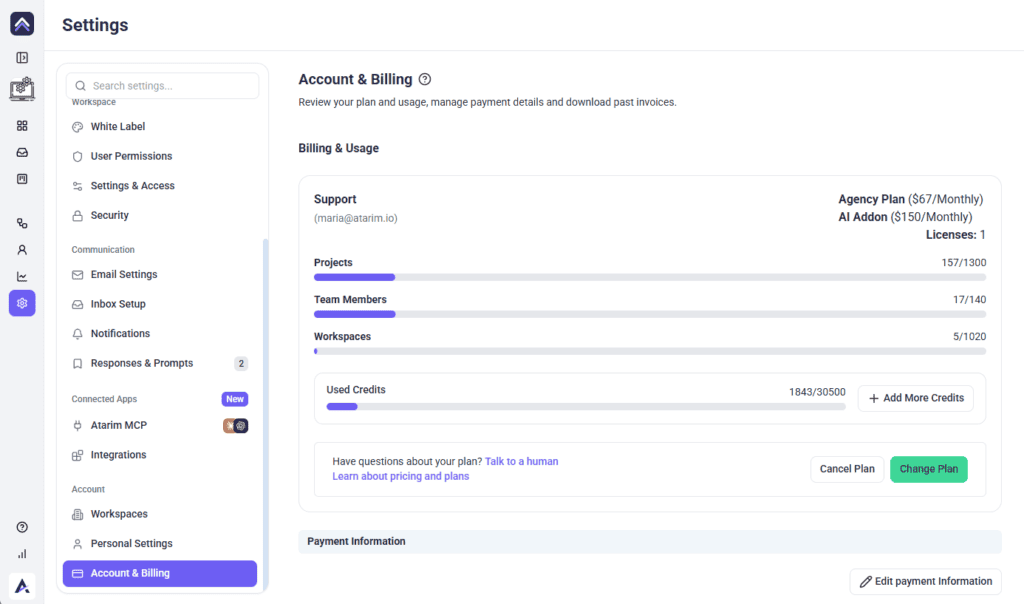
Your plan and price, licence count, and usage bars for Projects, Team Members, Workspaces and AI Credits, then Payment Information and Invoice Information below. Manage Your Account and Billing
FAQs
Where can I find my account settings in Atarim?
Select Settings in the navigation bar of your Atarim dashboard.
Do I need admin permissions to change account settings?
In most cases, yes. Settings is off by default in the main navigation for Team Members and Collaborators, and several pages have their own view permissions on top of that.
Where’s the setting that drives client request routing?
Settings, under AI Web Agency > Upsell Machine — fill in your Agency Profile and Rates & Pricing Context there.
Does an empty Rates field break anything?
No — price estimates are simply omitted and neither field on that page is required.
How many categories does The Stack have?
Fourteen. Page Builder is detection-only — Gutenberg is assumed when no third-party builder is found.
Does configuring The Stack install plugins on my clients’ sites?
No. It’s reference data only, telling Atarim’s workflows and AI which tool fulfils each category.
Can I set a different stack for one project?
Yes. On that project’s Stack screen, turn off Inherit from workspace defaults and override the categories you need.
What file types can I upload as Context Files?
PDF and TXT. Several focused files work better than one large document.
Do I have to write in the memory file myself?
No. Your experts write to it themselves as they work. Edit is there for when they have recorded something wrong, and Notes for your experts lets you ask for a change in plain language instead.
Why has my note not appeared in the memory yet?
Notes are folded in on a sweep rather than the moment you write them, so you can keep refining. The sweep waits until your notes have been quiet for about fifteen minutes. Apply now runs it straight away.
Are AI Chat and Trigger Clarity Test off for Team Members by default?
No — both are enabled for every role by default. If someone can’t use them, check whether an Administrator has since switched them off, and check that project’s Manage Access panel.
Do I need to press Save on the User Permissions grid?
No. Each checkbox saves as you change it — look for the Saved! badge beside the heading.
Can a user turn a notification back on that I disabled?
No. Users can narrow their own preferences from their profile, but they can’t re-enable something switched off at workspace level.
What’s the difference between a canned response and a canned prompt?
A response is text your team sends to clients. A prompt is an instruction your AI experts can run wherever you talk to them. The same library holds both.
Is the MCP Server URL different for Claude and Codex?
No — it’s the same endpoint for every agent. The agent selector points you at the right setup instructions.
Why can’t I delete my workspace?
Your default workspace can’t be deleted, and deletion requires the right permission. The Delete this Workspace section only appears on Settings & Access when both conditions are met.
Do White Label and Email Settings change things I’ve already sent?
No. Both apply only going forward — anything sent before still carries the generic default.
Conclusion
Configuring your account settings is a one-time investment that pays off across every client relationship that follows. Agency Brief and the Upsell Machine sharpen the AI's judgment so it knows your work well enough to spot an opportunity and knows when to escalate rather than act alone. White Label and Security shape what clients see and how your team logs in. Communication settings keep everyone informed without manual effort, and Connected Apps extends Atarim into the tools your team already uses.
The one thing worth remembering: saving isn't consistent across Settings. Roughly half the pages need an explicit Save and half save as you go. If a change doesn't seem to have stuck, check the saving table in Step 7 before assuming something is broken — it's the single most common cause of lost work here.
Tips & best practices
- Use Email Forwarding for External Clients: Set up email forwarding for clients who prefer to receive updates in their inbox.
- Customize Notifications: Adjust notification settings to ensure relevant team members receive updates without cluttering their inbox.
- Manage Workspace Settings for Security: Regularly update user permissions to control access to sensitive project information.