Atarim for Frontend Developers: Aligning Development with Design
Every ticket arrives with the element path, the URL, the browser, and a screenshot — so the first thing you do is fix it, not reproduce it.
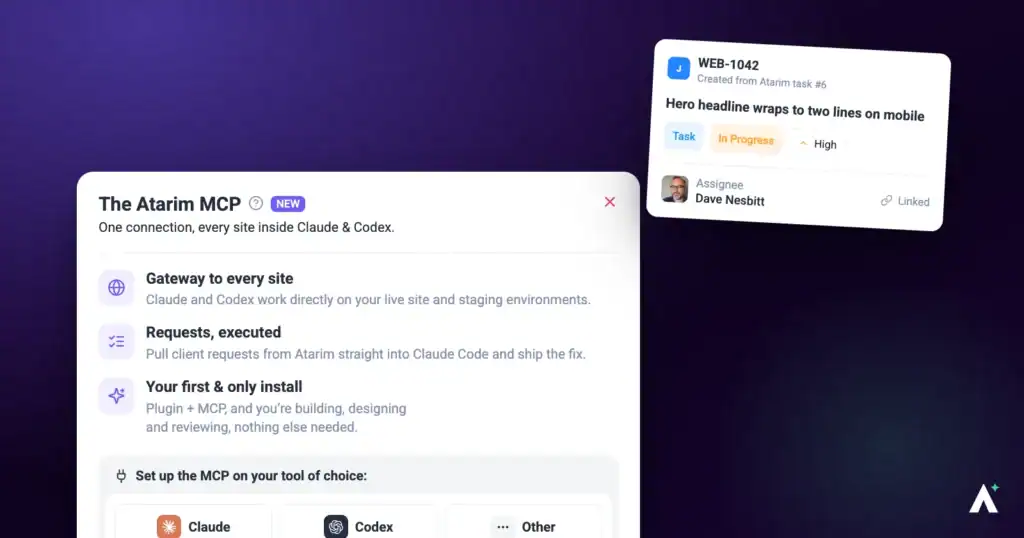
The expensive part of implementing feedback is rarely the code. It is working out which element “the button” refers to, on which page, at which breakpoint, in which browser — and then discovering the reporter meant something else. Atarim collects that context at the moment the task is created, because the reporter was standing on the page when they made it.
The context you would otherwise have to ask for is captured when the task is created.
The expensive part of implementing feedback is rarely the code. It is working out which element “the button” refers to, on which page, at which breakpoint, in which browser — and then discovering the reporter meant something else.
Atarim collects that context at the moment the task is created, because the reporter was standing on the page when they made it. This guide is about extracting it efficiently and closing the loop back to the person who reported it.
Reading a Task’s Technical Details
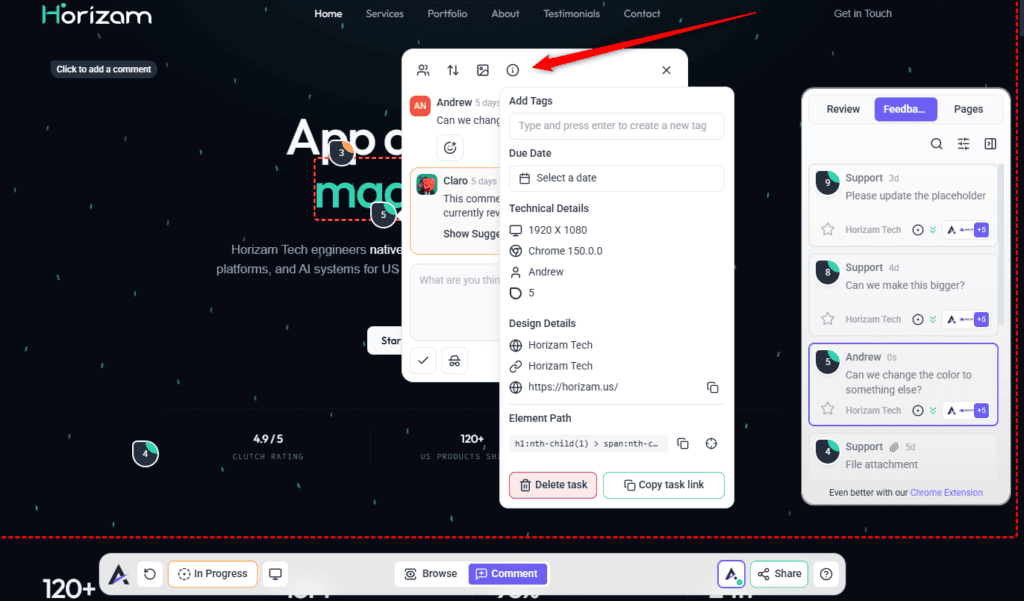
Open a task and expand Technical Details. This is the panel that removes most of the back-and-forth.
| Field | What it gives you |
|---|---|
| Element Path | The selector for the element the reporter clicked. Copyable in one action. |
| Page URL | The exact address they were on, also copyable. |
| Browser | What they were using, which is usually the answer when something reproduces for them and not for you. |
| Screen Size | The viewport at the time — the breakpoint the issue actually occurs at. |
| Website Name and Page Name | Which project and page the task belongs to. |
| Created By | Who to ask when the comment is ambiguous. |
| Task ID and Share Link | A stable reference and a copyable link for a commit message or a standup. |
| Due Date and Add Tags | Scheduling and categorisation, editable in place. |
When the Element Has Moved
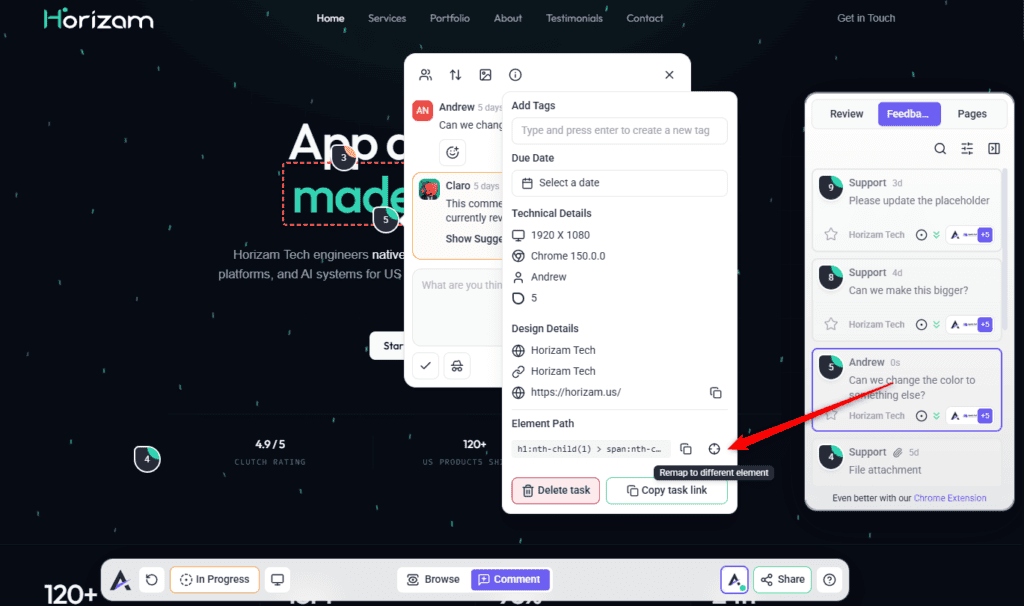
Code changes. A task pinned to an element that no longer exists reports Element not found on this page, and offers Remap to element so you can point it at the current markup rather than losing the thread.
This matters more than it sounds. A refactor that renames a component orphans every task attached to it, and remapping is the difference between a task list that stays trustworthy and one people stop believing.
Working Across Breakpoints
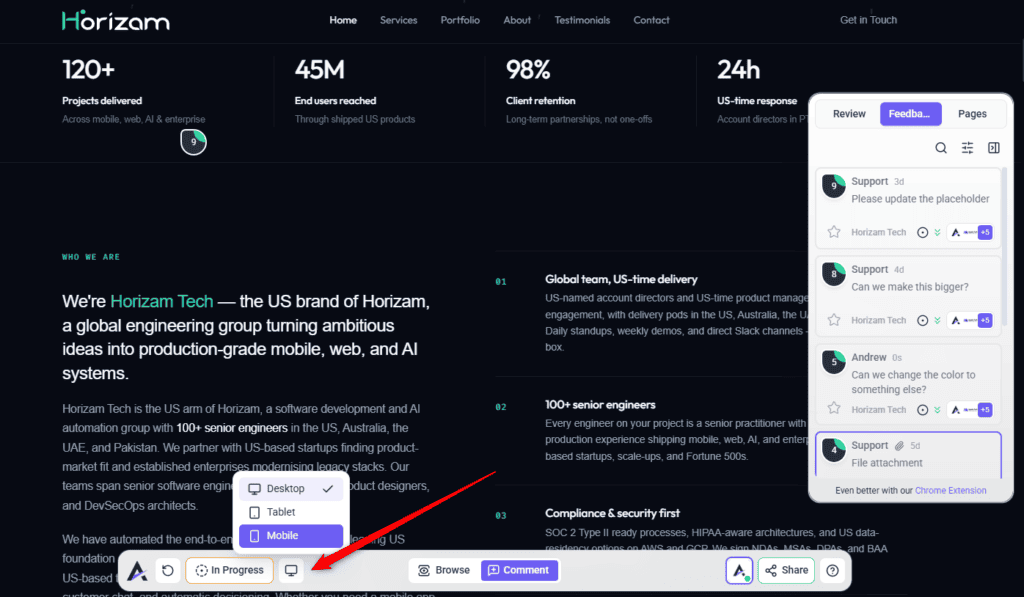
The collaboration view carries a device menu for previewing at Desktop, Tablet, and Mobile. Feedback left while a view is active is recorded against that view, so a task that only reproduces on mobile arrives already saying so.
It works in both directions: check your fix at the breakpoint the task was reported at, then sweep the others before you mark it done. The Screen Size field tells you where to start.
Applying Changes to WordPress with Do It
Where the project is a WordPress site with the Atarim plugin connected, some changes can be applied without leaving the task. The control is Do It, and its tooltip is exactly that — apply this change.
| What you see | What it means |
|---|---|
| Do It | The change can be applied from here. |
| Queued | Accepted and applying in the background. |
| Undo | Reverts a change that was applied. |
| Log in to your WordPress to use Do It | You are not authenticated against the site yet. |
| Connect WordPress to use Do It | The plugin is not connected. The window offers to install it from your site URL, or to download it. |
| More Do It integrations are coming soon | The feature is WordPress-only for now. |
Connecting a Coding Agent Over MCP
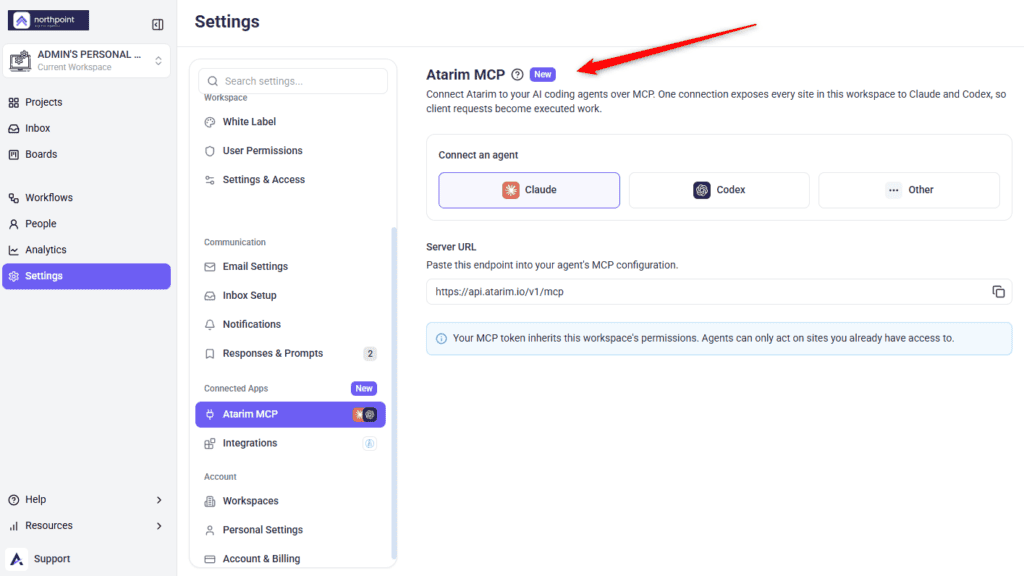
Atarim exposes an MCP endpoint so AI coding agents can read the work directly. The panel describes it as connecting Atarim to your AI coding agents over MCP, where one connection exposes every site in the workspace.
Instructions:
| Detail | What to know |
|---|---|
| Scope | One connection covers every workspace and site your account can access. Each call still names one workspace, so a single request does not span them. |
| Permissions | The connection acts as you, with your own account’s permissions — agents can only act on sites you already have access to. |
| Agents | Claude and Codex are named explicitly; Other covers any MCP-capable client. |
| Server URL | Shown inside the setup line for your agent rather than as a separate field. For Claude Desktop and Other that line is the URL itself. |
Working with the InnerCircle
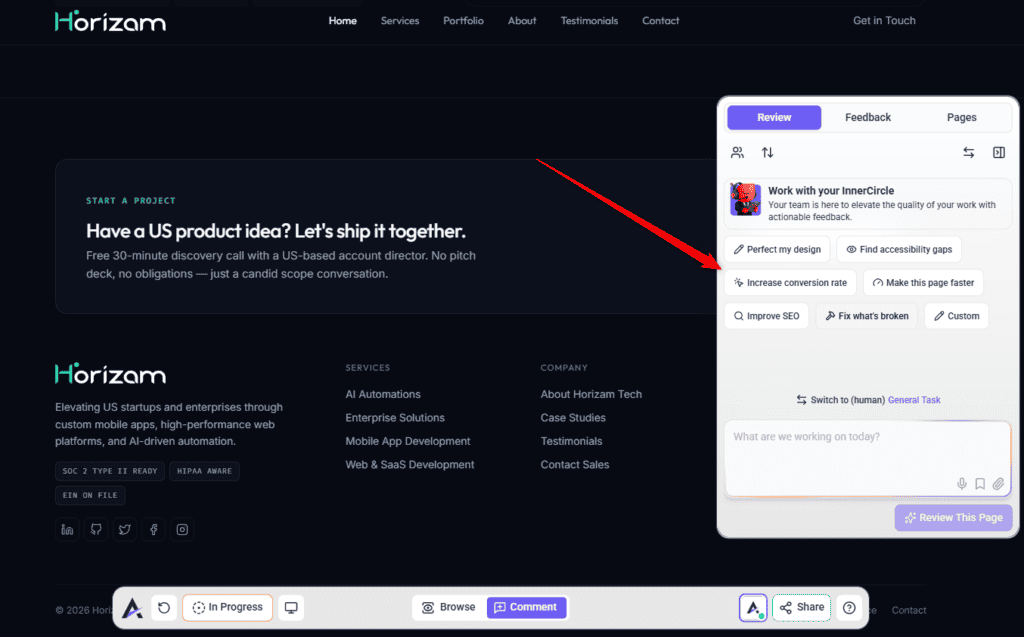
Atarim’s AI team reviews pages the same way your reviewers do, and two of its members are aimed squarely at things a frontend developer would otherwise find in QA.
| Agent | What it looks at |
|---|---|
| Glitch | Functionality — interactions that break, and pinpointing what is breaking them. |
| Navi | User experience and accessibility. |
| Index | SEO and performance. |
| Pixel | Design — layout and spacing execution. |
| Lexi | Content and tone. |
| Claro | Clarity, including chasing vague client feedback before it reaches you. |
Findings come back in the Review tab in the sidebar, listed as subtasks under the review and grouped by the viewport they were found in. Selecting a finding takes you to it on the page — so, as with a human-reported task, the breakpoint comes with the issue rather than needing to be worked out.
Instructions:
The Checks the AI Can Run for You
The agents are not limited to reading a page. Ask in an AI chat and, where relevant, they can run real diagnostics against a public URL. These are run on request rather than automatically as part of a review:
AI Chat Inside a Task
Each task thread carries an AI control, described as somewhere to ask AI to clarify, suggest ideas, or sanity-check your thinking, based on that thread. For a developer this is most useful on the ambiguous ones — work out what a comment is actually asking for before you either build the wrong thing or spend a day waiting on a reply.
A task can also be switched between a regular general task and an AI review, so a thread that turns out to need a proper look can become one without being recreated.
Moving Work Through Statuses
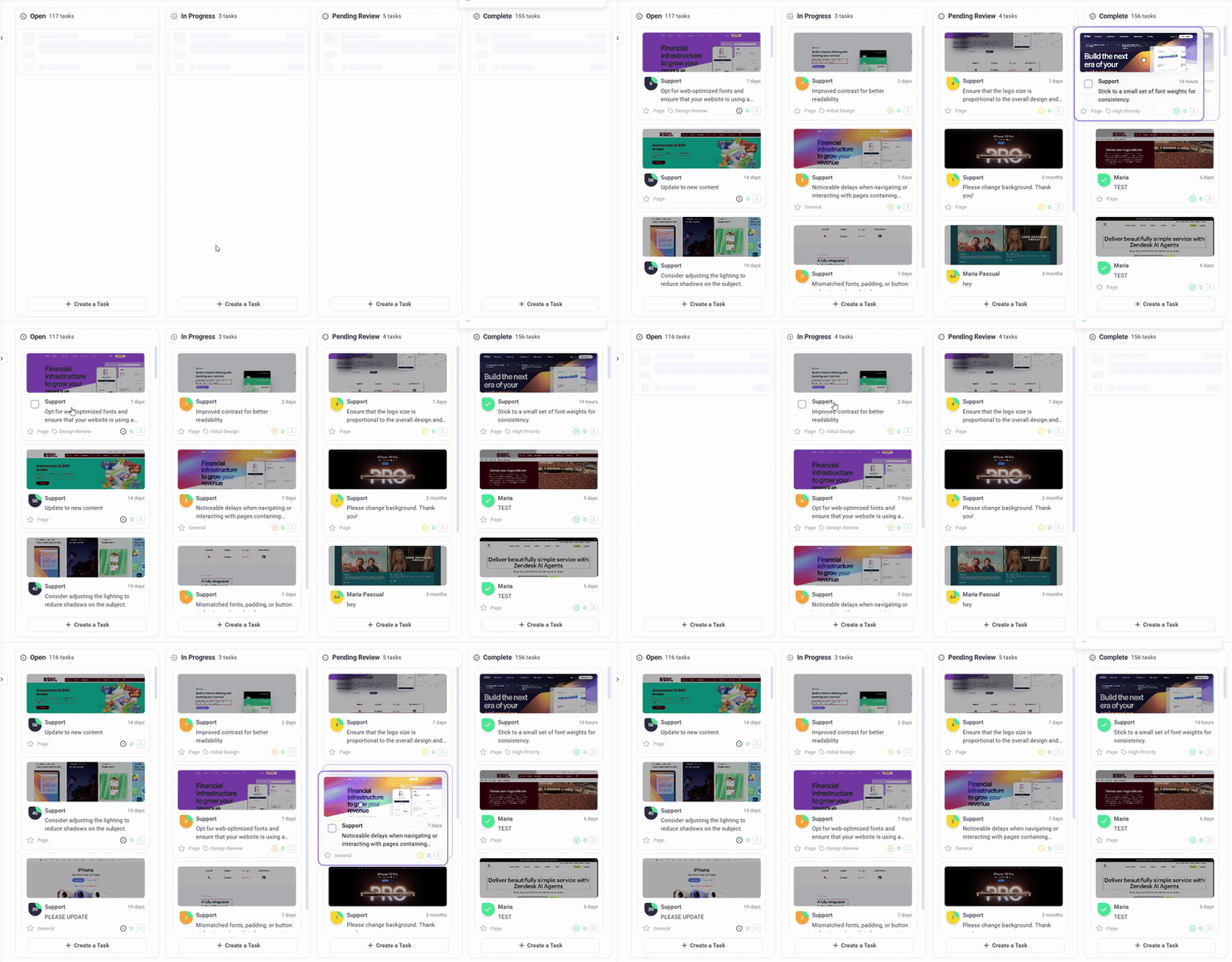
Tasks carry four statuses and four priorities. Using them consistently is what lets a designer or PM see progress without asking you.
| Status | When to set it |
|---|---|
| Open | Untouched. Anything sitting here is unclaimed. |
| In Progress | You have started. Set it when you pick the task up, not when you finish. |
| Pending Review | Implemented and waiting on the reporter to confirm. This is the handback. |
| Complete | Confirmed and closed. |
Priorities run Low, Medium, High, and Critical. A quick-complete control also exists for one-line fixes, with a matching tooltip for setting a task back to In Progress if it turns out not to be done.
Talking to Your Team Without Talking to the Client
Comments and tasks can be marked internal, which hides them from guests and clients. This is where the implementation conversation belongs — why an approach will not work, what it will cost, what you are going to push back on.
It keeps the client thread readable. They see the decision; they do not see the three messages it took to reach it.
Finding Your Work
Open the Tasks tab in the sidebar and the filter controls appear with it. Assigned To Me is the one you will use most; scope switches between the current page and the whole project; and sorting by Priority, Status, Date, or Unread reorders the queue. Search runs across tasks and comments in real time.
The same controls appear on the Pages tab. If you cannot see them at all, filtering is not enabled for your role.
Checking Work Against the Design
Where the designs live in Atarim too, the source of truth is one click away rather than in a chat message from three weeks ago. Designs are versioned, so you can confirm you are building against the round that was actually approved rather than the one that happened to be open.
A project can also carry a Figma link, which puts the design source on the project itself instead of in someone’s bookmarks.
Getting Tasks Into Your Own Tools
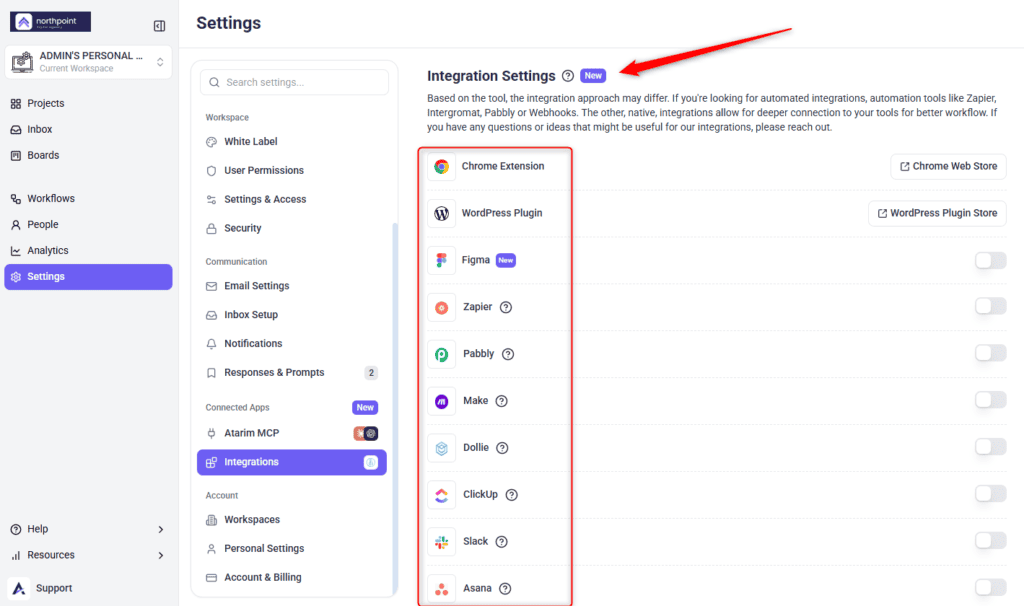
Most teams do not want a second place to look. Atarim pushes tasks out to the tracker you already use — Jira, ClickUp, Trello, Asana, Basecamp, Teamwork, and monday.com among them — with Slack for notifications and webhooks or Zapier for anything custom.
Benefits for a Frontend Developer
| Benefit | In practice |
|---|---|
| No reproduction step | Browser, viewport, URL, and element path arrive with the task. |
| A selector, not a description | Copy the element path instead of hunting for “the button near the top”. |
| The reporter is reachable | Ambiguity is one reply away in the same thread, not an email chain. |
| Breakpoint comes with the bug | Responsive issues state where they occur. |
| Tasks survive refactors | Remapping keeps feedback attached when markup moves. |
| A QA pass before QA | Glitch, Navi, and Index can run Lighthouse, WCAG, and contrast checks against a public URL before anyone else looks. |
| Agents can read the queue | MCP exposes the work to Claude or Codex under your existing permissions. |
Example Use Cases
| Situation | What to do |
|---|---|
| “This is broken” with no detail | Open Technical Details. Browser and screen size usually explain why it works for you. |
| A spacing fix on an unfamiliar page | Copy the element path into devtools and go straight to it. |
| A refactor orphaned a batch of tasks | Remap them to the new markup as part of the same change. |
| A one-line copy correction on WordPress | Apply it with Do It rather than opening a branch for it. |
| Implementing a design you did not attend the review for | Check the design version the task was raised against before you build. |
| Handing work back to a client | Set Pending Review rather than Complete, so they know to look. |
Known Limitations
FAQs
Where do I find the CSS selector for a reported element?
In the task’s Technical Details panel, as Element Path. It can be copied in one action.
What happens to tasks when I refactor the markup?
They report that the element was not found and offer Remap to element so you can reattach them.
Does the task tell me which breakpoint a bug happens at?
Yes. Screen Size records the viewport at the time of reporting.
Can I apply fixes without leaving Atarim?
On connected WordPress sites, using Do It. It is WordPress-only at present.
Can I undo a Do It change?
Yes, with Undo, which reverts the change.
Which coding agents connect over MCP?
Claude and Codex are named, and Other covers any MCP-capable client.
What can an MCP-connected agent access?
Only what you can. The token inherits your workspace permissions.
Can the AI run real accessibility or performance checks?
Yes — Lighthouse audits, WCAG 2.1 scans, and contrast checks, against publicly reachable URLs.
Can I use AI on a single task rather than a whole page?
Yes. Each task thread has an AI control for clarifying or sanity-checking that specific thread.
Should I mark a task Complete or Pending Review?
Pending Review when someone else raised it, so they get prompted to confirm. Complete once they have.
Can I discuss implementation without the client seeing?
Yes, using internal notes and tasks, where enabled on your plan.
Can tasks go into Jira or ClickUp instead?
Yes. Atarim integrates with the major trackers, plus Slack, webhooks, and Zapier.
Common issues
- “Element not found on this page” — the markup changed. Use Remap to element to point the task at the current element.
- A bug you cannot reproduce — check Browser and Screen Size in Technical Details and match the reporter’s conditions.
- “Log in to your WordPress to use Do It” — authenticate against the WordPress site, then retry.
- “Connect WordPress to use Do It” — the plugin is not connected. Install it from the prompt using your site URL.
- Do It shows Queued and nothing changes yet — it is applying in the background. Give it a moment before retrying.
- Your agent cannot reach a site over MCP — the token inherits workspace permissions. Confirm your account has access to that site.
- Technical Details is missing fields — your role does not carry full visibility. Ask an administrator.
- An AI accessibility or Lighthouse check returns nothing useful — the URL is probably not publicly reachable. Run it against a public environment.
- The AI review will not start — enable at least one agent, and wait for any review already in progress to finish.
- A task refers to something not in the design — check which design version it was raised against.
- The screenshot does not match the page — it is a snapshot from when the task was made. The page has changed since.
Conclusion
Open the task, copy the element path, check the browser and viewport, fix it at that breakpoint, sweep the others, and hand it back as Pending Review rather than closing it yourself. The context is already in the ticket — the discipline is using it before you start guessing.
Understanding how feedback reaches you makes it easier to work with. Explore Atarim For Clients And Stakeholders
Tips & best practices
- Copy the element path into devtools before reading the thread.
- Check Browser and Screen Size before declaring something unreproducible.
- Remap orphaned tasks during the refactor that orphaned them.
- Set In Progress when you pick a task up, not when you finish it.
- Hand client-raised work back as Pending Review, never straight to Complete.
- Keep implementation debate in internal notes so the client thread stays readable.
- Use Do It for copy and content, not for anything that belongs in version control.
- Run an AI review before handing work back, not before you start.
- Point diagnostic checks at a public URL — they cannot reach protected staging.
- Connect MCP from an account whose access matches what an agent should reach.