Getting The Most Out Of The InnerCircle
Six specialists who review your work, then do it — and how to get the most out of each of them.
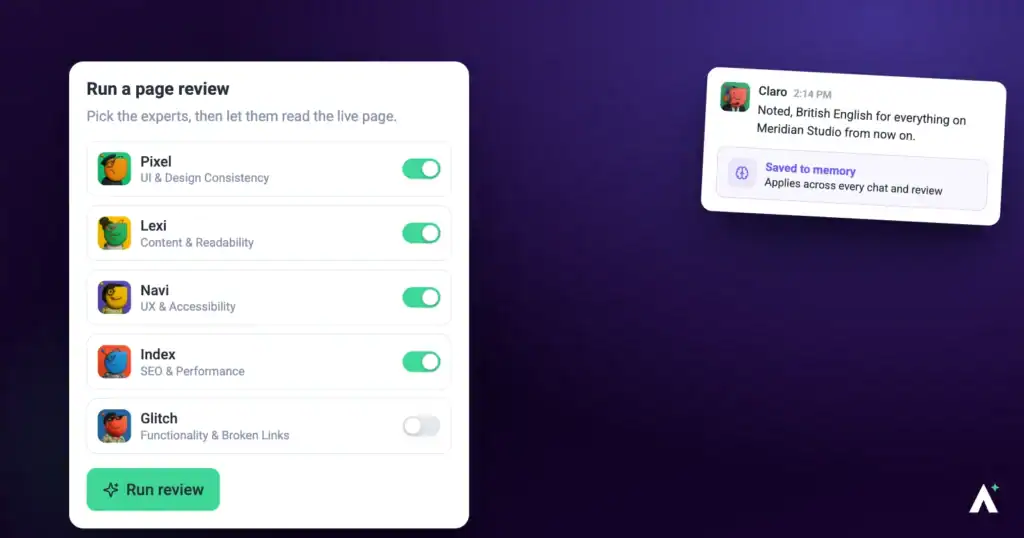
The InnerCircle is six specialists. Five do the work — design, copy, SEO, accessibility, bugs — and one coordinates them. They'll review a page and tell you what's wrong, and they'll make the changes when you ask. Both halves matter, and most people only ever meet the first.
Who they are
| Specialist | Owns | Reaches them when you mention |
|---|---|---|
| Pixel | Design, brand and visuals. Also builds — logos, images, sections, whole pages. | How something looks, or nothing in particular. |
| Lexi | Copy and tone. Also writes — posts, proposals, client updates. | What something says. |
| Index | SEO, structure and page speed. | Search, ranking, or why a page is slow. |
| Navi | Accessibility and usability. | Contrast, keyboard use, screen readers, mobile. |
| Glitch | Broken links, missing assets, faulty forms. | Anything broken or not doing what it should. |
| Claro | Coordination. Turns vague feedback into clear work and directs the others. | Nothing — Claro is who you talk to. |
The two halves
| Reviewing | Doing | |
|---|---|---|
| What happens | They inspect and report. | They make the change. |
| Your site | Untouched. A review writes nothing, ever. | Changed, once you approve it. |
| How it starts | You run a check. | You ask for the work. |
Where they work
Four places, behaving differently in each. Most people only meet the first.
| Where | What happens | Can they change things? |
|---|---|---|
| Page checks | A full pass over a page across desktop, tablet and mobile. | No. Read-only. |
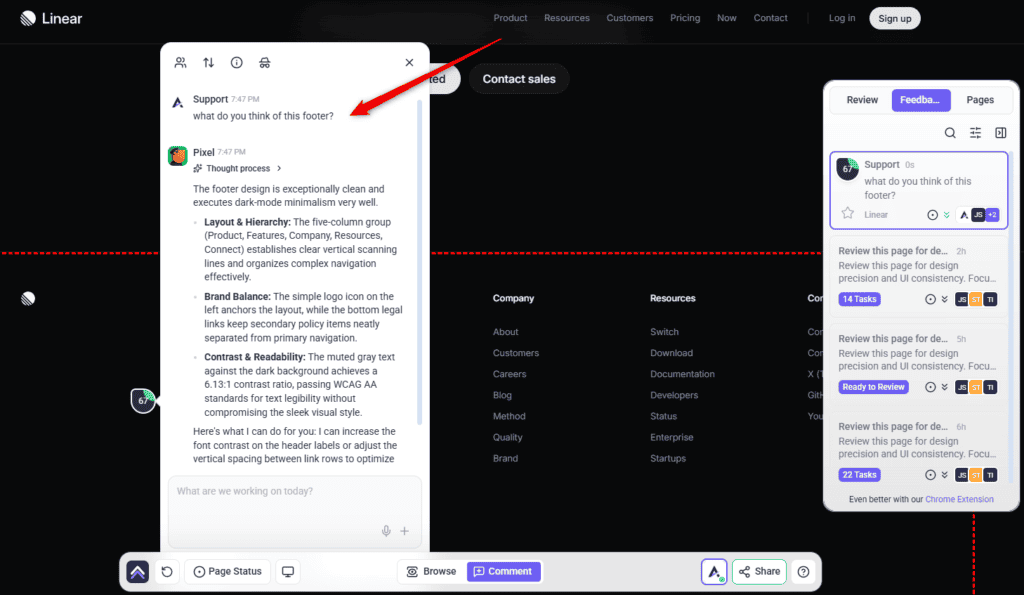
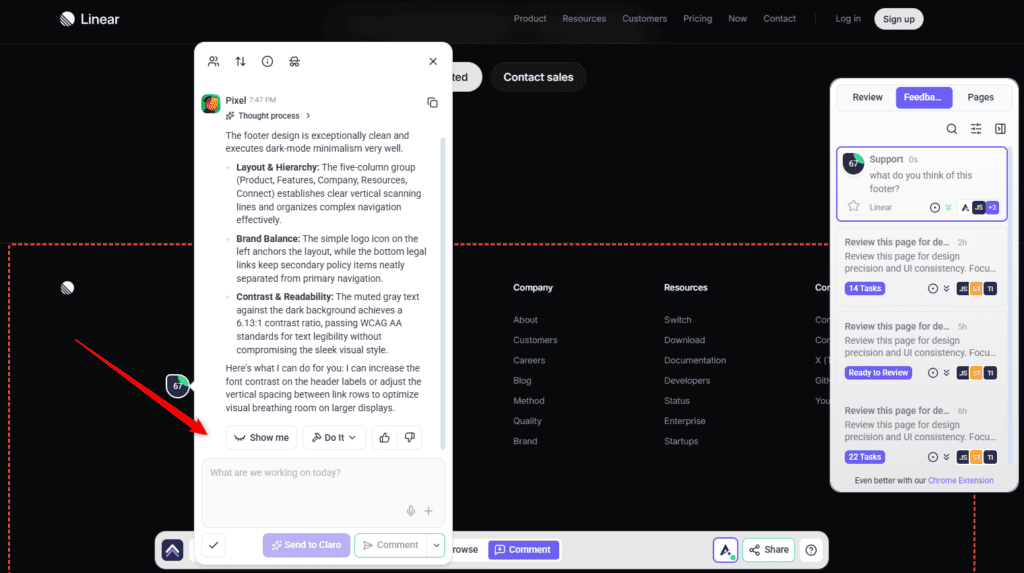
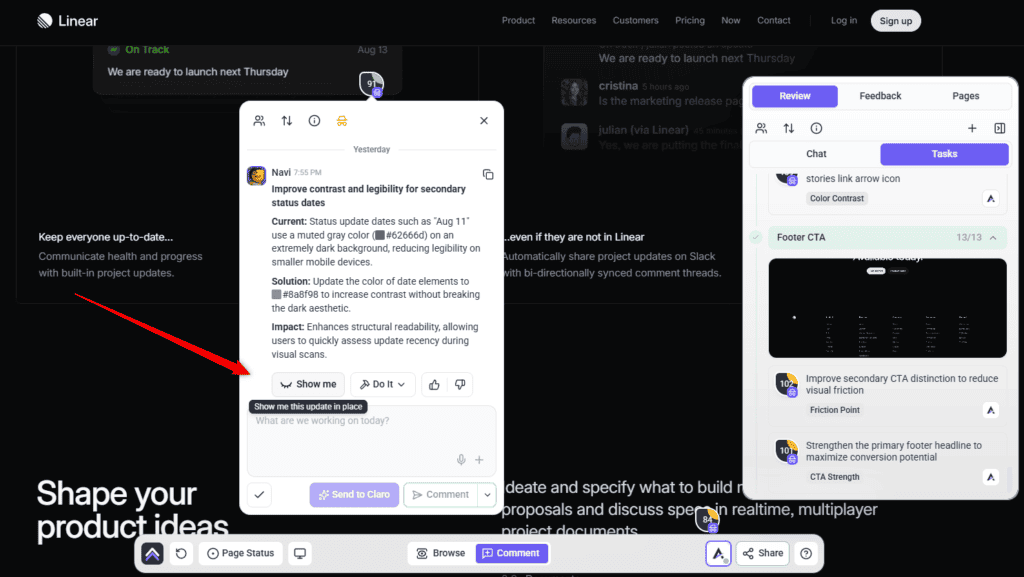
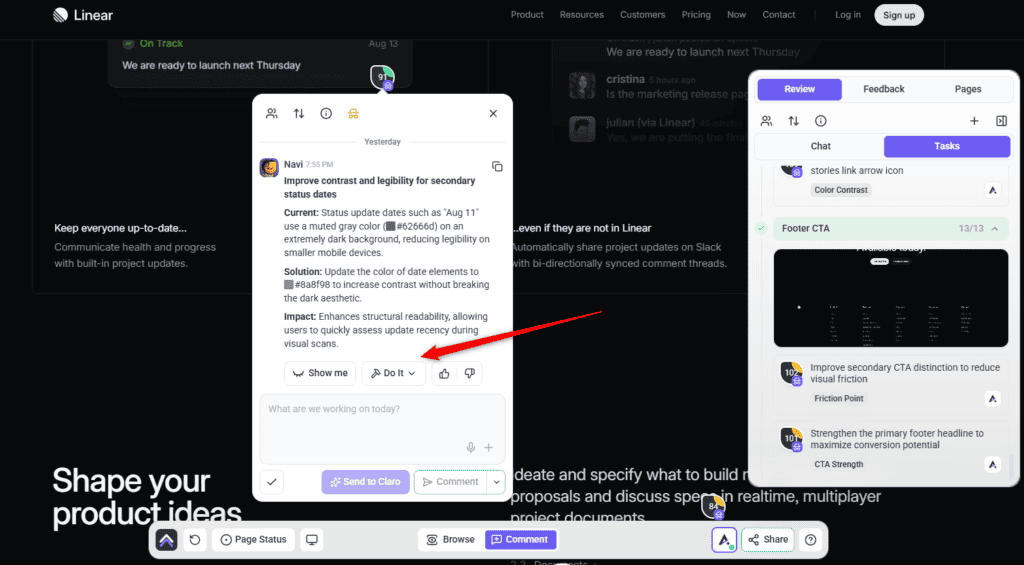
| On the page | Click an element, ask about it, get an answer about that element. | Yes — Show me previews it, Do it keeps it. |
| In a task | A specialist works inside a task and comments the result. | Yes. |
| Workspace chat | Claro coordinates work across every project and site you manage. | Yes, through the specialists. |
| On a schedule | Recurring work that runs without anyone starting it — a monthly sweep, a check after every update. | Yes, through the specialists. |
Asking on the page
The quickest way in. Click any element and ask about it — the answer is about that element, not the page in general.
Instructions:
Running a full check
The description you add is what steers the specialists, so a vague one produces vague findings.
Instructions:
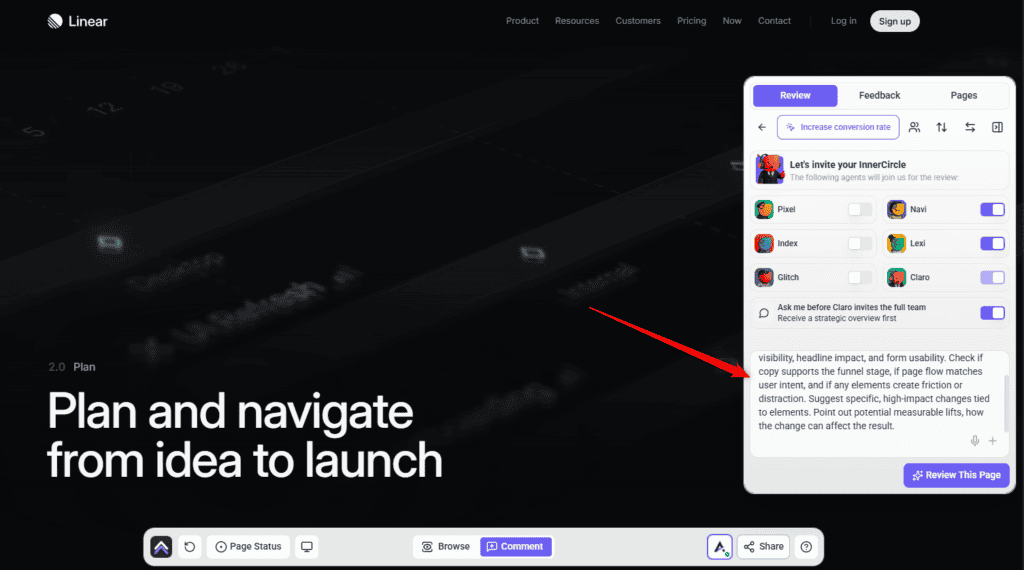
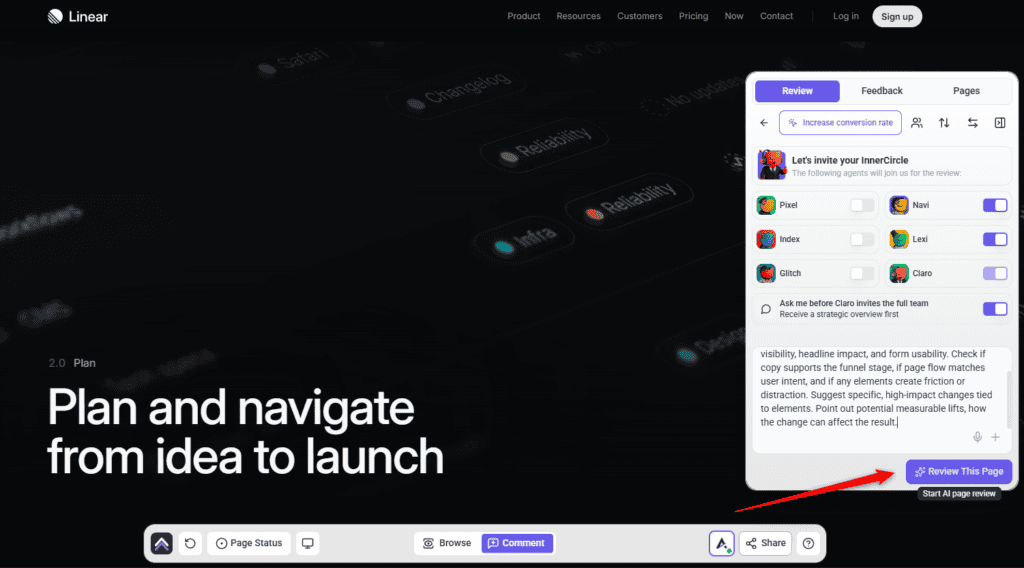
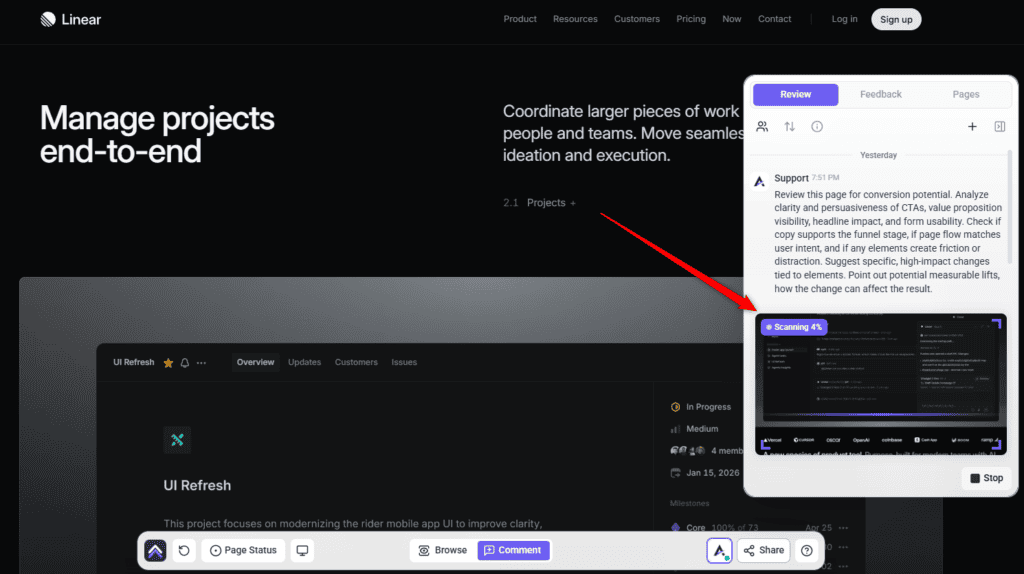
Full detail in How to Run an AI-Powered Page Review.
What happens when a check runs
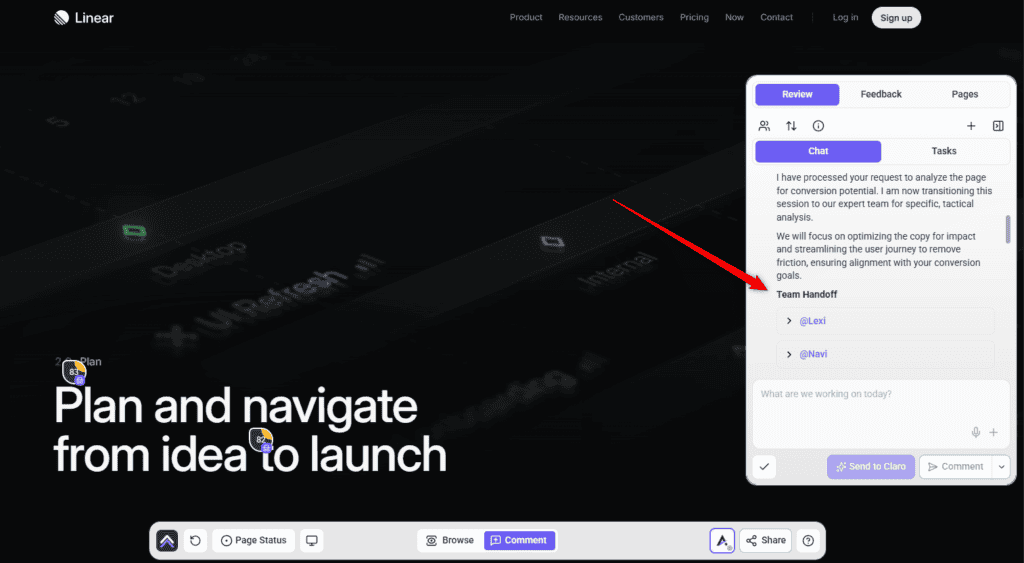
Four stages, in order:
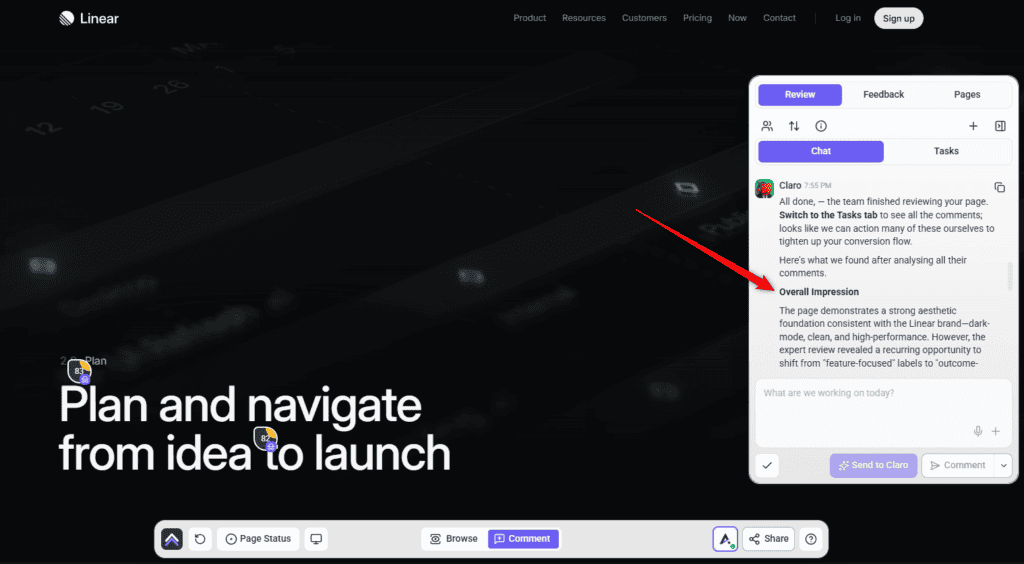
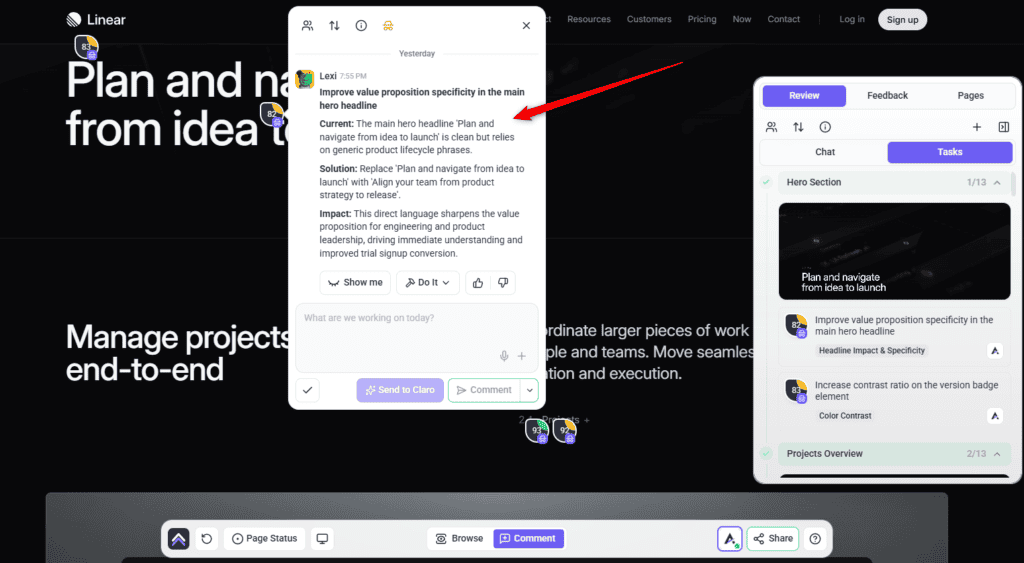
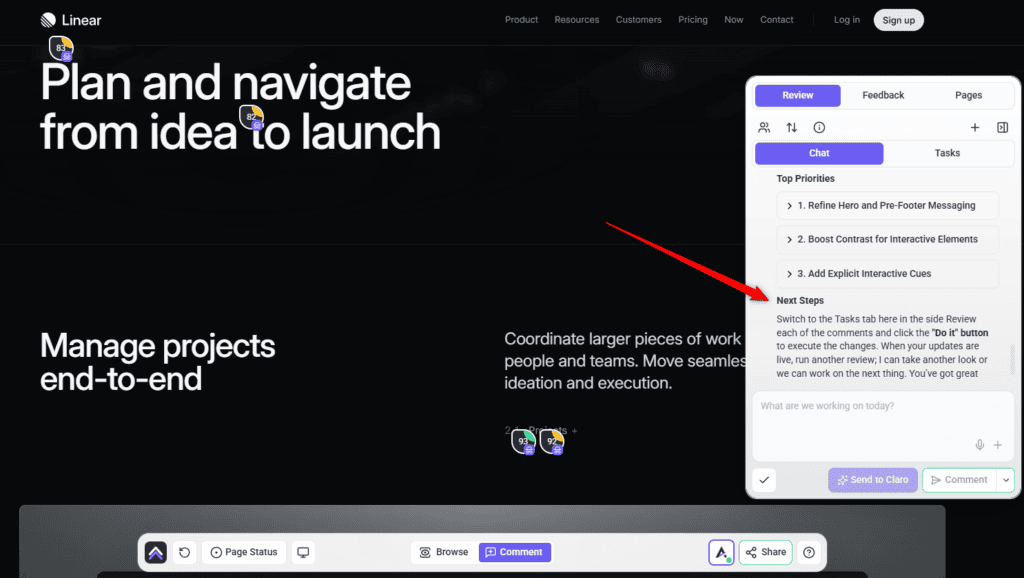
Reading the results
Findings appear as tasks pinned to the elements they relate to, alongside a high-level summary of the page.
| Priority | What it covers | Do it |
|---|---|---|
| Critical (red) | Things blocking the main action on the page. | First. |
| High (orange) | Things affecting conversions and clarity. | Next. |
| Medium (yellow) | Usability and hierarchy improvements. | After those. |
| Low (green) | Cosmetic refinements — line breaks, minor typography. | When there’s time. |
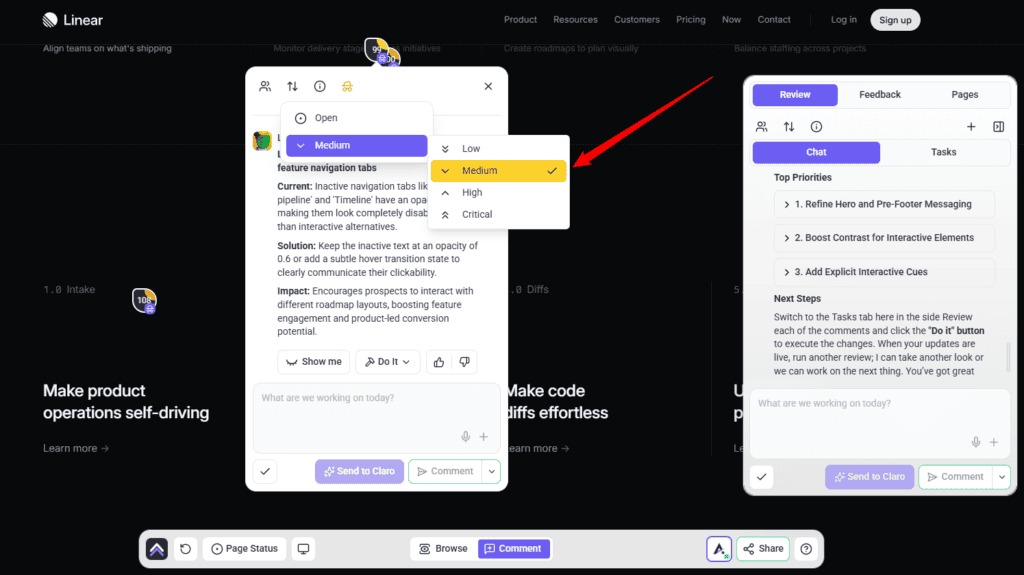
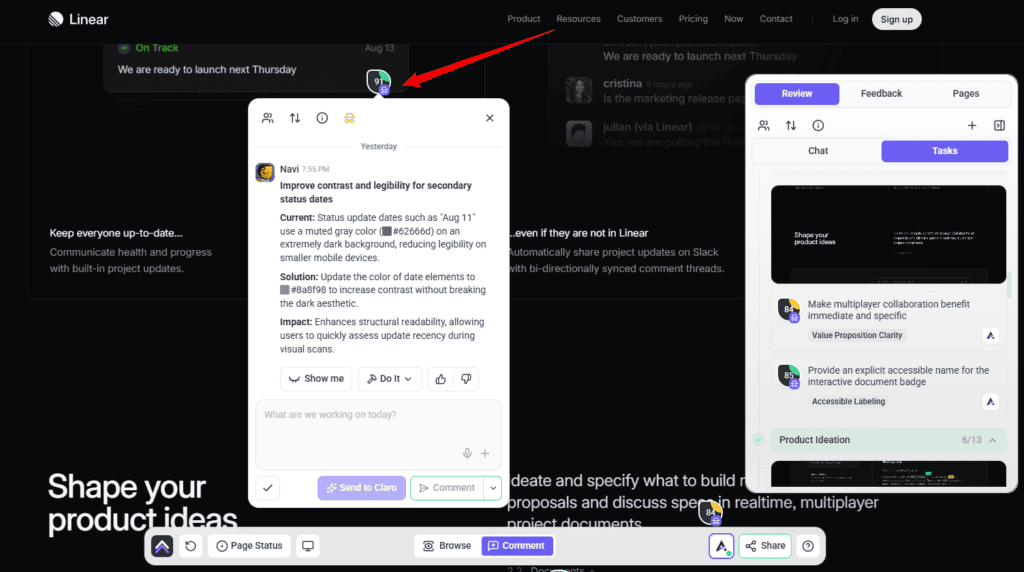
Acting on a finding
A finding starts as a suggestion, not a job on your board. You decide which ones become work.
Instructions:
Credits
AI work uses credits from your workspace’s pool, shared across everything — checks, chat, and the work the specialists do.
Turning vague feedback into work
When a comment arrives that nobody could act on — “make this pop”, “something feels off” — Claro offers the person three specific options to choose from, rather than guessing on their behalf.
How they work together
Most real problems cross domains, and the specialists hand off between themselves rather than each answering in isolation.
A worked example. A client leaves “fix this section.”
One vague sentence becomes work in four domains, without you sorting it.
What they won’t do
| They won’t | Why it matters |
|---|---|
| Change anything during a review | Reviews are read-only. Always. |
| Publish without approval | Site changes needing sign-off wait for your decision. |
| Take a live page down | Rebuilds are staged as a draft and swapped in once, on approval. |
| Invent facts | No statistics, testimonials, prices or brand values that didn’t come from your brief. |
| Replace your team | They catch what gets missed and do the repetitive half. Judgement is still yours. |
Working with a reply
Every AI answer carries controls beneath it. Alongside Show me and Do it you can copy the response, and rate it a good or bad response with the thumbs — that rating is how the specialists get better at the work you actually do.
The composer has its own choices. Comment posts normally. Send to Claro hands your message to Claro instead, for when what you want isn’t the job of whoever is in front of you. Add a note posts internally, visible to Admins and Team Members only. Set internal task hides the whole task from guests and clients, and Unset internal task puts it back — so a task that started internal can be shared once it’s ready.
White-label behaviour
Frequently asked questions
Do I need to install anything?
Not to review. To let the specialists change a site, it needs the Atarim WordPress plugin and WordPress 6.9 or later.
Do I have to choose which specialist answers?
No. Describe the problem and the right one picks it up. You can select them by hand before a check if you want a particular lens.
Can they change my site during a review?
No. Reviews are read-only. Making changes is a separate request, and anything needing sign-off waits for your approval.
Can clients see the AI?
AI activity is hidden from clients and guests by default. The exception is feedback clarification, which the person who left the comment sees — they’re the one answering it.
What’s the difference between Show me and Do it?
Show me previews the change on the page in front of you — you can toggle it off to compare, regenerate it if it isn’t what you meant, and screenshot the result into the thread as a comment. Do it applies it for real, queuing and running in the background, after which an Undo control appears on that comment. On a connected WordPress site, Do it writes the change properly.
How do I turn a finding into actual work?
Use Show me to preview the change and Do it to apply it. Findings are internal to your team, and applying one leaves an Undo control on that comment if you change your mind.
Do checks use credits?
Yes, from one shared workspace pool covering checks, chat and the work itself. You’re warned before a check starts if the workspace is low.
Can I run a review more than once?
Yes. Each run looks at the current version of the page, so re-running after a round of fixes shows what’s left.
Do they only review, or do they build things?
Both. Pixel builds logos, images, sections and whole pages; Lexi writes posts, proposals and client updates. The other three fix within their domains.
Do they find JavaScript errors?
Yes — Glitch runs a console pass where console output was captured with the page and he’s part of the check. Index runs an equivalent pass over metadata.
Does this replace my QA or my designer?
No. They catch what gets overlooked and handle the repetitive half. The judgement, the client relationship and the final call stay with you.
Will my client know they’re talking to Atarim?
Not in a white-labelled workspace. The specialists appear under your agency’s naming.
Common issues
- A specialist you wanted didn't take part — the preset didn't include them. Use Custom and pick them directly.
- Results feel generic — add a description before running the check, and set up the brand kit. Both change the output substantially.
- More findings than expected — detection reaches into nested layouts. Work down the priority order rather than top to bottom.
- A change vanished on refresh — the site isn't connected, so it applied as a preview only.
- A finding disappeared and you wanted it — it was hidden rather than kept. Nothing on the page changed; run the check again to surface it.
- A check won't start — the workspace may be low on credits. You're told before it begins rather than partway through.
- Nothing changed after a review — expected. Reviews never change anything; ask for the work separately.
- A fix is waiting and hasn't applied — it needs your approval. Read it, then decide.
- Nothing can be changed at all — check the site is on WordPress 6.9 or later with the plugin connected.
Conclusion
The InnerCircle is most useful when you stop treating it as a review tool. Reviewing is the visible half; the specialists will also write the copy, build the section, fix the link and repair the contrast — on your approval, on a page that stays up, with a way back if it's wrong.
The two things that most change what you get out of them: a filled-in brand kit, and a sentence of context before each check. Both take minutes and both affect every result afterwards. Explore Agency Brief: Building Your Brand Kit.
Tips & best practices
- Write a description before every check — it changes the results more than anything else.
- Set up the brand kit; without it, design and copy work is generic.
- Read the whole review before applying anything — work the priority order, not the page order.
- Check the device marker before fixing — it may only fail on mobile.
- Run several specialists together; problems rarely sit in one domain.
- Ask for the work, not just the review. That half is easy to miss.
- Use Show me in front of clients rather than describing a change.
- Connect the plugin before a working session, so changes save.
- Let clients leave messy feedback — clarification is built for it.
- Capture console output if you want the console pass to run.