Atarim Figma Plugin: Overview & Why It Exists
Push design frames from Figma into Atarim, where feedback becomes tracked work and reviewers never need a Figma seat.
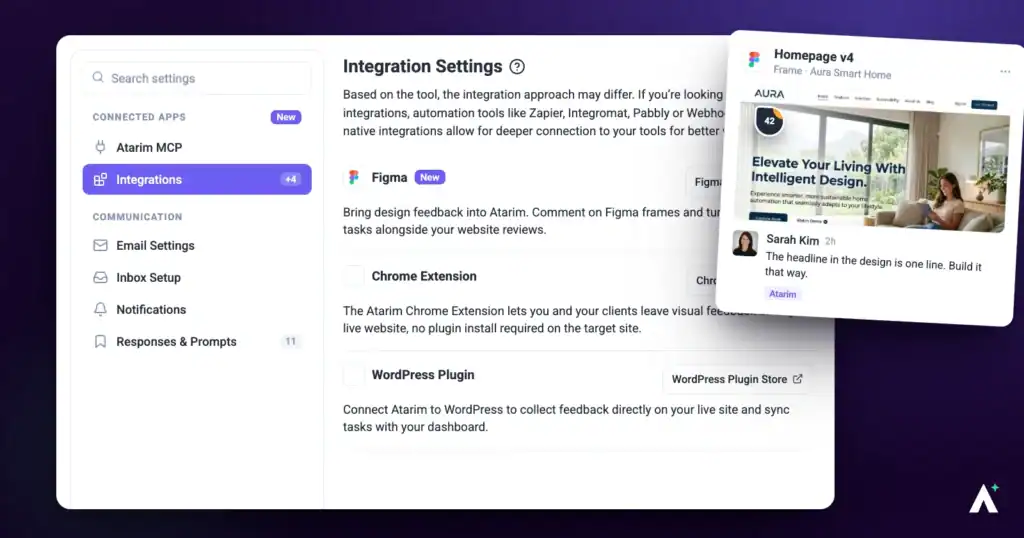
The plugin runs in Figma design files and pushes frames into Atarim, where design review becomes the same structured process as the rest of your work — rather than scattered comments or duplicated frames standing in for a version history.
Select a frame, pick a destination, push. Feedback happens in Atarim afterwards.
The Atarim Figma Plugin pushes design frames from Figma into Atarim, where feedback is centralised, actionable and trackable. Instead of scattered Figma comments or duplicated frames used to fake a version history, design review becomes the same structured process as the rest of your work. The plugin runs in Figma design files, and is published on the Figma Community as Atarim.
Why Use Atarim Instead of Native Figma Comments
Figma comments are good for lightweight collaboration between designers. They fall short once projects grow, stakeholders multiply, or feedback needs tracking — particularly when clients and developers are involved.
| Consideration | Native Figma comments | Pushing to Atarim |
|---|---|---|
| Who can take part | People with access to the Figma file. | Anyone you send a link to — no Figma seat, no Atarim account. |
| What a comment becomes | A comment thread that can get buried. | A task with a status, priority, assignee and tags. |
| Scope | Lives inside one file. | Visible across projects in the task list and boards, even across workspaces. |
| Internal notes | Anything in the file is visible to file viewers. | Private notes and internal tasks are hidden from clients. |
| Versions | Managed by hand, usually by duplicating frames. | Each push can be saved as a new version with its own history. |
| Handoff | Feedback stays with designers. | Pushes into Jira, ClickUp, Slack and others. |
The statuses available on a design task are Open, In Progress, Pending Review and Complete. Priorities are Low, Medium, High and Critical.
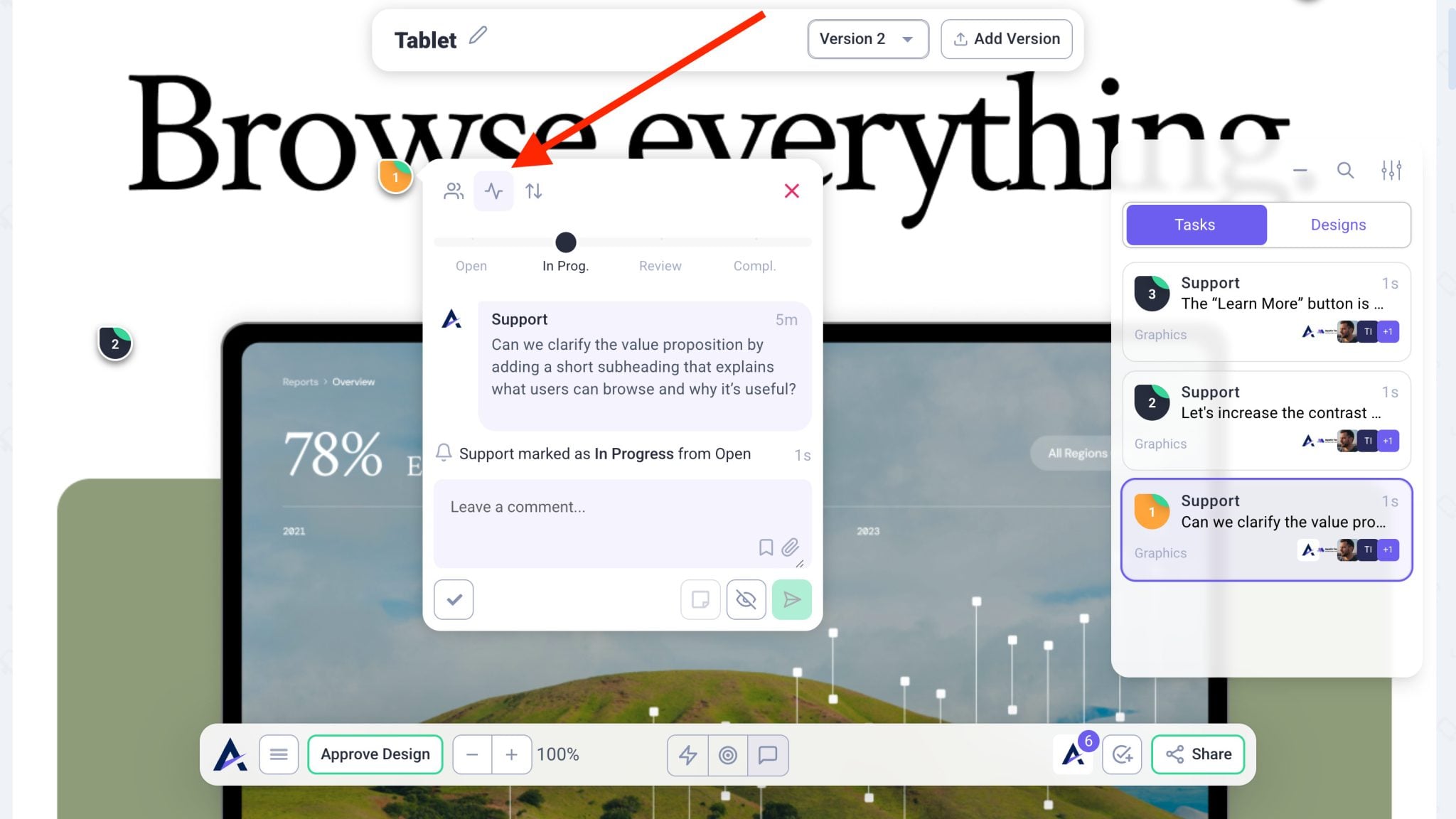
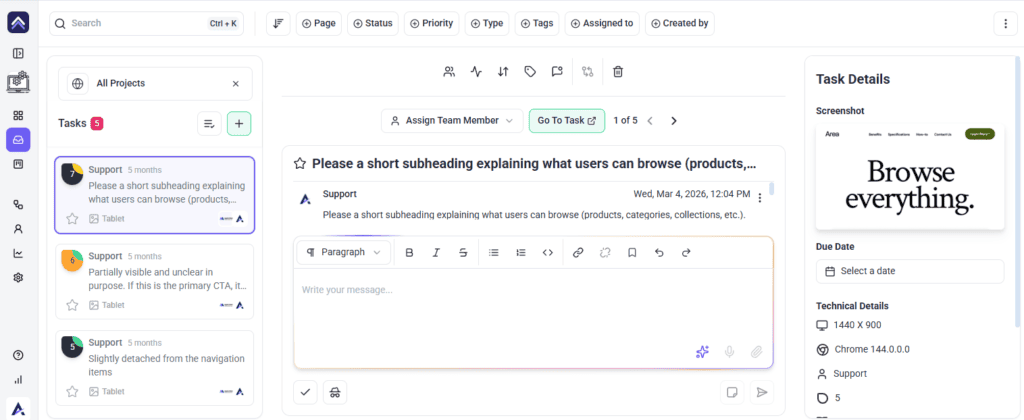
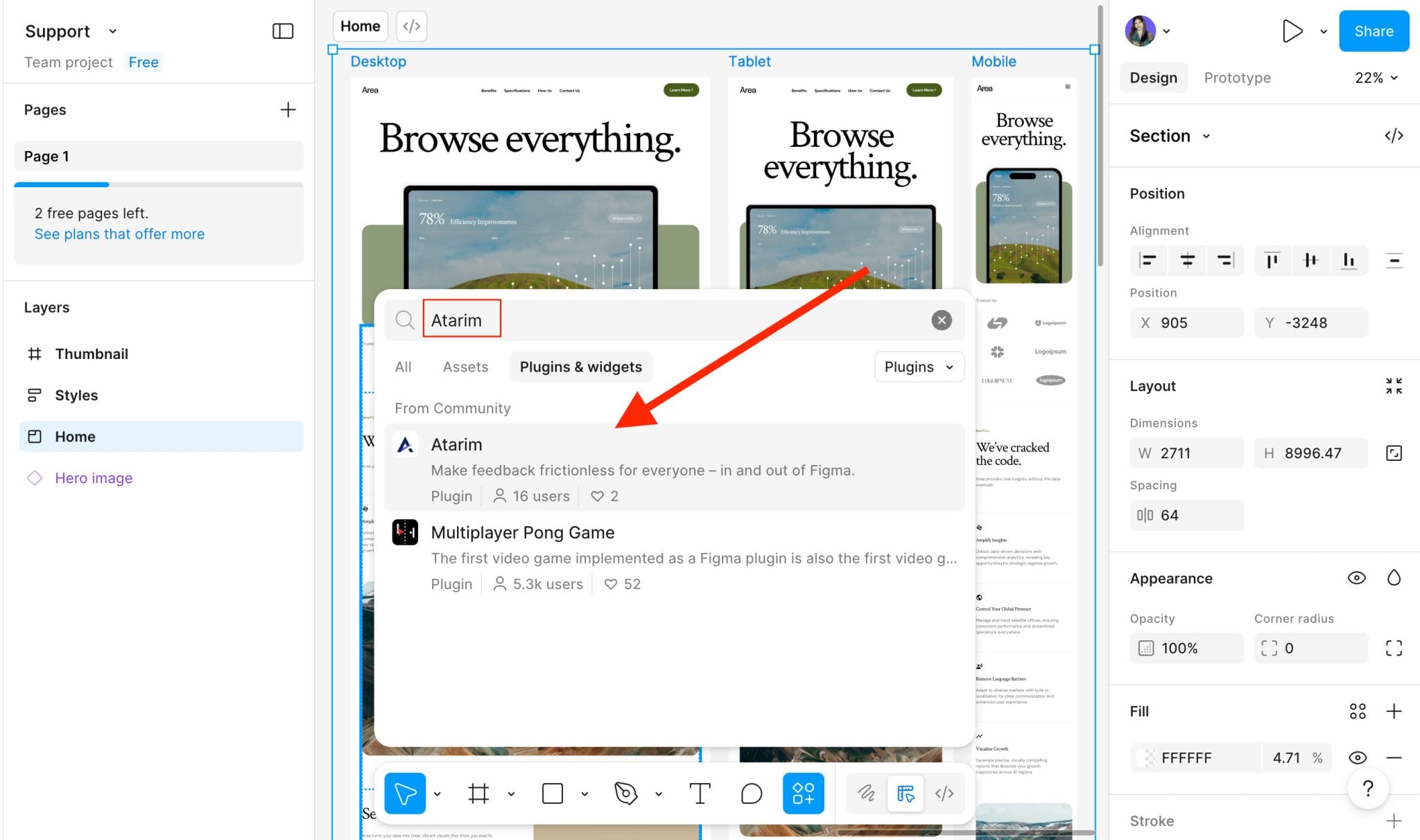
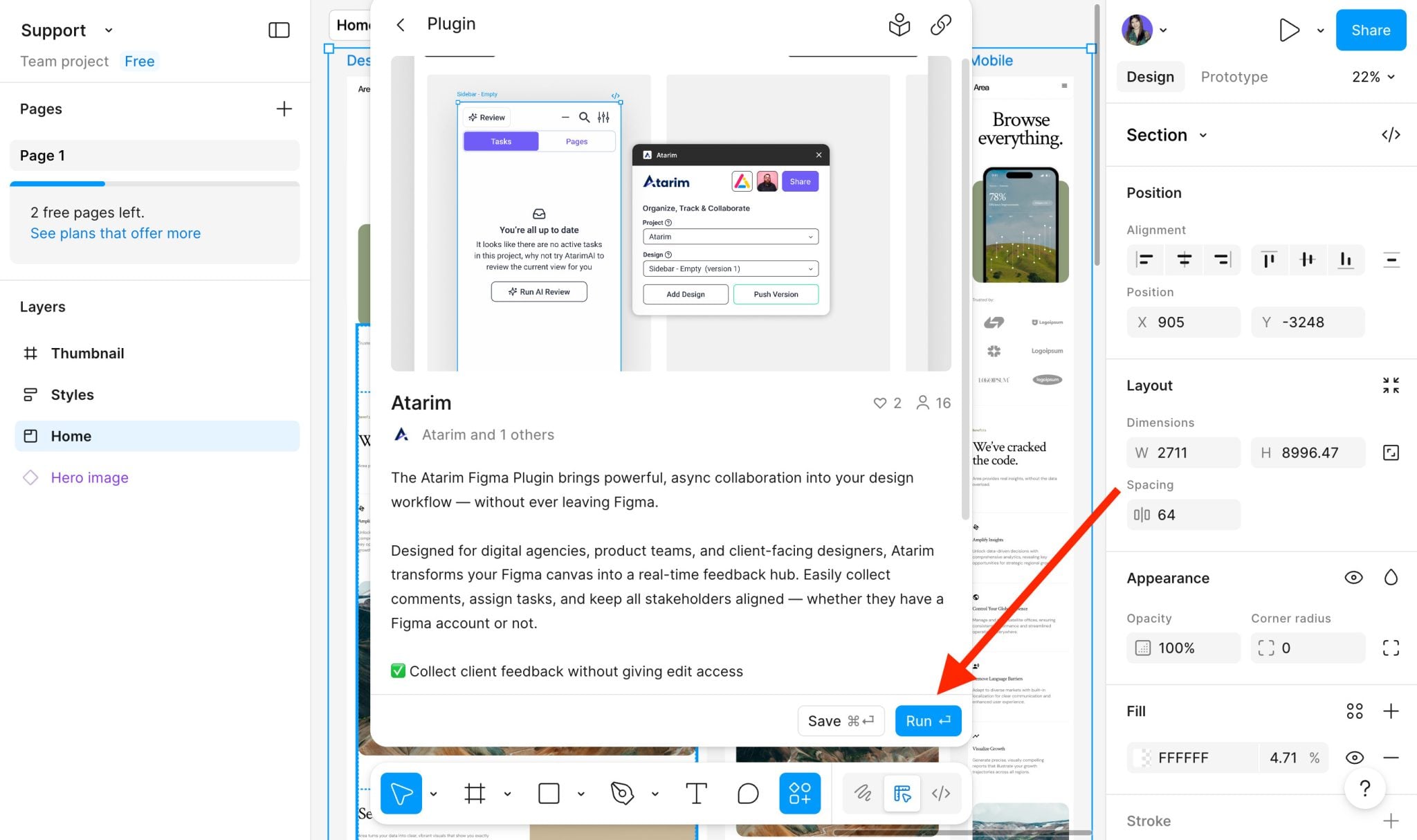
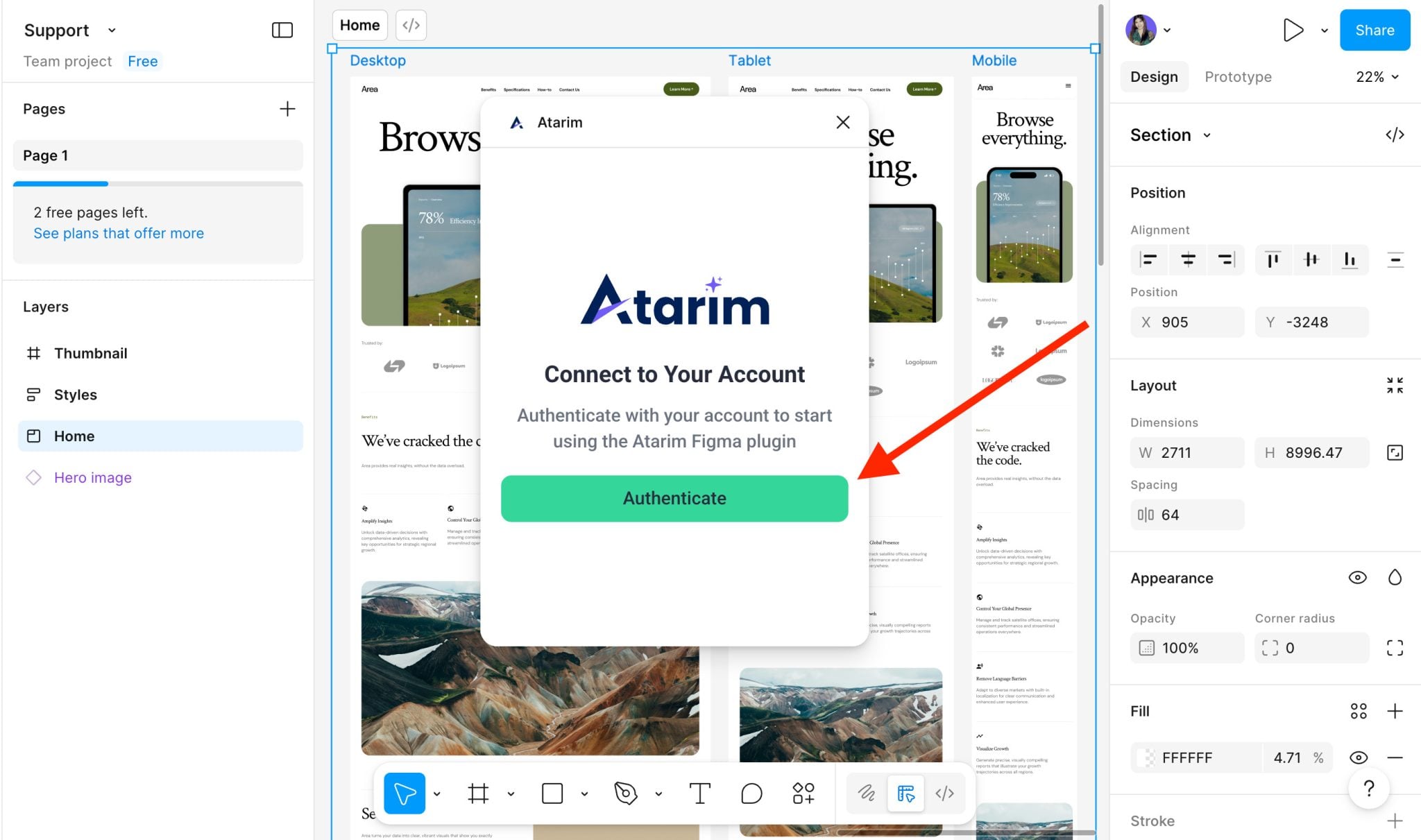
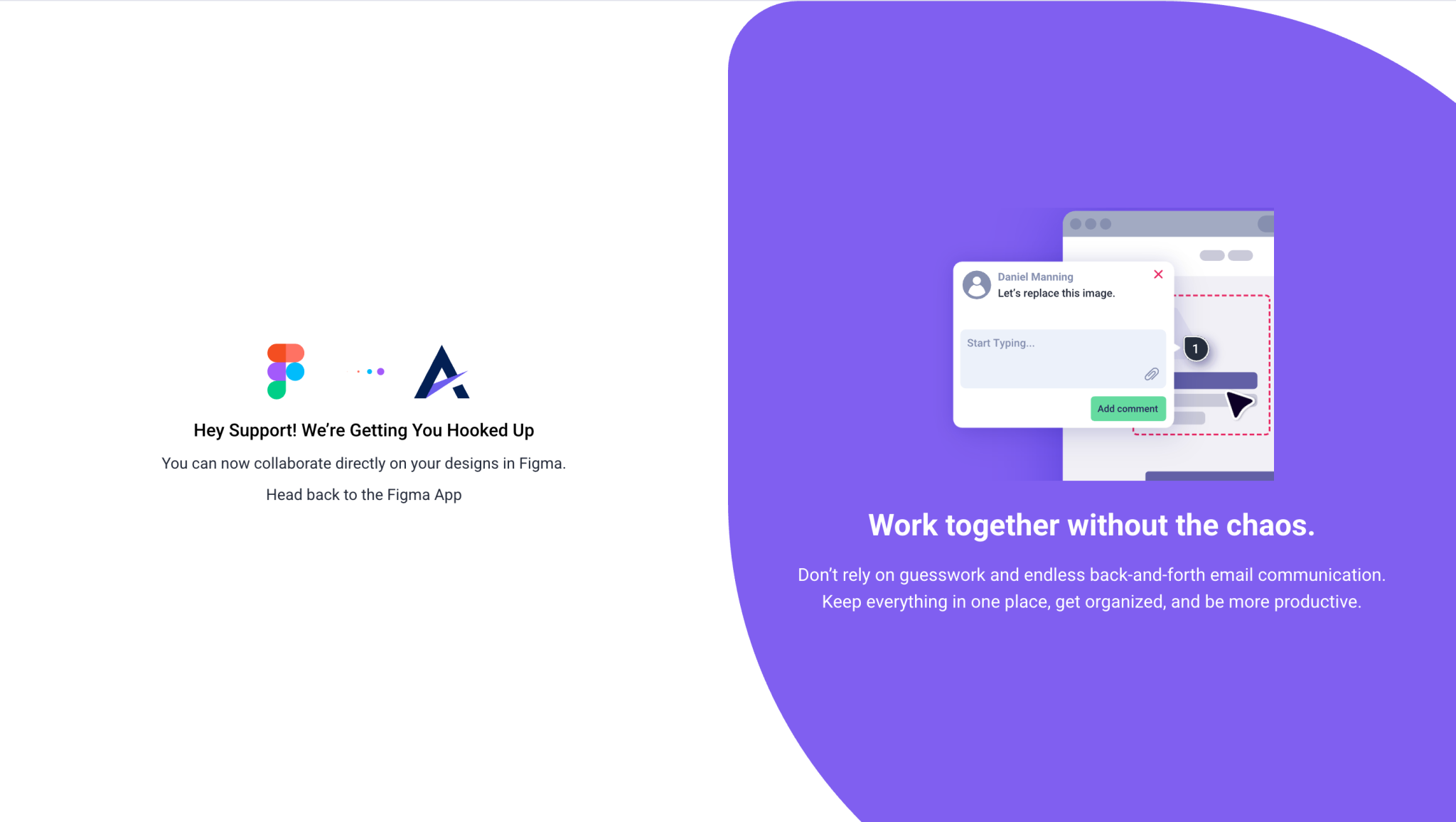
Installing the Plugin
You install once. After that it is available in all your Figma files.
Instructions:
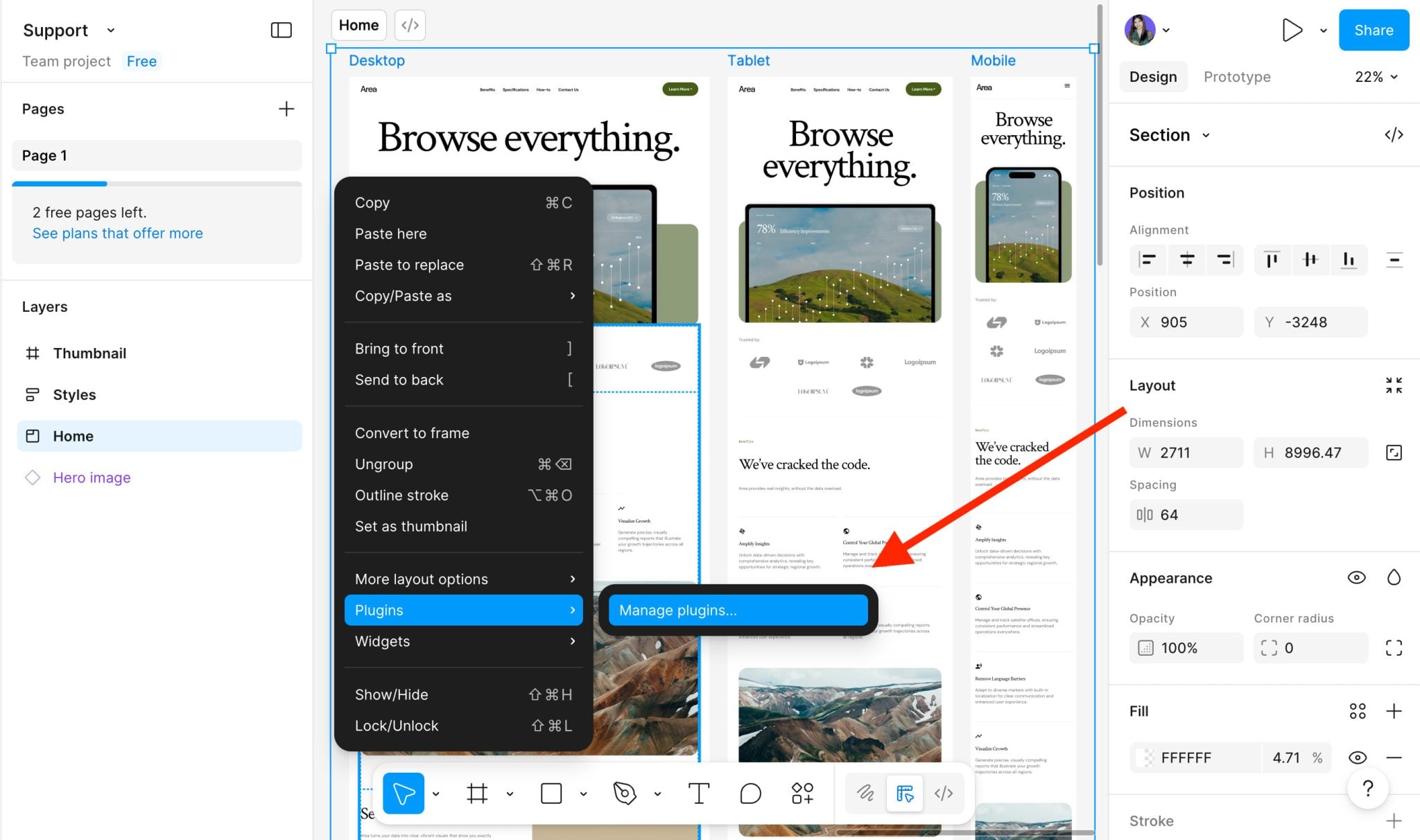
Launching It Afterwards
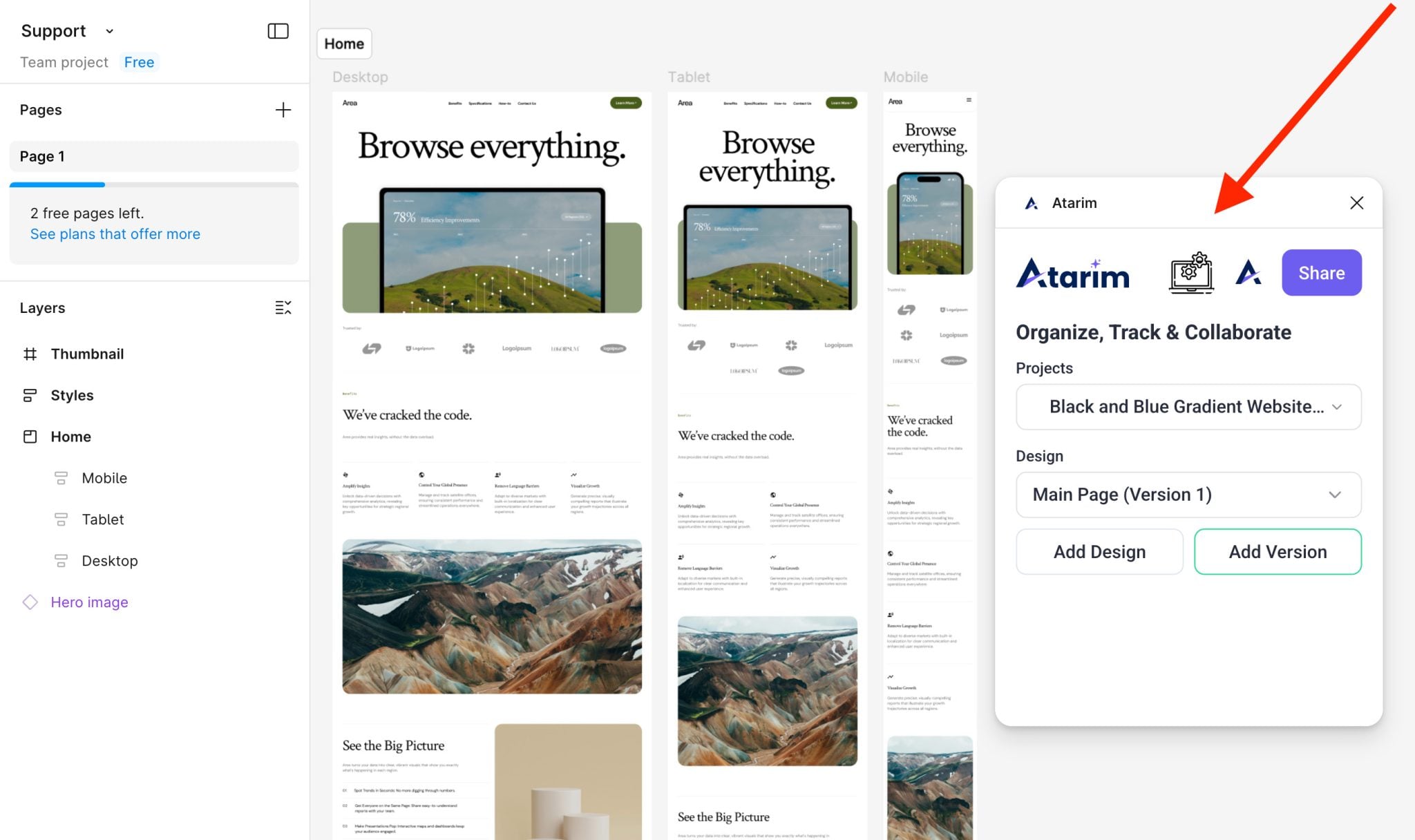
Right-click the canvas and go to Plugins → Atarim. If you are already signed in, the plugin connects to your workspace automatically.
How Designs Are Organised in Atarim
Understanding the structure first saves confusion later, because the plugin’s buttons map directly onto it.
| Level | What it is |
|---|---|
| Project | A graphics project in Atarim — not a web project. |
| Page | A grouping inside the project that designs are added to. |
| Design | A frame pushed from Figma onto a page. |
| Version | A later push of the same design, kept in its history. |
Pushing Designs from Figma into Atarim
Choose What to Push
No exporting or slicing is needed either way.
Create the Project
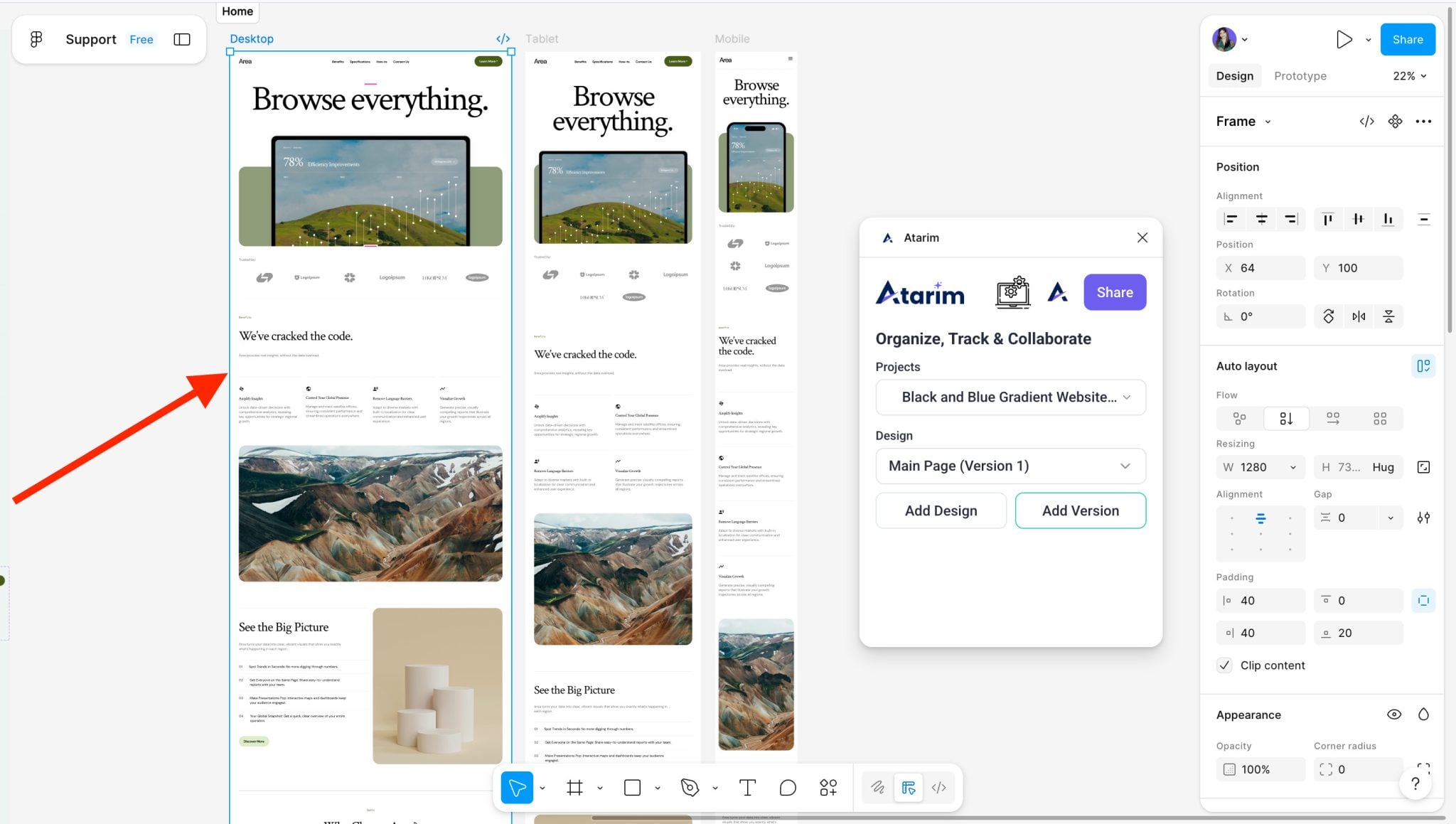
Open the plugin and select Add Project, whose tooltip reads Add a new project. The button shows Adding New Project… while it works. The project name matches your Figma design automatically, and you can rename it in Atarim later.
Add Designs to Pages
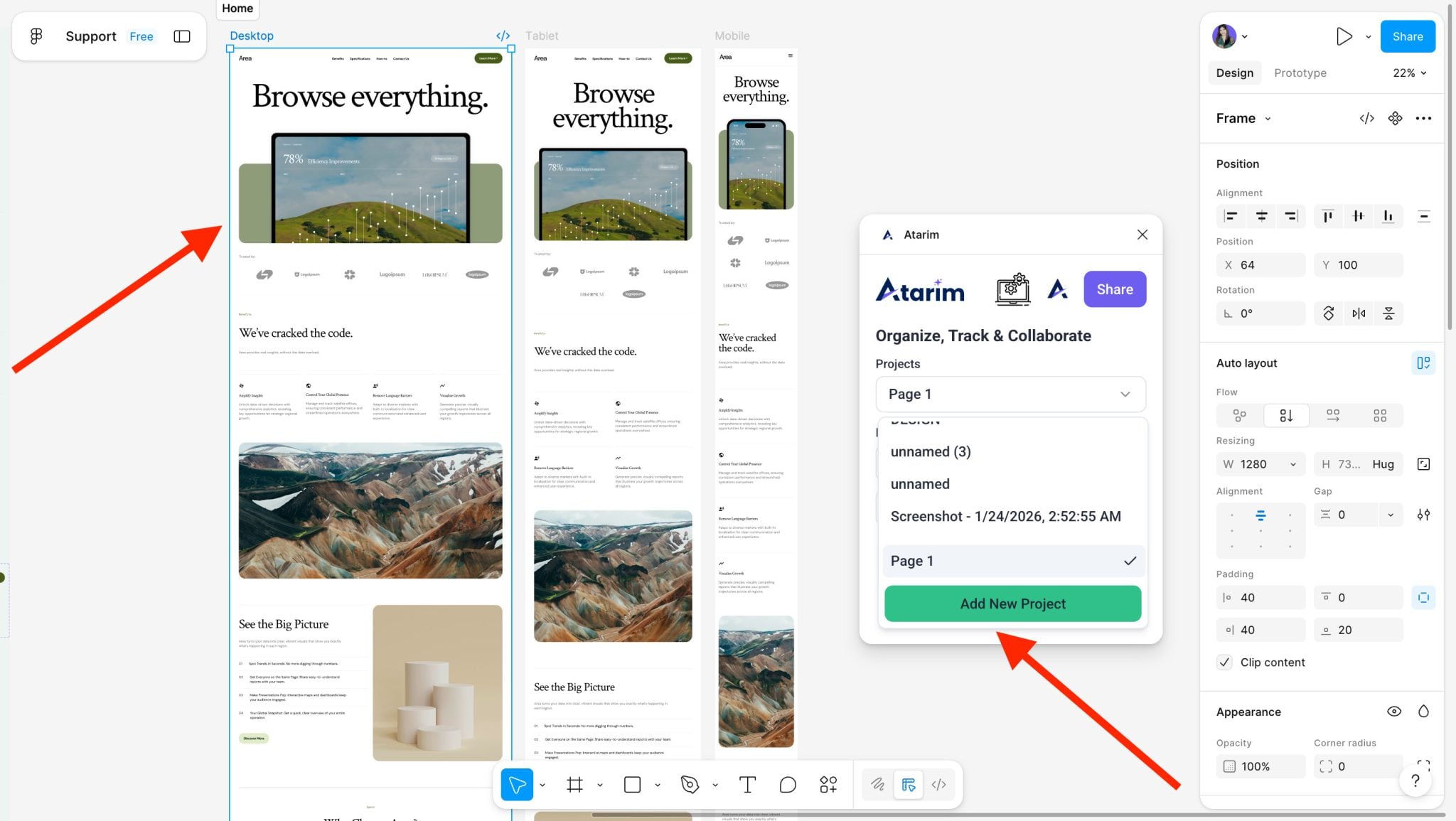
Each frame becomes its own page in the Atarim project, so push them in the order you want reviewers to work through them.
Instructions:
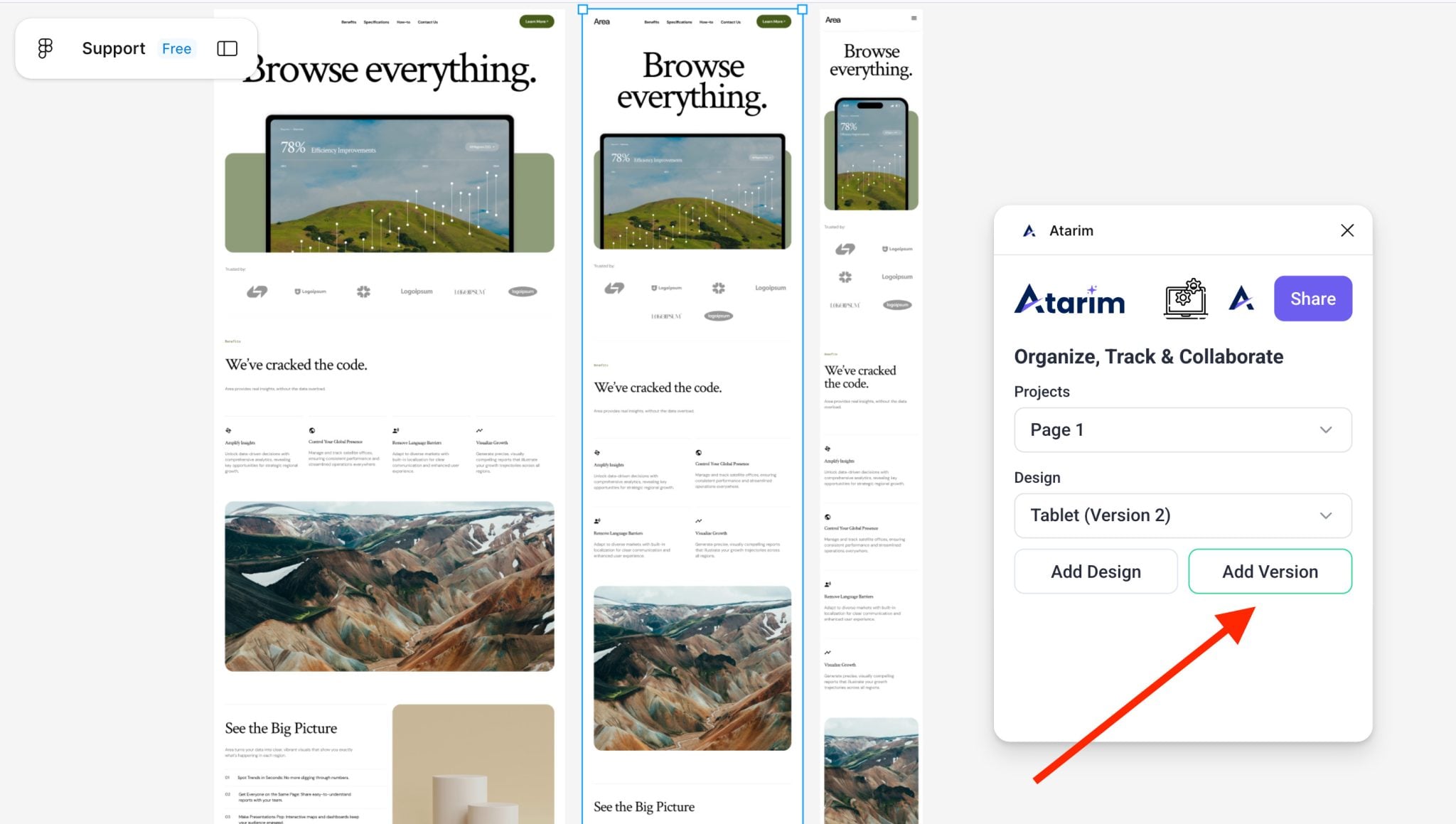
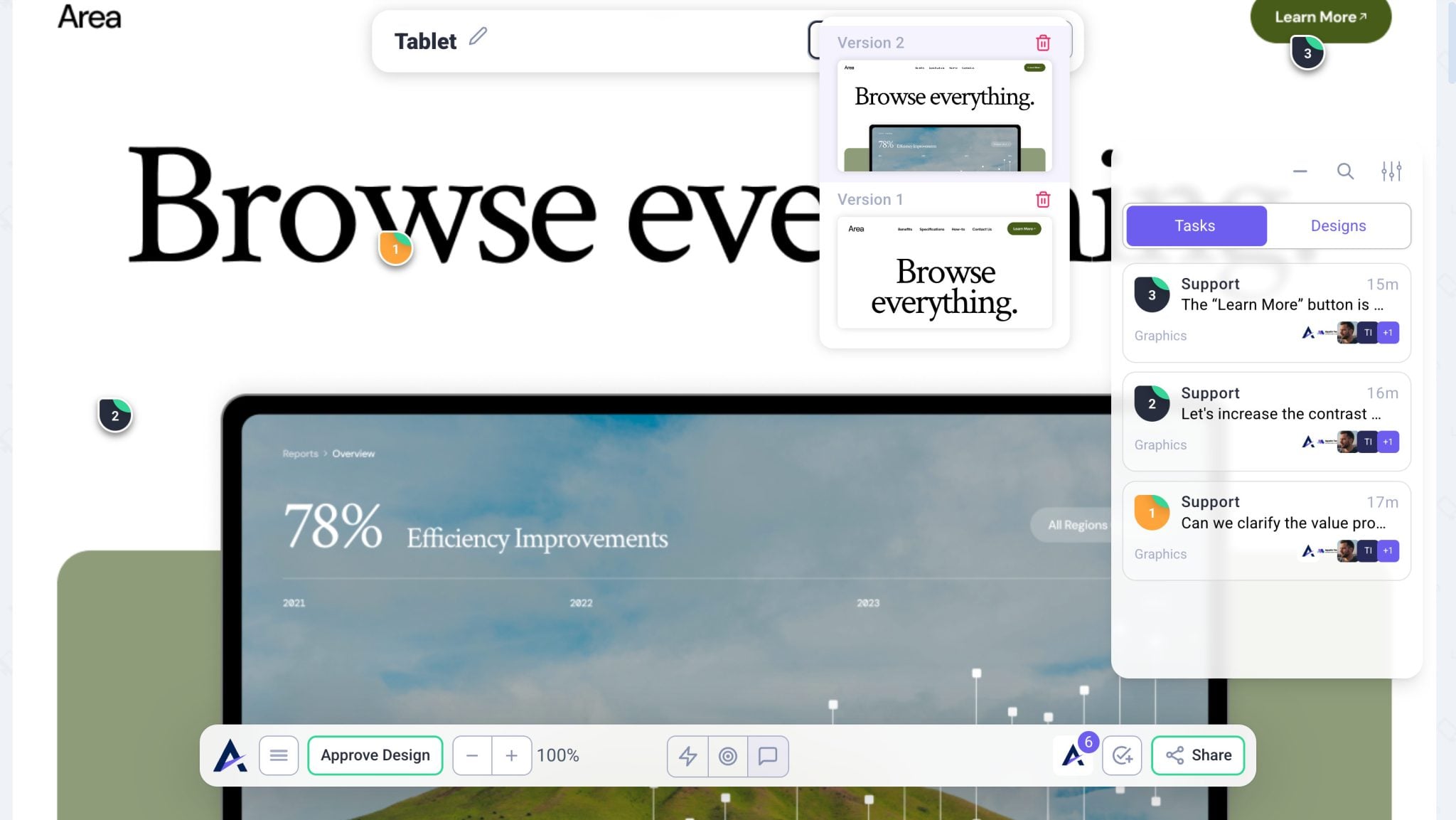
Push a New Version When the Design Changes
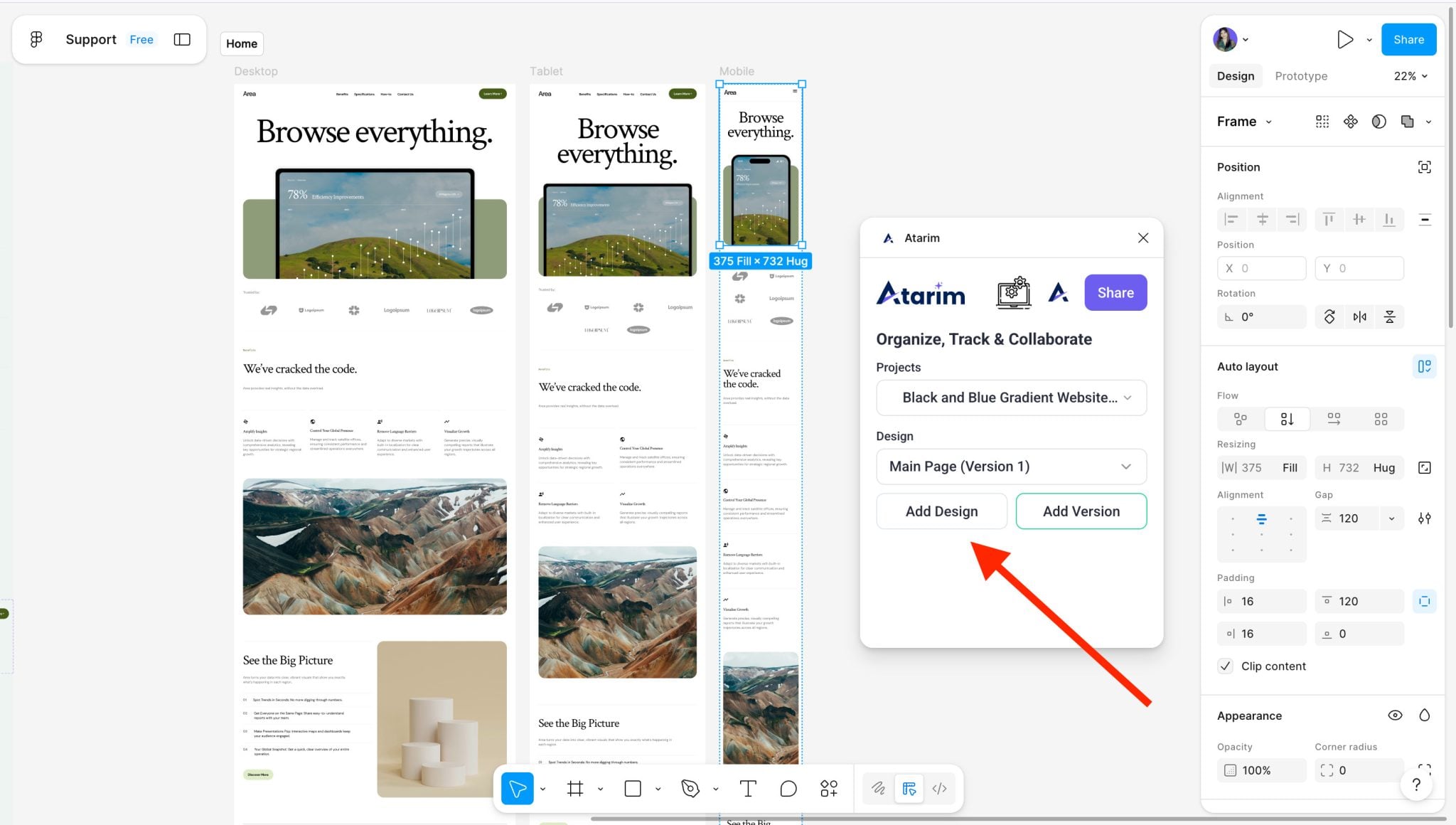
Versions stack onto the page the design already lives on, so earlier comments stay attached alongside the new artwork.
Instructions:
Sharing the Project
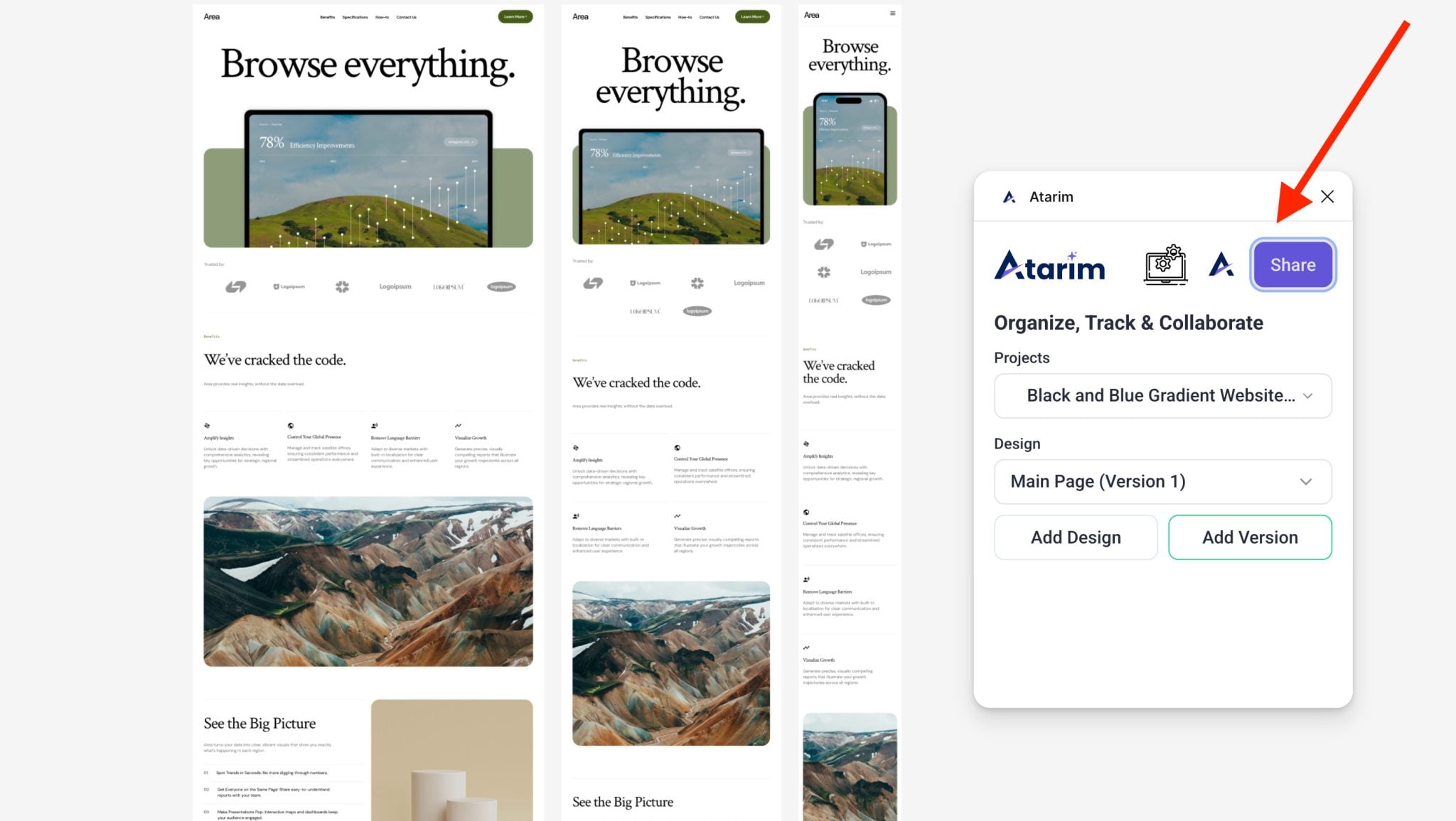
Reviewers open the project in Atarim rather than Figma, so nobody you invite needs a Figma seat.
Instructions:
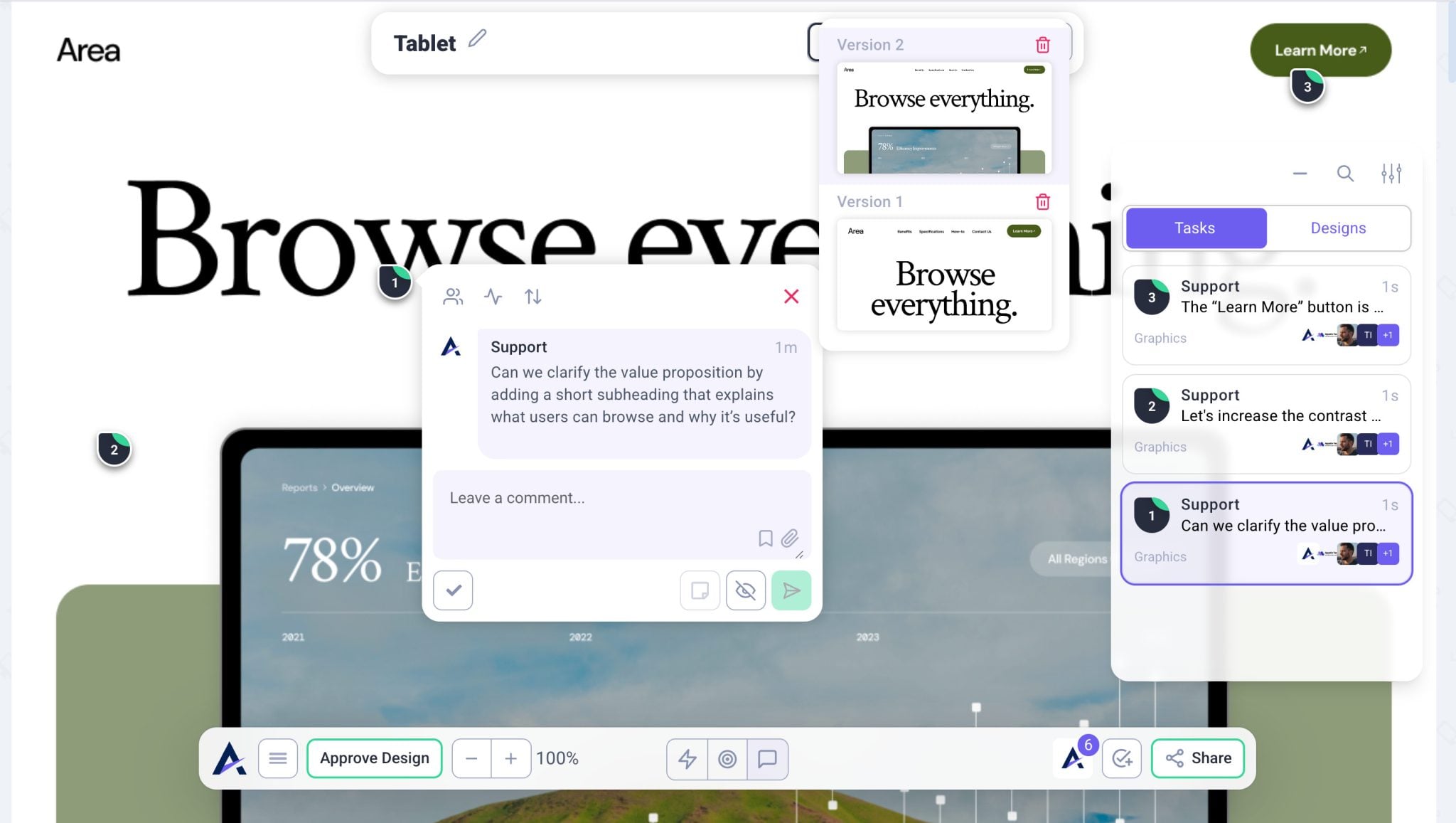
The Graphics Collaboration View
Designs are displayed top to bottom rather than scattered across an infinite canvas. That single change is what makes a review session with a client work: there is a defined order, nothing to hunt for, and comments attach to a specific element of a specific design.
Benefits
| Benefit | In practice |
|---|---|
| No seats for reviewers | Stakeholders comment with no Figma licence and no Atarim account. |
| Feedback becomes work | Comments arrive as tasks with status, priority and an owner. |
| One place for everything | Design feedback sits alongside website and email work in the same views. |
| A real version history | You can show how many rounds a design took, and clients can browse versions themselves. |
| Internal thinking stays internal | Notes and internal tasks give the team somewhere clients cannot see. |
| Cleaner developer handoff | Prioritised tasks push on to Jira, ClickUp or Slack. |
Known Limitations
FAQs
Can clients comment without a Figma account?
Yes. They work in Atarim only — no Figma login, and no Atarim account either.
Do I lose fidelity when I push to Atarim?
No. The design is retained as pushed, with comments layered on top in Atarim.
Can I push into an existing Atarim project?
Yes. Choose it from Select a Project before adding frames, rather than selecting Add Project.
What if I update a frame but do not push a new version?
Atarim will not track it. Nothing watches the Figma file, so use Add Version whenever you want the change recorded.
Can clients see version history?
Yes. When viewing a design in Atarim they can switch between versions using the version selector on the design page.
Does it work in FigJam or Figma Slides?
No. The plugin supports Figma design files.
How often do I need to sign in?
Once. Installation and authentication are both one-off, and the plugin is then available in all your files.
Common issues
- The plugin is not available in your file — check you are in a Figma design file rather than FigJam or Slides.
- Stuck on Waiting for authentication — the sign-in tab may not have opened. Select Reopen Auth Window and check your pop-up blocker.
- Authenticate is disabled — the plugin is still fetching the sign-in link. It shows Loading… meanwhile.
- Add Version is greyed out — nothing is selected in the Design dropdown. Choose the destination there first.
- The design in Atarim looks out of date — expected. Push the frame again with Add Version.
- Client comments are not showing in Figma — they will not. Feedback lives in Atarim, so review it there.
- You wanted a new project but the design joined an existing one — a project was already selected. Use Add Project to create a new one.
- Your workspace is not listed — confirm you signed in with the account that has access, then reopen the plugin.
- Feedback on one page is hard to follow — unrelated frames were added to the same page. Split them across pages.
Conclusion
The plugin exists because the people who approve a design are usually the people least equipped to comment on it inside Figma. Pushing frames into Atarim turns design review into the same process as every other review you run — a link, a simplified view, and comments that arrive as tracked work with a status and an owner.
The habit that pays off is versioning at checkpoints. It gives you a defensible record of how many rounds a design took, which is the conversation most design projects eventually need to have. Discover How To Review And Respond To Client Feedback
Tips & best practices
- Push selected frames rather than whole canvases, so feedback stays organised.
- Use internal-only tasks for design team notes before sharing with clients.
- Version at checkpoints — before client sends and before developer handoff.
- Keep unrelated frames on separate pages.
- Prioritise design tasks so developers know what to act on first.
- Open the project and tidy it before sending the link on.
- Keep native Figma comments for designer-to-designer review.