MainWP
Connect your MainWP dashboard to Atarim so the sites you maintain and the feedback you collect live in one place.
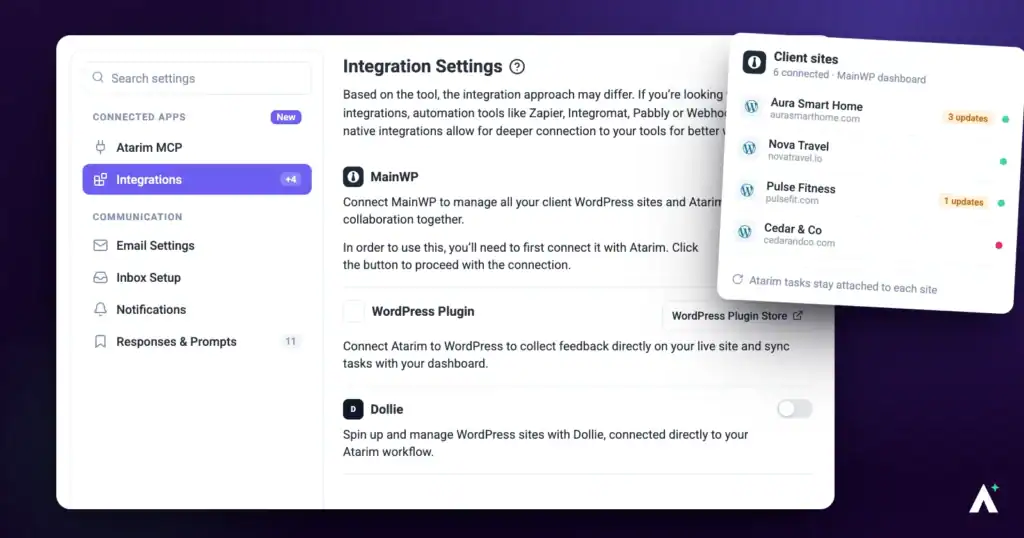
MainWP is a self-hosted dashboard for managing multiple WordPress sites. Connecting it brings the sites you maintain and the client feedback you collect into one workflow. It is the most involved integration to set up, because it is the only one where credentials travel in both directions.
Credentials go one way, the Atarim Key goes the other.
MainWP is a self-hosted dashboard for managing multiple WordPress sites. Connecting it to Atarim brings the sites you maintain and the client feedback you collect into one workflow, rather than two separate dashboards.
| What you get | Where it shows |
|---|---|
| One-click visual collaboration | A collaborate link on each site in your MainWP dashboard. |
| Task counts and lists | An Atarim column on the MainWP websites screen, and in the Atarim extension. |
| Website vitals | Updates, status and security pulled from MainWP into your Atarim dashboard. |
| Task data in MainWP reports | Task information and time entries available for your client reporting. |
Install the MainWP Atarim Extension
Everything else depends on this. The extension is what receives the Atarim Key and surfaces your tasks inside MainWP.
Instructions:
Enable the REST API in MainWP
Before anything else, MainWP’s REST API has to be switched on and a key pair generated. That is what Atarim uses to talk to your dashboard.
Instructions:


Enter Your MainWP Details in Atarim
Credentials travel from MainWP into Atarim here; the Atarim Key goes back the other way in the next step.
Instructions:
| Field | What goes in it |
|---|---|
| MainWP Consumer key | The consumer key generated by MainWP’s REST API. |
| MainWP Consumer Secret | The matching consumer secret. |
| MainWP Dashboard URL | The address of your MainWP dashboard. |

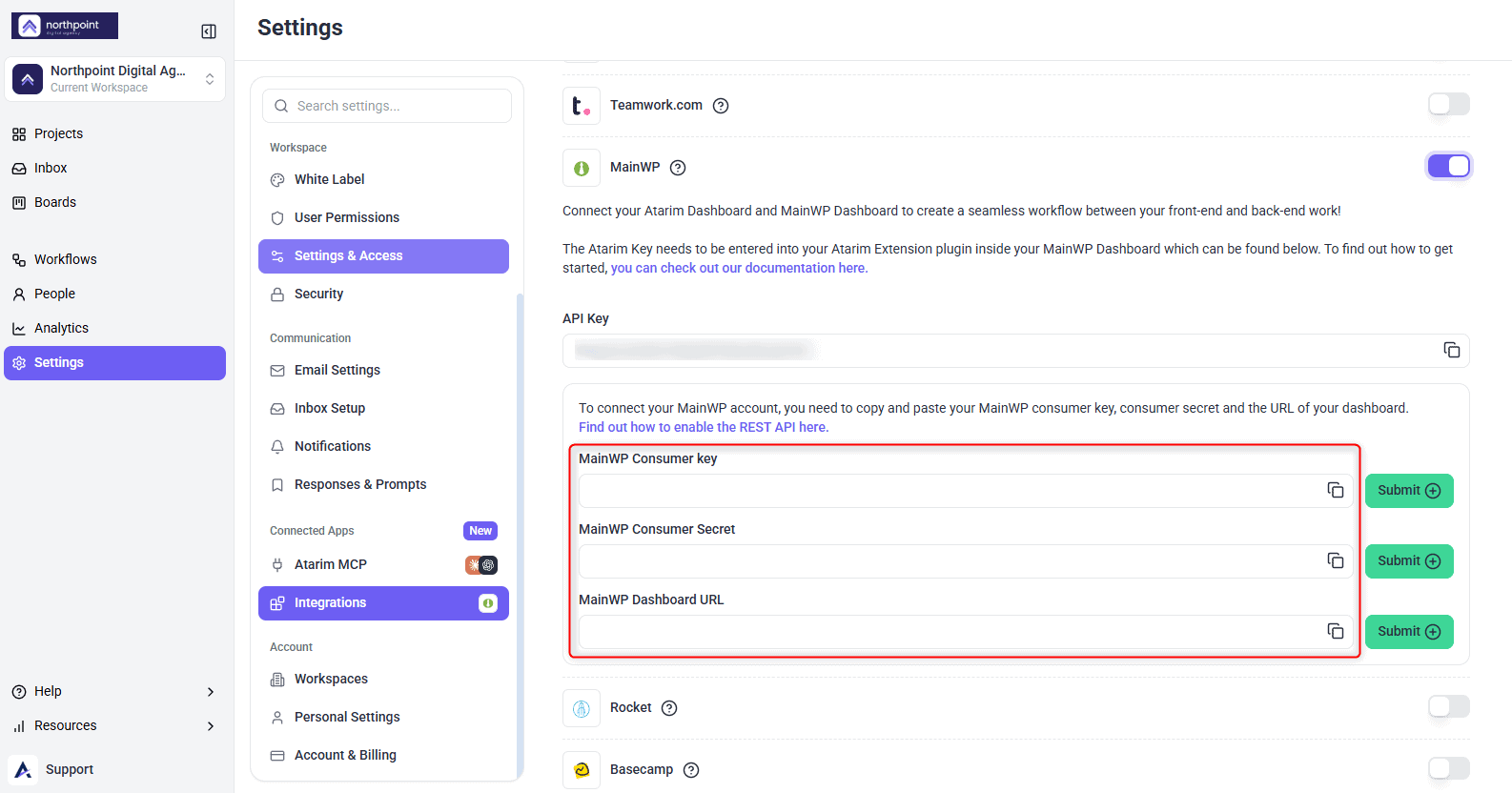
Enter the Atarim Key in MainWP
This is the half people miss. Atarim generates its own key, shown in the same panel, and it has to go into the Atarim extension inside MainWP.
Instructions:

Collaborate on a MainWP Website

See Website Vitals in Atarim
Once both halves are connected, MainWP pushes health information about your sites into your Atarim dashboard.
| Vital | What it shows |
|---|---|
| Updates | How many plugin, theme and WordPress updates are pending. |
| Status | Whether the site is currently online or offline. |
| Security | How many security issues the site currently has. |
Each connected website in Atarim also carries a control that opens that site directly in your MainWP dashboard.


Refreshing Site Status
MainWP reports whatever it last checked, so a bulk re-check is what makes the status codes trustworthy.
Instructions:

See Atarim Tasks Inside MainWP
Tasks created on your MainWP websites appear in three places in MainWP.
Instructions:


Setup at a Glance
| Step | Where it happens | What it produces |
|---|---|---|
| Enable the REST API | MainWP | A consumer key and consumer secret. |
| Switch MainWP on | Atarim → Integrations | The configuration fields. |
| Enter key, secret and dashboard URL | Atarim | Atarim can reach your MainWP dashboard. |
| Copy the Atarim Key | Atarim | The key for the other direction. |
| Paste it into the Atarim extension | MainWP | MainWP can reach Atarim. |
Benefits
| Benefit | In practice |
|---|---|
| One workflow, not two | Site maintenance and client feedback stop being separate systems. |
| Scales with your portfolio | Useful whether you manage ten sites or two hundred. |
| Works with self-hosted MainWP | Your dashboard stays where it is; Atarim connects to it. |
| Less context switching | Fewer trips between dashboards during a working day. |
FAQs
Why does this integration need keys in both directions?
Because both systems need to reach each other. MainWP’s consumer key and secret let Atarim talk to your dashboard; the Atarim Key lets MainWP talk back.
Where do I get the consumer key and secret?
From MainWP, by enabling its REST API and generating a key pair. The Atarim panel links to MainWP’s own guide.
Where does the Atarim Key go?
Into the Atarim extension in your MainWP dashboard.
What if I lose the consumer secret?
Generate a new pair in MainWP and enter both values in Atarim again.
Does this sync tasks to a project tool?
No. This connects your MainWP dashboard. Task syncing is handled by integrations such as Jira, Asana or Trello.
Will tasks created in Atarim show up in MainWP?
Yes. Tasks created on your websites through Atarim appear in the MainWP dashboard, including their current status.
Do Atarim annotations change the live website?
No. Tasks and annotations are a collaboration overlay — they do not alter the site’s actual content.
Can I disable the integration temporarily?
Yes. Switch it off from the Integrations panel in Atarim without deleting your configuration.
Does my MainWP dashboard need to be publicly reachable?
Atarim connects to the dashboard URL you provide, so it needs to be reachable from outside your network.
Common issues
- The connection does not work after entering the keys — check the other half. The Atarim Key needs pasting into the Atarim extension in MainWP.
- You cannot find where to paste the Atarim Key — the Atarim extension is not installed in MainWP yet. Install it first.
- MainWP rejects the credentials — re-copy the consumer key and secret, and check the dashboard URL is the full address of your MainWP install.
- You have lost the consumer secret — generate a new key pair in MainWP and enter both values again in Atarim.
- The MainWP option is locked — your plan does not include native integrations. The lock names the minimum plan required.
- Integrations is not in your settings sidebar — your role does not have access. Ask an Administrator.
- Website vitals do not appear in Atarim — set the MainWP permalink structure to Post Name. If that does not fix it, contact support.
- Site status looks out of date — in MainWP, go to Sites → Monitoring, select all sites, and run Check now from Bulk Actions.
- The connection stopped working — keys may have been regenerated on either side. Re-enter the current values in both places.
Conclusion
MainWP is the most involved integration to set up, because it is the only one where credentials travel in both directions. Enable the REST API, paste the key, secret and dashboard URL into Atarim, then copy the Atarim Key back into the MainWP extension.
Complete both halves in one go. A connection that is half configured fails without telling you which half is missing.
Tips & best practices
- Enable MainWP’s REST API before starting in Atarim.
- Copy the consumer secret the moment it is shown.
- Install the Atarim extension in MainWP before you need somewhere to paste the key.
- Complete both halves in one sitting.
- Use the full dashboard address for the URL field.
- Set MainWP permalinks to Post Name so vitals sync.
- Review site vitals weekly to catch maintenance issues early.
- Assign tasks and set deadlines in Atarim before pulling them into MainWP reports.
- Re-enter both sides if you ever regenerate keys.