How to Run an AI-Powered Page Review
Set one up, read what comes back, and turn it into work — without a page changing until you say so.
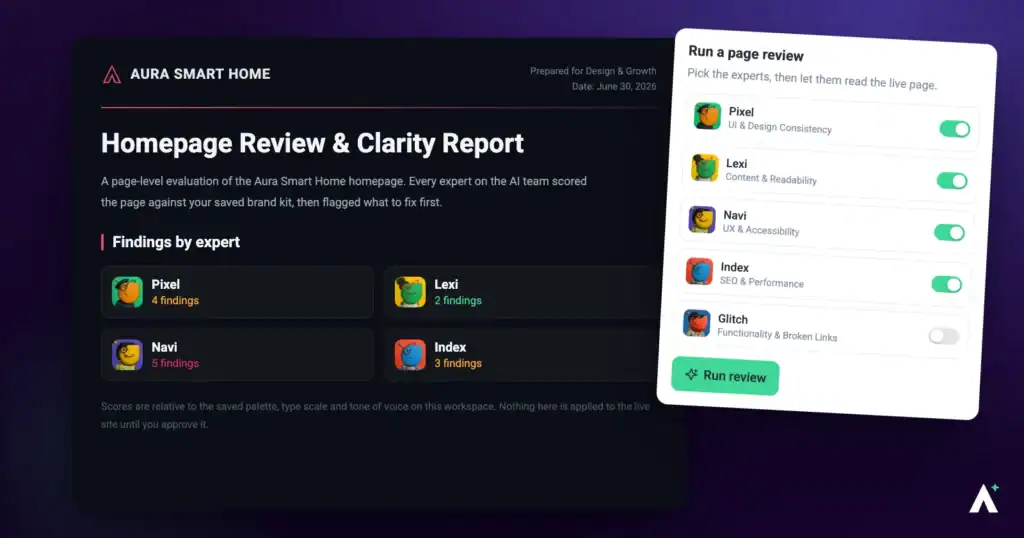
A review is a full pass over a page by the AI specialists — design, copy, SEO, accessibility and bugs. It works down the page one screen-height section at a time and checks each section at desktop, tablet and mobile. It reports what it finds and changes nothing. What you do about it is a separate decision, and this article covers both.
What you can review
| Source | Available |
|---|---|
| A live or staging page, added by URL | Yes — this is how reviews run today. |
| A WordPress page through the Atarim plugin canvas | Yes |
| The Chrome extension | Yes |
| The injectable script | Yes |
| An uploaded mockup or screenshot | Yes — ask Claro in workspace chat (Beta); there’s no canvas button yet. |
Setting one up
The sentence describing what you want looked at shapes the whole review, and matters more than which preset you pick. Guests and collaborators can’t start a review.
Instructions:
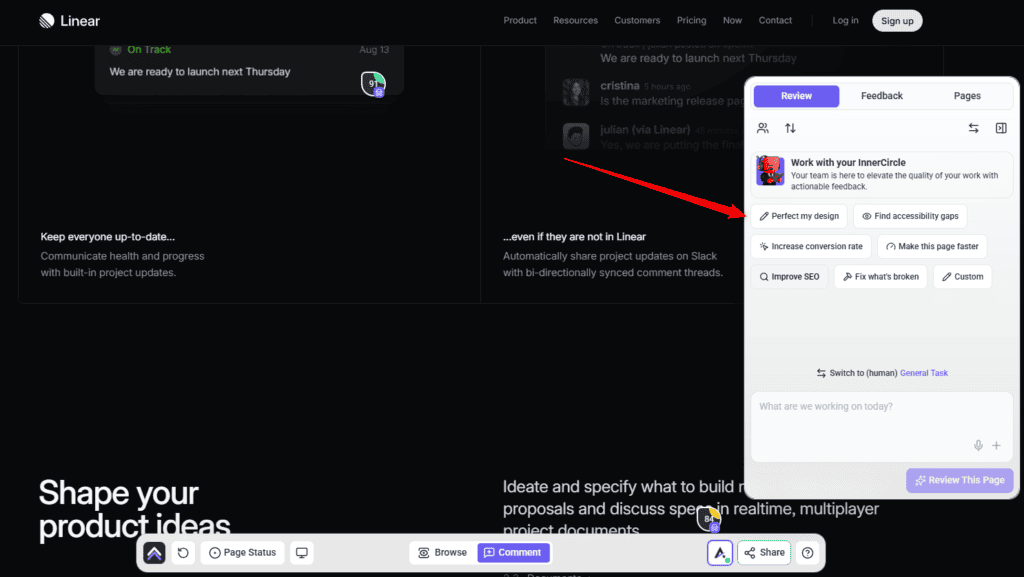
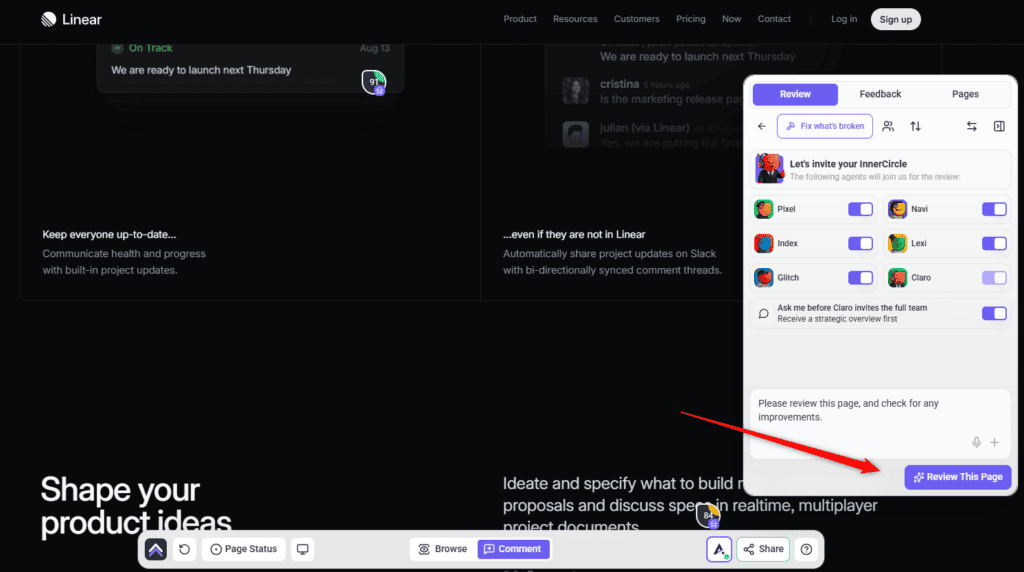
- On Projects, select Open on the project’s card, then open the Review tab in the sidebar. It shows Work with your InnerCircle and the presets. If you see a plain comment box instead, select the switch icon at the top of the tab (its tooltip reads Switch to AI review).
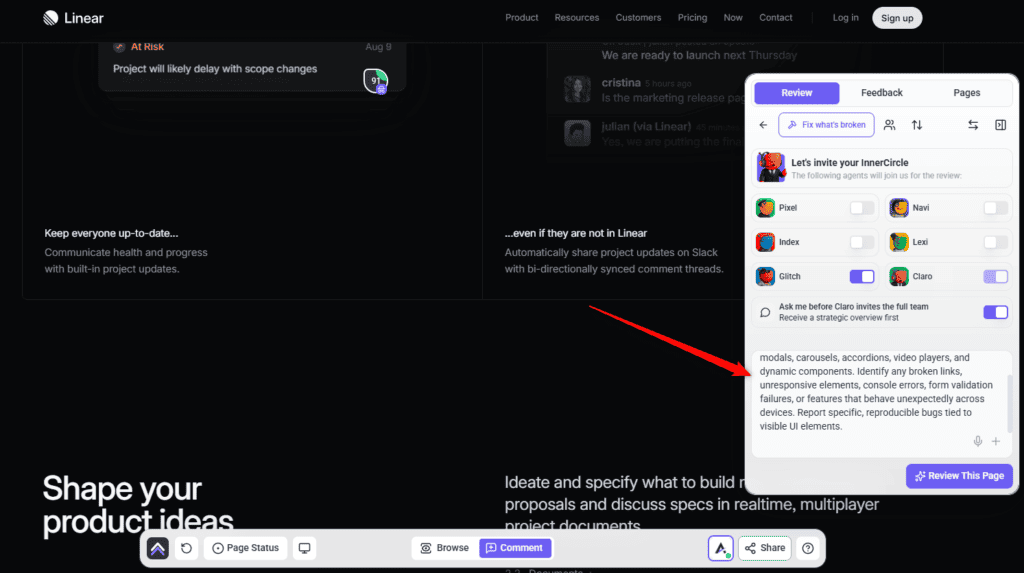
- Pick a preset — Perfect my design (Pixel), Find accessibility gaps (Navi), Increase conversion rate (Navi and Lexi), Make this page faster (Index), Improve SEO (Index and Lexi) or Fix what’s broken (Glitch) — or choose Custom to write your own prompt and pick the specialists yourself. A preset fills in the description and replaces anything already typed there. Typing in the box before you pick one counts as Custom. Either way the tab moves on to Let’s invite your InnerCircle.
- In the description box, add a sentence of your own about what you want looked at, or edit the preset’s text. This changes the results more than any other setting. You can attach up to five images or documents for context.
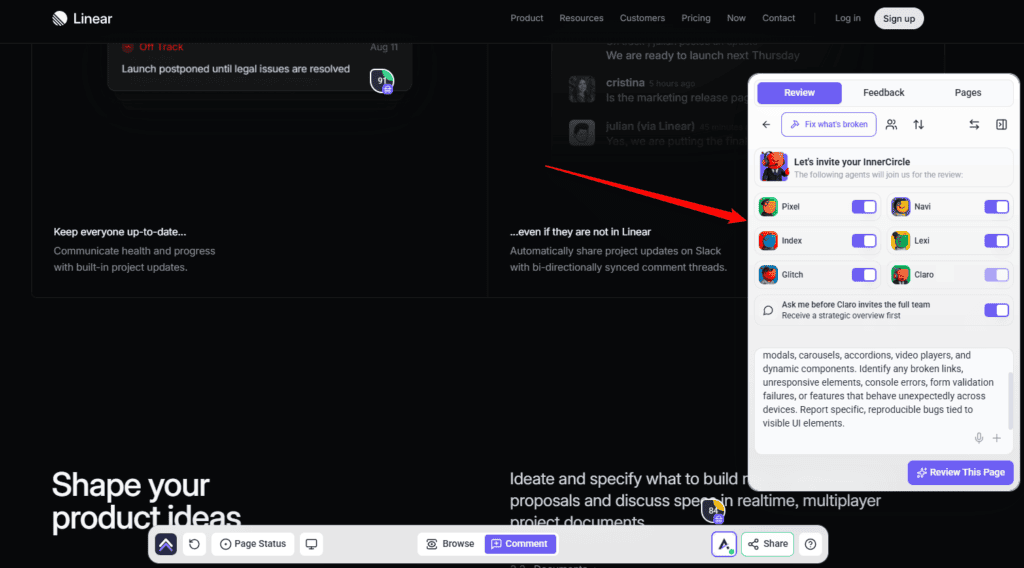
- Switch specialists on or off under Let’s invite your InnerCircle. A preset switches on the ones it needs; with Custom, switch on the ones you want. Claro’s switch is always on. Leave Ask me before Claro invites the full team on if you want to read Claro’s overview before the specialists start.
- Select Review This Page. It stays greyed out until the description has text. With the overview switch on, Claro replies first with a Strategic Overview; select Start Review under Ready to include the InnerCircle? to bring the specialists in.
- Follow the review in the tab, which now splits into Chat, where Claro and the specialists report, and Tasks, where the findings arrive section by section. You don’t need to keep the tab open.
Brand guidelines
You can set the guidelines the review judges against at two levels:
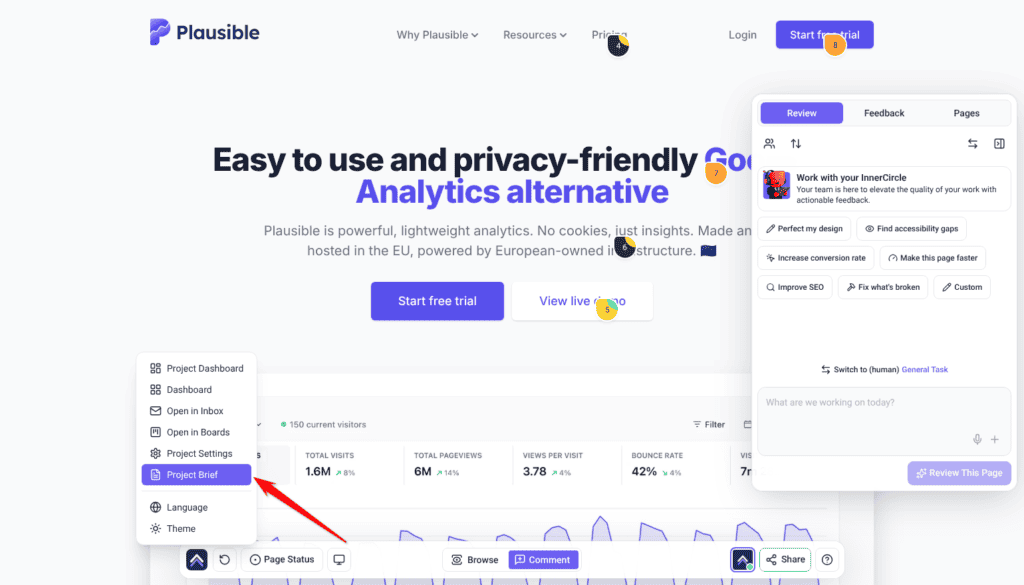
- Project level — specific to this site. Open Project Brief from the Atarim menu at the left of the bottom bar.
- Global level — your defaults across everything, in Settings › Agency Brief.
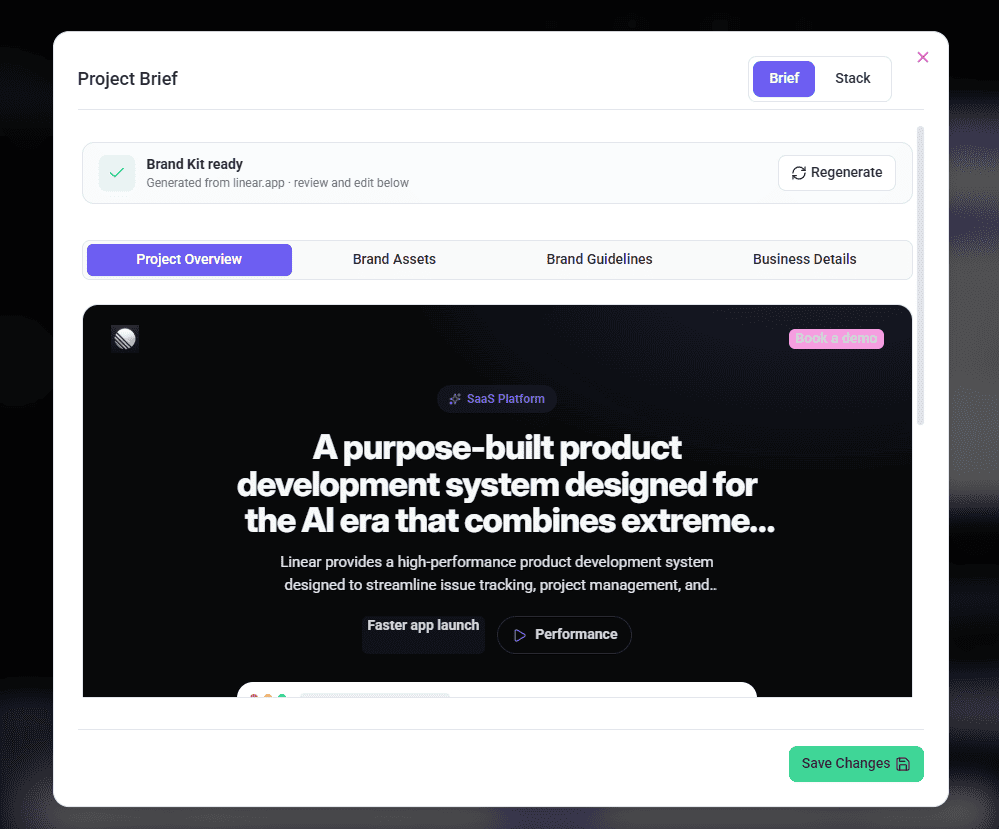

Switch on Use Global Settings to inherit the global set. Project settings take precedence where both exist. The toggle is a paid-plan feature — on lower plans it shows an upgrade prompt rather than switching.
The four stages
Once started, a review runs in the background through four stages.
| Stage | What happens |
|---|---|
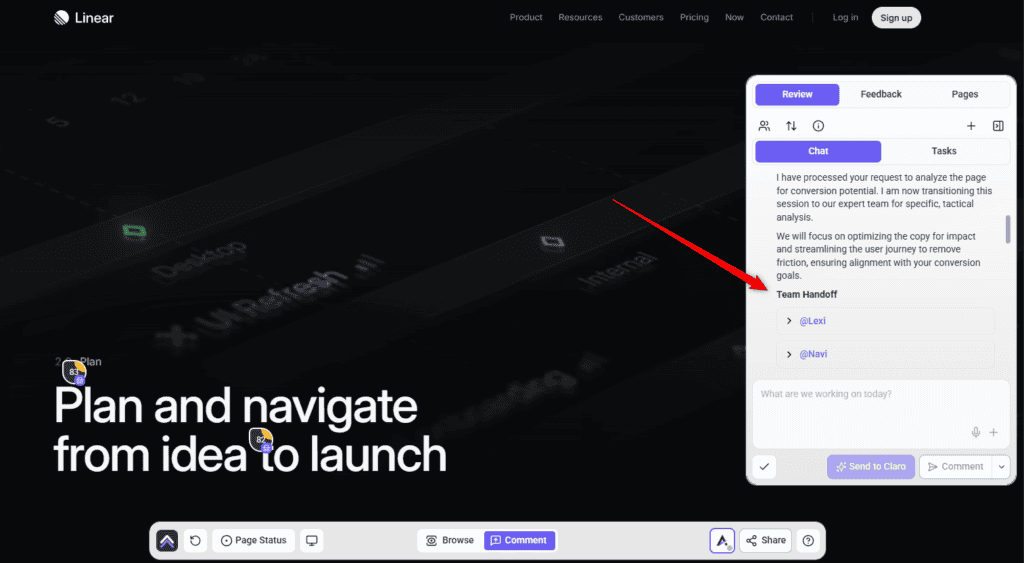
| 1. Strategic Overview | Claro reads the page and reports back before anyone else starts. Only Claro is active here. |
| 2. Team handoff | The brief passes to the specialists you enabled. |
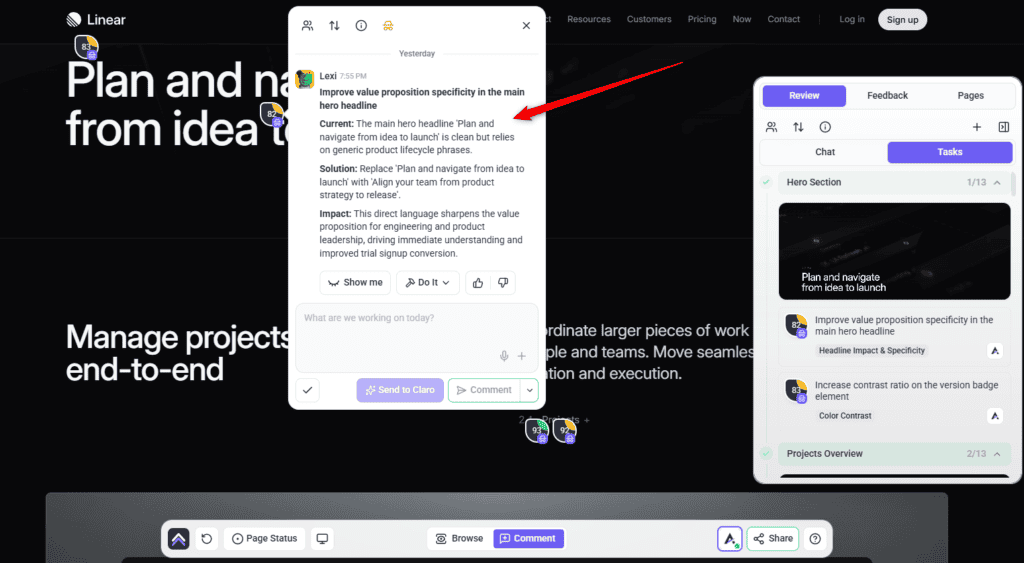
| 3. On-page comments | Findings appear pinned to the elements they relate to. |
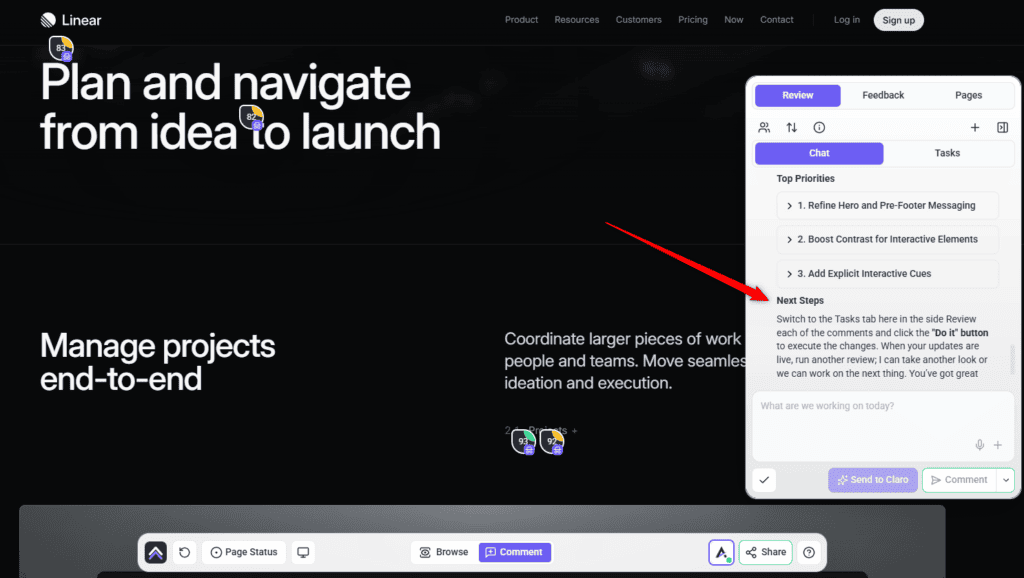
| 4. Summary and next steps | A consolidated report of what was found and what to do. |
What the specialists actually read
- The page’s HTML and structure
- Its CSS, layout and visual hierarchy
- The copy, calls to action and tone
- Metadata and SEO structure
- Screen size, browser and device context
Index also reviews the page’s metadata, which counts as its own pass within the review. Index’s keyword and competitor research sits outside a review — ask him for that in chat or on a task.
Reading what comes back
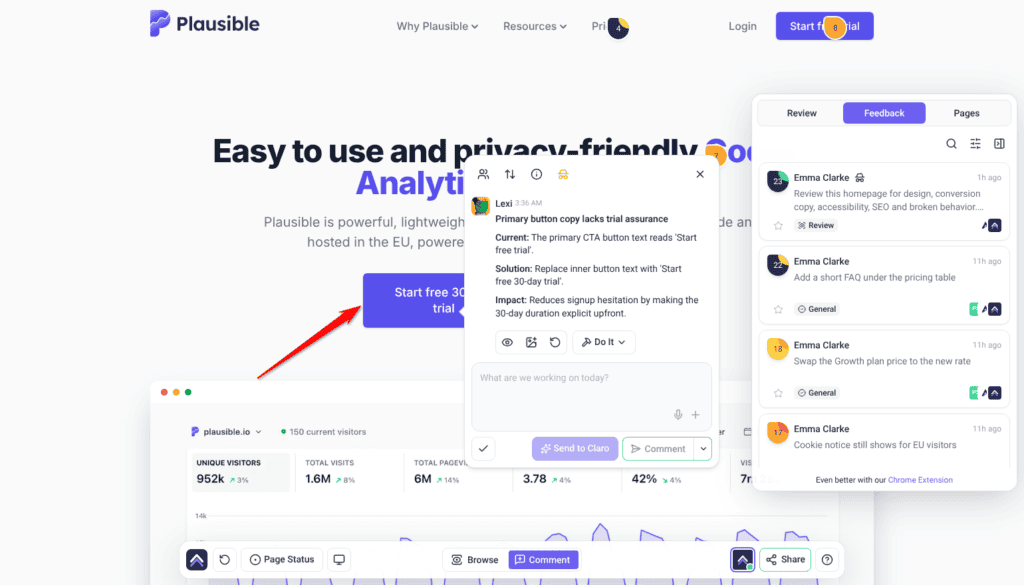
When the review finishes, the Tasks tab lists the page section by section, each section named after what it shows, such as Hero Section or Footer Links, with its findings underneath. Each finding is its own task, pinned to the element it’s about and written by the specialist who raised it: a one-line summary of the problem, then Current (what’s on the page now), Solution (the change to make) and Impact (why it matters). It also carries a priority, colored as in the table below, and a short tag naming the issue.
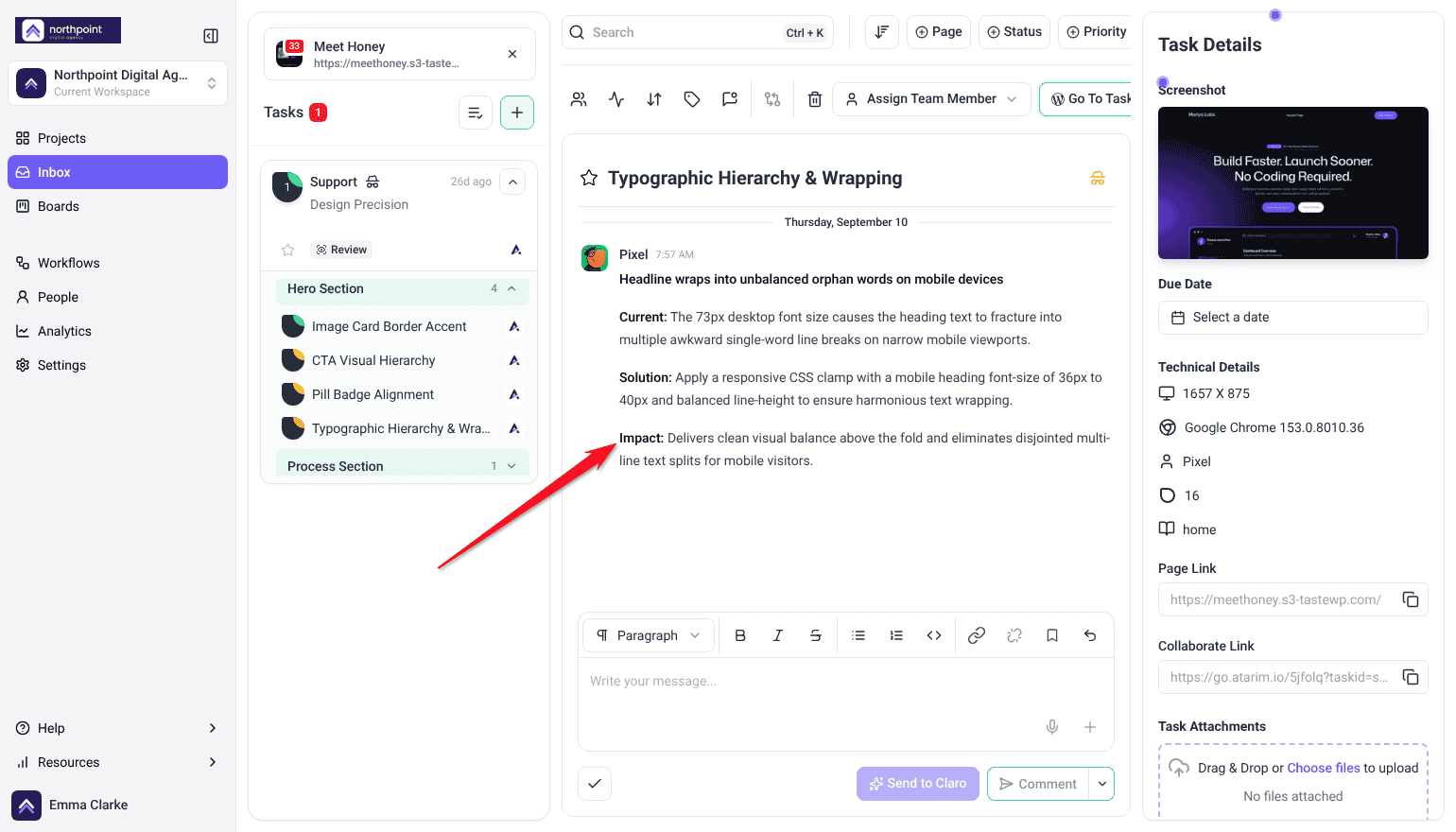
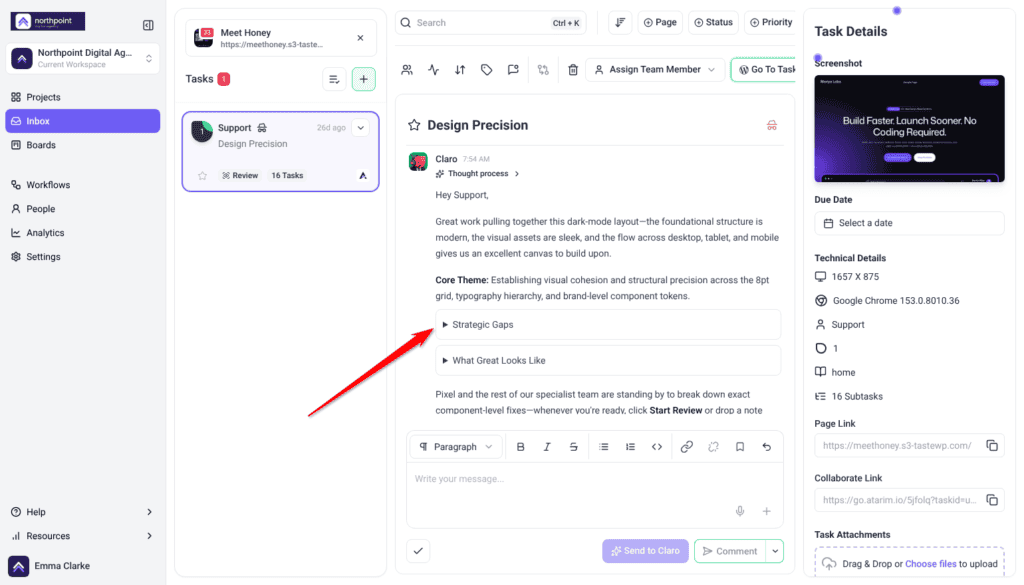
The review also shows up in the Inbox as one task with a Review label. Open it to read Claro’s messages from the review, or expand it to see the sections and the findings under each.
| Priority | Covers | When |
|---|---|---|
| Critical | Breaks core functionality, blocks a journey, or causes a severe clarity or accessibility failure. | First. |
| High | Major impact on experience, conversion, accessibility, discoverability or trust. | Next. |
| Medium | Clearly relevant, but not blocking anything. | After those. |
| Low | Polish — line breaks, minor typography. | When there’s time. |
The summary report
Alongside the pinned findings you get one consolidated report:
- Overall impression of the page
- Recurring themes across the specialists
- Notes and observations from each
- An effort estimate, adjusted to your selected experience level
- Top priorities
- Suggested next steps
Where the report lives afterwards
The report is not just something you read once in the review. Every completed review saves one, and they collect in a card called Artifacts that sits on your Projects screen alongside your projects. Open it and you are in the same Collaborate view you use everywhere else, with the report in place of a page.
Each report is also listed under Artifacts in a project’s Assets tab (Beta), so the ones belonging to a particular site are findable from that site rather than only from the shared card. If a report is not showing against the project you expect, attach it yourself.
Instructions:
- On the Projects screen, open the ⋮ menu on the Artifacts card and select Assign projects. Inside the card, each report’s own ⋮ menu has the same option.
- Under Deliverables on the left, pick the report.
- On the right, select each project the report belongs to. The search box finds a project by name.
- Select Save Assignments.
A report you never assign stays with the project it came from. Assigning it moves it, or shares it across several projects.
The same ⋮ menu on the Artifacts card also has Share, which invites people to the whole card rather than to one report, and Artifact settings, Archive and Delete. Archive and Delete act on the whole card and every report in it, not on a single report. What the menu shows depends on your role. The Artifacts card doesn’t use one of your project slots.
Downloading reports as PDFs
Two kinds of report also come as a PDF you can download, keep on file or forward.
Instructions:
- In the Inbox, open the task the review ran in.
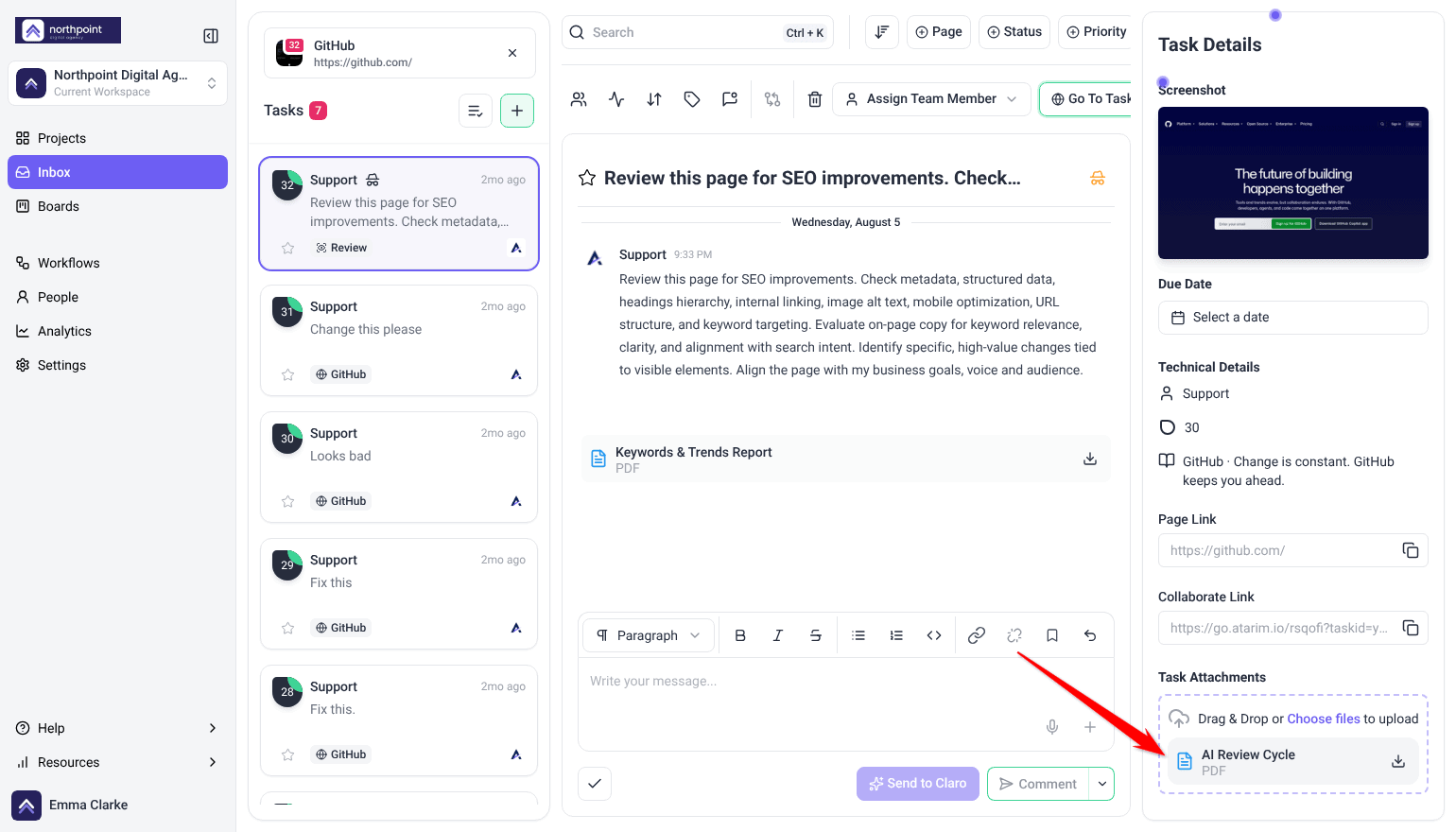
- Once the review has finished, AI Review Cycle appears under Task Attachments in the task’s details. Select its download button to save the review as a PDF.
- When Navi runs an accessibility check, or Index runs a Lighthouse or keywords check, their reply in the task thread carries the result as a PDF: Accessibility Report, Lighthouse Report or Keywords & Trends Report. Select the download button beside it. These replies show in Collaborate as well as the Inbox.
Downloading the specialists’ reports needs a paid plan. If yours doesn’t include it, the download button shows Upgrade to download.
Turning findings into work
A finding arrives pinned to the element it’s about, and nothing on the page has changed.
Instructions:
- Open the finding on the element it’s pinned to.
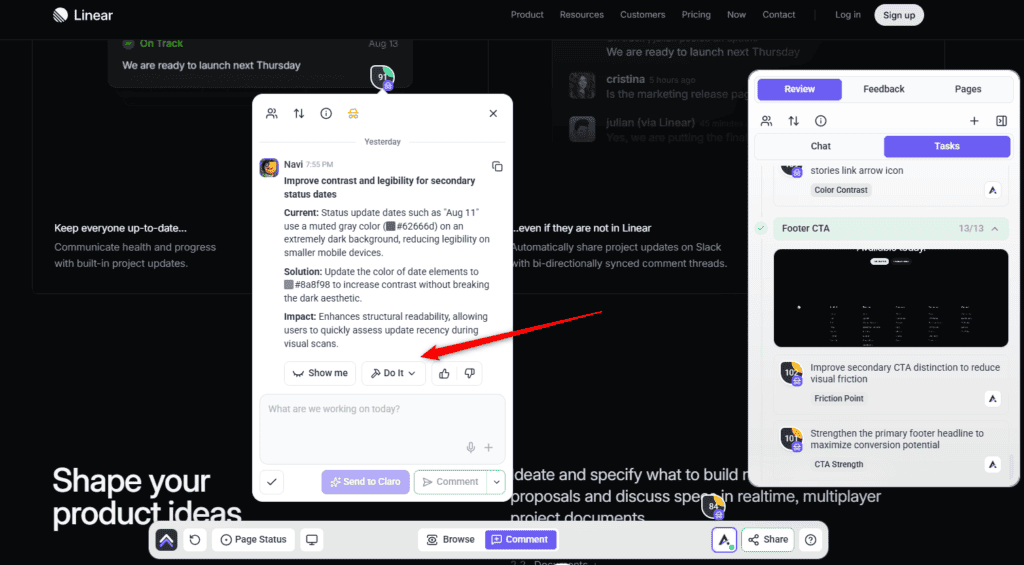
- Press Show me to see the change applied to the page in front of you. Nothing is committed. The element is put back afterwards, so you can toggle the preview off to compare against the original, or regenerate it if it isn’t what you meant.
- Press Do It to apply it for real. Your own click needs no approval: it queues and runs in the background. When it has applied, the task moves to Pending Review and an Undo control appears on that comment.
- Work down the priority order rather than down the page.
- Log in to your WordPress to use Do It
- Your WordPress account can’t edit this page
- Do It is turned off in the Atarim plugin settings
- Do It works on individual pages and posts, not on listing pages like the blog or archives
- Update the Atarim plugin to use Do It
- Do It isn’t available on this page
Getting the work done
Reviews change nothing. When you’re ready, ask Atarim to work through the findings, and scope it — “just the critical ones”, “only the mobile problems”.
Running it again
Run another review the same way you ran the first one. Each cycle looks at the page as it is now, so re-running after a round of fixes shows what’s left rather than repeating what you’ve done.
Credits
Reviews use credits from one pool shared across everyone in the workspace. Availability is checked before a review starts, so you’re told up front rather than partway through.
Frequently asked questions
Does a review change my site?
No. A review reports and changes nothing. Making changes is a separate request, and anything needing sign-off waits for your approval.
Can I review a page that isn’t added by URL?
Yes. Reviews run on a page added by URL, through the Atarim WordPress plugin canvas, through the Chrome extension, or via the injectable script. Uploaded mockups and screenshots are reviewable too, by asking Claro in workspace chat (Beta) rather than from the canvas.
Do I have to pick the specialists?
No — presets enable the relevant ones. Use Custom when you want a particular lens on something.
How long does a review take?
The page’s sections are worked in parallel, but a review is a background job rather than an instant one — findings populate as each section finishes. You don’t need to keep the tab open.
Can I stop one partway through?
Yes. Stop ends it — anything already found stays and nothing further is generated.
Who can see the findings?
Your team. A review’s findings are created as internal tasks, so guests and clients don’t see them. To share one, open the task and select the internal icon at the top to make it visible.
What if I apply something and change my mind?
An Undo control appears on the comment after a change has been applied, and puts the original back. Going further than one element means rolling the page back or restoring from a backup.
Will it suggest the same thing twice?
Only if it was left unresolved. Anything you’ve already applied or dealt with won’t come back.
Does it judge the page on its own?
No. The homepage is provided as a reference when you add a project, so internal pages are assessed against the rest of the site for consistency and brand alignment.
How much does a review cost?
It uses credits from one pool shared across the workspace. Each screen-height section of the page costs 10 credits, plus 10 for the metadata pass when Index is in the review, so a long page costs more than a short one.
Common issues
- Review This Page isn't available — the source isn't supported. Use a page added by URL, the Atarim WordPress plugin canvas, the Chrome extension or the injectable script. On a design project the AI control reads InnerCircle coming soon instead.
- A specialist you wanted didn't take part — the preset didn't include them. Use Custom and toggle them on.
- Results feel generic — add a description before starting, and fill in your brand guidelines in the Brand Kit.
- The review won't start — the workspace may be out of credits. Check Settings › Credits & Usage.
- There's no way to start a review — guests and collaborators can't start one. Ask someone on your team to run it.
- The review says This review couldn't finish — something went wrong, so no suggestions were added. Select Start a new review to run it again.
- More findings than expected — detection reaches into nested layouts. Work by priority, not down the page.
- The same suggestion came back — it was left unresolved. Apply it or deal with it and it won't come back.
- You applied something and want it back — use the Undo control on that comment. Going further than one element means rolling the page back or restoring from a backup.
- Nothing changed after the review — expected. Reviews never change anything; ask for the work separately.
Conclusion
A review gives you five perspectives on a page in the time it takes to make a coffee, and none of them touch the site. The two things that most affect what you get back are a sentence of context before you start and brand guidelines filled in beforehand.
Read first, fix second. Work the priority order rather than the page order, then ask for the work — and send the report rather than the finding list. Explore Getting The Most Out Of The InnerCircle.
Tips & best practices
- Write a description every time; it changes results more than any setting.
- Fill in brand guidelines, globally once and per project where it matters.
- Run reviews once the page is basically finished.
- Hover the device marker before hunting for a problem — it tells you which screen size it was spotted at.
- Work by priority order, not down the page.
- Read the whole review before applying anything.
- Use Show me to see a change before you keep it.
- Send the summary report to clients, not the raw findings.
- Start a new cycle after a round of fixes to see what's left.
- Check credits before a large multi-page sweep.