
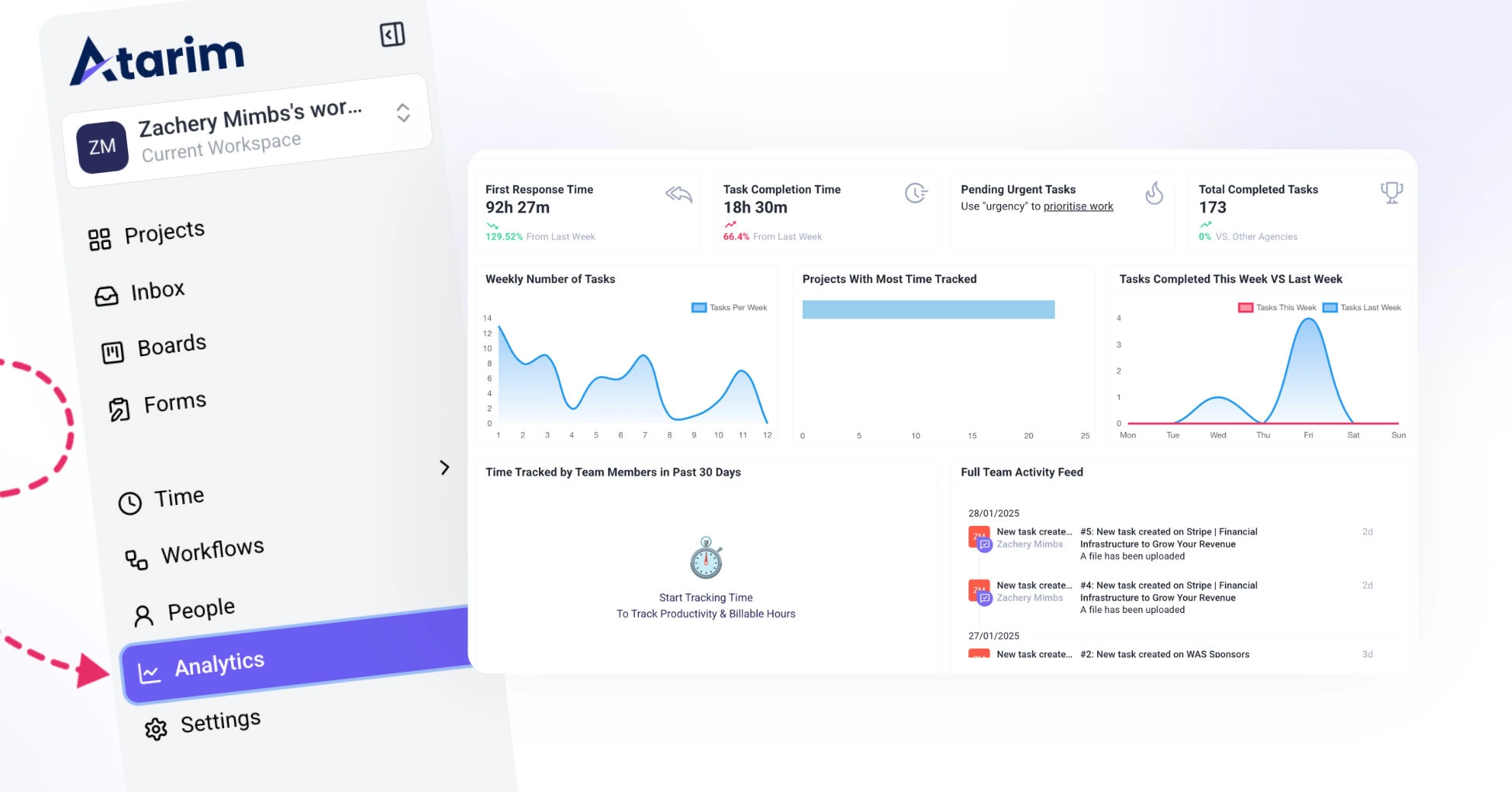
Step-by-Step Guide
1. Using the Analytics Page
The Analytics Page provides a real-time snapshot of your team’s activity, task flow, and time tracking to help you measure performance and identify trends.
To Access the Analytics Page:
- From the main dashboard, click on the Analytics tab in the top navigation bar.
To Monitor Project Metrics:
Use the visual panels to explore key sections:
- Pending Urgent Tasks
- View all tasks marked as urgent.
- Prioritize and reassign to avoid project delays.
- Total Completed Tasks
- Cumulative counter of all completed tasks.
- Useful for tracking team output over time.
- Weekly Number of Tasks
- Graph showing tasks created and completed weekly.
- Identify team capacity trends and adjust accordingly.
- Tasks Completed This Week vs. Last Week
- Compare weekly completion rates to monitor productivity shifts.
- Spot if process changes are impacting output.
- Time Tracked by Team Members (Past 30 Days)
- View time logs per user.
- Evaluate workload distribution and time management.
- Full Team Activity Feed
- Real-time log of team-wide activity.
- See task updates, comments, and collaboration steps as they happen.
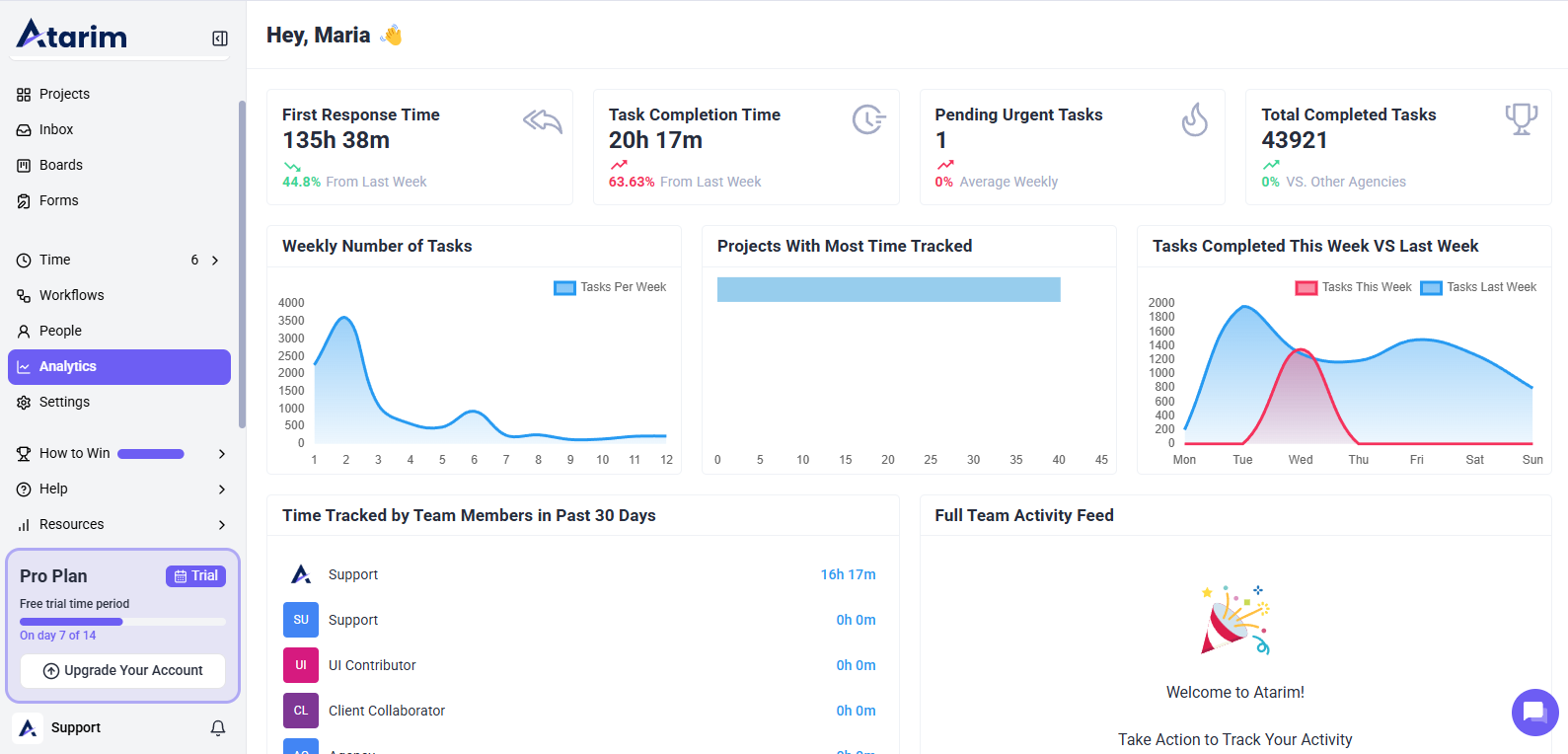
Discover How Analytics & Metrics can help you.
Tip: Bookmark the Analytics Page to monitor live updates and avoid missing performance shifts.
2. Using the Activity Feed on the People Page
The People Page Activity Feed lets you drill down into individual user activity, helping you understand each team member’s engagement and contributions.
To Access the Activity Feed:
- Go to the People tab in your workspace.
- Click on a team member’s profile to view their activity feed.
To Monitor User-Specific Activity:
- User-Specific Activity Feed
- See all actions (task creation, updates, completions, comments, and feedback).
- Helps monitor how each person contributes to the workflow.
- Chronological Timeline
- Events are displayed in order of occurrence.
- Follow the trail of activity over time.
- Task and Feedback Logs
- Each comment and update is stored in the feed.
- Creates a transparent log for accountability.
- Real-Time Updates
- The feed refreshes automatically.
- You’re always seeing the most recent actions—no manual refresh needed.
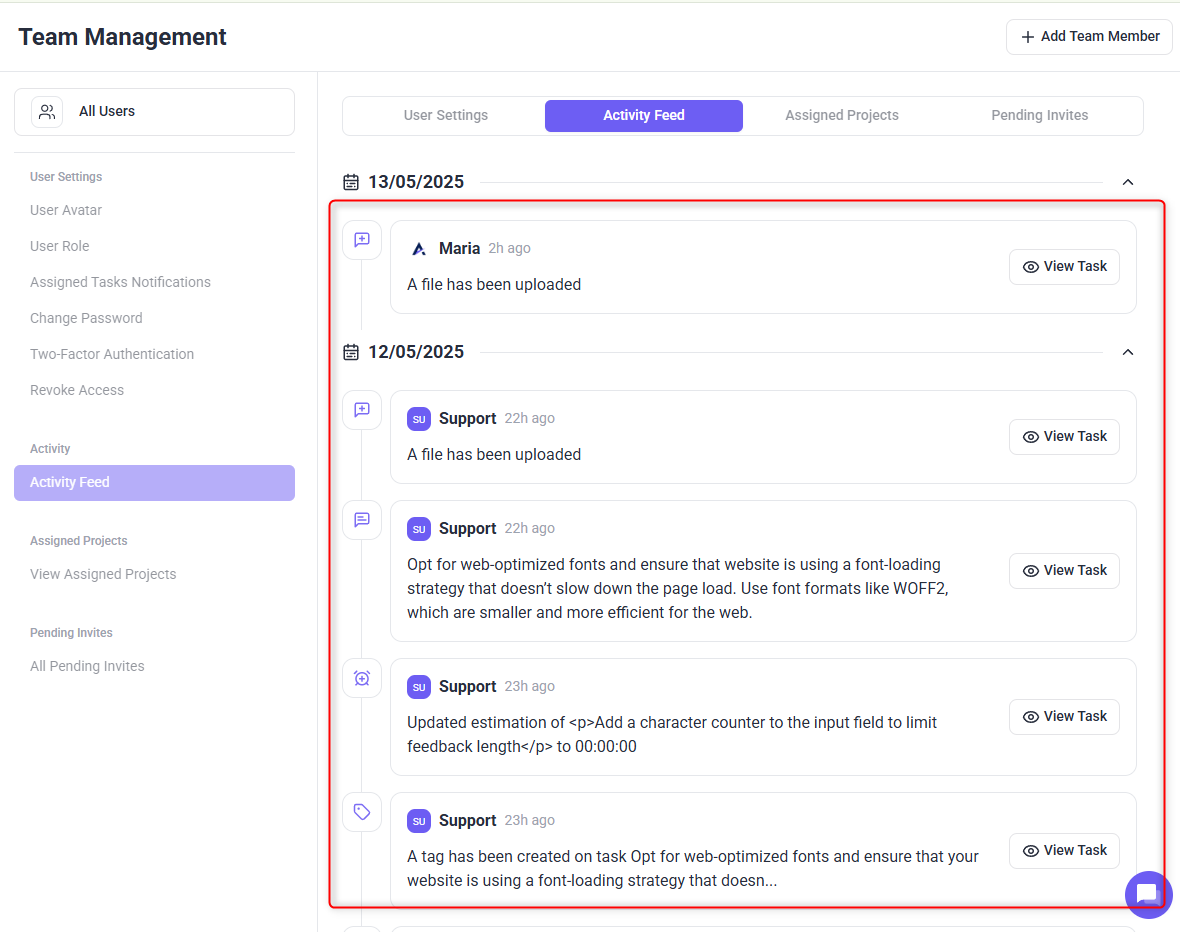
Note: Use this feed to verify task ownership, completion dates, and feedback timing during performance reviews or sprint planning.
FAQs
You need Admin or Manager-level permissions to access team-wide analytics and individual activity feeds.
The Analytics Page and Activity Feed update in real time, ensuring you always have the latest information.