
What the WordPress Plugin Enables
- Visual feedback directly on live WordPress pages
- Human and AI collaboration on page elements
- Internal tasks hidden from clients by default
- Private internal collaboration notes
- Client friendly feedback without AI noise
- Collaboration inside both the front end and WP Admin
Human and AI Collaboration on Pages
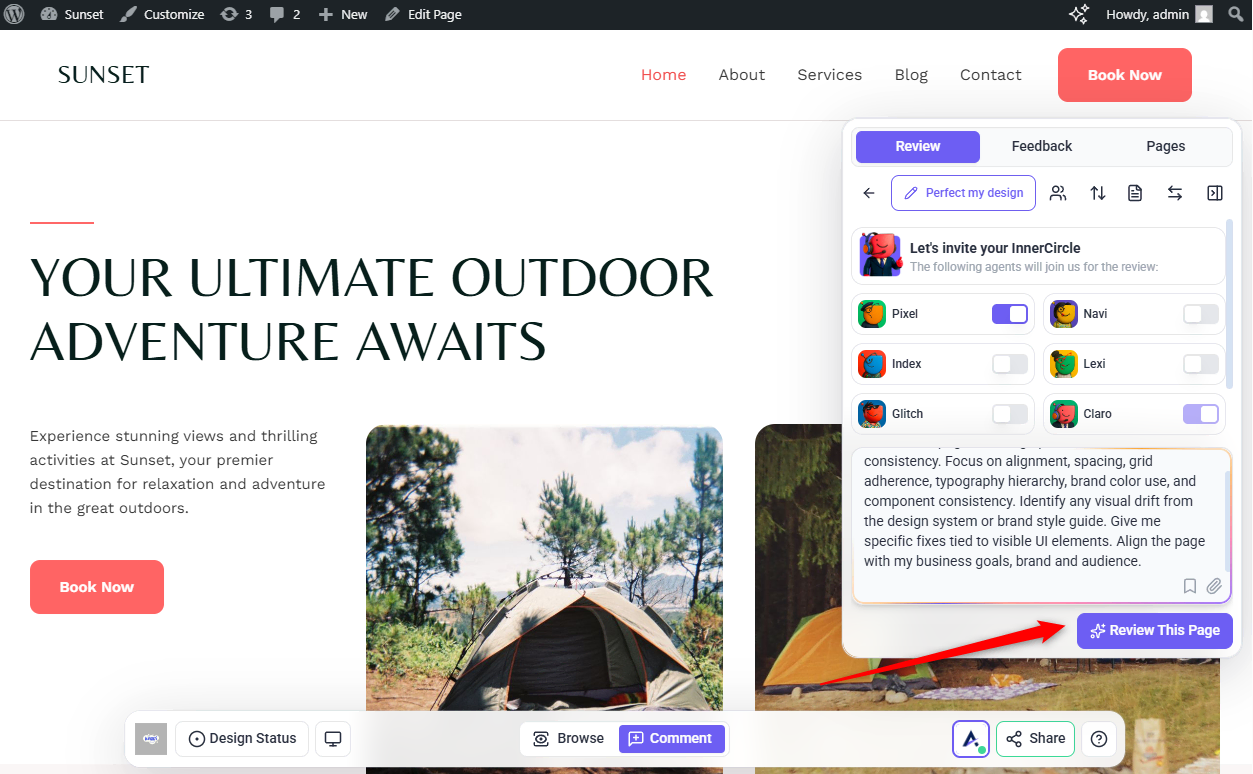
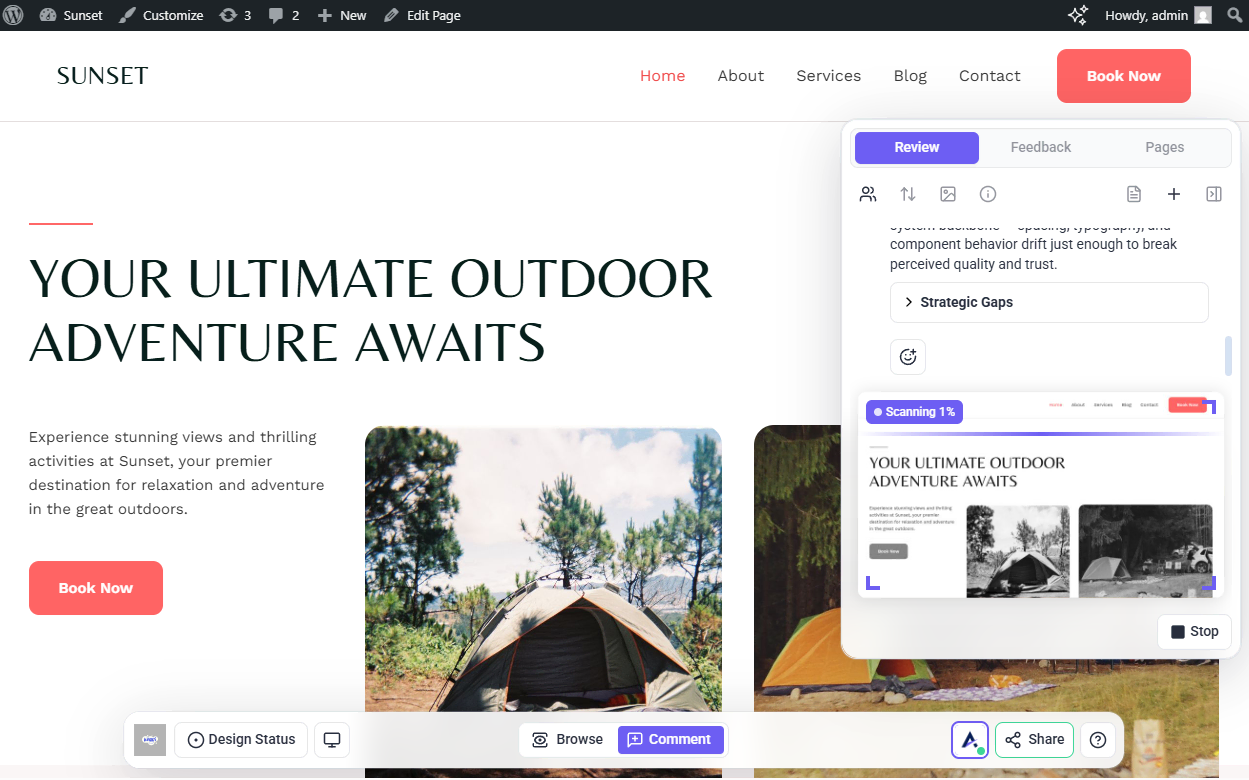
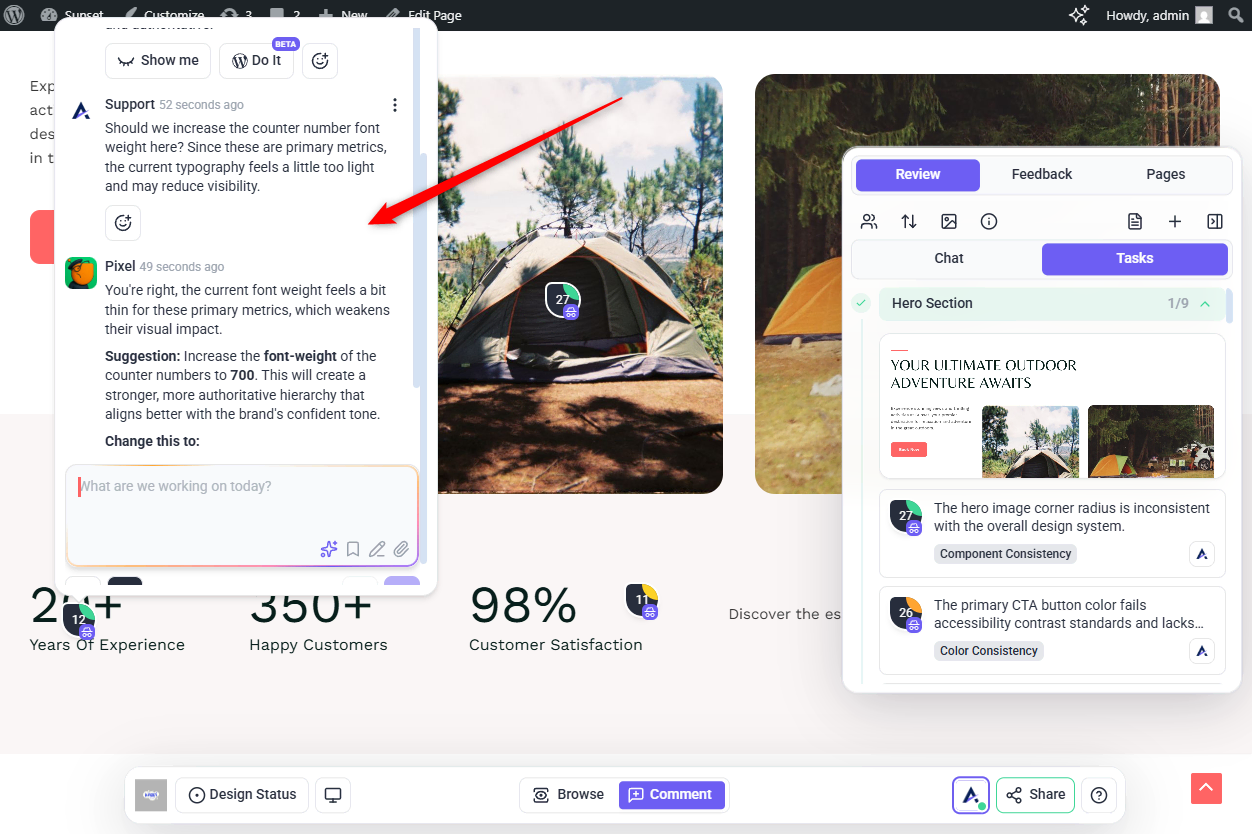
The updated plugin introduces an expanded side panel with Chat, allowing internal team members to collaborate visually with each other and with AI directly on live pages.
Teams can:
- Discuss page-level changes
- Run internal AI reviews
- Review pages across desktop, tablet, and mobile
- Leave feedback on individual elements or the entire page
AI works with full page context, including layout, spacing, copy, visuals, and structure.
Internal Tasks and Visibility Rules
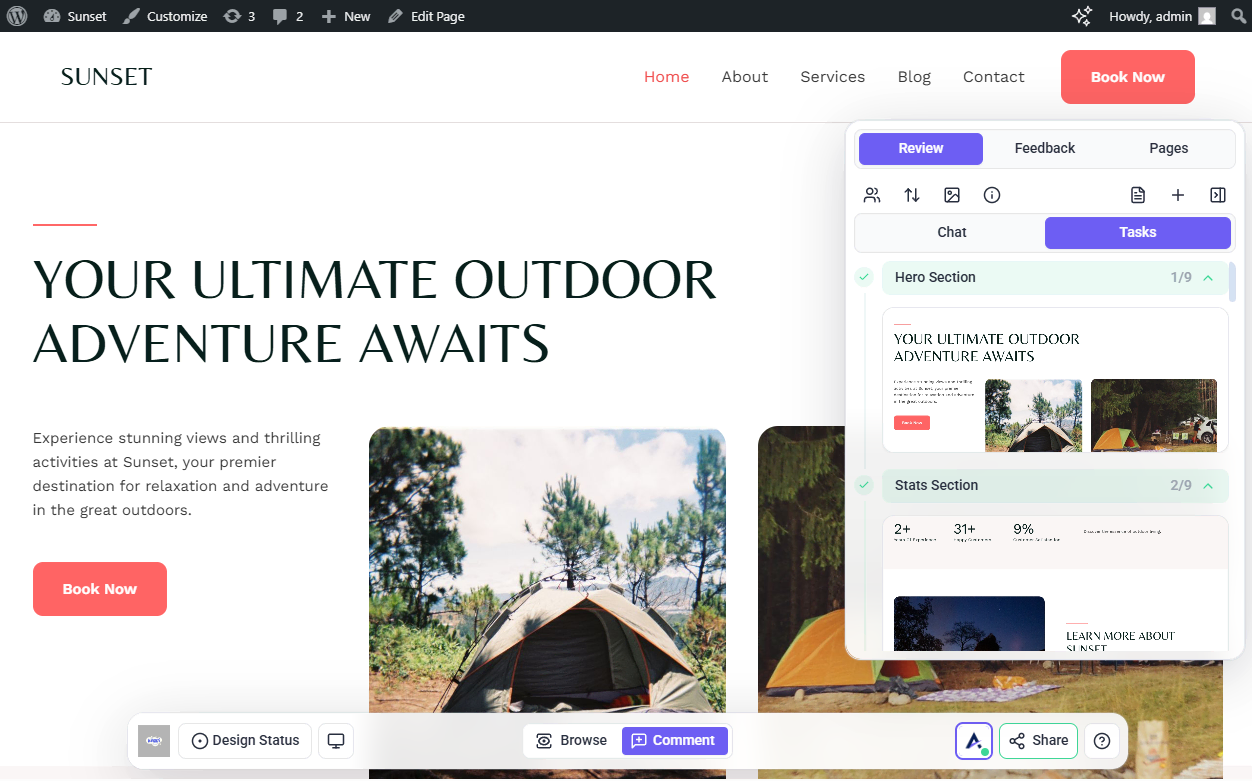
Feedback created through human or AI collaboration is converted into tasks.
By default:
- Tasks created from AI or internal discussions are internal
- Internal tasks are visible only to admins and team members
- Clients and stakeholders do not see AI feedback or internal tasks
This keeps internal review and quality improvement separate from client feedback.
Tip: Internal tasks are visible only to admins and team members
Private Internal Notes (Hidden from Clients)
The plugin supports private internal notes for team-only discussions.
Use private notes for:
- Internal QA reminders
- Design debates
- SEO or performance considerations
- Pre-client alignment
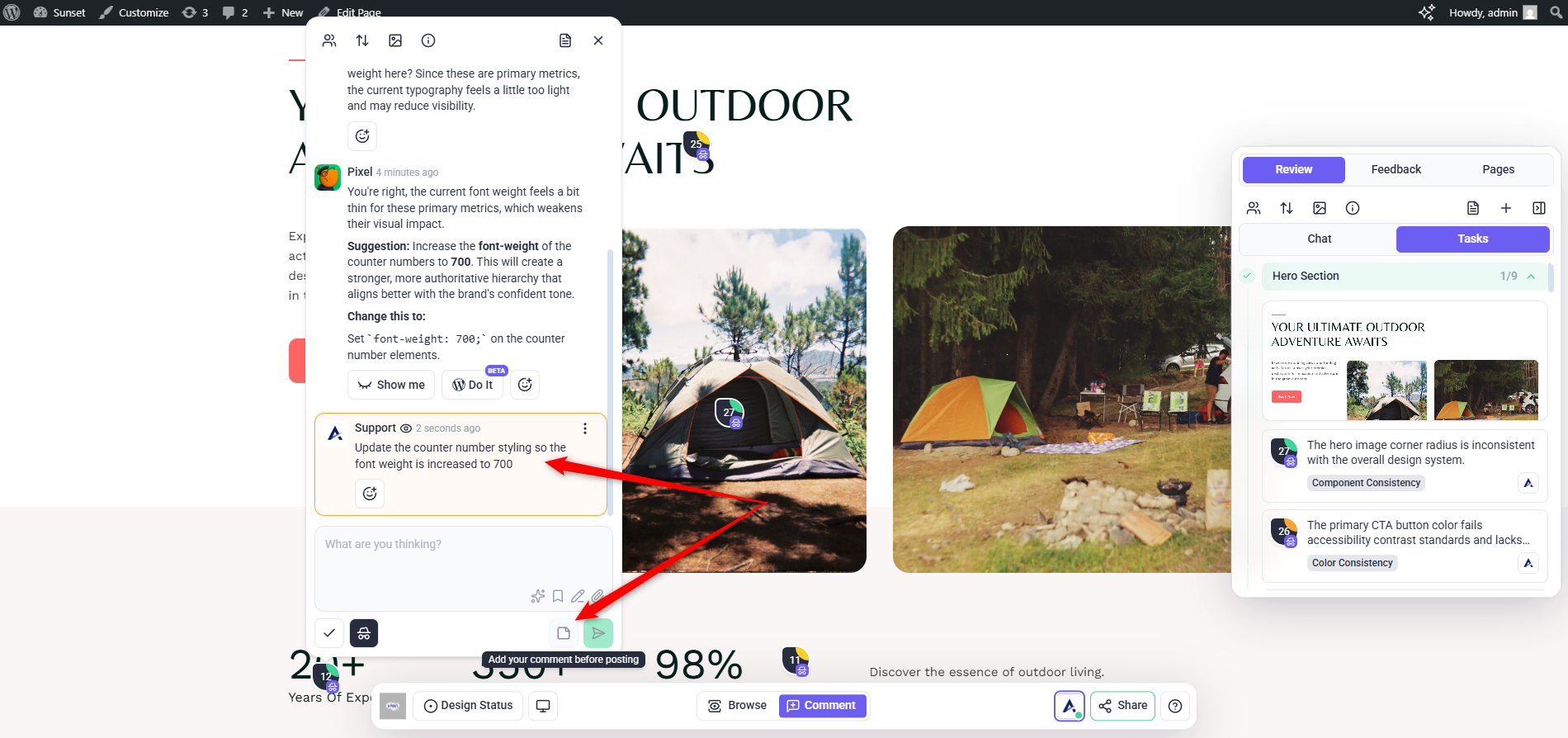
Note: The plugin supports private internal notes. These notes are visible only to admins and team members and are hidden from clients.
Collaboration Inside WP Admin
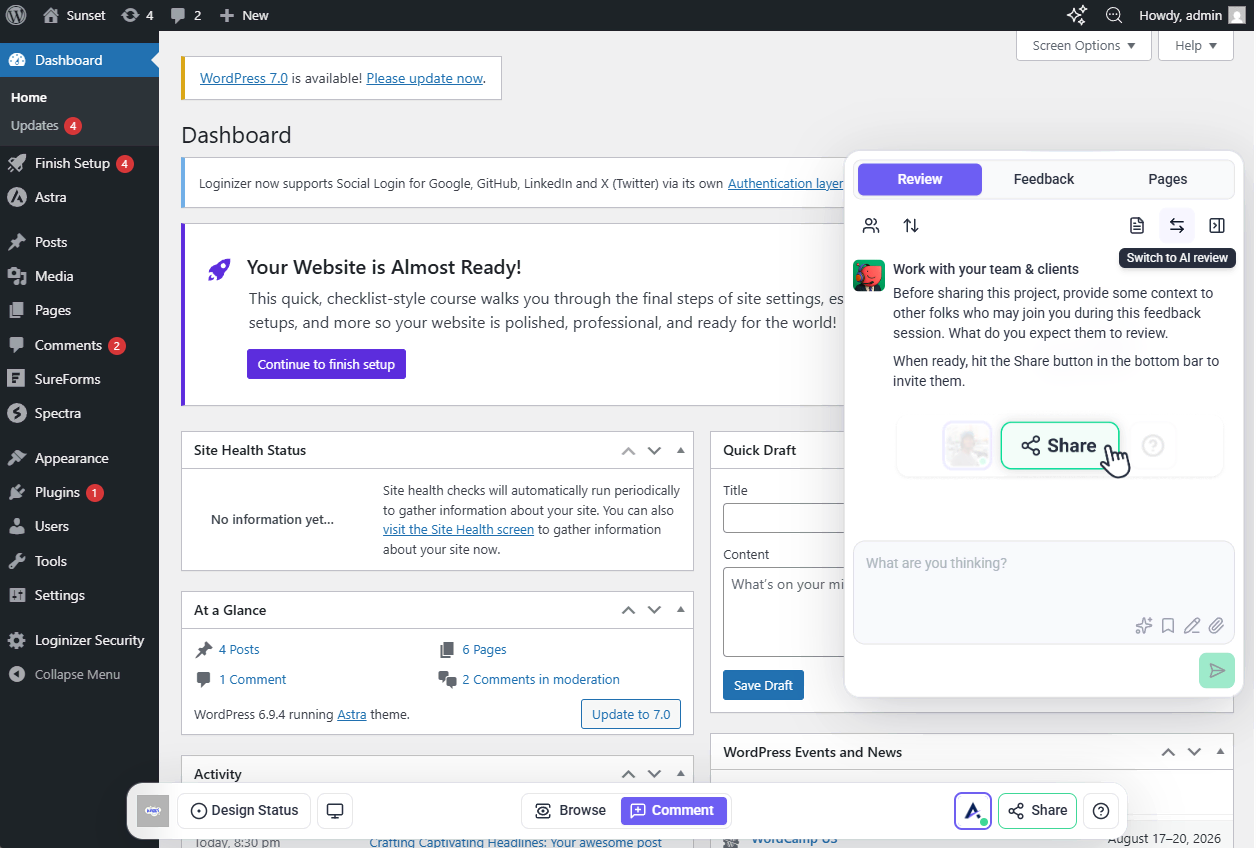
In addition to front-end pages, the plugin allows collaboration directly inside WP Admin screens.
This is useful for:
- Leaving internal reminders
- Flagging settings that shouldn’t be changed
- Coordinating backend implementation work
WP Admin feedback can also be marked as internal.
Step-by-Step Guide
1. Search and Install the Plugin from the Repository
You can install Atarim directly from the WordPress Plugin Repository.
Instructions:
- In your WordPress admin panel, go to Plugins → Add New.
- Search for “Atarim”.
- Click Install Now on the correct plugin.
- Proceed to activation (next step).

Tip: Installing from the WordPress plugin repository is the fastest option if you haven’t downloaded it from your Atarim dashboard.
2. Alternatively, download the Atarim Plugin from Your Dashboard
Before installation, download the latest version of the plugin directly from your Atarim dashboard.
Instructions:
- Log in to your Atarim workspace.
- Navigate to Projects if you’re not on that page.
- Click on Add Snippet.
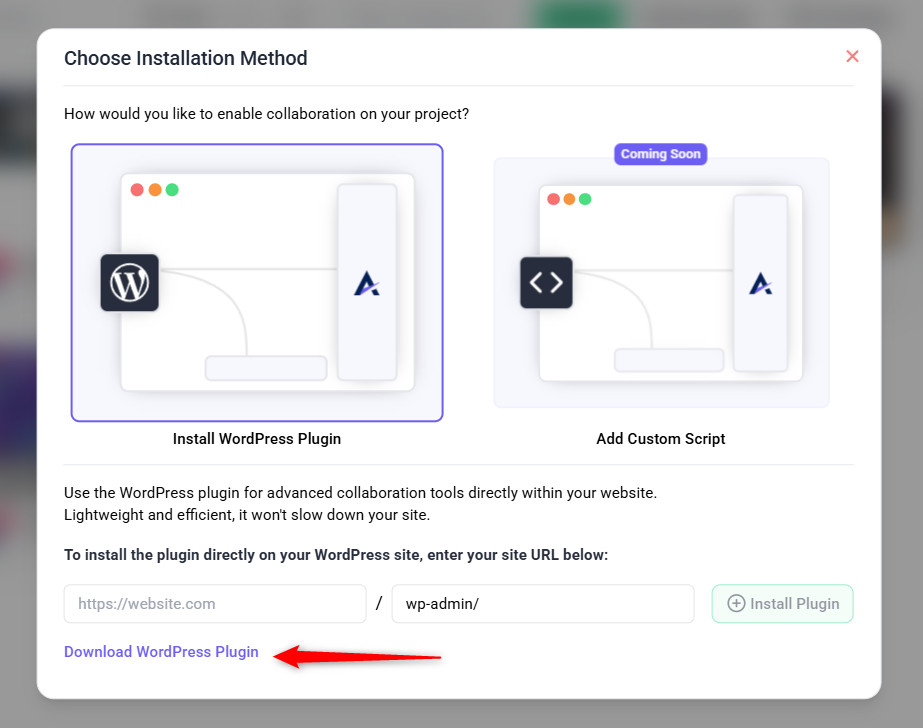
- Select Install WordPress Plugin
- Click the Download Plugin button. (WordPress Plugin)
3. Install the Plugin in WordPress
Once you’ve downloaded the plugin, it’s time to install it into your WordPress site.
Instructions:
- Go to your WordPress Dashboard.
- Navigate to Plugins → Add New Plugin.
- Click Upload Plugin, choose the .zip file you downloaded, and click Install Now.

4. Confirm Activation and Connect to Your Atarim Account
Finalize the connection by logging in to your Atarim account or creating one if you’re new.
Instructions:
- You’ll be redirected to the Atarim settings screen.
- Click ‘Connect with Atarim‘ button.
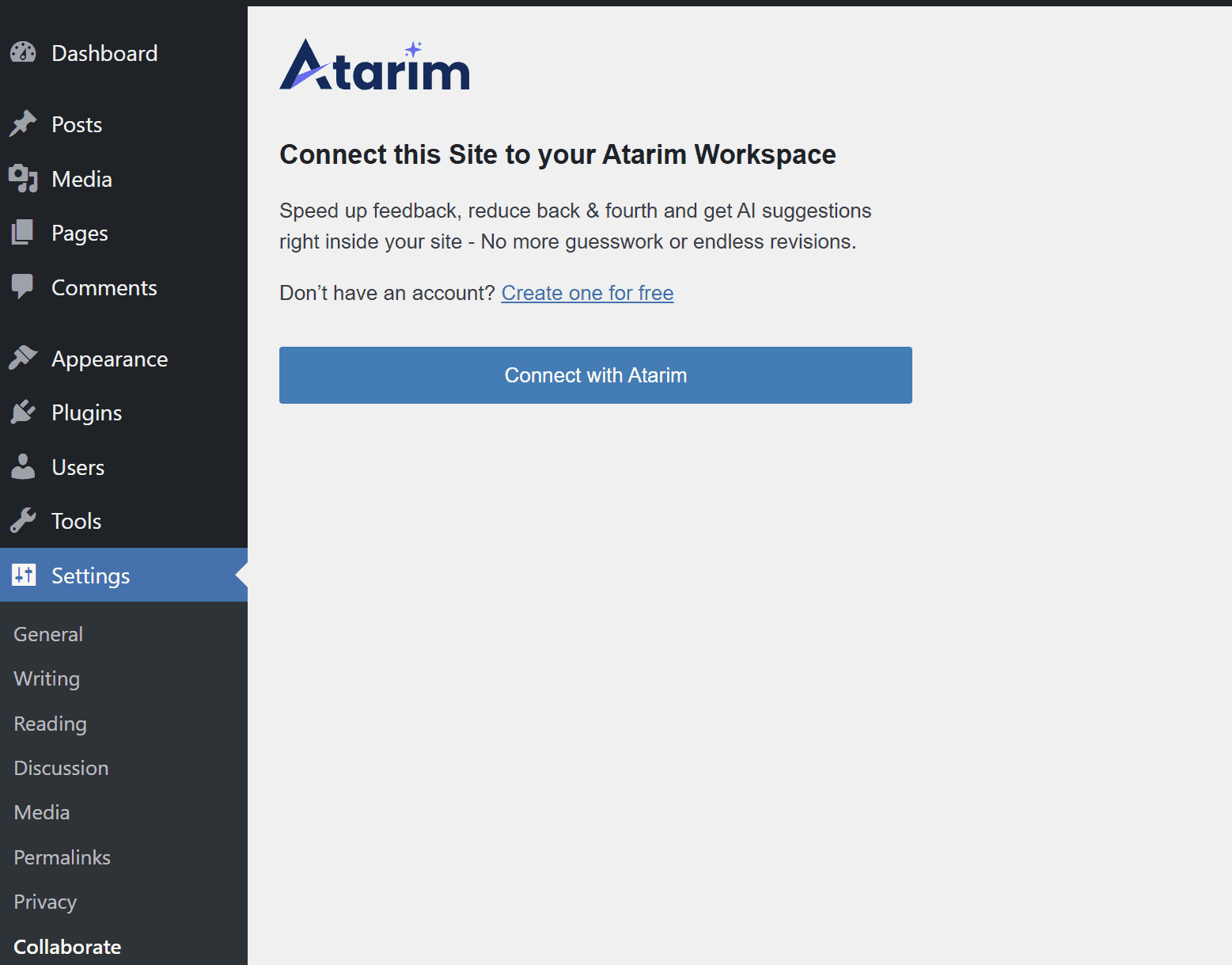
Note: You’ll be redirected automatically to your Atarim dashboard. If not, refresh the settings page and click again.
5. Understanding the Settings
We have simplified the settings screen to make it easier to manage.
- Disconnect from Atarim
- Use this option to disconnect your WordPress site from the Atarim dashboard.
- Disabling the connection will stop all collaboration features on this site and remove it’s connection from your Atarim workspace.
- Project Settings (New)
- Access your Project Settings directly within the plugin, without needing to open the Atarim dashboard.
- Quickly manage project-level configurations and collaboration settings in one place.
- Guest mode
- Enable Guest Mode to allow non-logged-in users to leave feedback on your site, no WordPress account required.
- Copy and share the collaboration link, or add ?collab=true to any URL (e.g. yourdomain.com/page?collab=true) to activate guest access.
- Share options (New)
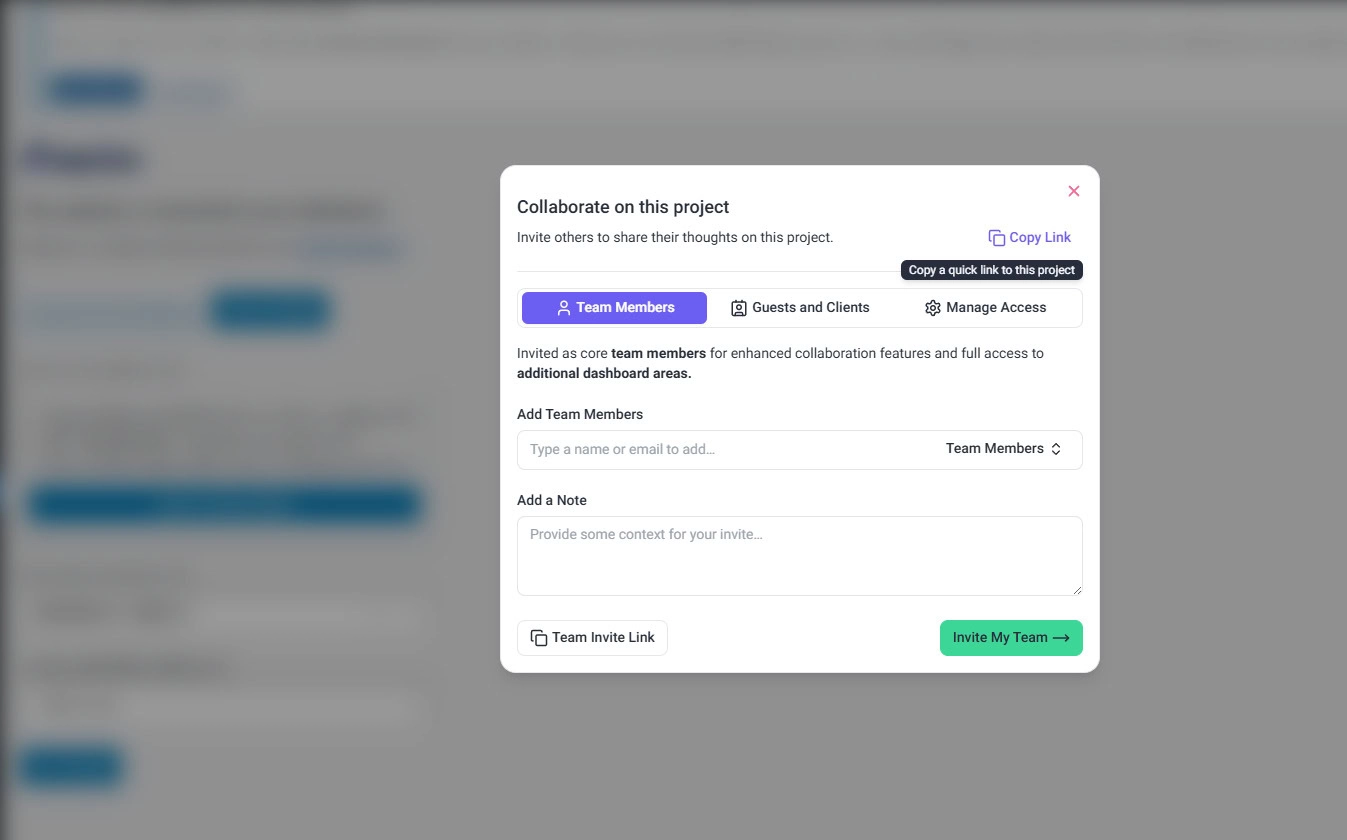
- Use the built-in Share Modal to quickly manage access and collaboration.
- Copy collaboration links, enable guest access, and share with clients or team members directly from the settings page.
- Who can collaborate
- Choose which WordPress user roles are allowed to use Atarim’s collaboration features by default.
- Only users with the selected roles (e.g., Admin, Editor) will see the visual feedback interface when logged in.
- Use this to control access for internal team members and prevent confusion for roles that shouldn’t see collaboration tools.
- 1 click login from Atarim as
- Select a WordPress user account to enable AutoLogin from your Atarim dashboard.
- When you click the “Collaborate” button inside Atarim, this user will be logged in automatically, no login required.
- Choose a user with sufficient permissions (typically an admin or editor) who has permission to collaborate.
Faster Collaboration Setup
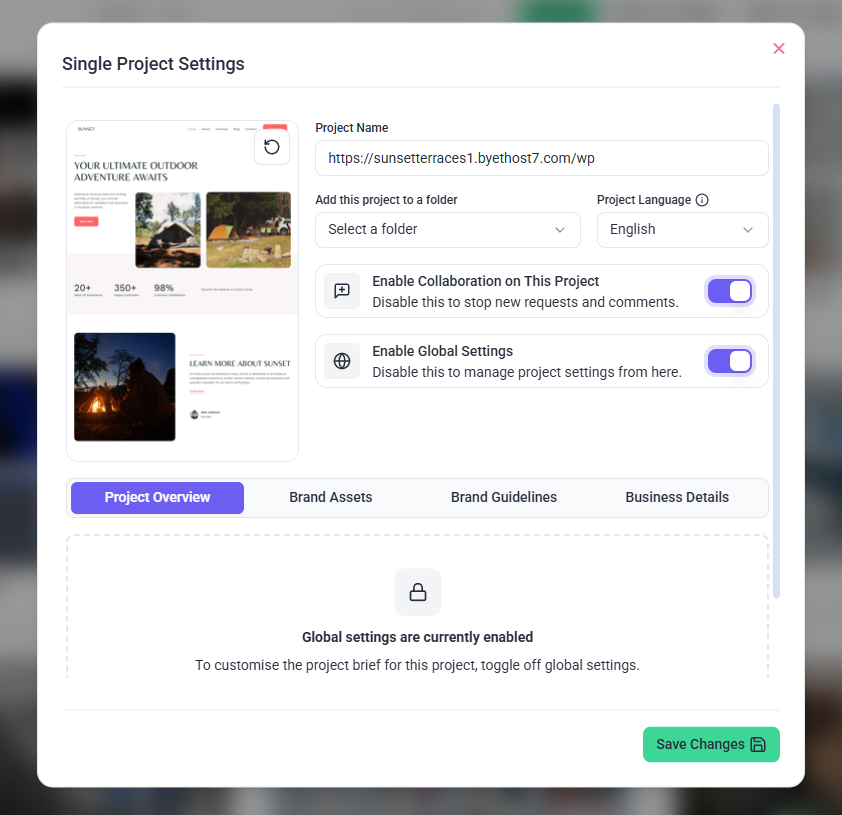
Quick Access to Project Settings
You can now open Project Settings directly inside WordPress.
This allows you to:
- Adjust collaboration settings instantly
- Avoid switching to the Atarim dashboard
- Speed up project management
How to Collaborate (Updated Flow)
- Use Explore Sharing Options
- Share link OR enable Guest Mode
- Add
?collab=trueif needed
Tip: Use this when onboarding clients to quickly give them access. Internal tasks and AI feedback remain hidden from clients by default.
Built-in Sharing Options (Share Modal)
You can now manage sharing directly inside the plugin.
This allows you to:
- Copy collaboration links instantly
- Enable Guest Mode faster
- Share access without leaving WordPress
How WordPress Users Can Start Collaborating
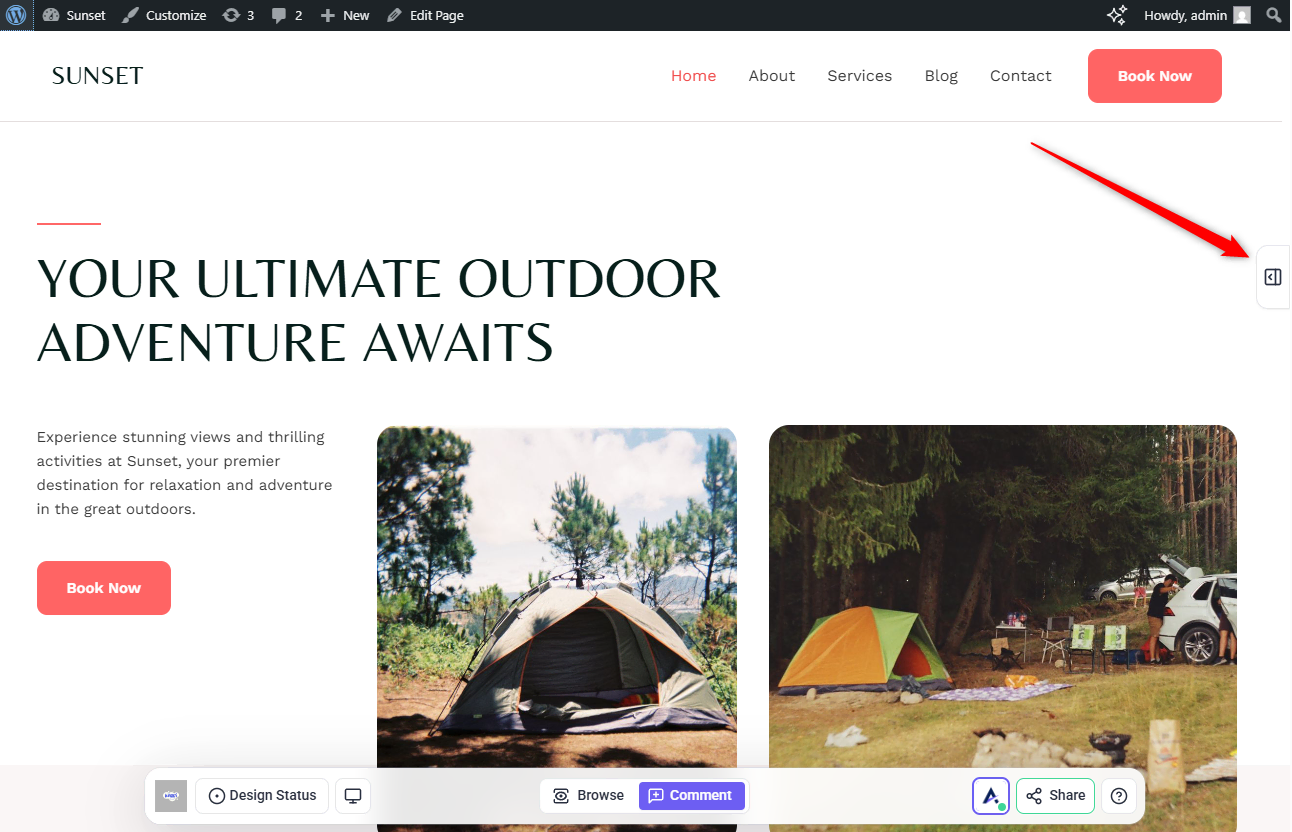
If a WordPress user has one of the allowed roles (as defined in the plugin settings), they’ll see a collaboration launcher in the WordPress sidebar.
Instructions:
- The user clicks the Atarim launcher from the sidebar.
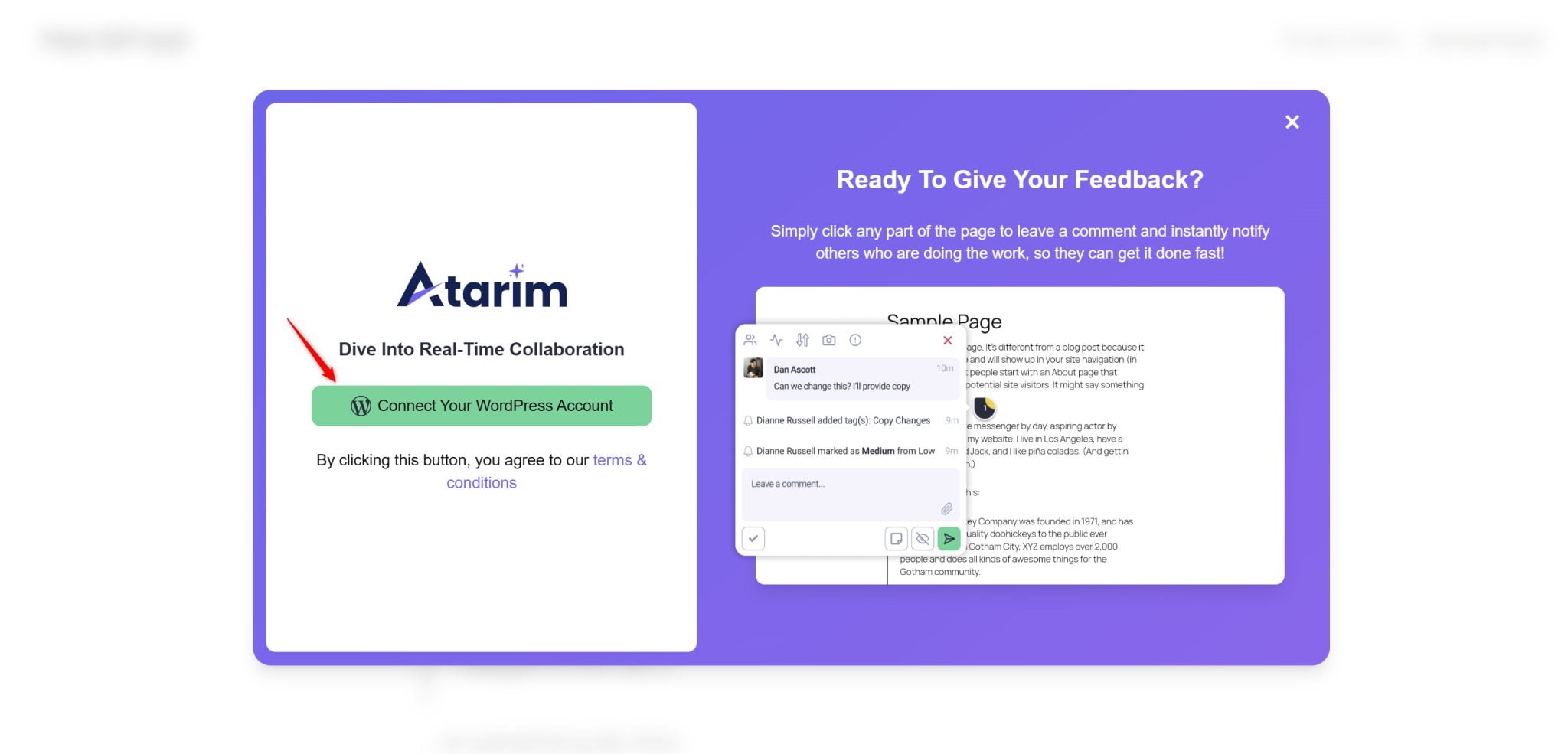
- A consent modal will appear.
- The user must click “Connect your WordPress account” to proceed.
- Once consent is given, they are connected to the project and can start collaborating immediately.
- That user is now added as a collaborator in the project
Important Notes:
- Every WordPress user who gives consent is added as a collaborator by default.
- If you want a user to be added as a team member (with dashboard access, project visibility, and role permissions), they must first be invited to your Atarim account.
- To simplify access and avoid permission issues, use the same email address for the user in both WordPress and Atarim.
Tip: Create matching user accounts (same email) in WordPress and Atarim. This ensures that once the user gives consent, they’re recognized as a team member, no extra steps needed.
FAQs
The plugin allows teams to collaborate visually directly on live WordPress pages and WP Admin screens. Users can leave feedback on page elements, create tasks, use AI for internal reviews, and manage collaboration without relying on screenshots or external tools.
Go to WP Settings → Collaborate page and re-connect. If it still doesn’t resolve, reach out to our support.
Yes! All tasks are automatically synced to your Atarim project.
No. The plugin connects your site to the Atarim dashboard, where global settings and integrations are managed.
Yes. The plugin works on live, staging, and login-protected WordPress sites.
Yes. With Guest Mode enabled, clients and stakeholders can leave feedback using a shared collaboration link without logging into WordPress or creating an account.
No. AI features are available only to admins and internal team members. Clients see a simplified feedback interface focused solely on leaving comments.
Guest Mode allows anyone with the collaboration link (or a URL containing ?collab=true) to leave feedback without logging into WordPress. Guests only see the feedback interface and cannot access internal tasks or AI features.
Uninstalling the plugin removes the collaboration interface from your WordPress site, but all tasks, comments, and history remain saved in your Atarim dashboard.