
Step-by-Step Guide
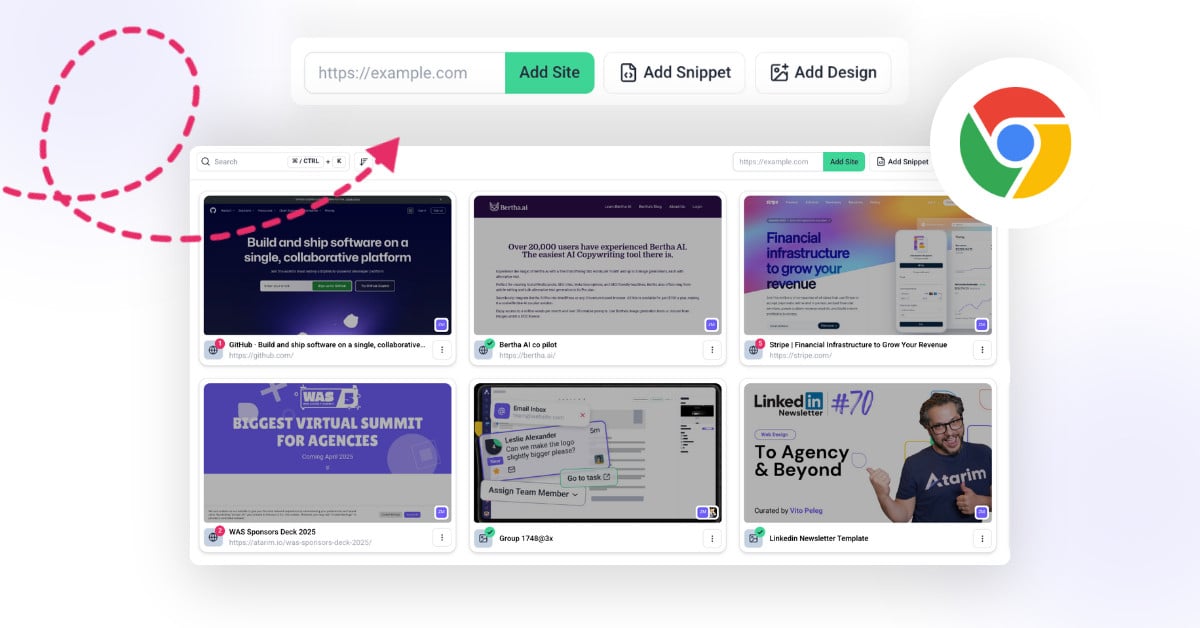
1. Add a Project via Website URL
This is the fastest way to begin collaborating. Just drop in your site’s URL, and Atarim will generate a collaboration link.
Instructions:
- Log into your Atarim Dashboard
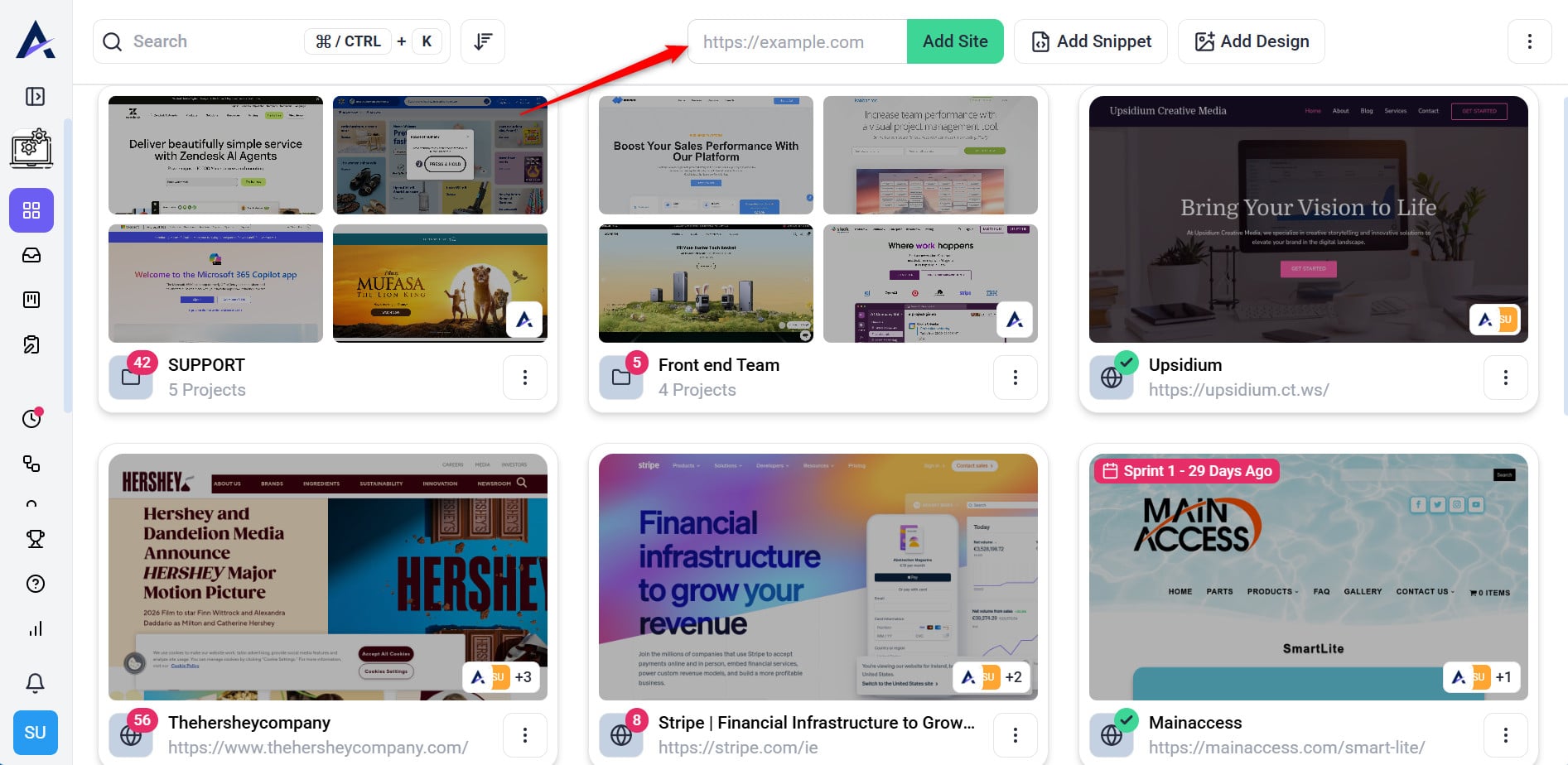
- Navigate to the Projects page.
- In the Add Website field, enter your website URL.
- Click Add Site.
Tip: If you just need quick feedback from a client, use the URL method first, no login, no install, no friction.
Note: If you don’t have the Chrome Extension installed, this method creates a mirrored version of your site for collaboration. You’ll get an Atarim collaboration link that allows you and your team to collaborate, comment, and review the site. You can also share this link with others internally or externally to invite them to collaborate on your project.
Warning: URL-based collaboration only shows what is publicly accessible. It cannot bypass login screens, maintenance pages, or password protection.
2. Create a Project Using the Atarim Chrome Extension
Ideal for real-time collaboration directly on live websites, including those behind authentication walls. (i.e., having to sign in or visit something that’s password-protected, etc.).
Recommendation: For fast internal reviews on any site — especially behind login.
Instructions:
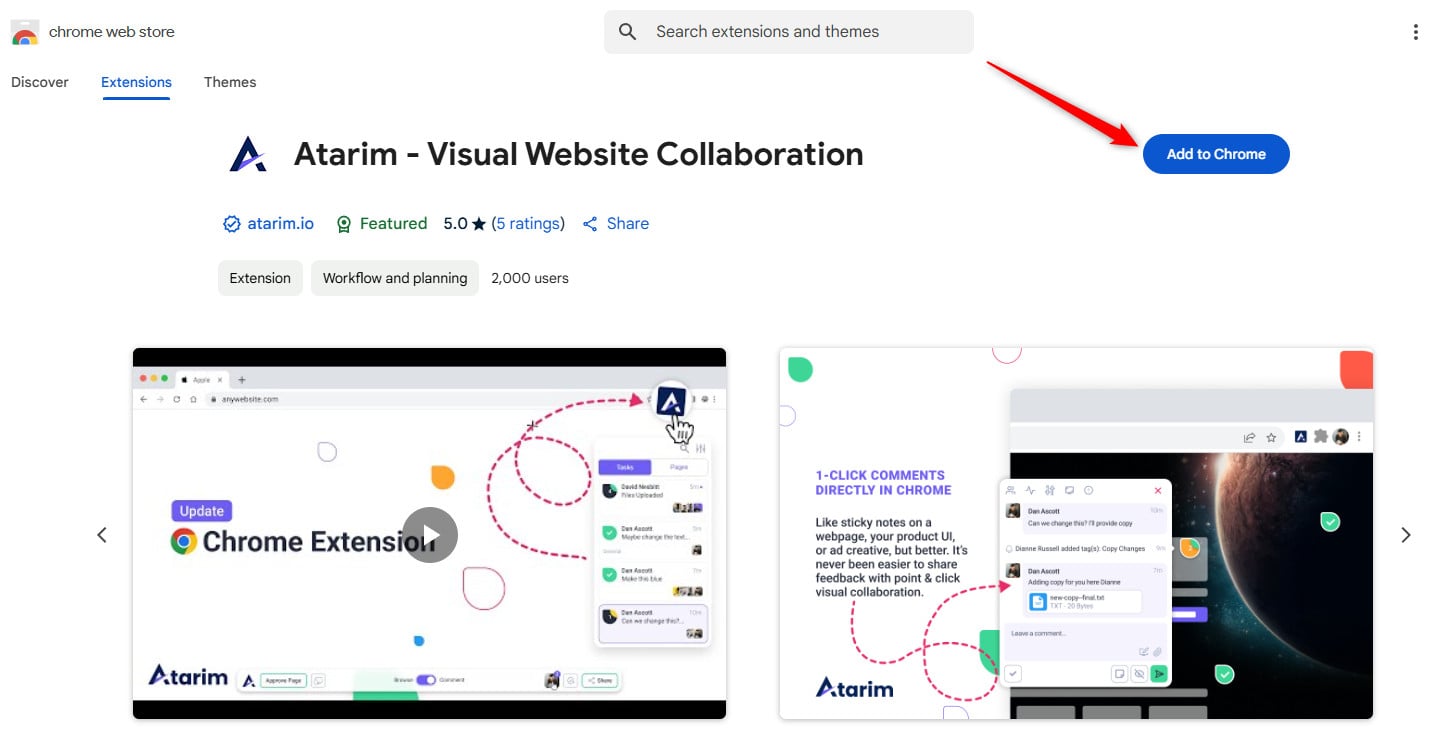
- Install the extension from the Chrome Web Store.
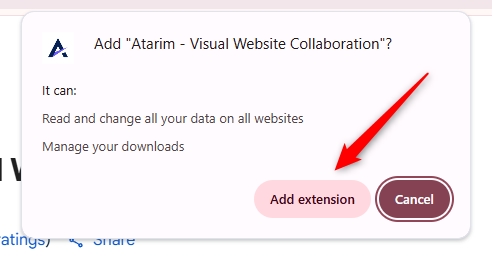
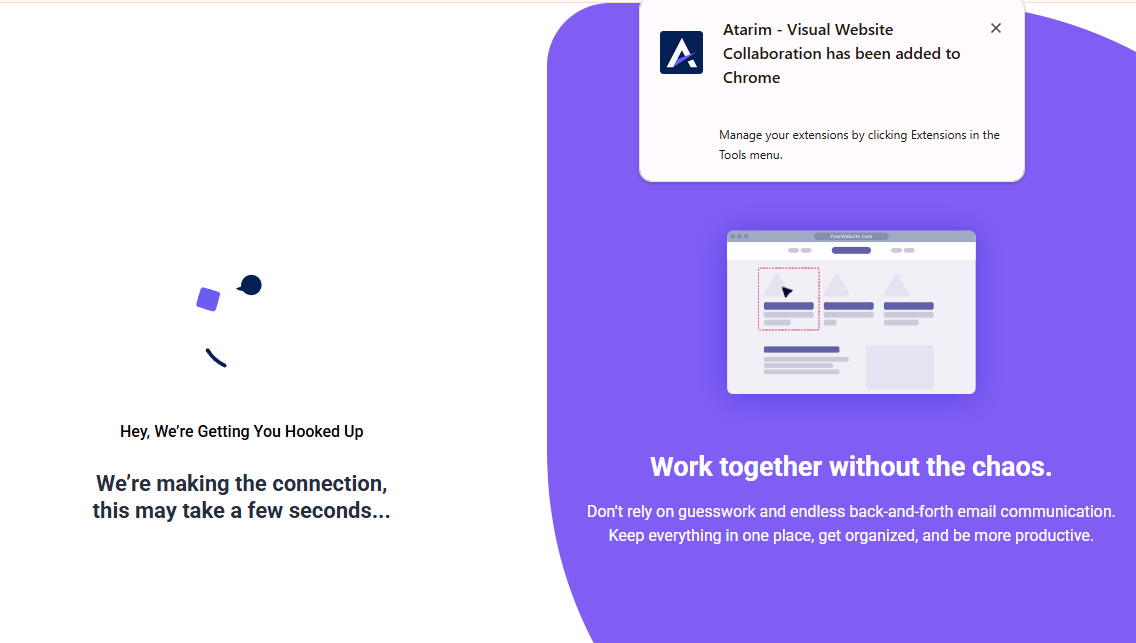
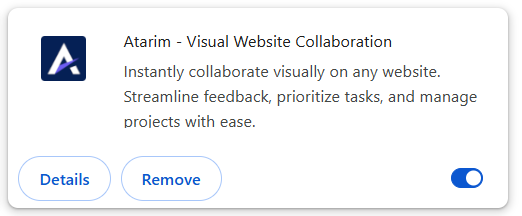
- Click Add to Chrome and confirm the installation.
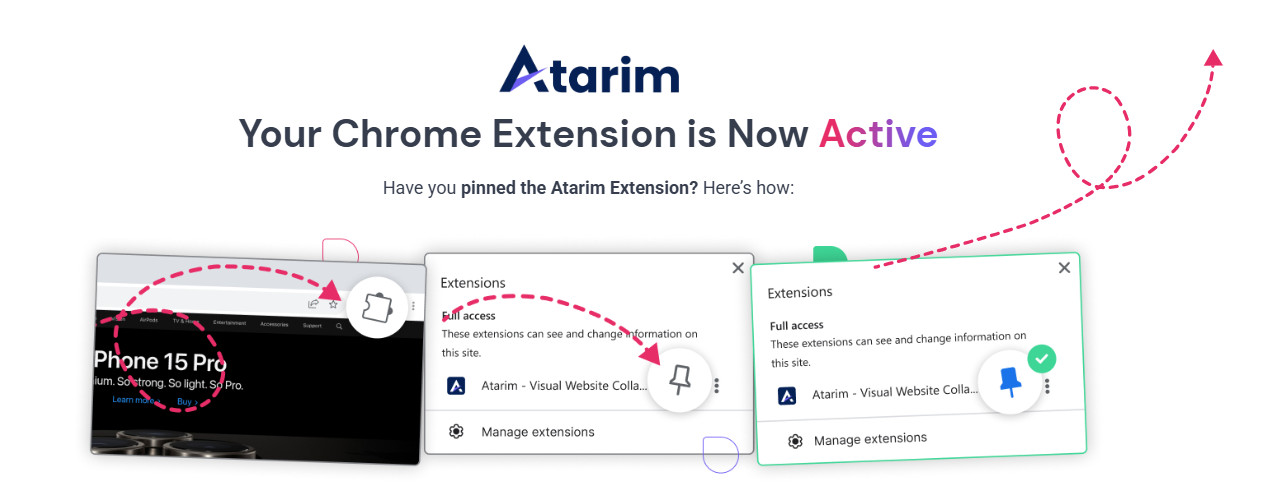
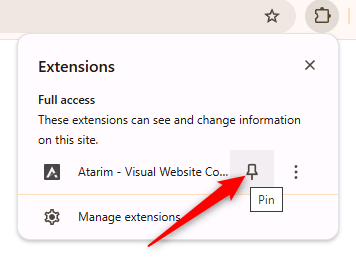
- Pin the extension for quick access:
- Click the puzzle icon in Chrome.
- Pin the Atarim icon.
- Visit the site you want to collaborate on.
- Click the Atarim extension and follow the prompt to create the project.
Tip: Using the Chrome Extension allows you to drop comments and assign tasks in real-time—right where you work.
3. Add a Project Using the Atarim WordPress Plugin
Best for white-labeled, seamless collaboration on staging or live WordPress sites—especially those requiring authentication. Learn More About Atarim WordPress Plugin
This is the recommended method to fully integrate Atarim with WordPress websites on which you want to collaborate. There are a few specific advantages of using the Atarim WordPress plugin as opposed to URL-based collaboration and our Chrome extension:
- Faster collaboration directly on your website as opposed to an Atarim collab link.
- Collaborators can get started without installing anything (as is the case with URL-based collaboration).
- The experience can be fully white-labeled (i.e., no installing “Atarim” for clients, they can just head straight to their site and get collaborating).
- Easier to use Atarim on staging environments that are not publicly accessible on the web.
- Allows clients (i.e., for training purposes) to ask questions directly in the WordPress admin area.
- Supports human and AI collaboration on page elements
Instructions:
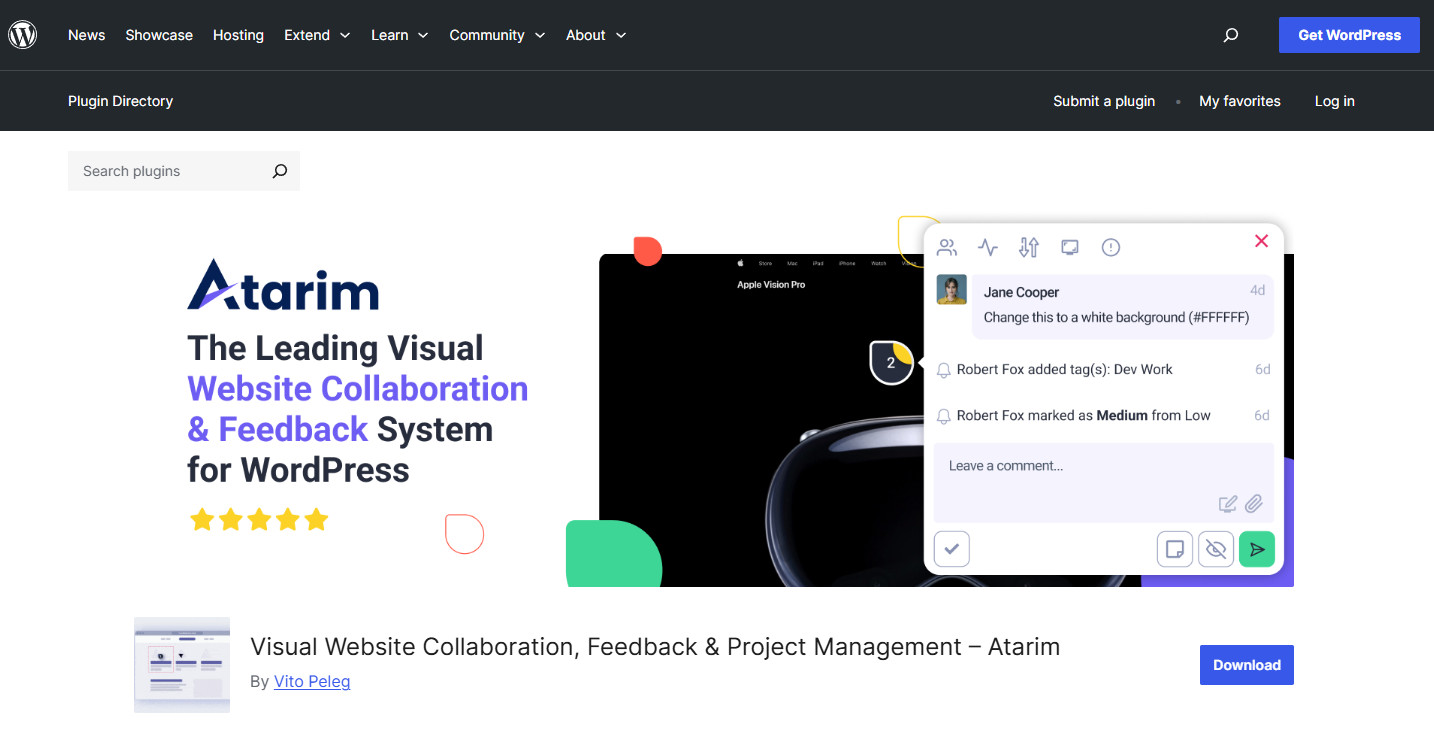
- Install the plugin from the WordPress Plugin Repository.
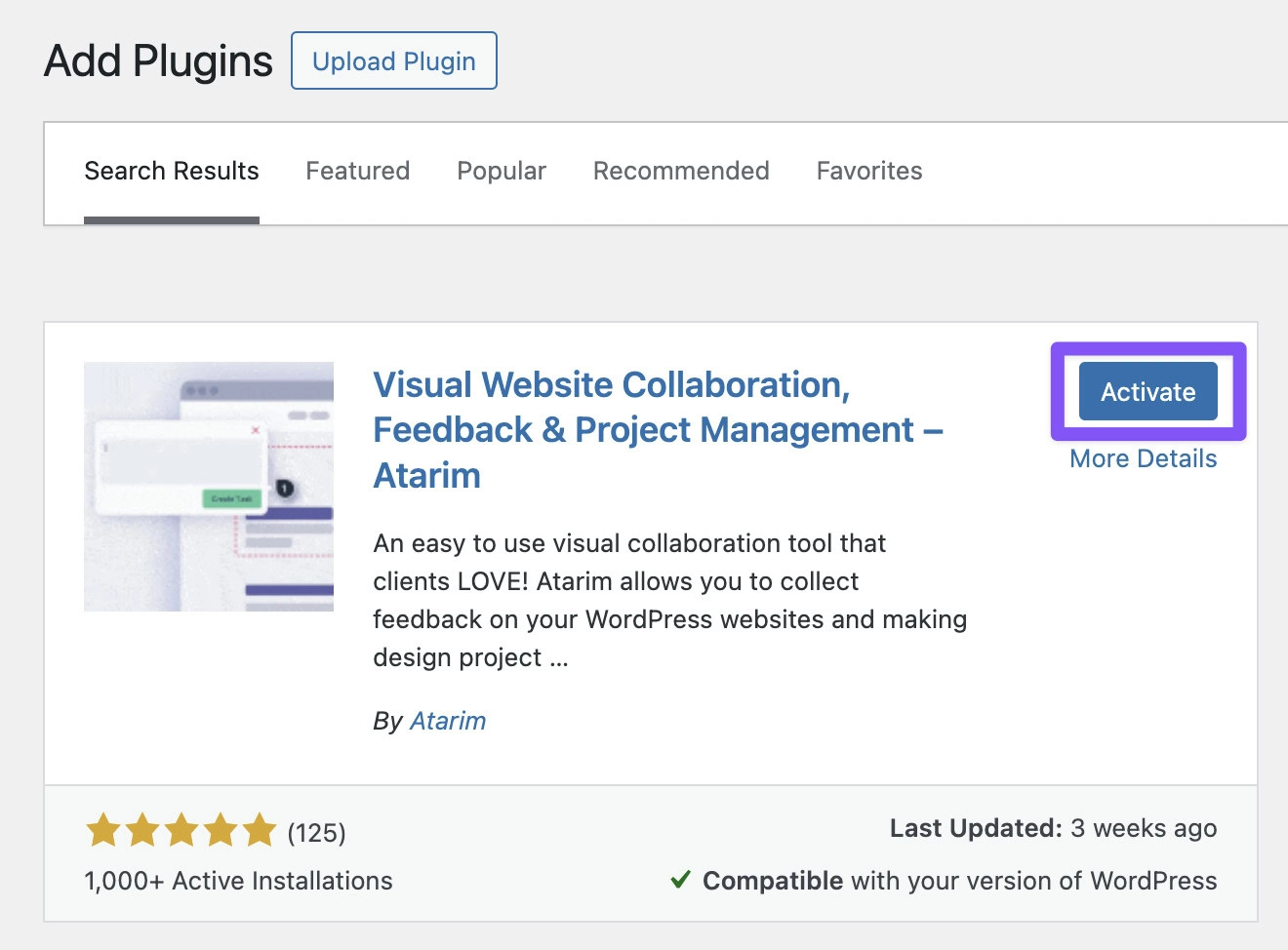
- Activate the plugin in your WordPress dashboard.
- Log in or create your Atarim account to link the site.
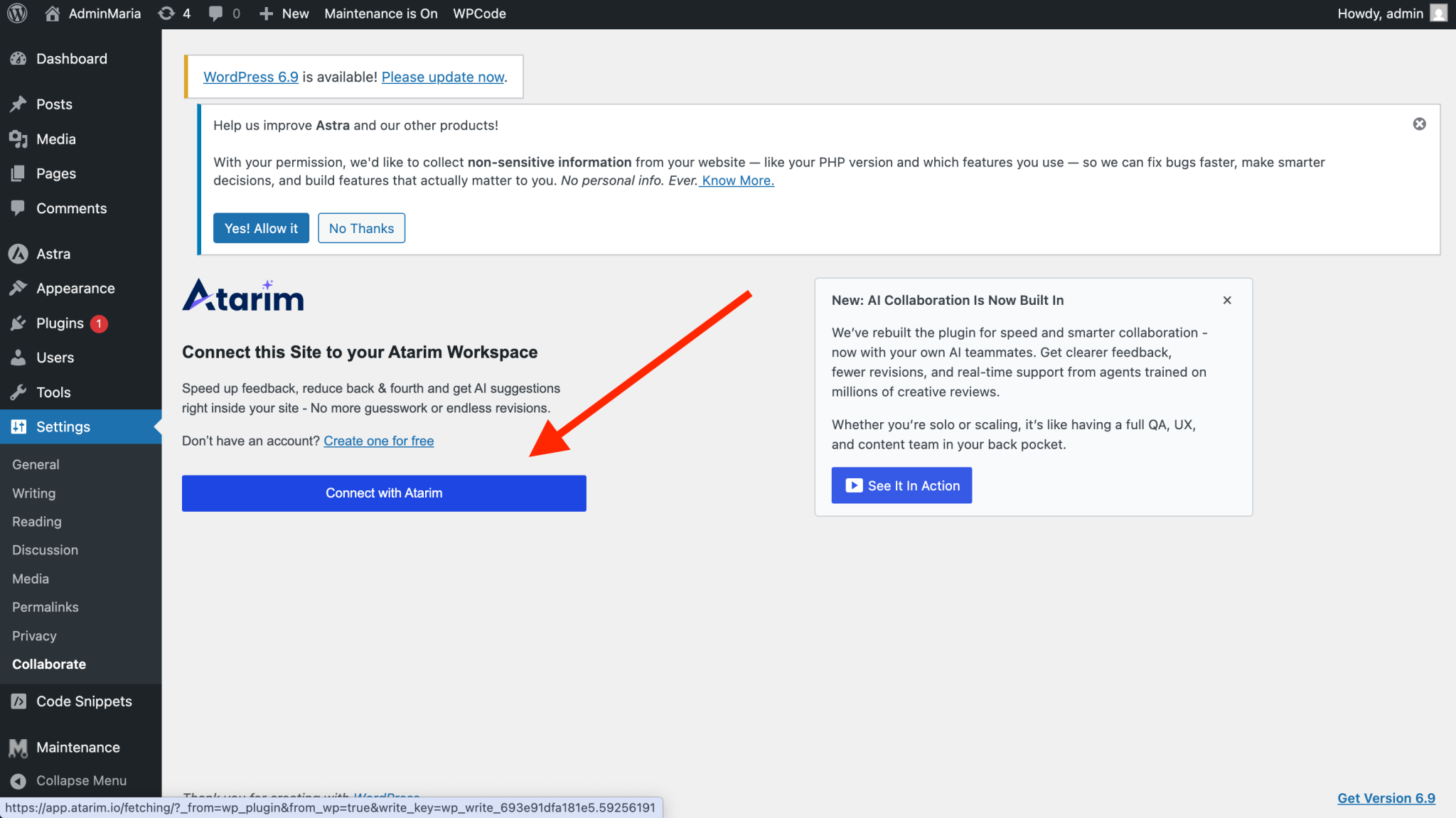
Recommendation: This method enables admin-side collaboration and white-label branding, perfect for working with clients without them needing to install anything.
4. Start a Project with Image-Based Collaboration
Perfect for static assets like mockups, wireframes, ads, and designs not yet deployed to the web. Learn More About Image Based Collaboration
Instructions:
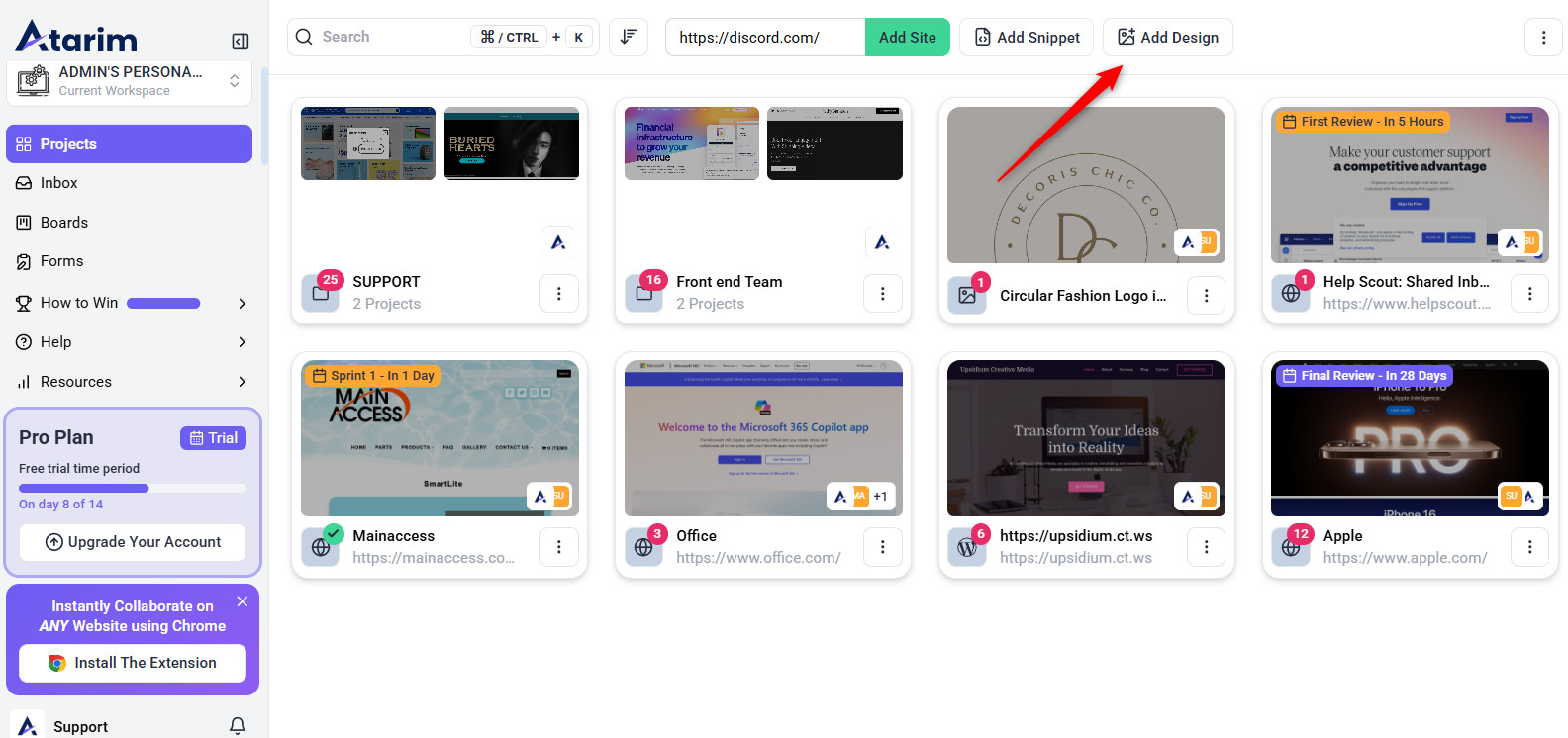
- On the Projects page, click Add Design.
- Upload your images (JPG, PNG, etc.) or drag and drop them into the modal.
- Click Create Project to begin collaborating.
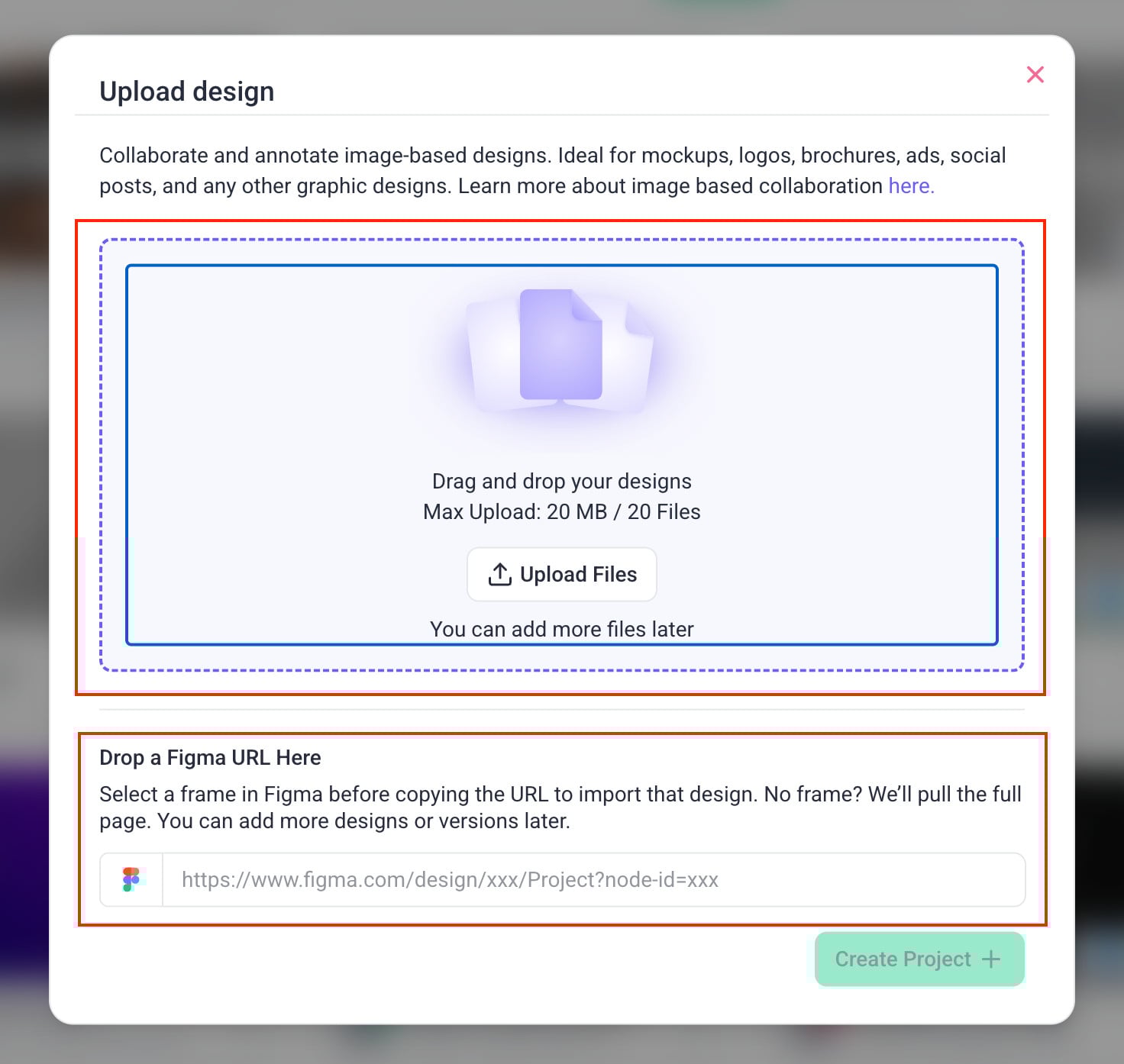
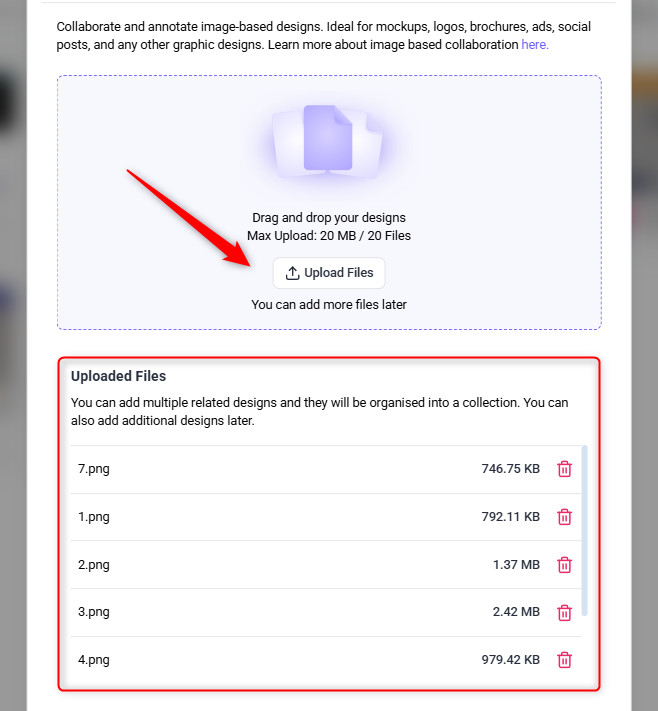
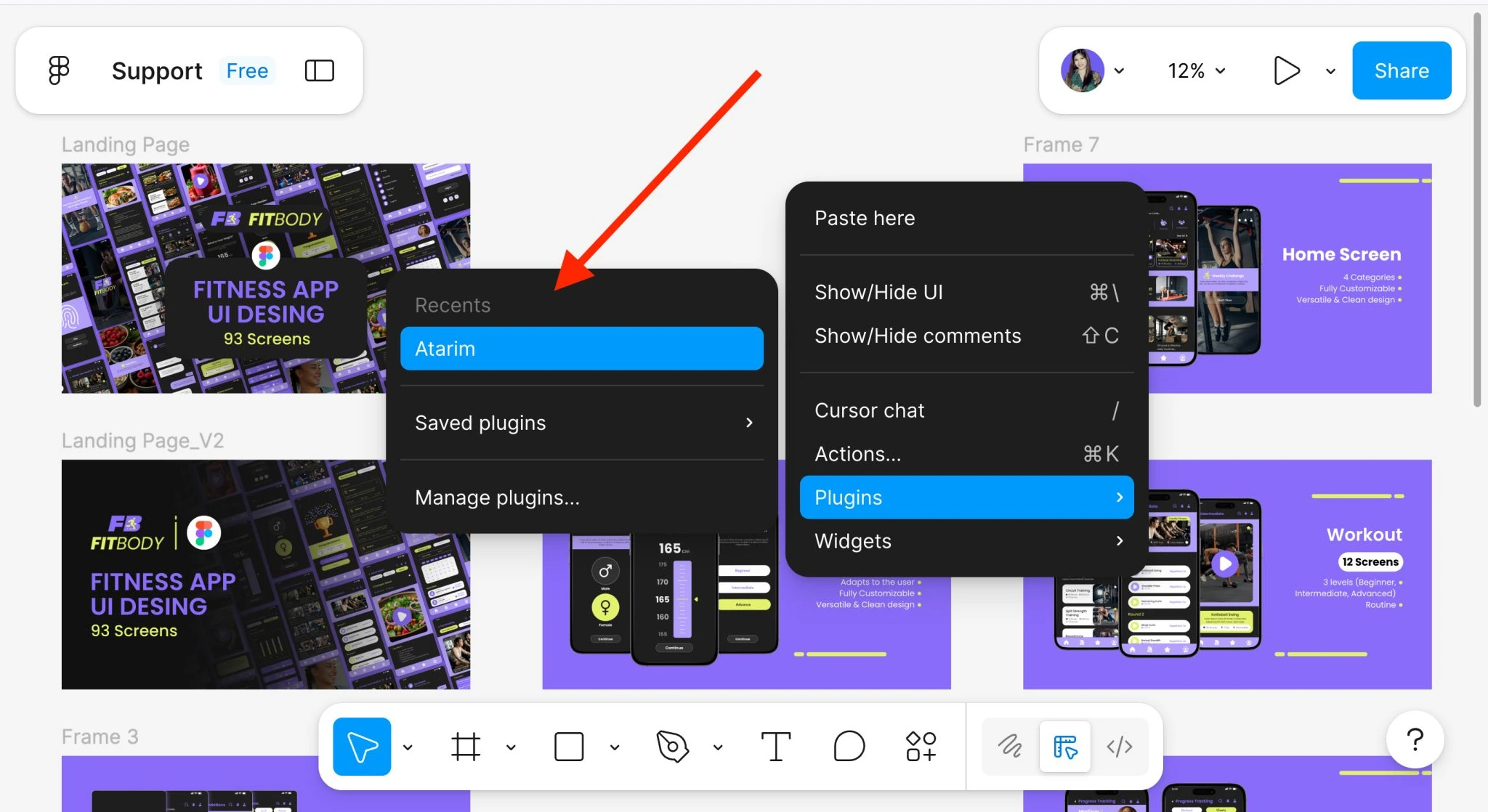
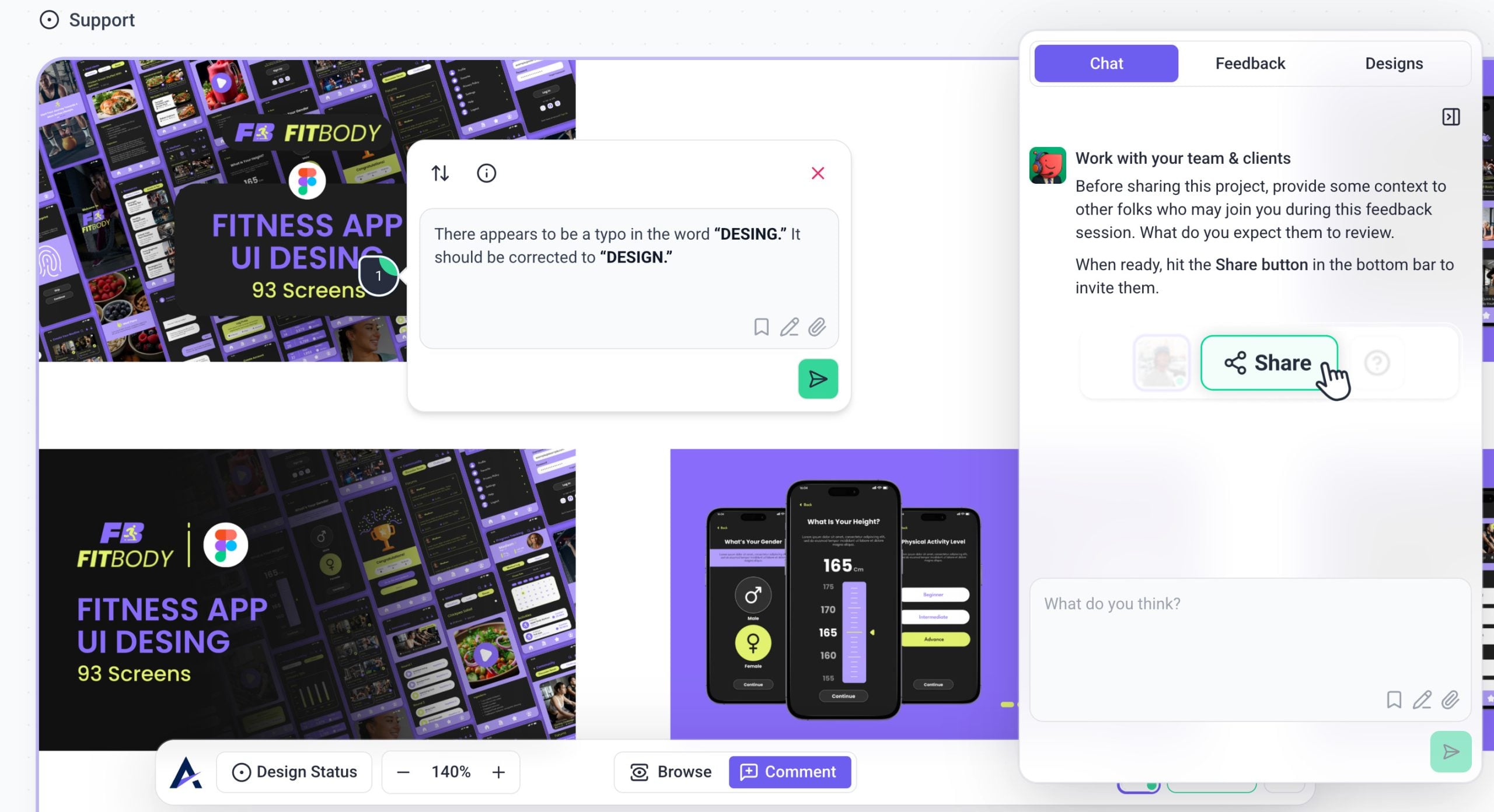
Note: You can upload up to 20 files at once and continue adding more later.
Recommendation: When you need feedback on a design, graphic, or static element — image-based projects are perfect.
5. Add a Project Using the Atarim Script
This is the best method for non-WordPress platforms, including:
- Webflow
- Shopify
- Squarespace
- Laravel / PHP sites
- React / Vue / Next.js apps
- Custom-built applications
Instead of a proxy, Atarim loads directly on your real site through a JavaScript snippet.
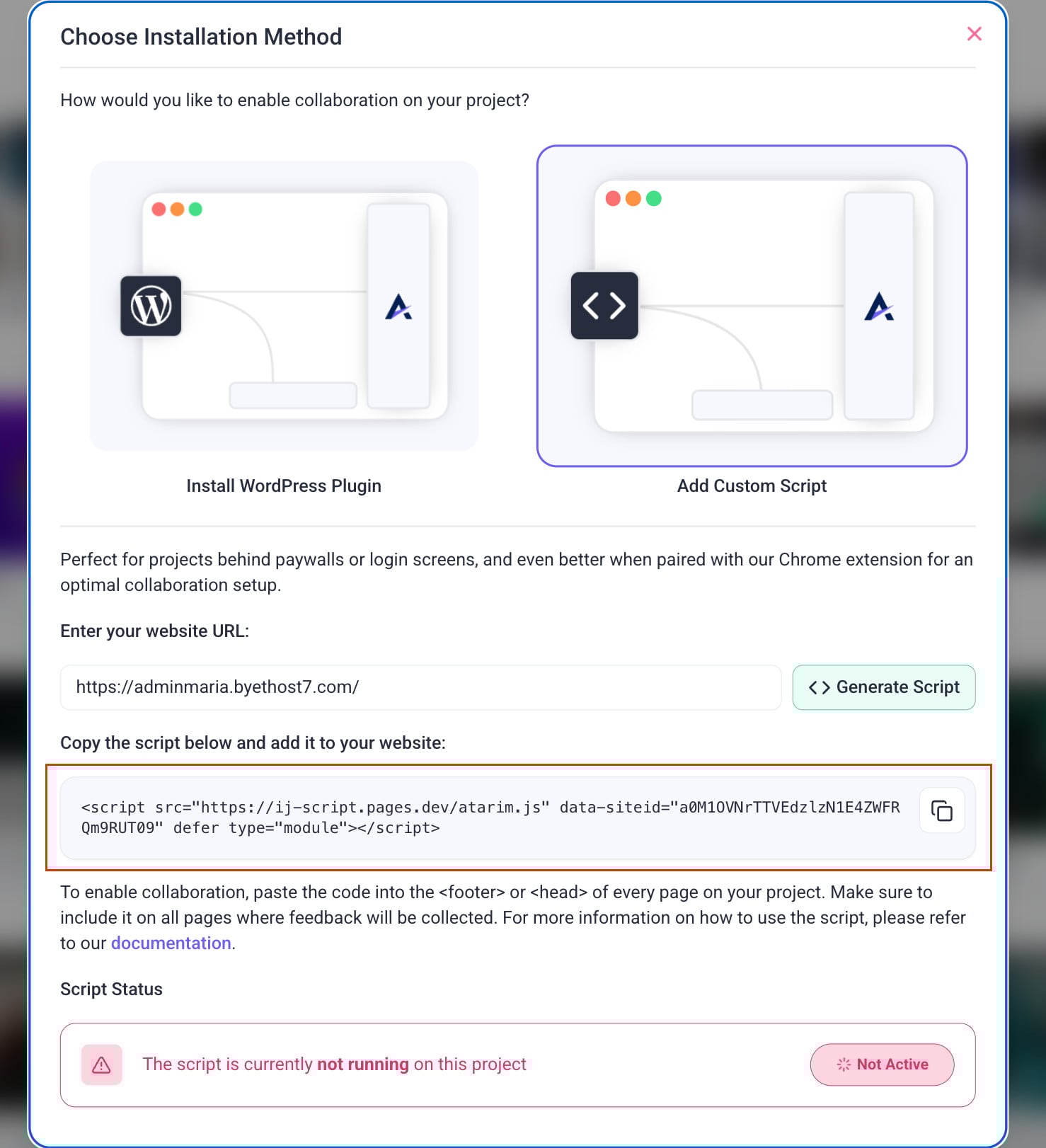
When you choose Add Custom Script, Atarim generates a small <script> tag unique to your site.
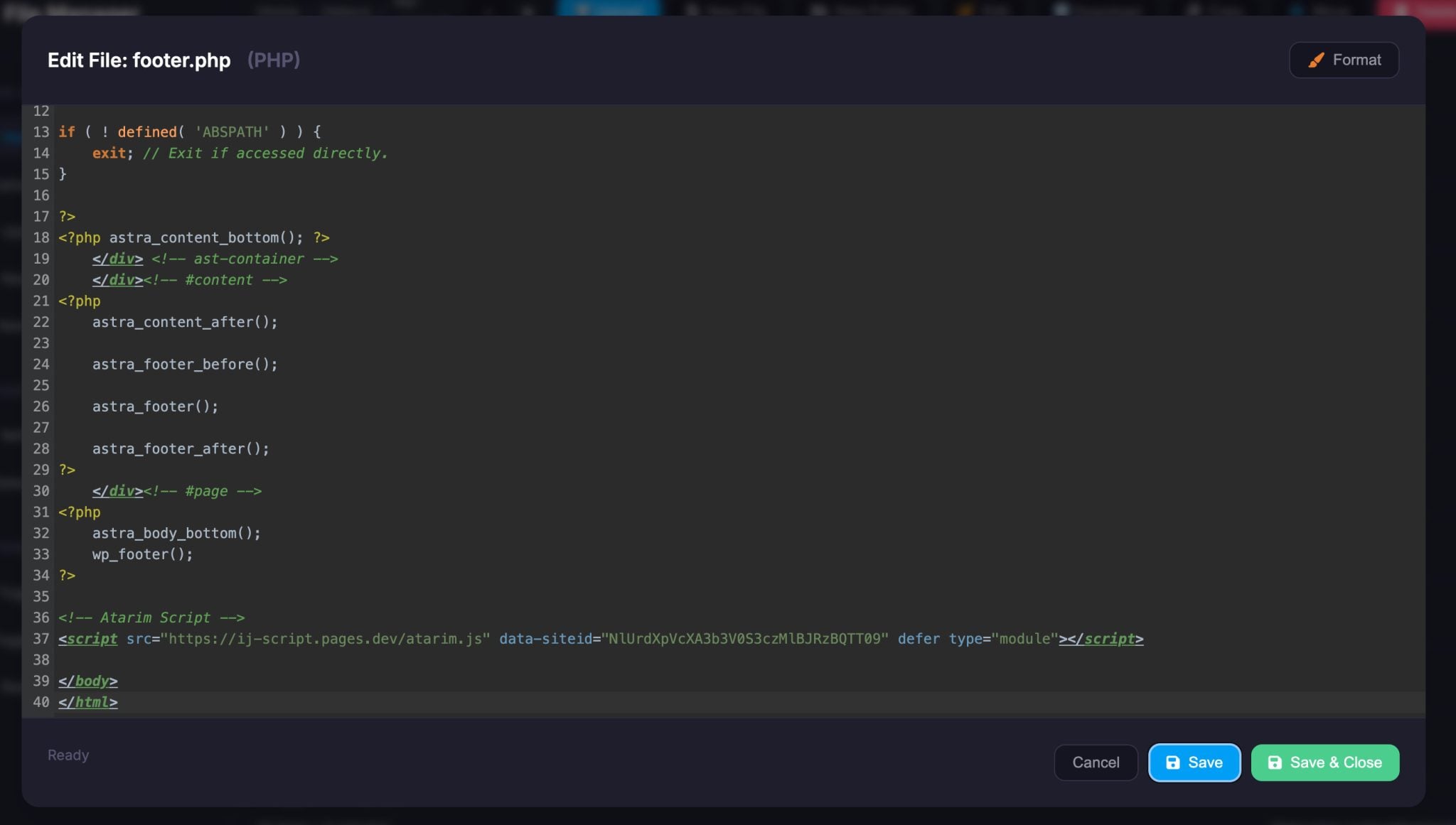
You paste this snippet into your site’s header or footer, and collaboration loads natively on your live pages.
Instructions
- Open Atarim → Add Snippet → Add Custom Script.
- Enter your website URL.
- Click Generate Script.
- Copy the script snippet.
- Paste it into your site’s </head> or </footer> area.
- Publish your changes.
Benefits
- Works on ANY sites
- Loads on actual live pages, not a mirrored version
- Supports collaboration anywhere you paste the script
- Works for logged-in, authenticated areas when you’re signed in
Strategic Use Cases for Atarim Collaboration Methods
1. WordPress Plugin
Best For: WordPress sites in any state, including private, staging, or login-only.
Use Cases:
- Maintenance Mode / Coming Soon page is active
→ Install the plugin – it bypasses the maintenance screen completely.
Enable Guest Mode so clients can leave feedback without logging in. - Password-Protected WordPress login
→ Use the plugin to allow logged-in users or enable Guest Mode to skip login. - Staging environment behind login or IP restriction
→ Plugin works regardless of public access – it lives inside the WP site. - Client needs to leave feedback on WP admin (backend)
→ Only the plugin supports backend feedback directly inside WP dashboard.
Tip: Use Guest Mode + default user assignment to streamline client feedback without credentials.
2. Chrome Extension
Best For: Internal team collaboration on staging, login-gated, or private sites.
Use Cases:
- Reviewing staging site with login (non-WP or WP)
→ If your team is logged in, they can use the extension to comment directly. - Testing a membership dashboard or app
→ Works perfectly on any platform – as long as you’re already logged in. - Internal QA on maintenance or password-protected staging
→ No site changes needed – ideal for team testing.
Note: Not recommended for clients unless they’re comfortable installing browser extensions and logging in first.
3. Script Integration (JS Snippet)
Best For: Non-WordPress websites (Webflow, Shopify, Laravel, React, etc.) where you control the code.
Use Cases:
- Site is under maintenance or login-gated
→ Script works only after the user has logged in or passed the password screen, and collaboration works normally from there. Works even better when paired with the Chrome Extension. - Private staging environments behind a firewall or IP lock
→ As long as the script runs on the page, Atarim will function — even behind protection. - Custom-built app or dashboard with user authentication
→ Ideal for long-term feedback cycles — no WordPress needed. - Shopify or Webflow project in password-protected preview mode
→ Embed the script into the theme or layout for full collaboration.
Tip: Use the script when you want plugin-level feedback, but the platform isn’t WordPress.
4. URL Method
Best For: Public websites with no login or protection.
Not Recommended For:
- Maintenance mode sites
- WP login screens
- Password-protected staging
- Sites behind a firewall or IP lock
Use Cases:
- Live public site feedback
→ Great for getting fast comments from clients without setup. - Landing page approval on live environment
→ Just paste the URL – no install, no login.
Warning: Will only show what’s publicly visible, usually just the maintenance screen or login page if protection is active.
5. Image-Based Projects
Best For: Static mockups, design feedback, when using Figma, when site access isn’t possible
Use Cases:
- Staging site is completely blocked / under development
→ Take screenshots and upload for feedback on static designs. - You’re reviewing designs before development
→ Use for logos, banners, mobile UI, etc. - Firewall blocks all external access (internal-only)
→ Use image-based projects to freeze UI states for review.
Tip: Combine image-based feedback with live site methods as development progresses.
FAQs
Yes—use the WordPress Plugin for full access, or the Custom Script if you are logged into the site.
No, URL projects only work on publicly accessible pages and cannot bypass login screens.
Yes, as long as you are logged in and can view the page in your browser, the extension will work.
Yes, the script works on protected pages if the viewer is logged into the site.
No, clients can collaborate using the shared Atarim link without installing anything.
Yes, you can upload additional image files to a design project at any time.
The Chrome Extension provides the most accurate rendering for dynamic or JS-heavy pages.