
Step-by-Step Guide
Atarim supports multiple ways to create tasks, combining human feedback with AI-powered reviews to ensure clarity, context, and speed.
1. Create a Task on a Website
Tasks tied to specific visual elements ensure precise, contextual feedback.
When you create a task manually, Atarim automatically captures a screenshot and highlights the exact area you clicked. This removes ambiguity and helps your team understand exactly what needs to be addressed. Learn More About Task Management
Instructions:
- Open the Project in Atarim.
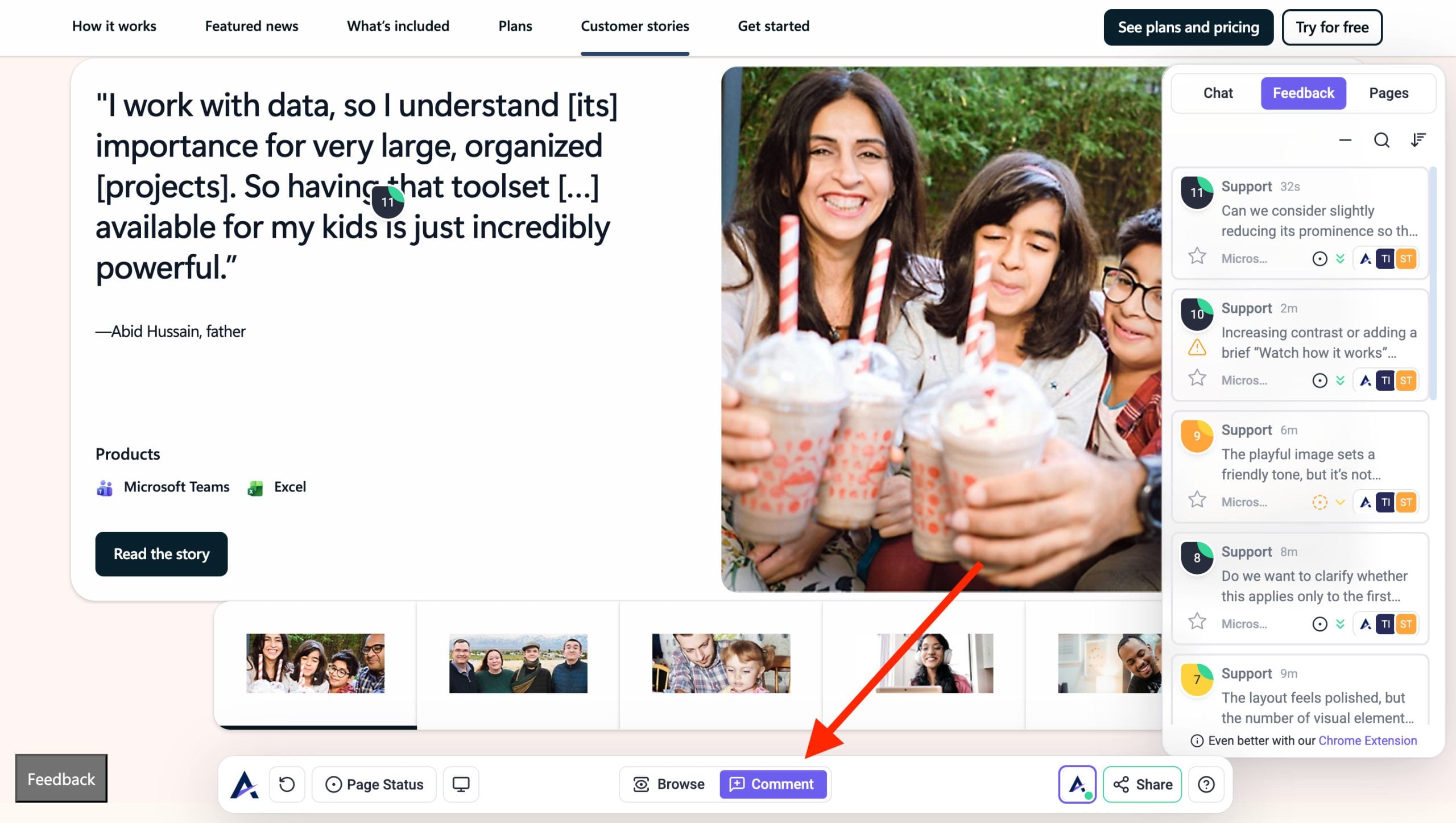
- Make sure Comment Mode is enabled inside the toolbar.
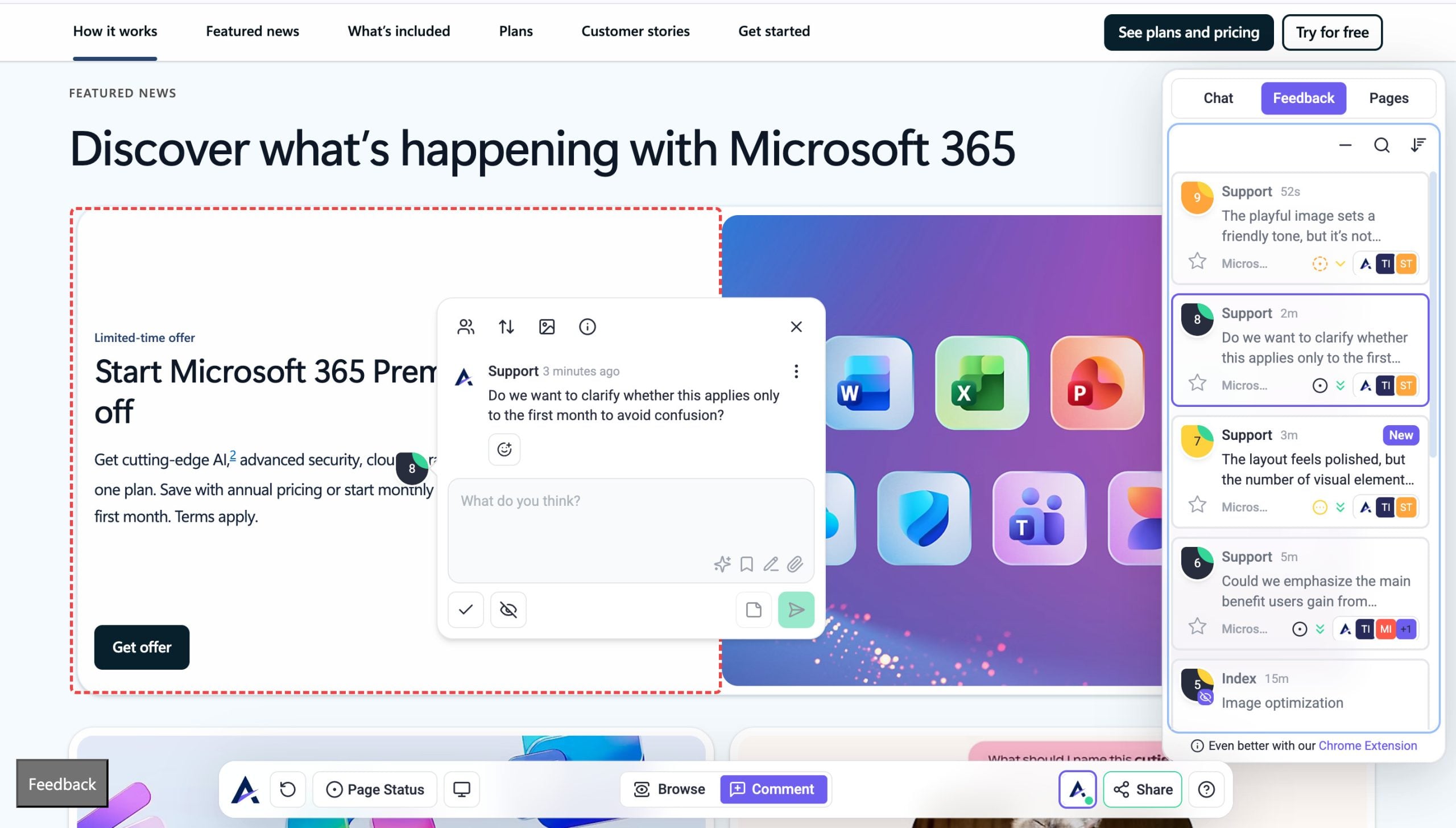
- Click on the specific area of the website where you want to create the task.
- Add a comment, and click Send to save.
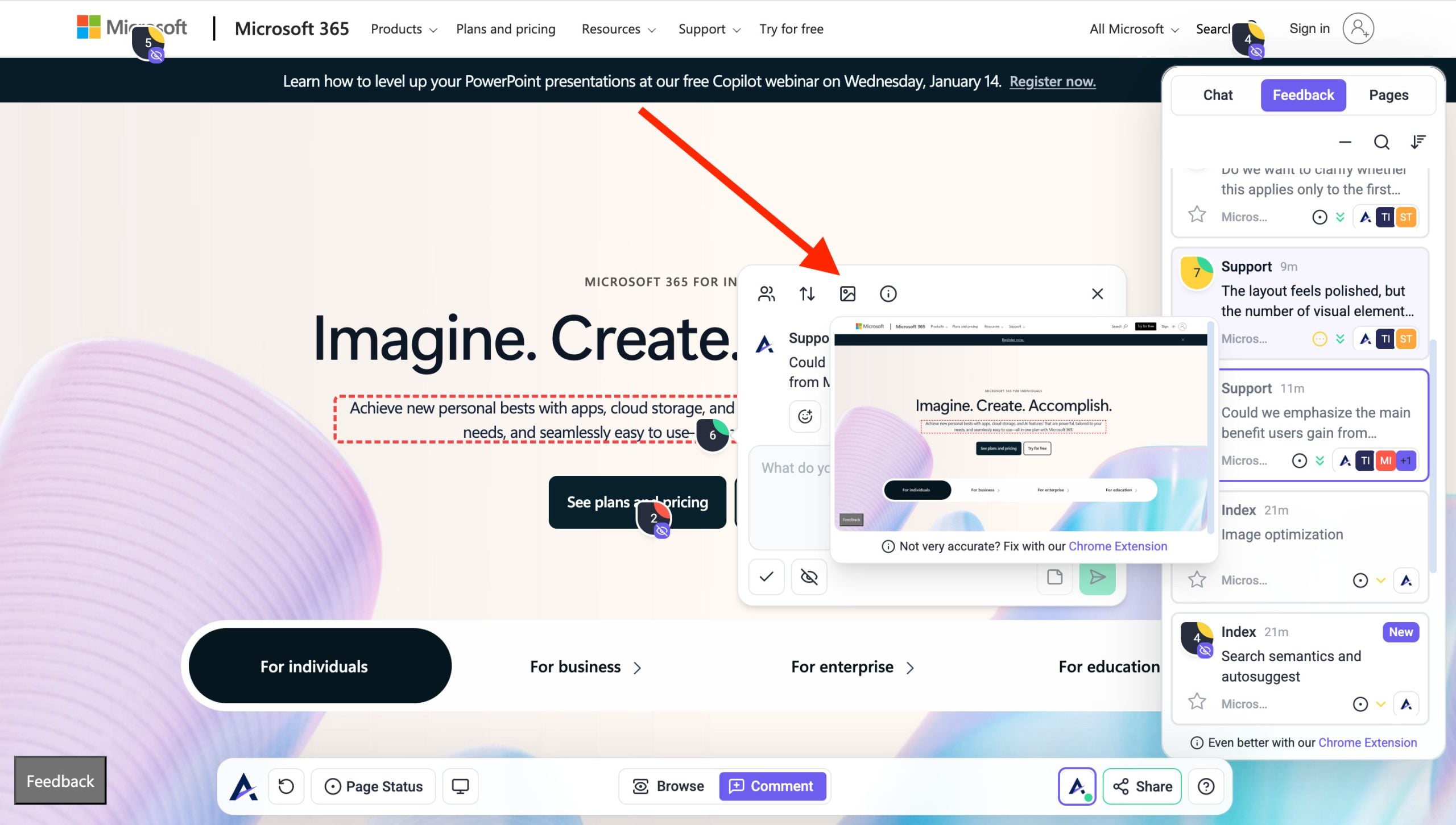
- Atarim automatically attaches a screenshot to provide context which highlights the part of the page that was chosen to give maximum clarity.
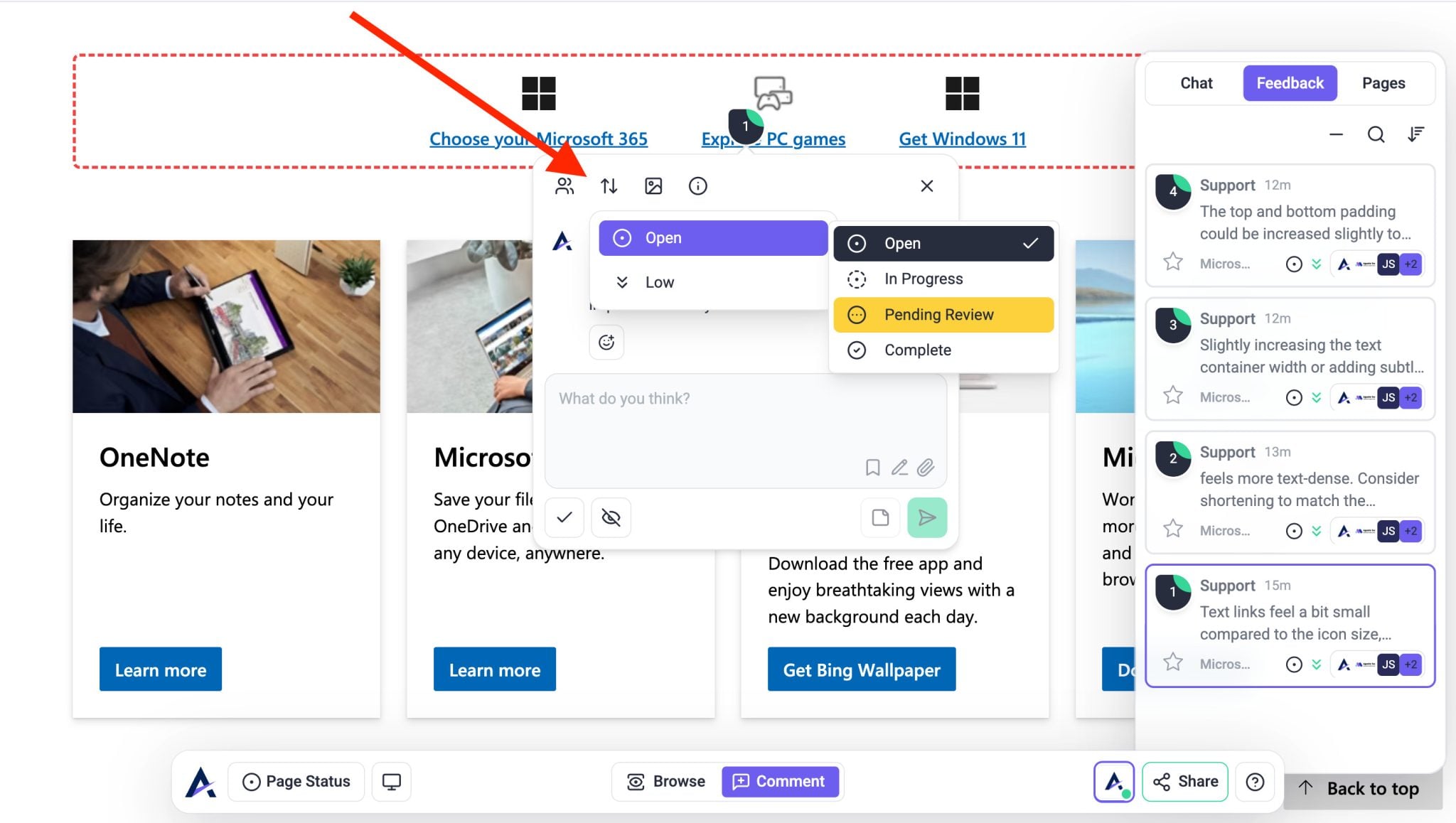
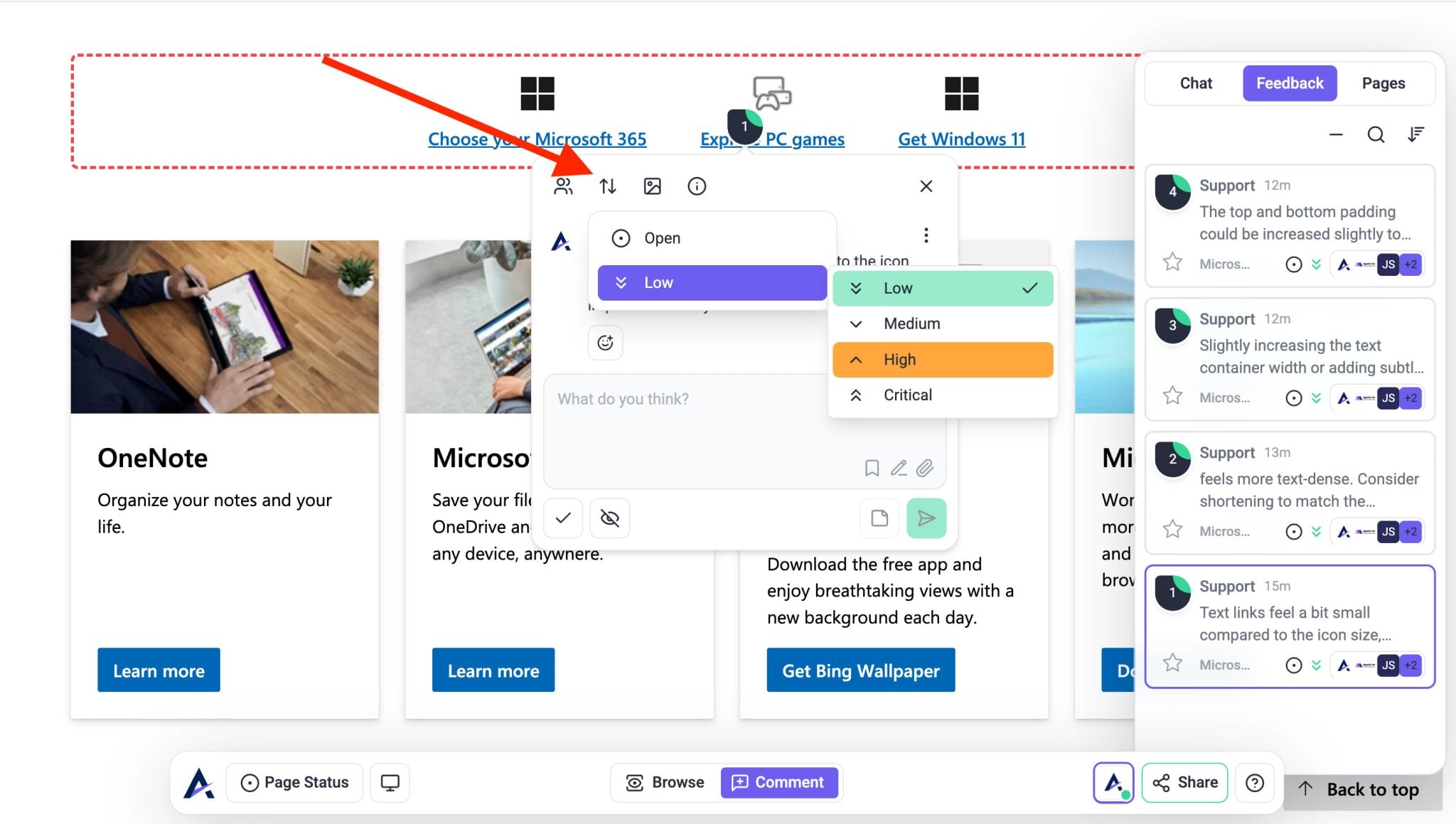
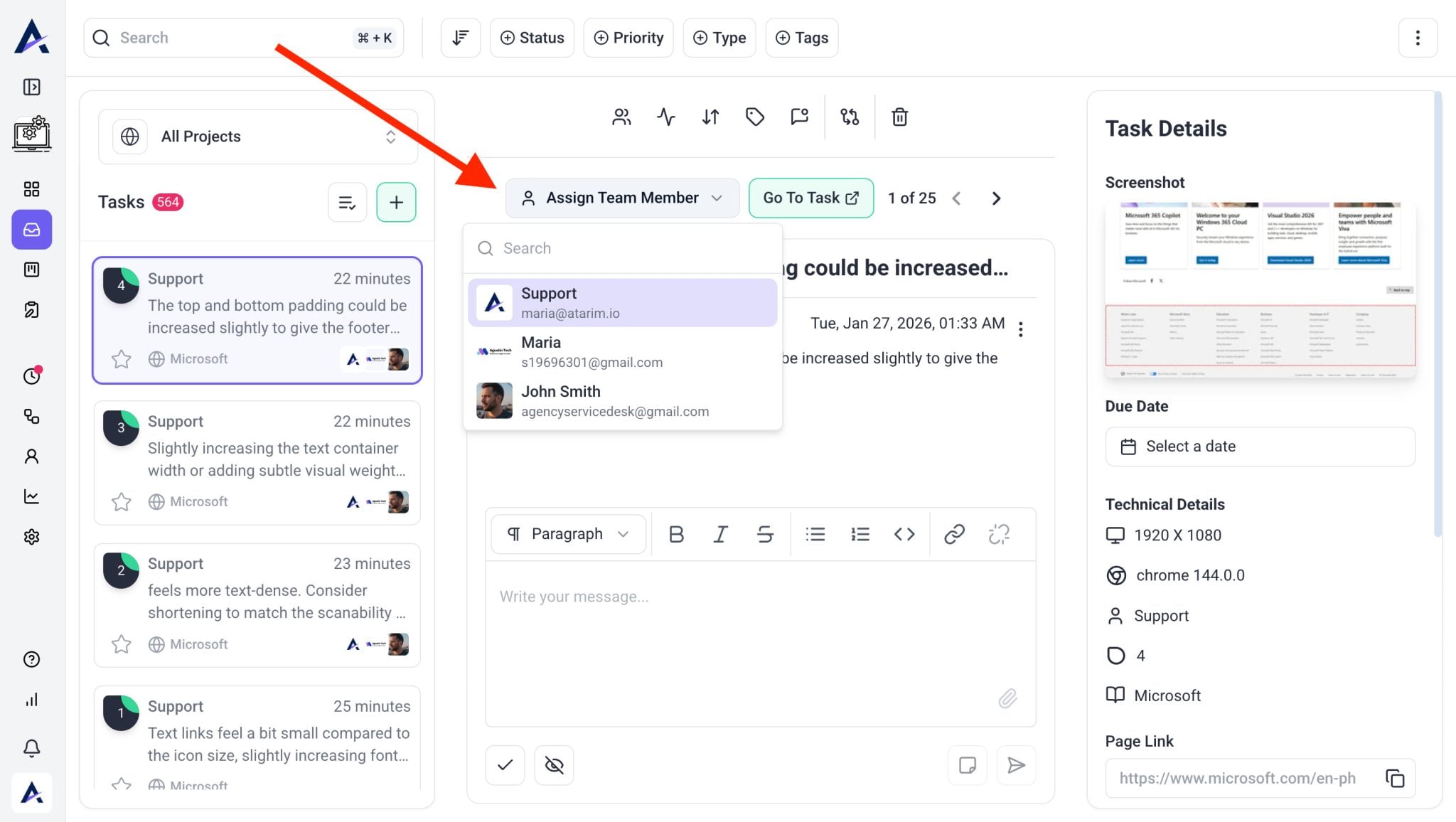
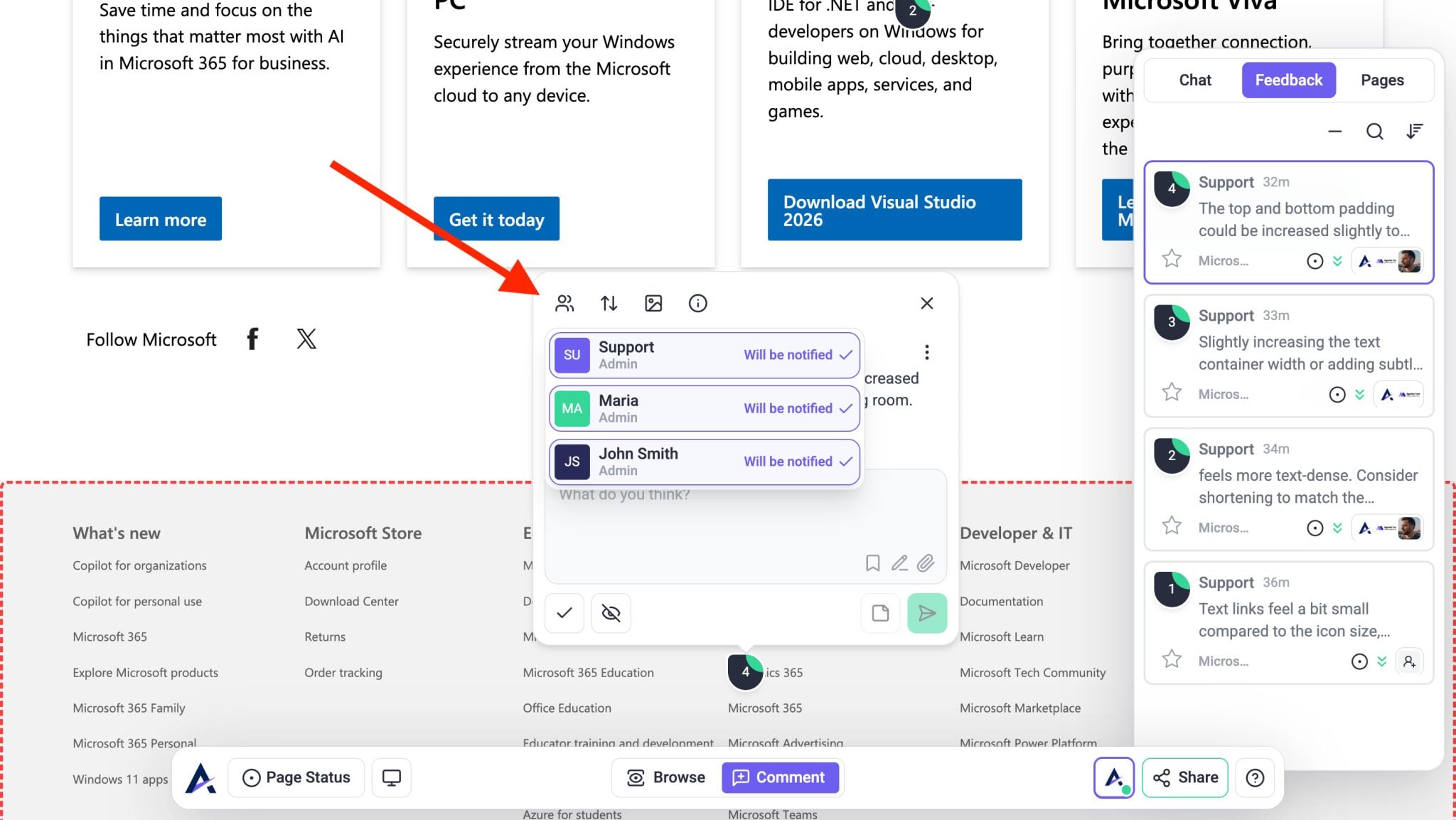
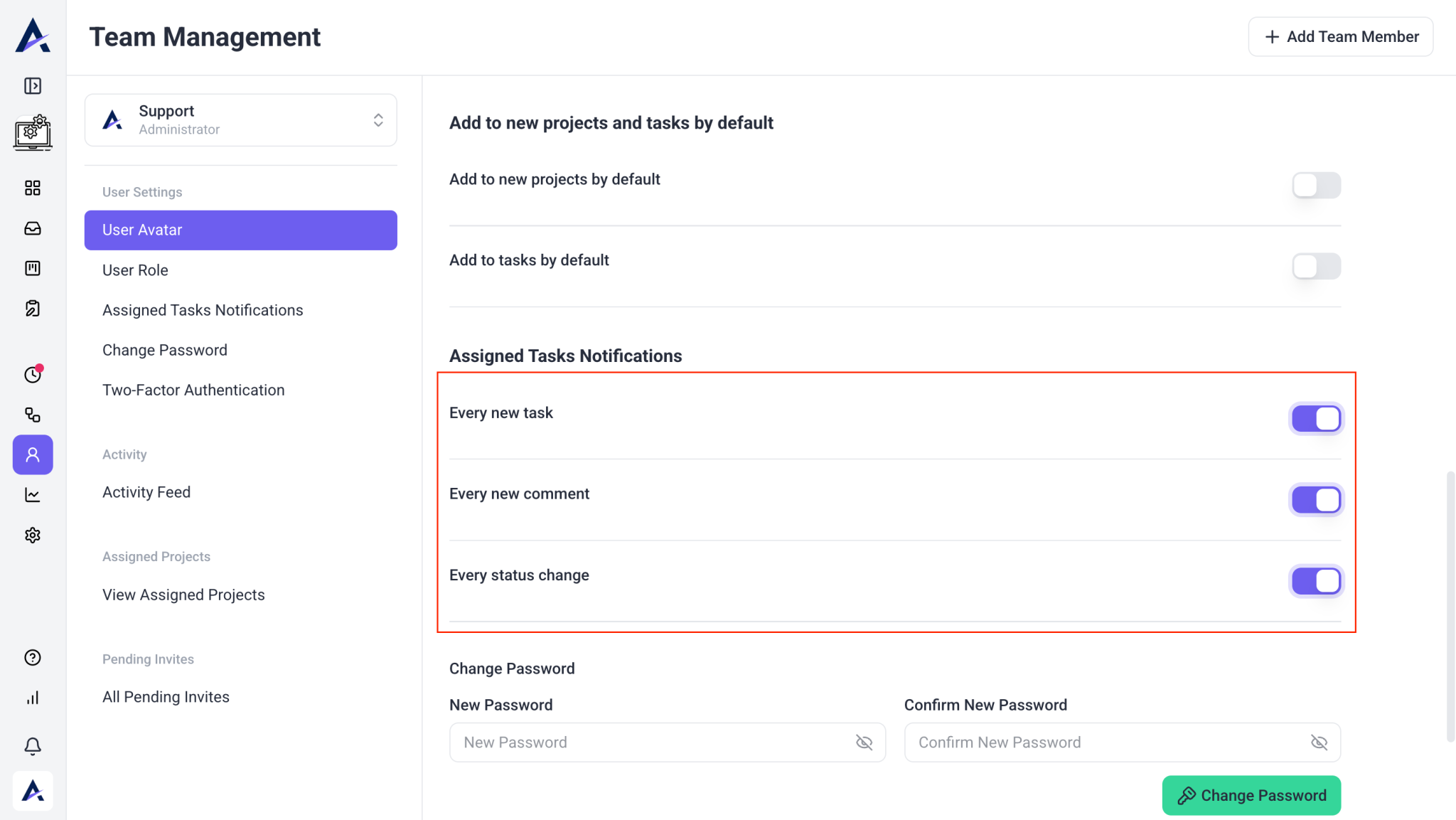
Note: Tasks can only be assigned to users who are already members of the specific project where the task exists.
Tip: If you’re not receiving updates, ensure you’re added to the project or task, and your notification settings haven’t been disabled.
How to Change a Task Title in Atarim
Renaming a task helps ensure clarity and alignment across your team. You can easily update the title of any task directly from the task panel.
Instructions:
- Open the task from the Inbox & Boards view.
- At the top of the task panel, locate the task title field.
- Click into the title — it will become editable.
- Type your updated task name.
- Press Enter or click outside the field to save your changes.
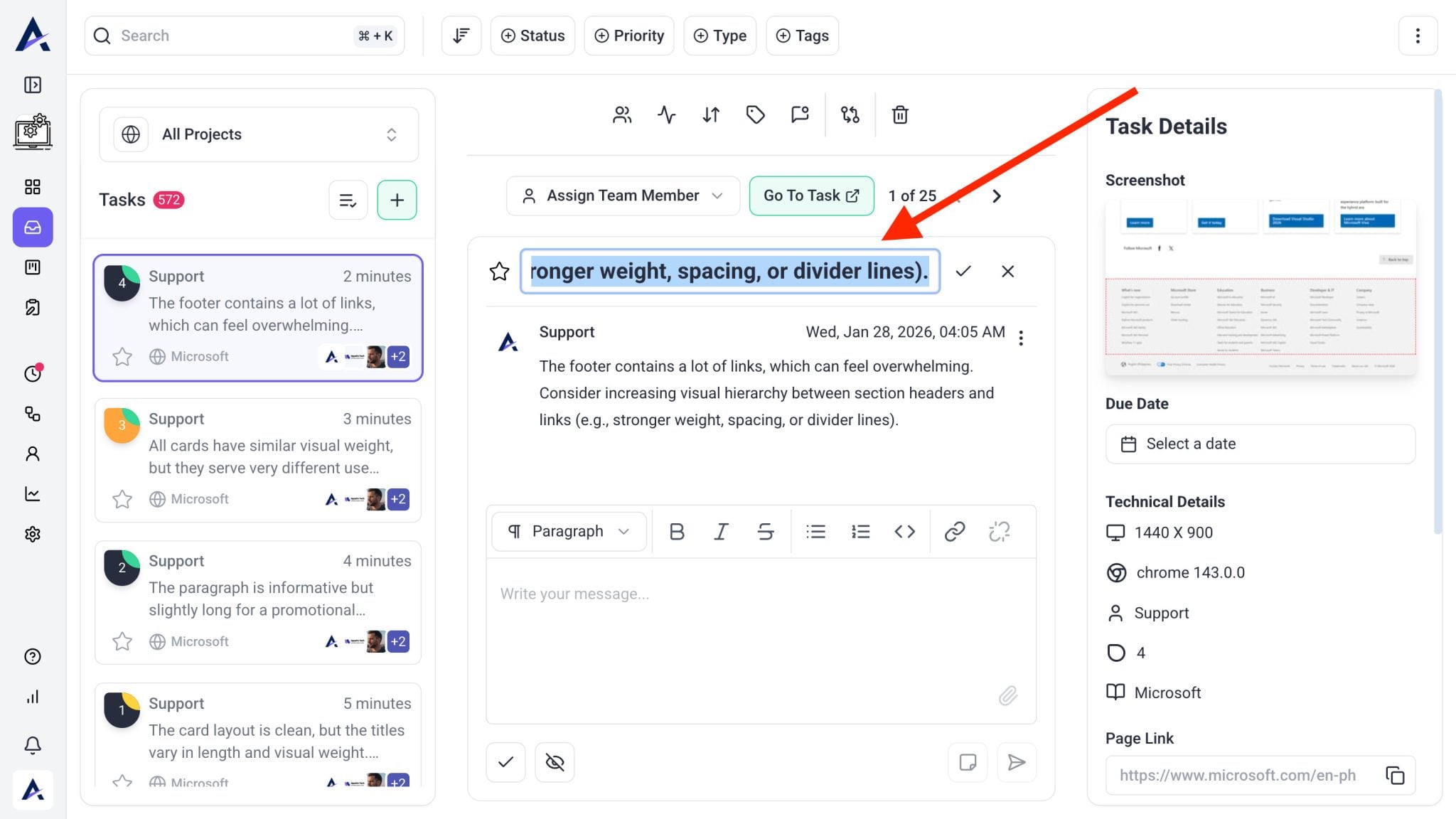
Tip: Use clear and descriptive titles, such as “Update homepage hero section” or “Fix mobile menu alignment,” to improve task visibility and communication.
2. Creating Tasks with AI Using Page Review
Creating tasks with AI unlocks the full power of the Inner Circle. Atarim’s team of embedded expert agents who help you leave better feedback, faster. Learn How To Run A Page Review
What Page Review Does
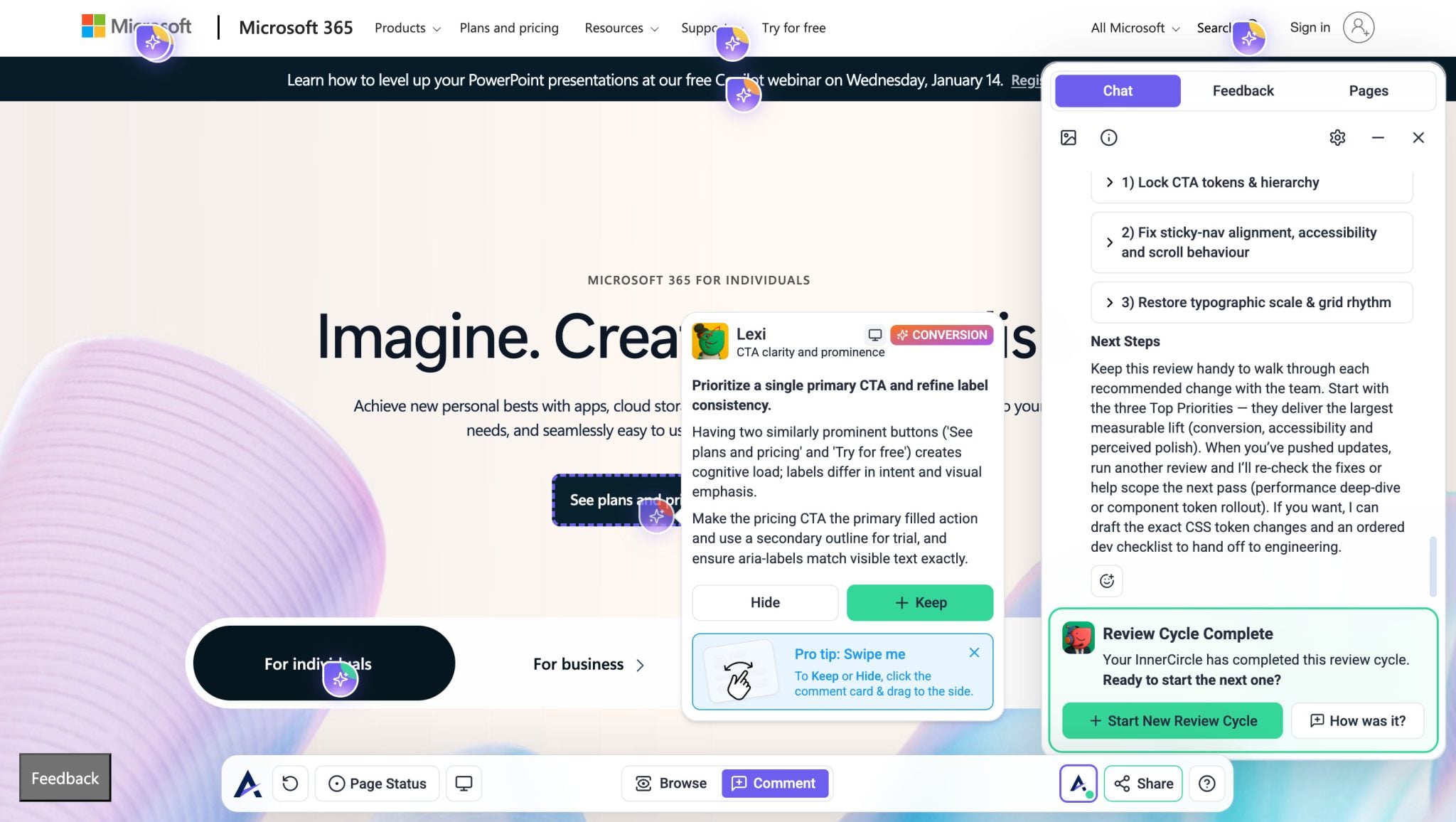
Page Review is Atarim’s built-in AI scanning tool that analyzes an entire page or design using the Inner Circle of six specialized AI agents. It performs a complete, expert-level review in seconds.
Page Review evaluates:
- Desktop, tablet, and mobile views
- Layout and visual hierarchy
- Spacing and alignment
- Copy clarity and messaging
- Accessibility and readability
- SEO and structure
Note: Tasks created from Page Review are internal by default. They’re visible only to admins and team members, and hidden from clients unless intentionally shared.
3. Creating Tasks with AI Collaboration
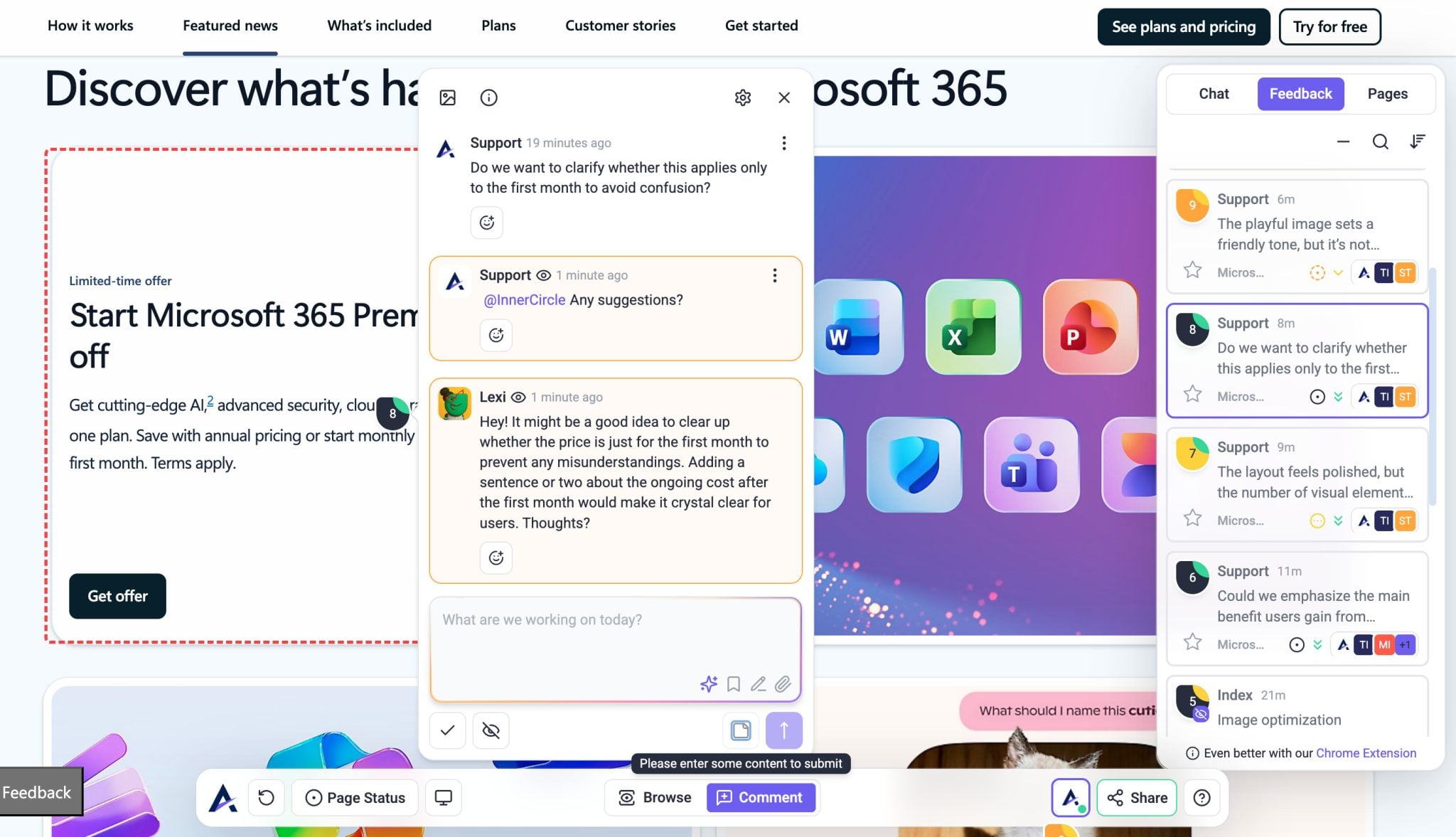
With AI Collaboration, you can create and refine tasks while actively discussing them with AI — directly on the page.
As you leave a comment, you can instantly get expert feedback from Inner Circle agents like Lexi, Pixel, Navi, and Claro. Instead of writing a task alone, you refine it in real time with AI input. How To Get The Most Out Of The Inner Circle
AI Collaboration helps you:
- Clarify vague feedback
- Improve copy and messaging
- Validate design decisions
- Strengthen task clarity before assignment
Tip: You don’t just create a task — you refine it, clarify it, and improve it together before it becomes actionable work.
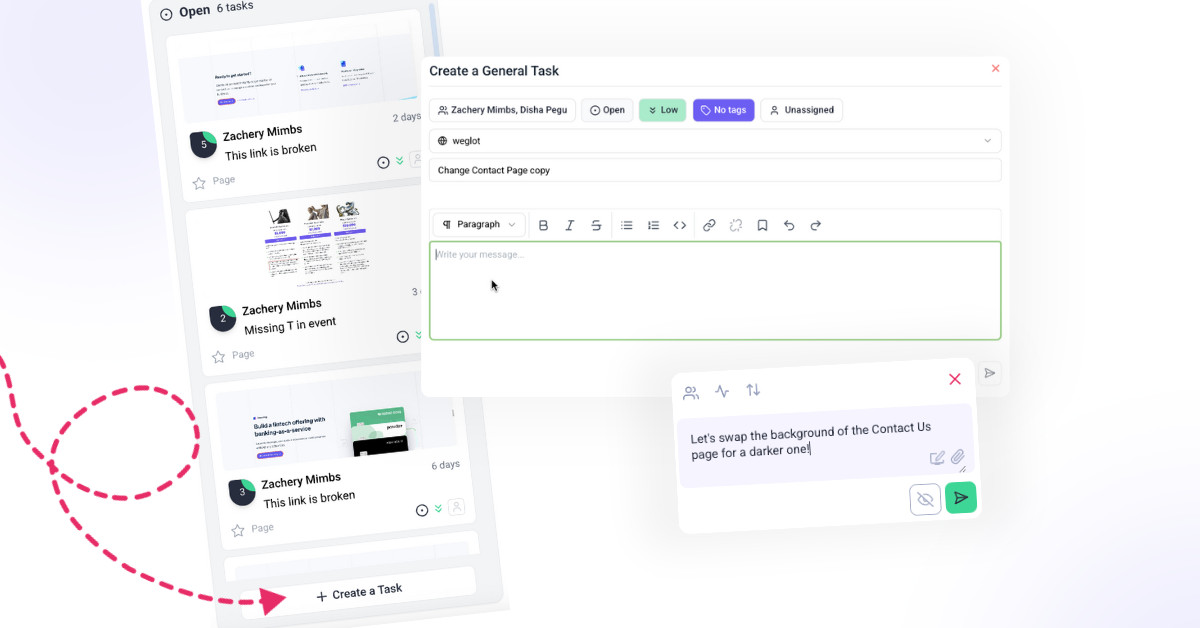
4. Create a General Task
General tasks are broader tasks that are not tied to specific design elements or webpages.
Instructions for Team Members (Kanban Board):
- Open the Boards page from the Atarim Dashboard.
- Select the project where you want to create the task.
- Locate the Create Task button, always visible at the bottom of each column (e.g., Open, In Progress, Pending Review, or Completed).
- Click the Create Task button in the desired column.
- Select the page on which you wish to add general task.
- Enter a comment for the task.
- Press Submit to add the task to the selected column.
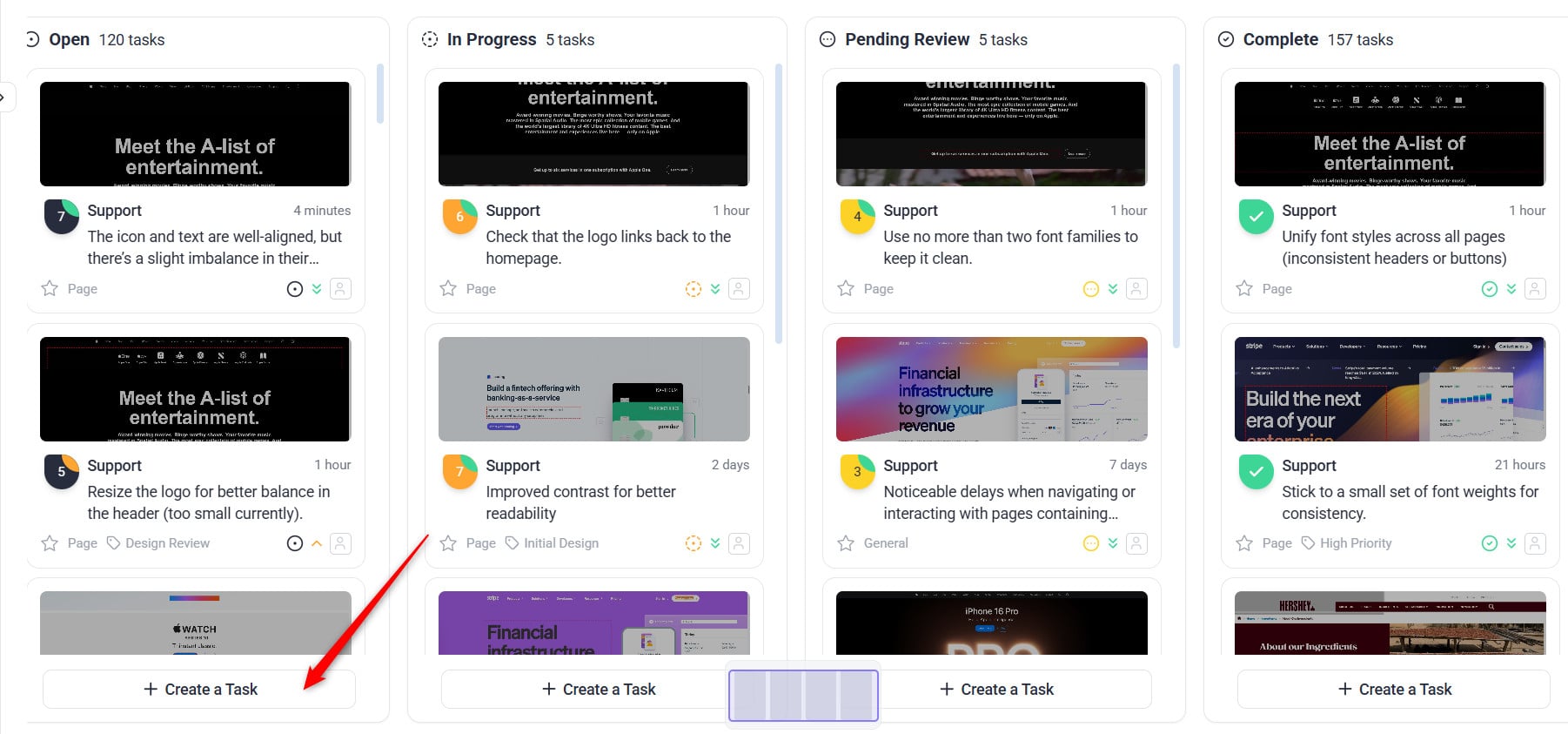
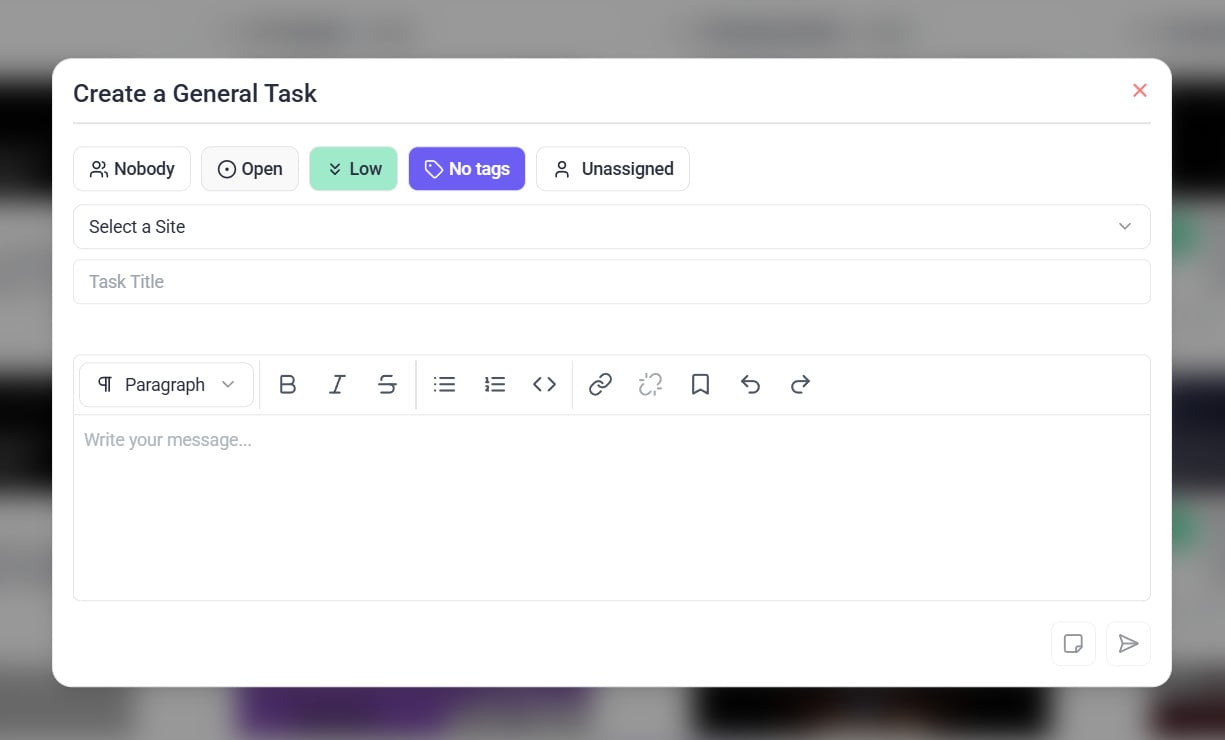
Tip: Using the Create Task button ensures tasks are immediately categorized by their current status, keeping your board organized and easy to manage.
Instructions for Clients (Front-End):
- Open the project front end shared by your team.
- Locate the General Task button in the bottom bar of the page.
- Click the button, and a task creation window will appear.
- Enter a comment for the task.
- Click Submit to save the task.
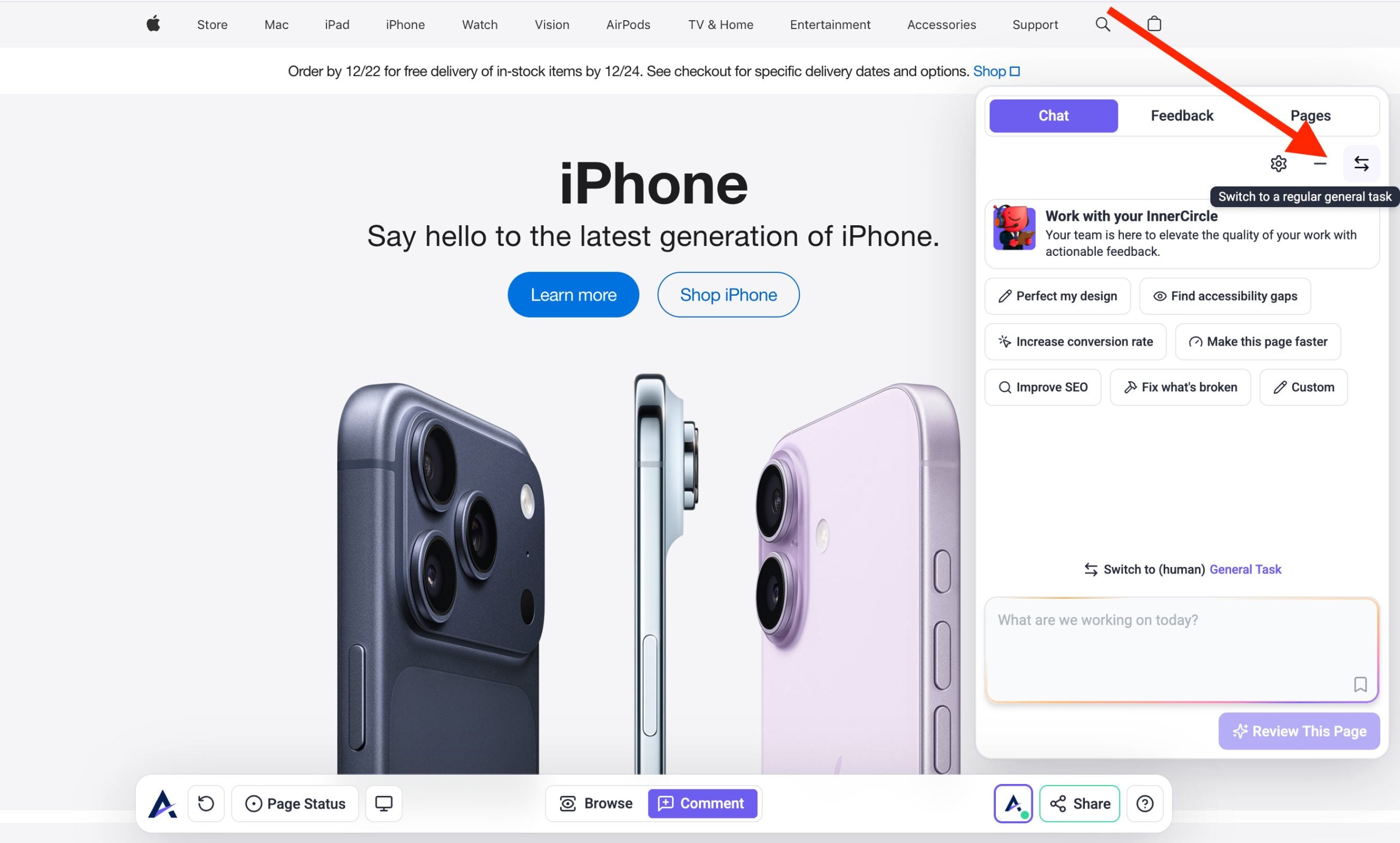
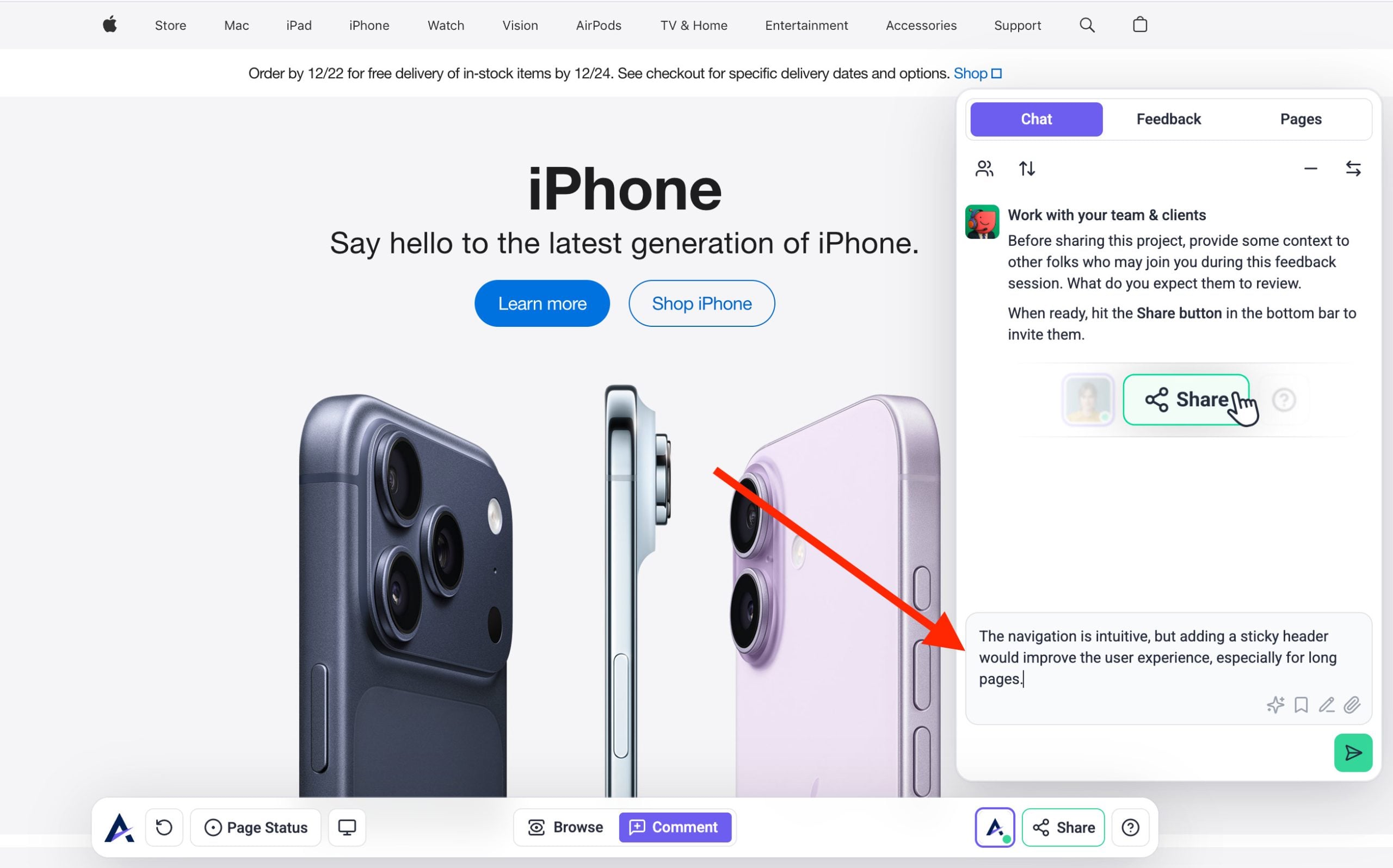
Tip: Clients can use general tasks for overarching requests or feedback not tied to specific visual elements.
5. Annotating Tasks for Better Feedback
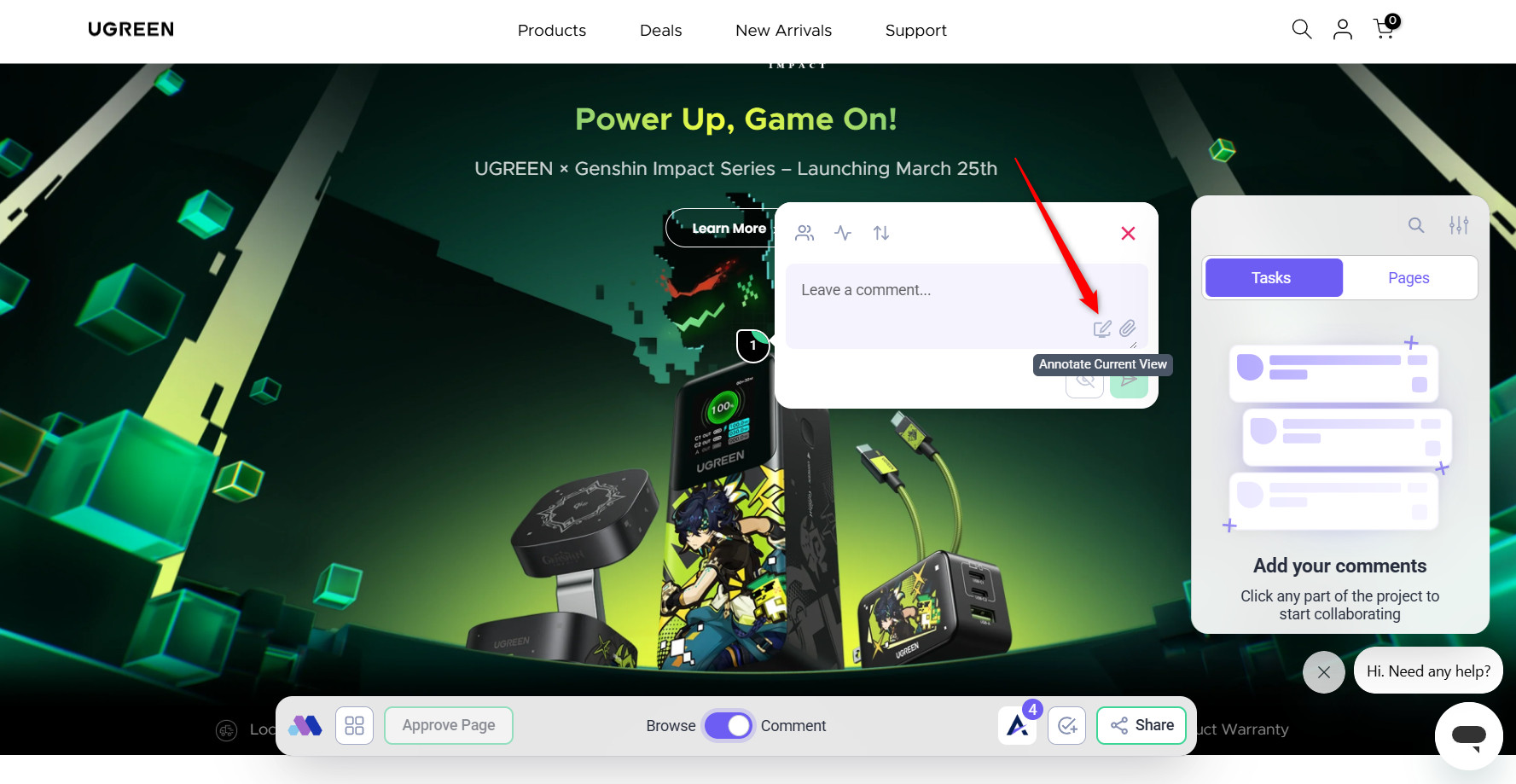
Atarim’s Annotation tools provide visual clarity for tasks by marking up images or screenshots with precise feedback. Learn More On How To Use The Annotation Tools For Feedback
Instructions:
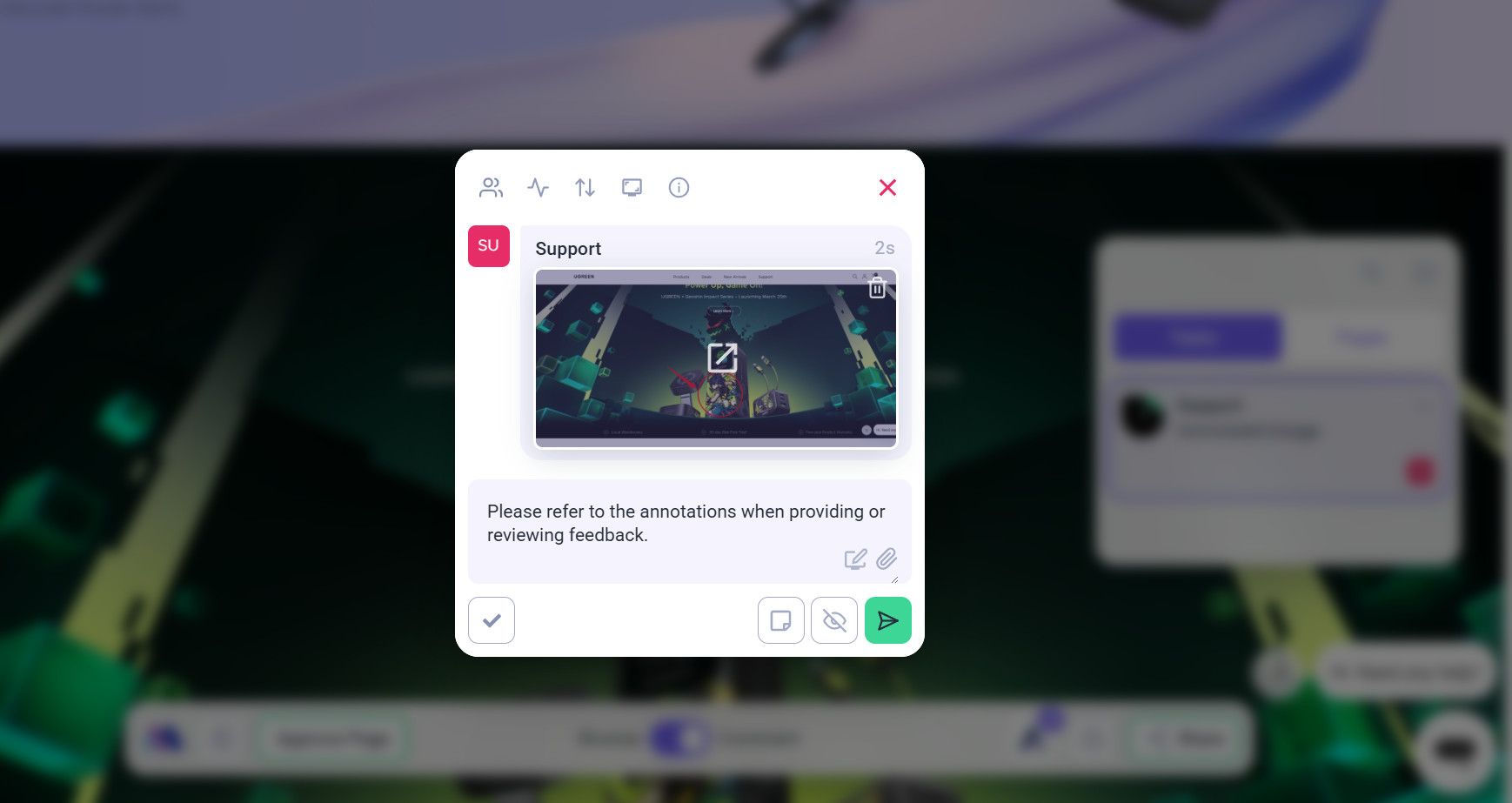
- After creating a task, open the task view.
- Click on Annotate Current View within the task window.
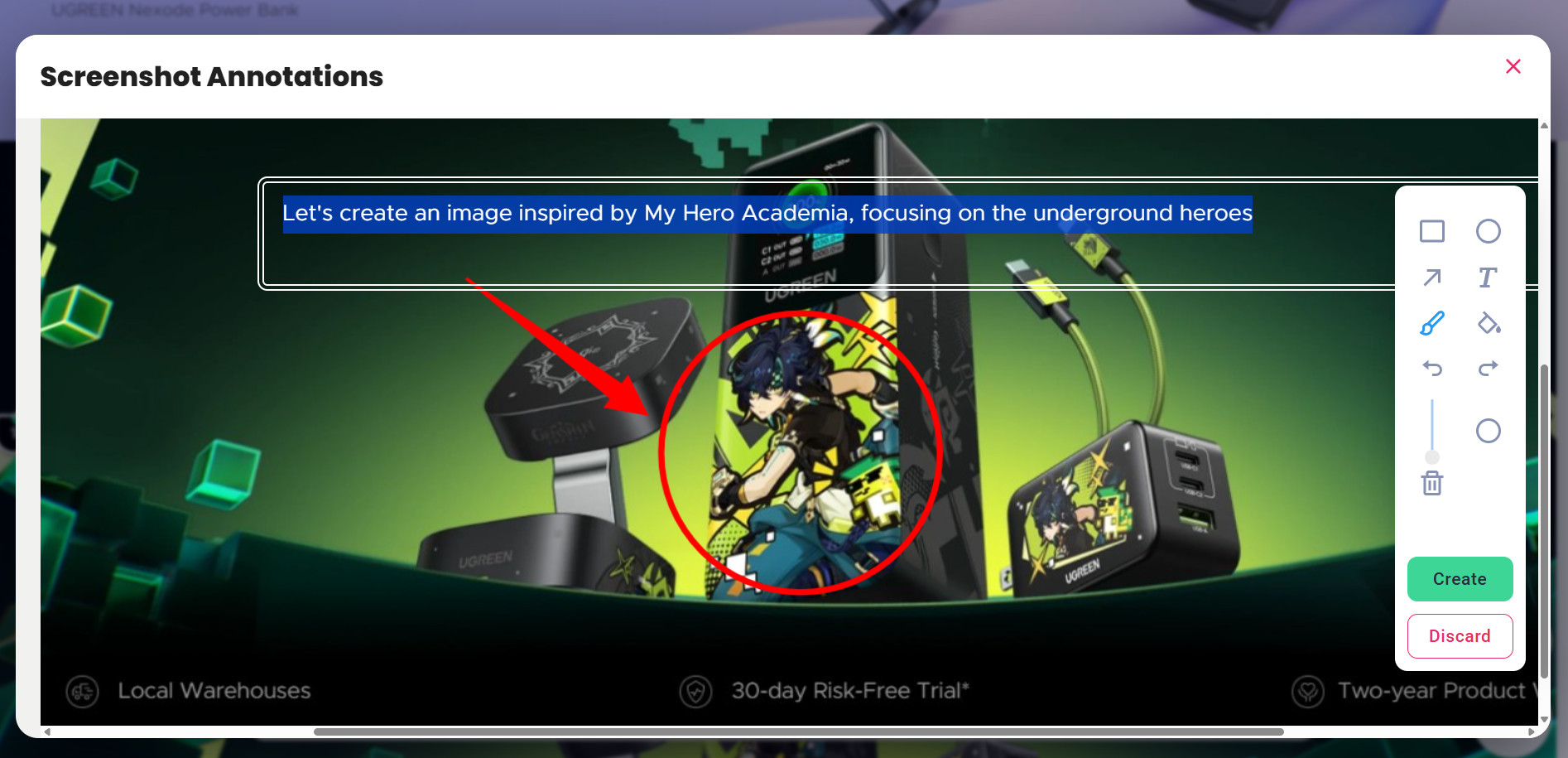
- Use the available annotation tools:
- Arrows: Point to specific elements requiring action.
- Boxes: Highlight areas needing changes or updates.
- Text: Add detailed notes directly on the screenshot.
- Once your annotation is complete, click Publish to save it to the task.
Tip: Use annotations for tasks involving design or layout changes, as they eliminate the guesswork and reduce back-and-forth clarifications.
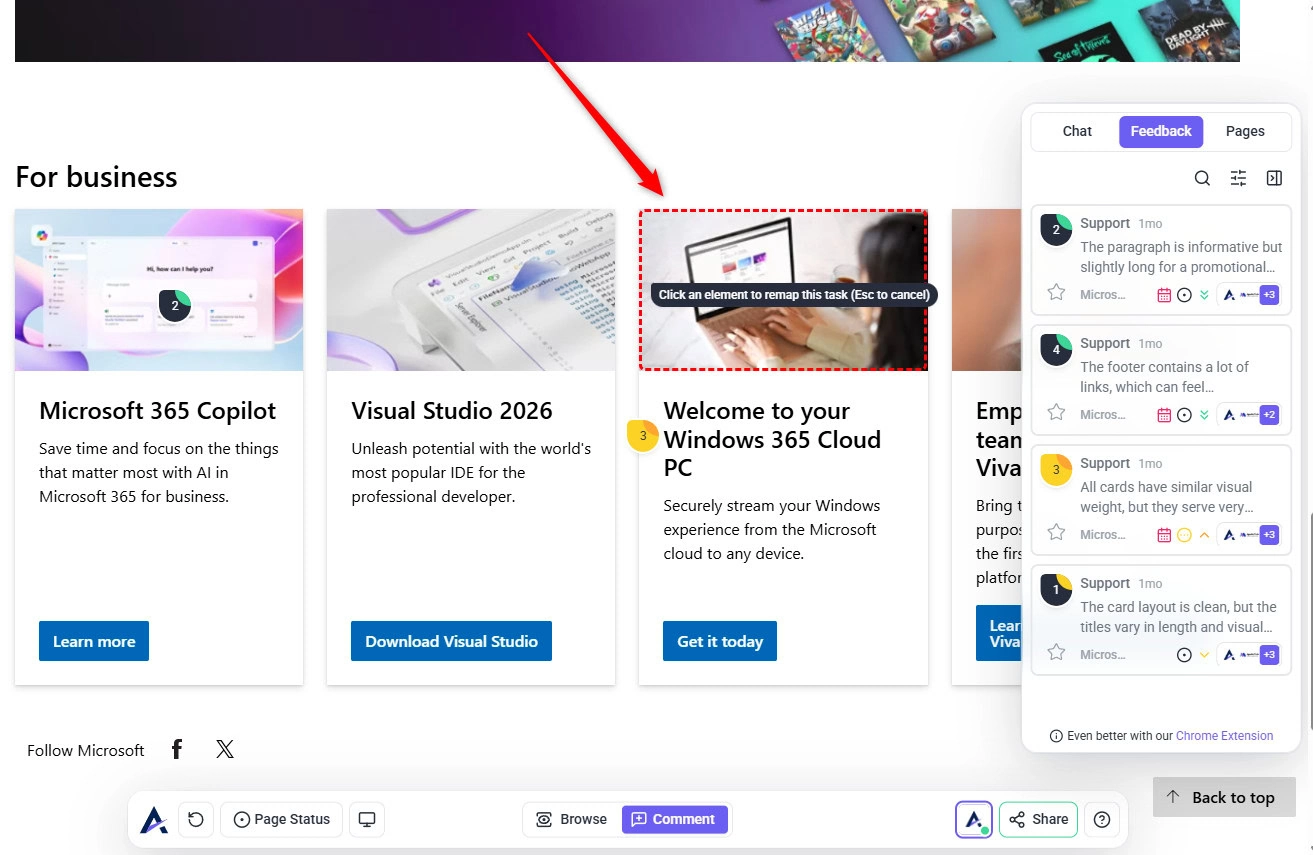
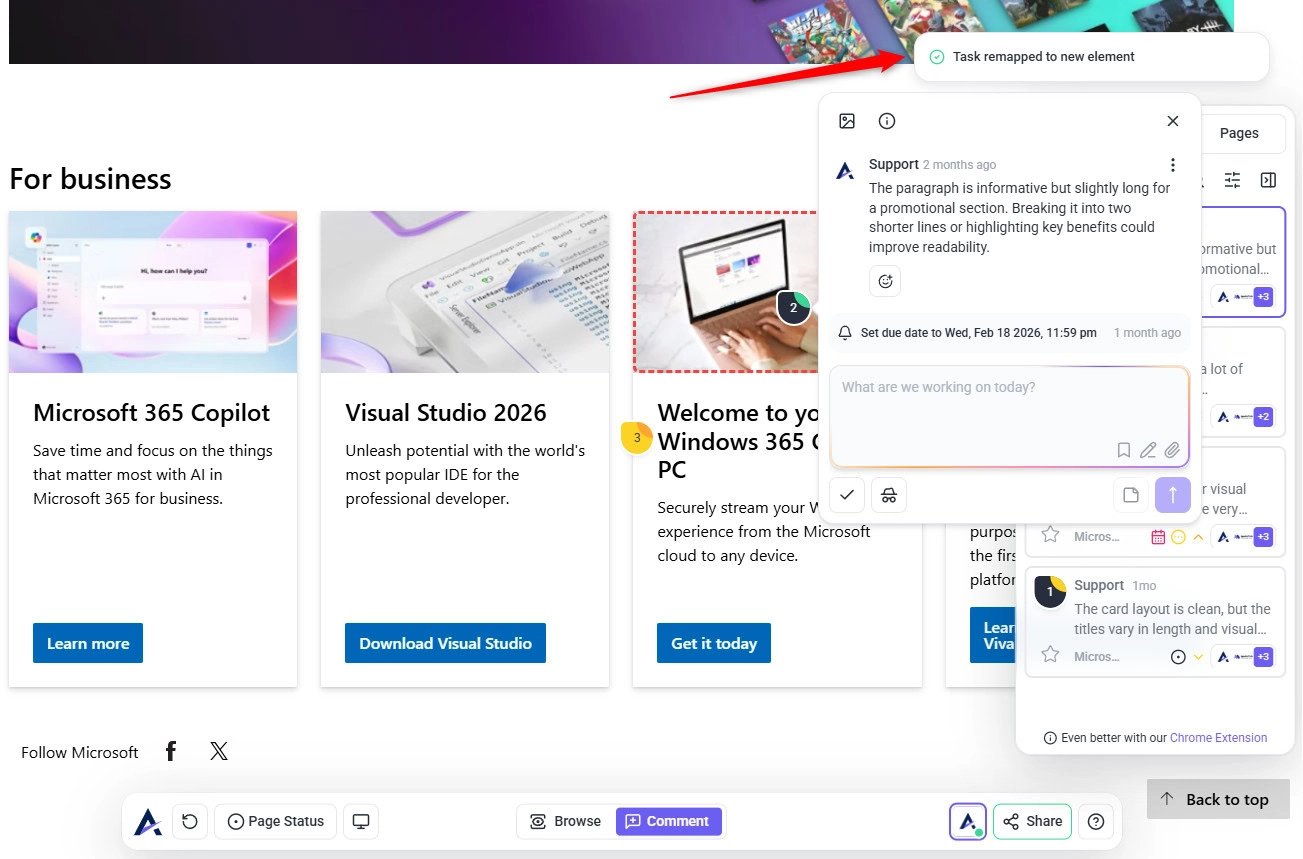
6. Remapping Tasks When Page Elements Change
If a page is redesigned or elements move, a task may appear disconnected from its original location.
You can now remap the task to a new element on the page.
Instructions
- Open the task.
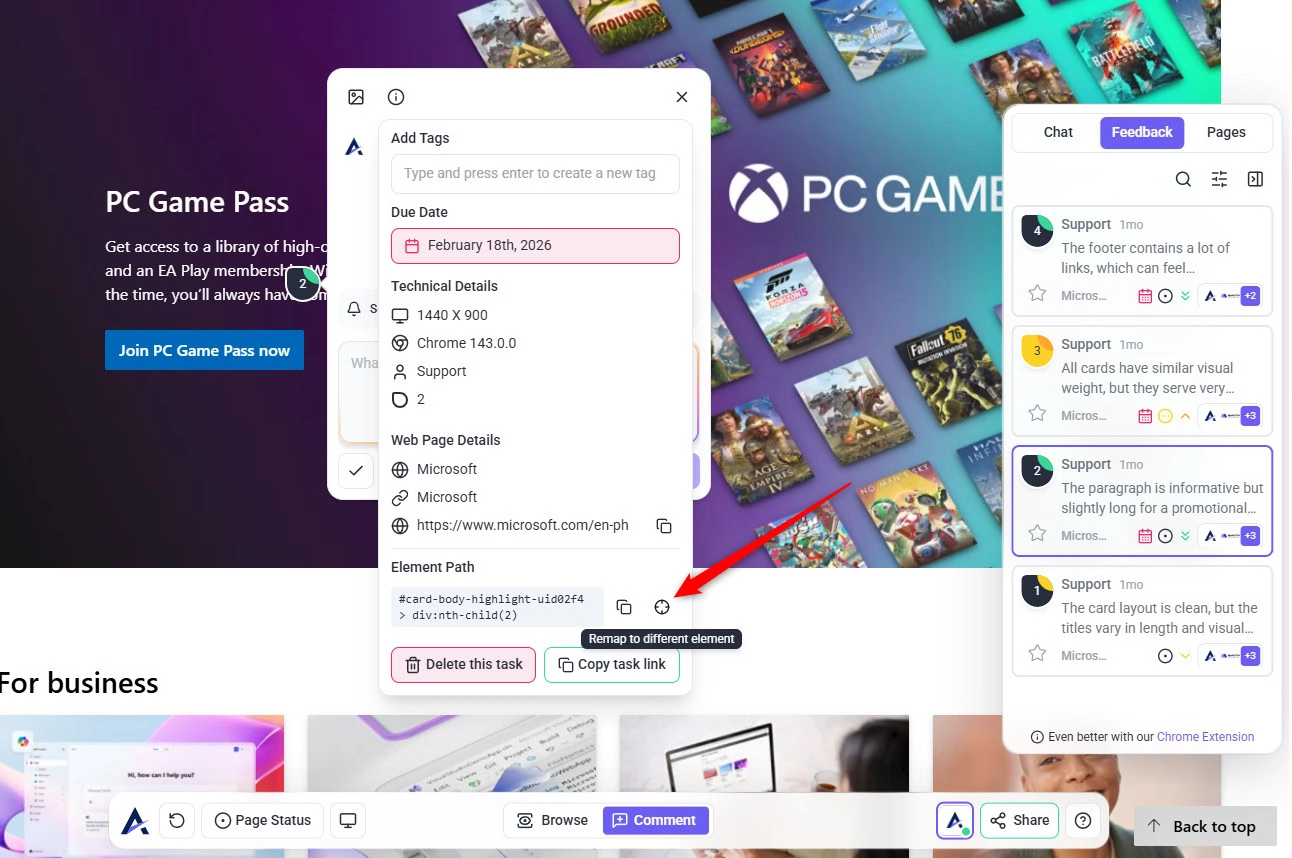
- Access the Tech Info panel.
- Click the Target icon (Remap to Different Element).
- Click the new element on the page where the task should be attached.
FAQs
Note: This helps recover tasks that may appear lost and keeps feedback connected to the correct element.
Yes, Atarim allows you to create general tasks that are not tied to a specific element on the website. Use the “Create Task” option on the Kanban board or General task button on the project frontend.
Yes, you can add files like images or documents to tasks by clicking the attachment icon in the task view or simply drag and drop the file in the comment area.
Yes, annotations are visible to all team members assigned to the task, ensuring clarity and reducing communication gaps.
No. AI features are available only to internal team members. Clients can create manual and general tasks but won’t see or interact with AI-generated feedback.