

Why Your Site May Block Atarim
Common causes include:
- Maintenance mode plugins blocking all external visitors
- Cloudflare WAF rules (especially “Block non-US traffic”)
- Wordfence, Sucuri, or server-level firewalls
- Login walls or staging-site restrictions
- Internal networks with IP-based access
- Malwarebytes/Threatdown false positives
- Cloudflare challenge pages replacing screenshots
How Atarim Connects to Your Site
Atarim connects to your website through secure worker domains that allow the platform to load your site, display it inside the collaboration environment, and generate screenshots for tasks and visual feedback.
Because some websites use firewalls, security plugins, Cloudflare, malware protection, country-based restrictions, or login walls, Atarim may need to be allowlisted so the platform can connect properly.
Option 1 — Whitelist Atarim by Domain (Recommended)
To load your website and generate screenshots, Atarim uses these domains: Add the following domains to your firewall or WAF allowlist:
- atarim.io
- atarimworker.io
- atarimworker.dev
- urlbox.com (screenshot tool)
Note: Atarim does not have fixed IPs. IP-based whitelisting will fail.
Tip: If your tool supports wildcards (Cloudflare, Sucuri, etc.), also add: *.atarimworker.io* and *.atarimworker.dev*
This solves most issues, including:
- Cloudflare blocking the collaboration link
- Screenshot failures
- Security plugins blocking worker requests
- Country-based blocking (e.g., “Allow US only”)
Option 2 — Whitelist Atarim by Request Headers
If domain whitelisting doesn’t work and your firewall supports header rules, Atarim includes two permanent identifiers:
User-Agent Contains: atarim-worker
Custom Header: Proxied-For: Atarim
Create rules that:
- Allow requests where User-Agent contains atarim-worker
- Allow requests where header Proxied-For = Atarim
Recommendation: Use header rules if Cloudflare continues to trigger challenges even after domain whitelisting.
Supported by:
- Cloudflare (WAF Custom Rules / Transform Rules)
- Sucuri
- Some hosting-level firewalls
- Enterprise security appliances
Cloudflare Configuration
Cloudflare is the most common source of blocking. Typical issues include:
- JS Challenge page instead of the site
- WAF blocking worker requests
- Non-US IP blocking rules
- Screenshot shows Cloudflare test instead of the website
Step 1: Create Bypass Rules
Go to: Security → WAF → Custom Rules → Create Rule
Allow:
- atarimworker.io
- atarimworker.dev
- atarim.io
- urlbox.com
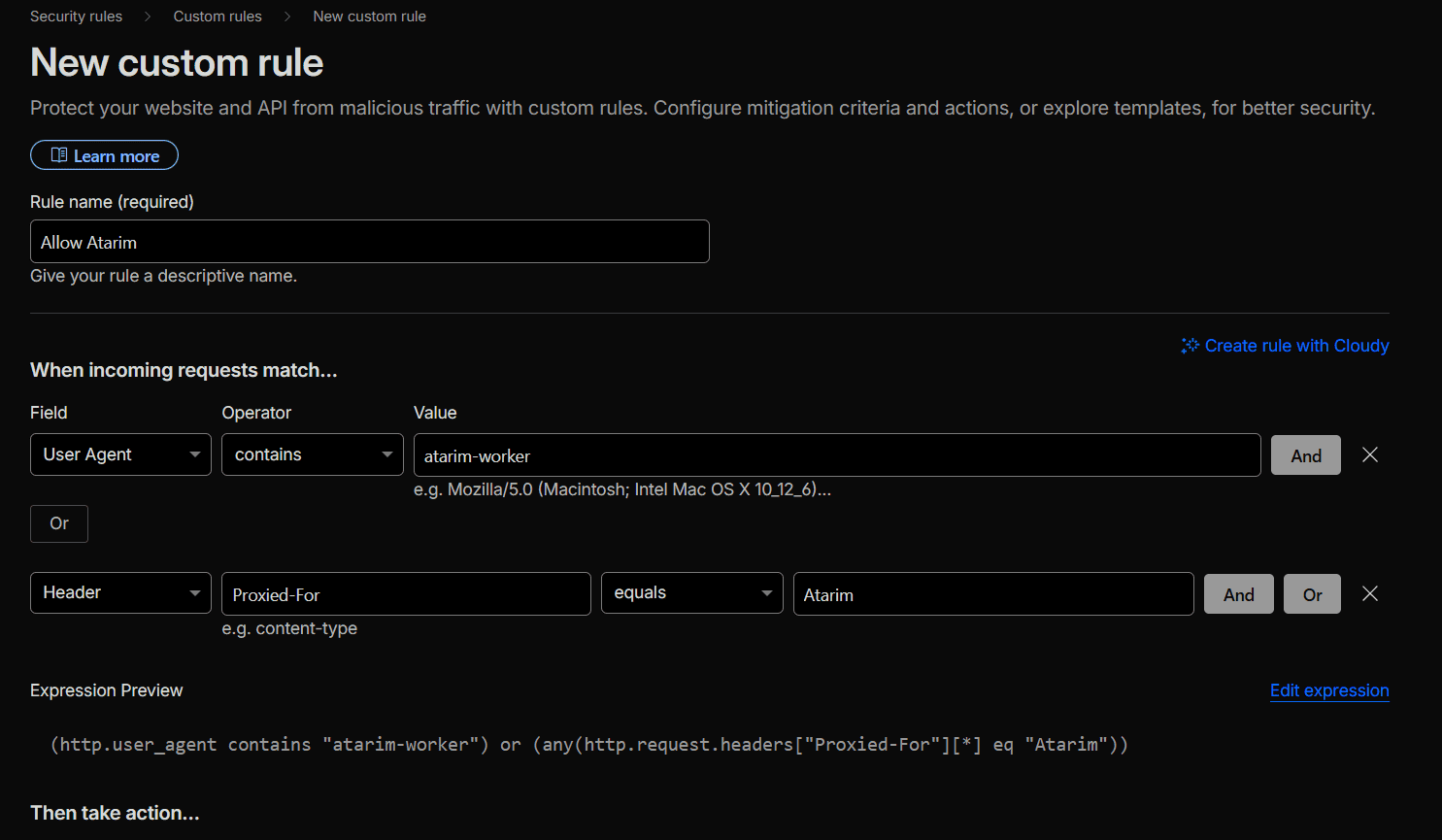
Step 2: Add Header-Based Exceptions
If domain exceptions alone don’t work:
IF: Proxied-For = Atarim
THEN: Skip WAF / skip challenge
OR
IF: User-Agent contains atarim-worker
THEN: Allow request
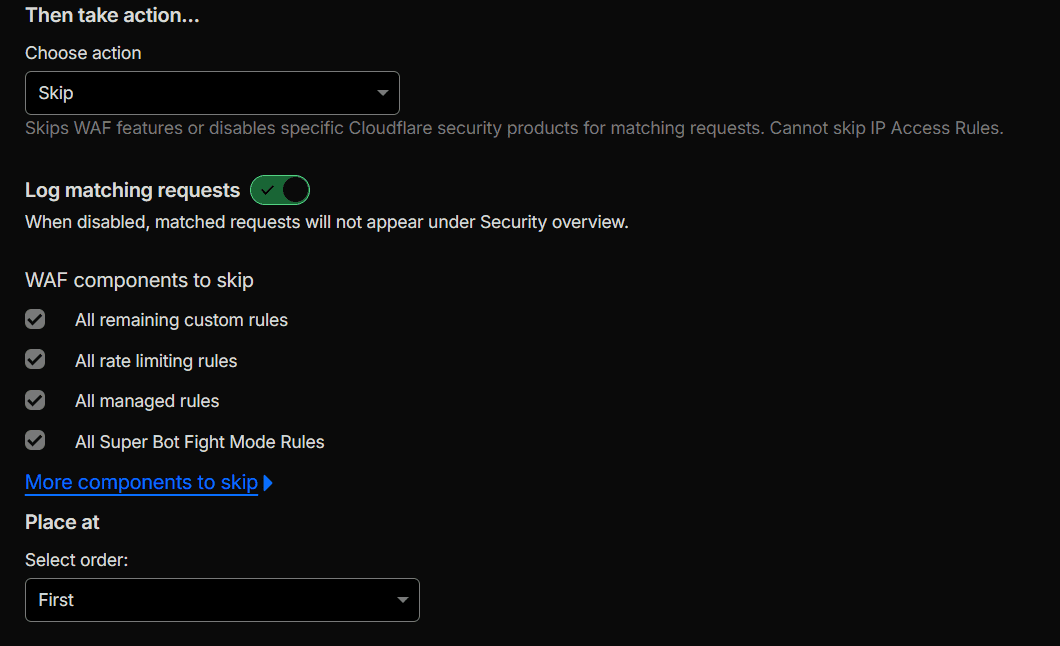
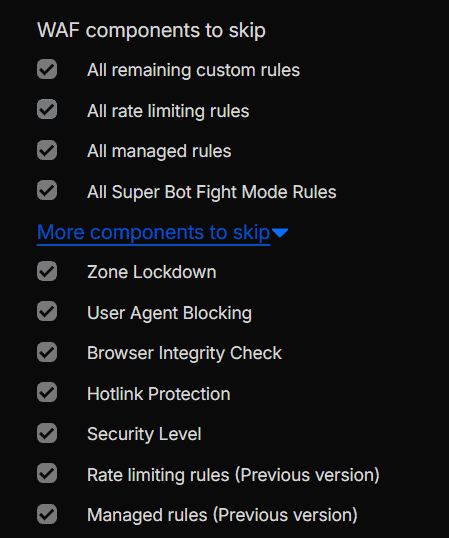
Tip: Header-based exceptions are the most reliable when Cloudflare strict mode is enabled.
Step 3: Fix Screenshot Issues
If screenshots show a Cloudflare JS challenge:
Whitelist: urlbox.com
Tip: Always whitelist urlbox.com. It solves most screenshot-related errors immediately.
Option 3 — Use the Atarim Browser Extension
Use the extension when:
- The site is behind a login wall
- Internal IP restrictions are active
- Maintenance mode blocks all external visitors
- Cloudflare continues to challenge requests
- Screenshot engine (URLBox) is blocked
The extension loads the website directly from your browser and bypasses all external restrictions safely. Learn More On How To Install The Atarim Chrome Extension
Note: If your team uses Safari, they’ll need to switch to Chrome temporarily to use the extension.
Malwarebytes / ThreatDown False Positives
Some users reported Malwarebytes/ThreatDown flagging:
ancillary-proxy.atarimworker.dev
Detected as: Phishing.Web
What You Should Do
- Add the domain to your allowlist
- This is safe and expected
- Atarim can submit a false positive report
- Only the customer can submit an official correction to Threatdown
- Threatdown may take weeks to update their blocklist
Note: This is a false positive. This block does not indicate any real security issue.
What Atarim Cannot Support (Limitations)
Atarim cannot:
- Provide static IP addresses
- Guarantee bypassing login walls without the extension
- Debug or replicate complex Cloudflare or WAF setups internally
- Guarantee timeline-based fixes for external security configurations
- Override maintenance mode plugins that only allow IP-based access
Warning: IP whitelisting is not supported and will not work. Our IPs are dynamic and rotate automatically.
Recommendation: If all whitelisting fails, the Atarim Browser Extension is the universal fallback.