

What Are Folders in Atarim?
Folders act as containers for grouping related projects, making it easier to manage large volumes of tasks and team assignments.
Examples of Folder Use Cases:
- Client-Based Organization: Group all projects for a specific client.
- Team-Based Organization: Create folders for departments, such as “Design Team” or “Development Team.”
- Workflow Phases: Maintain folders like “Development phase” or “Design phase” for better tracking.
Benefits of Using Folders
- Improved Clarity: Organize projects logically for easier navigation.
- Streamlined Filtering: Use the folder filter to view only relevant projects.
- Scalability: Handle a large number of projects efficiently.
- Efficient Access Management: Assign team members to folders for quick access to all contained projects.
How to Create and Manage Folders
Creating a Folder
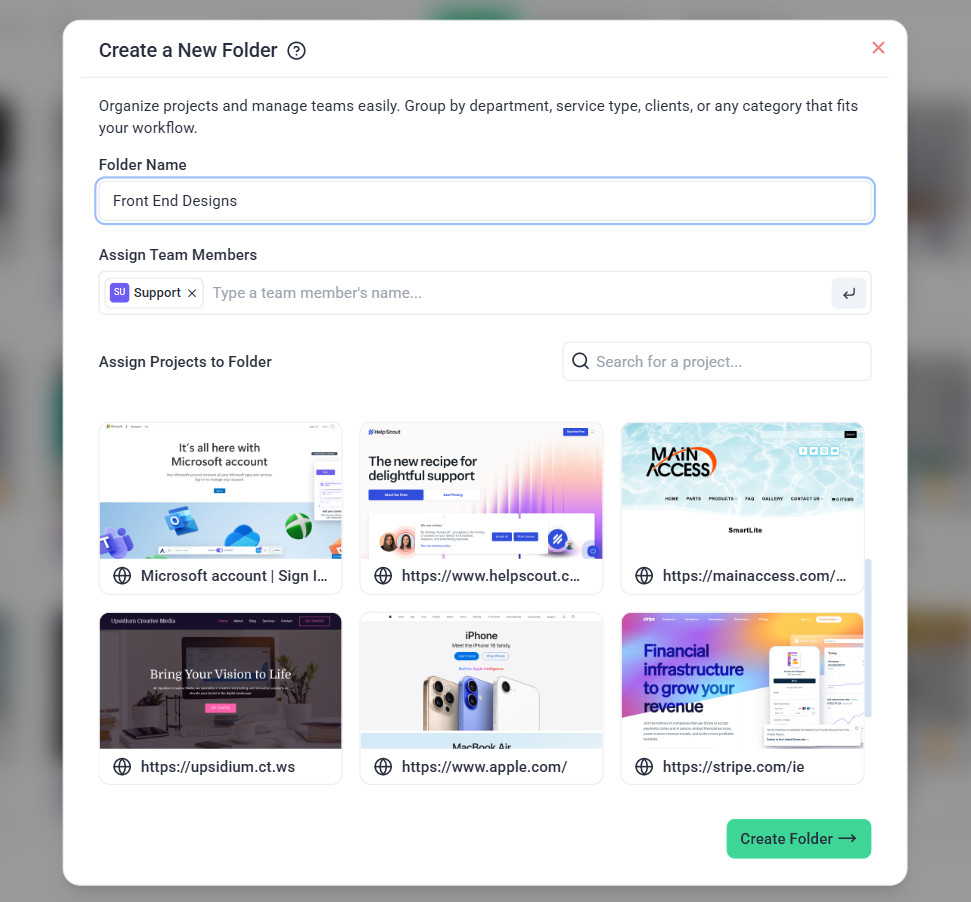
Option A: Using the Menu Option
- Navigate to the Projects screen.
- Click the Add Folder option in the top-right menu.
- Provide a Name for the folder, such as “Client A – Active Projects.”
- Assign Team Members to grant access to the folder’s projects.
- Add Projects to the folder and click Create Folder to finalize.

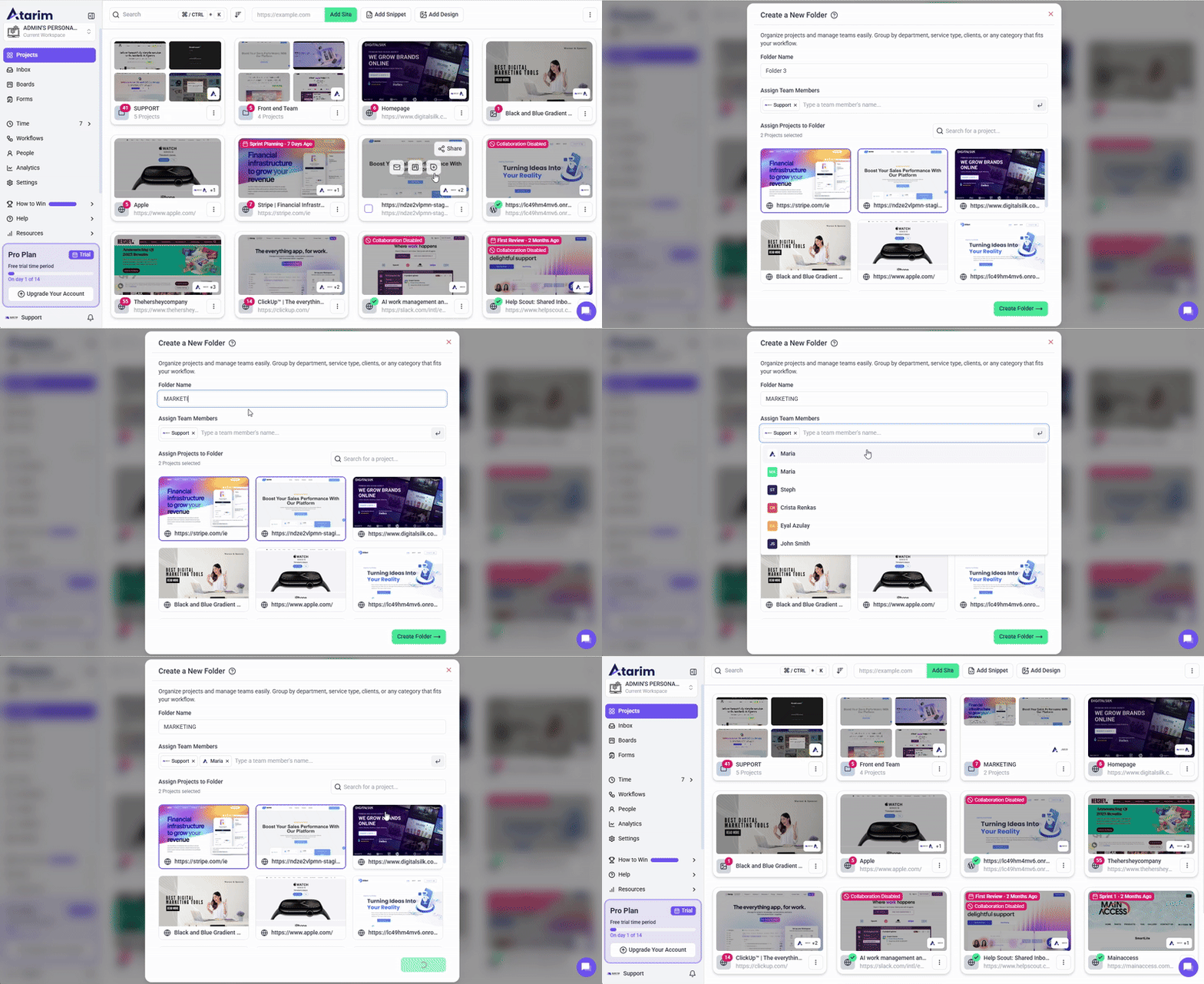
Option B: Using Drag-and-Drop
- Drag one project onto another in the Projects screen.
- A Create Folder prompt appears, listing both selected projects.
- Enter a folder name in the dialog box.
- Add or remove team members (optional).
- Click Confirm to create the folder.
Option C: Assigning a Folder to a Single Project
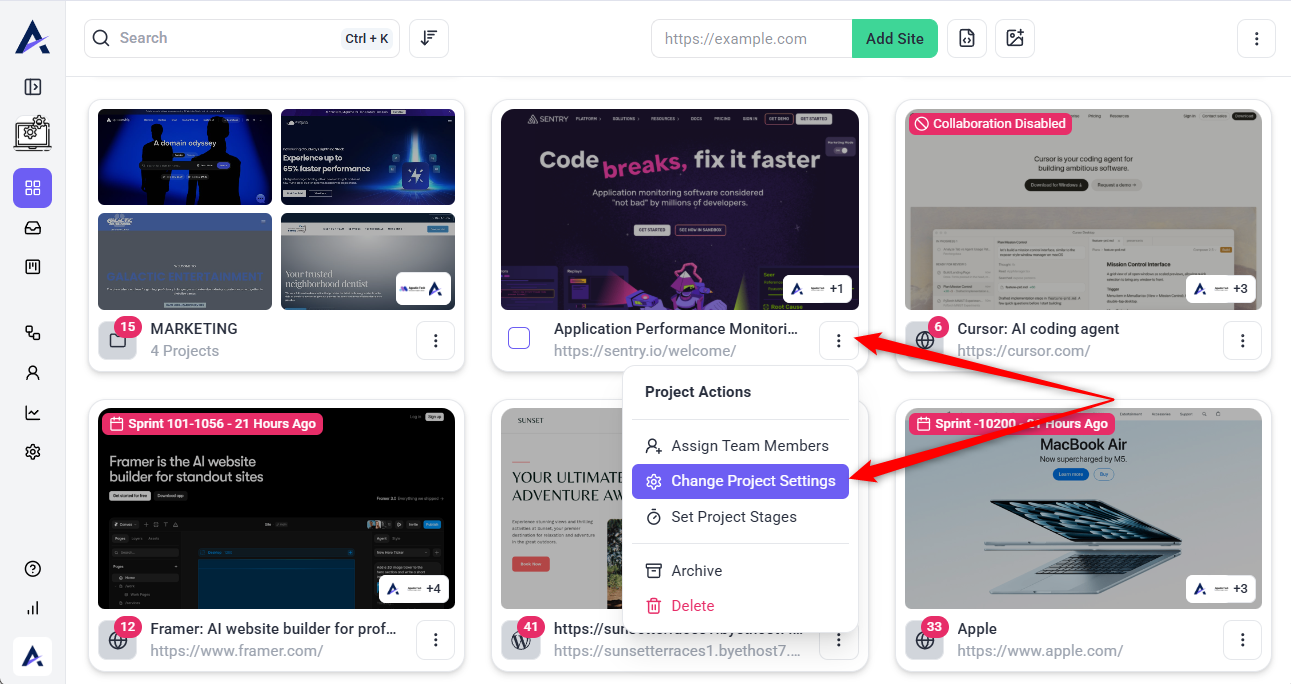
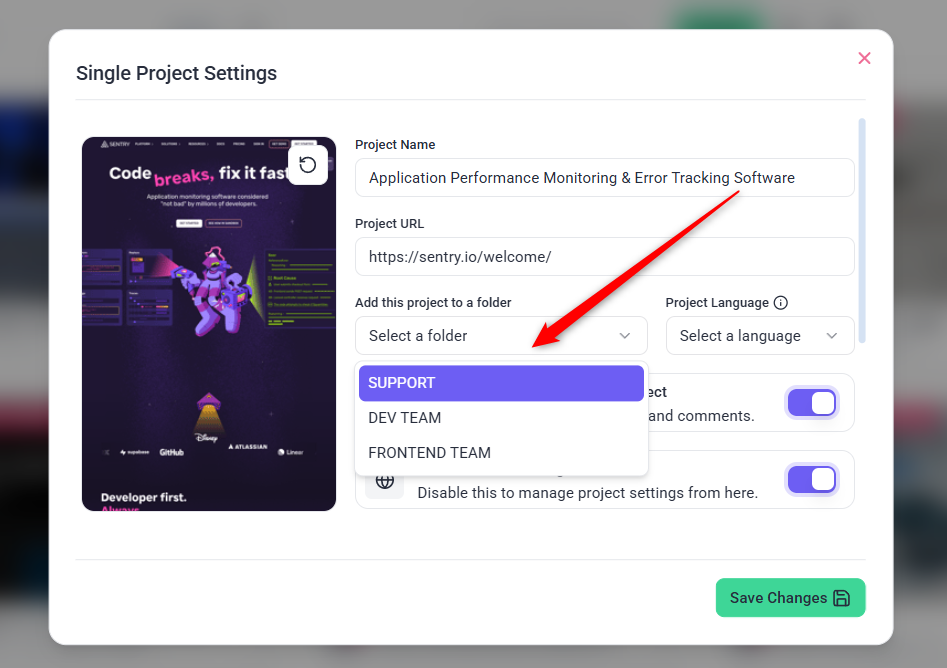
You can also assign a folder directly to a single project from the Project Settings screen. This is useful when you want to organize one specific project under the correct folder without changing multiple projects at once.
- Go to the Projects screen.
- Choose the project you want to update.
- Open the project’s Settings.
- Look for the Folder option.
- Select the folder you want to assign to the project.
- Click Save to apply the change.
Managing Folders
- Filtering Projects by Folder:
- Use the folder filter in the Projects Screen to display projects within a specific folder.

- Adding Projects to a Folder:
- Drag and drop projects into the desired folder or use the Project Settings menu to assign them.
- Assigning Team Members:
- Add or remove team members from the folder settings to manage access efficiently.
- Renaming a Folder:
- Edit the folder name in the folder settings and save changes.
- Deleting a Folder:
- Delete a folder via folder settings. Projects within the folder are not deleted but moved to the ungrouped view.
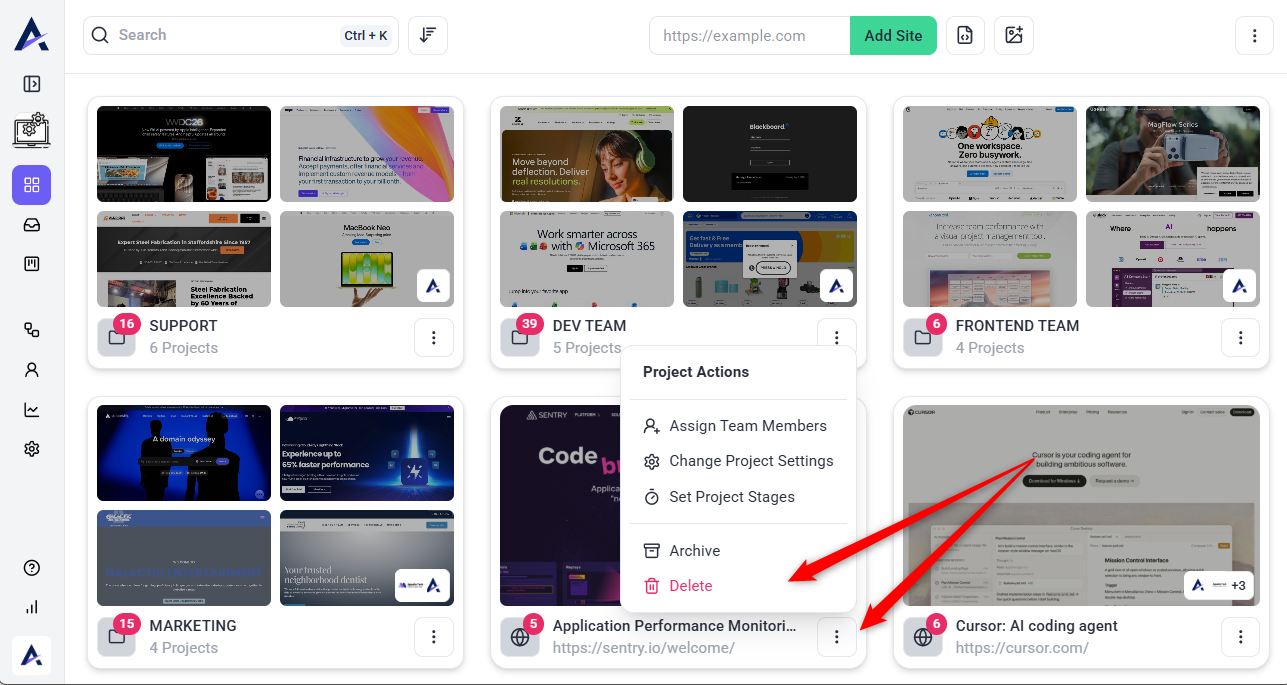
Use Cases for Folders
- Client-Based Organization:
A folder named “Client X” includes web design, development, and maintenance projects for that client. - Workflow-Based Organization:
Use folders such as “Active Projects” or “Completed Projects” to separate ongoing work from finished tasks. - Team Collaboration:
Create folders for specific teams like “Marketing Team” or “Development Team” to streamline workflows.
FAQs
Yes, projects can be reassigned using the Project Settings menu.
No, folder names are internal and visible only to team members with access to the project.
Yes, you can add multiple team members to a folder, granting them access to all the projects it contains.
The projects within the folder are not deleted. They are returned to the ungrouped project view.
Yes, folders work seamlessly in both views, adapting to your preferred project display format.